
SilverStone 90220
Silverstone PF240-ARGB All-in-One Liquid Cooler User Manual
Model: SST-PF240-ARGB-V2 (P/N: 90220)
Brand: SilverStone
Product Overview
The SilverStone PF240-ARGB is a premium all-in-one liquid cooler designed to provide efficient cooling for your CPU while enhancing your system's aesthetics with addressable RGB lighting. This cooler features a 240mm radiator, two 120mm ARGB fans, and an integrated pump/water block with ARGB illumination.
- Integrated addressable RGB lighting for water block and fan.
- Rubber pads included on fan for lower vibration and noise.
- Includes addressable RGB controller with 10 lighting modes and ability to adjust brightness and color changing speeds.
- Compatible with Intel LGA115x/1200/1700/2011/2066 and AMD AM2/AM3/AM4/FM1/FM2 sockets (V2).

Figure 1: Overview of the SilverStone PF240-ARGB liquid cooler, showcasing the 240mm radiator, two ARGB fans, and the illuminated pump/water block.
Setup and Installation
Before beginning installation, ensure your system is powered off and unplugged. Refer to your motherboard manual for specific CPU socket information and clearance requirements.
Package Contents
Verify that all components are present:
- 240mm Radiator with integrated pump/water block
- 2 x 120mm ARGB Fans
- ARGB Controller
- Mounting hardware for Intel (LGA115x/1200/1700/2011/2066) and AMD (AM2/AM3/AM4/FM1/FM2) sockets
- Thermal paste (may be pre-applied or in a tube)
- Screws and cables
Installation Steps
- Prepare the CPU Socket:
For Intel sockets, install the appropriate backplate behind the motherboard. For AMD sockets, use the existing retention clips or provided AMD backplate/standoffs as per the specific socket type.
- Mount Radiator and Fans:
Attach the two 120mm ARGB fans to the 240mm radiator using the provided long screws. Ensure the fan airflow direction is as desired (typically exhausting air out of the case or pulling air in). Mount the assembled radiator and fans to an available 240mm fan mount location in your PC case (e.g., top, front, or rear).
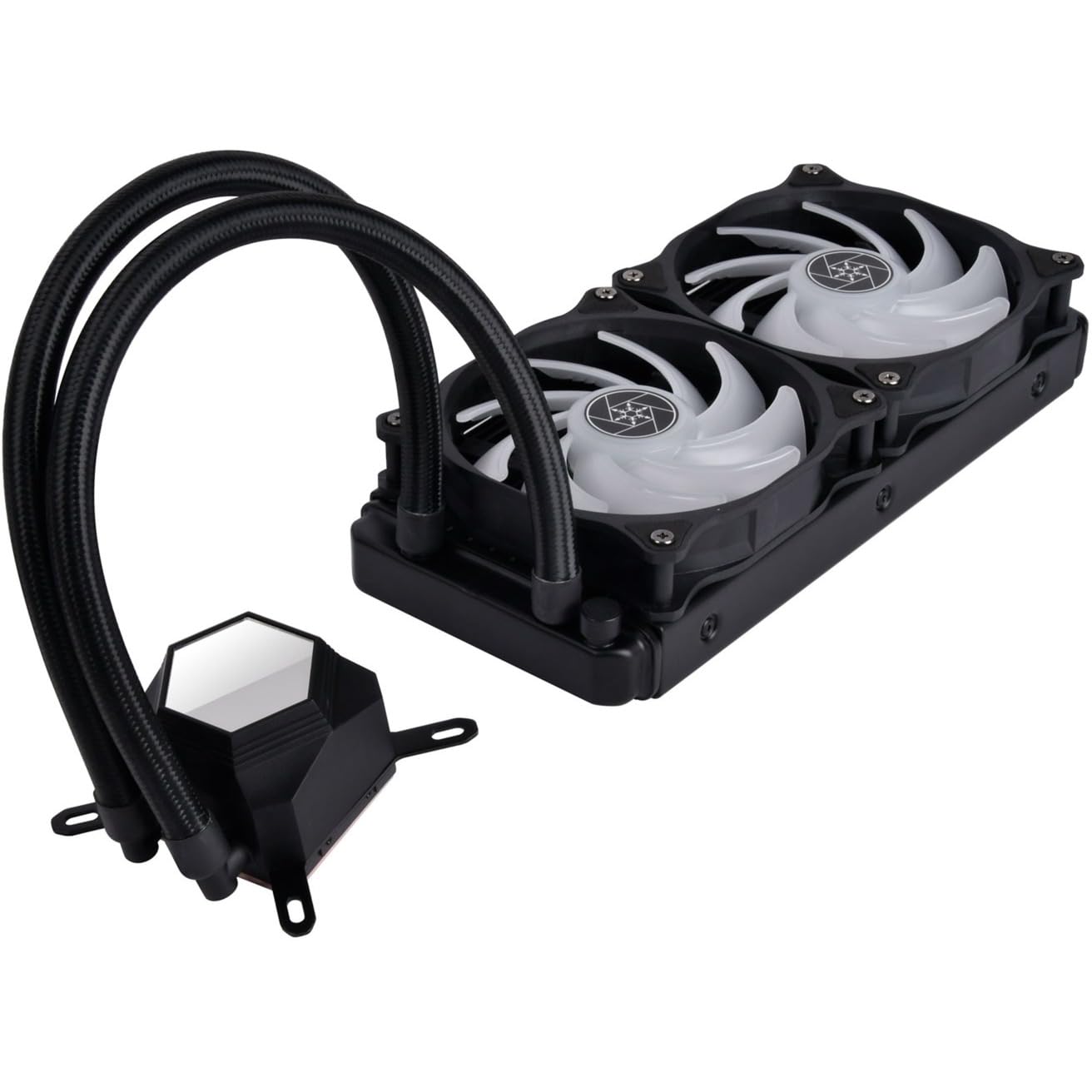
Figure 2: The radiator and fans assembly, ready for mounting inside the PC case.
- Apply Thermal Paste:
If thermal paste is not pre-applied to the water block's copper base, apply a small pea-sized amount to the center of your CPU's integrated heat spreader (IHS).
- Install Water Block/Pump:
Carefully align the water block with the CPU and the mounting holes on the motherboard. Gently lower the water block onto the CPU, ensuring even contact. Secure the water block using the appropriate standoffs and thumb screws for your CPU socket type. Tighten screws in a diagonal pattern until snug, but do not overtighten.

Figure 3: The SilverStone PF240-ARGB cooler fully installed within a PC system, demonstrating its compact fit and ARGB illumination.
- Connect Cables:
Connect the pump's 3-pin or 4-pin power cable to the CPU_FAN or AIO_PUMP header on your motherboard. Connect the ARGB cables from the fans and pump to the included ARGB controller. If your motherboard has a compatible 3-pin 5V ARGB header, you can connect the controller to the motherboard for software control, or use the controller's built-in buttons for lighting effects.
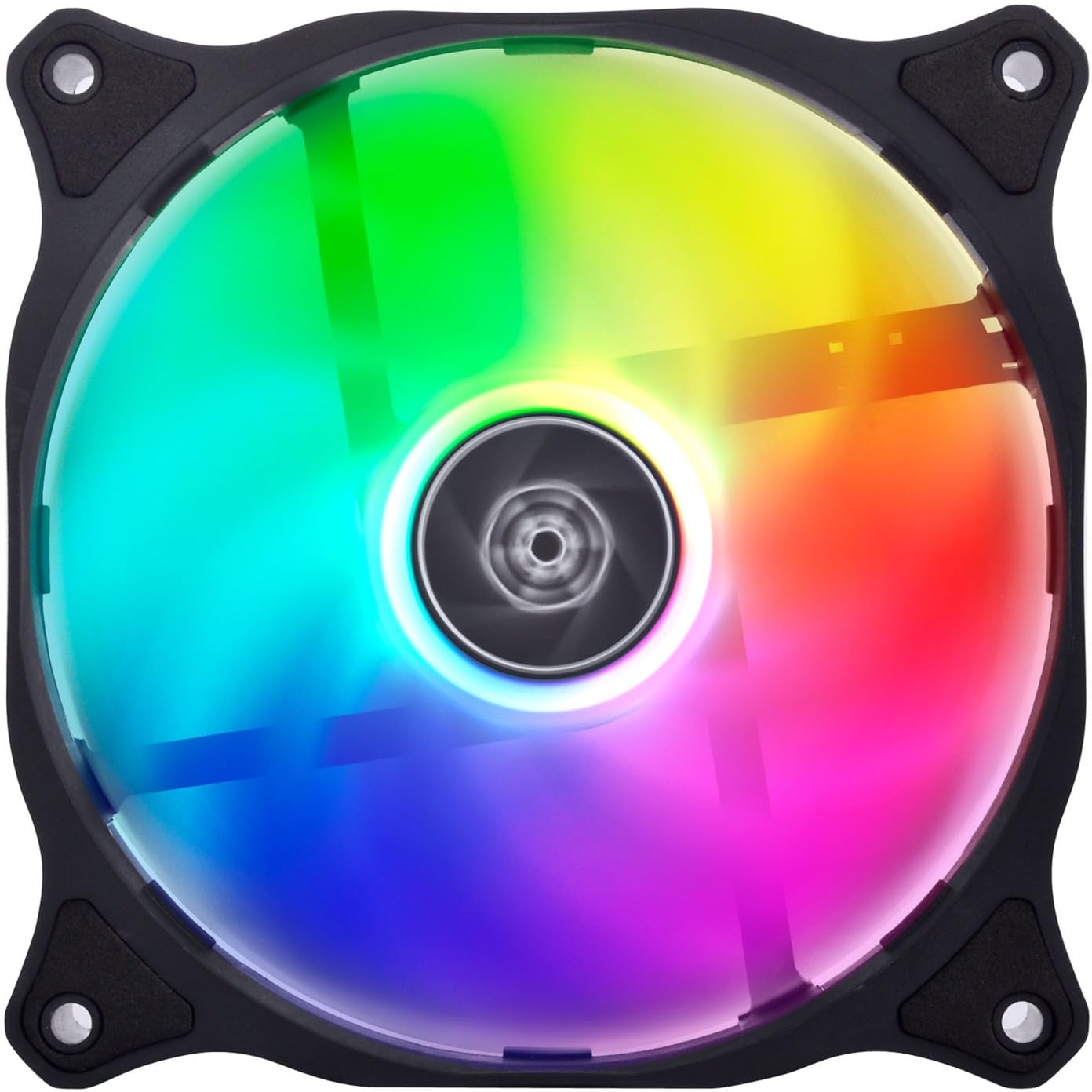
Figure 4: A detailed view of one of the 120mm ARGB fans, highlighting its vibrant lighting capabilities and rubber anti-vibration pads.
- Cable Management:
Route all cables neatly to ensure proper airflow and a clean build.
Operating Instructions
Once installed and powered on, the SilverStone PF240-ARGB liquid cooler operates automatically, regulating fan and pump speeds based on CPU temperature to maintain optimal cooling performance.
ARGB Lighting Control
The integrated ARGB controller allows you to customize the lighting effects of the fans and water block. Use the buttons on the controller to:
- Cycle through 10 pre-set lighting modes.
- Adjust brightness levels.
- Change color changing speeds.
If connected to a compatible motherboard ARGB header (3-pin, 5V), you can synchronize the cooler's lighting with other ARGB components using your motherboard's lighting control software (e.g., ASUS Aura Sync, MSI Mystic Light Sync, GIGABYTE RGB Fusion, ASRock Polychrome Sync).
Maintenance
Regular maintenance helps ensure optimal performance and longevity of your liquid cooler.
- Dust Removal:
Periodically (e.g., every 3-6 months), use compressed air to clean dust from the radiator fins and fan blades. Ensure the fans are not spinning rapidly during cleaning to prevent damage to the bearings.
- Fan Inspection:
Check fan blades for any obstructions or excessive dust buildup. Ensure fan cables are securely connected.
- Tubing and Connections:
Visually inspect the tubing and connections for any signs of leaks or damage. While AIO coolers are sealed systems, a quick check can provide peace of mind.
Troubleshooting
| Problem | Possible Cause | Solution |
|---|---|---|
| High CPU Temperatures |
|
|
| Fans or Pump Not Lighting Up (ARGB) |
|
|
| Excessive Fan Noise/Vibration |
|
|
Specifications
| Feature | Detail |
|---|---|
| Model Number | 90220 (SST-PF240-ARGB-V2) |
| Product Dimensions | 13.58 x 7.87 x 3.94 inches |
| Weight | 4.06 Pounds |
| Manufacturer | SilverStone Technology |
| Power Connector Type | 4-Pin (for fans), 3-Pin/4-Pin (for pump) |
| Voltage | 12 Volts |
| Cooling Method | Water |
| Compatible Devices | Desktop PCs |
| Noise Level | 35.6 dB (Maximum) |
| Material | Rubber (tubing), Aluminum (radiator), Copper (cold plate) |
| Maximum Rotational Speed | 2200 RPM (Fans) |
| Socket Compatibility | Intel LGA115x/1200/1700/2011/2066, AMD AM2/AM3/AM4/FM1/FM2 |
Warranty and Support
SilverStone Technology provides a limited warranty for its products. Please refer to the warranty card included with your product or visit the official SilverStone website for detailed warranty terms and conditions specific to the PF240-ARGB-V2.
For technical support, troubleshooting assistance, or inquiries regarding replacement parts, please contact SilverStone customer service. You can find contact information and additional resources on the official SilverStone website or their Amazon Brand Store.
Related documents90220


Ask a question about this manual
Ask about setup, troubleshooting, compatibility, parts, safety, or missing instructions. Manuals+ will review the question and use this page’s manual context to help answer it.