
KONIX PJ61Z
KONIX Electric Keyboard Piano User Manual
Model: PJ61Z
Introduction
Welcome to the user manual for your new KONIX Electric Keyboard Piano, Model PJ61Z. This portable 61-key electronic keyboard is designed for beginners and experienced musicians alike, offering touch-sensitive keys, Bluetooth MIDI connectivity, and a wide array of tones and rhythms. This manual provides essential information on setting up, operating, maintaining, and troubleshooting your keyboard to ensure a fulfilling musical experience.
Product Overview
The KONIX PJ61Z keyboard features 61 standard-sized, touch-sensitive keys, allowing for expressive play. It integrates modern connectivity options and a rich sound library to support various musical styles and learning methods.
Key Features:
- 61 Touch-Sensitive Keys: Provides dynamic response based on key pressure.
- Bluetooth MIDI Function: Seamlessly connect to music apps like Garage Band, Perfect Piano, and Pop Piano for interactive learning and creation.
- Extensive Sound Library: Includes 129 tones, 128 rhythm patterns, and 30 built-in demo songs.
- Multiple Playability Modes: Features dual keyboards, split function, teaching mode, dual voice, record, playback, chord metronome, and transpose functions.
- Portable Design: Lightweight and compact, ideal for travel and practice anywhere.
- Dual Power Supply: Operates on a built-in rechargeable Lithium battery or via USB charging.
Components:
The package typically includes the KONIX PJ61Z keyboard, a sustain pedal, a USB charging cable, a power adapter, and a portable carrying bag.

Image: The KONIX PJ61Z keyboard shown with its included accessories: a carrying bag, sustain pedal, USB cable, and power adapter. A tablet displaying a music app is positioned above the keyboard, indicating its connectivity features.
Setup
1. Powering On Your Keyboard:
- Battery Power: The keyboard has a built-in rechargeable Lithium battery. Ensure it is charged for portable use. A full charge provides approximately 6-8 hours of playtime.
- USB Charging: Connect the provided USB cable to the keyboard's USB/DC 5V port and the other end to the power adapter, a computer, or a power bank. Plug the adapter into a wall outlet.
- Locate the Power Button (ON/OFF switch) on the side panel of the keyboard. Slide it to the 'ON' position to power on the device.
2. Connecting Accessories:
- Sustain Pedal: Insert the sustain pedal cable into the Sustain Pedal Port on the side of the keyboard. This allows you to sustain notes as you play.
- Headphones: For private practice, connect standard 3.5mm headphones to the Headphone Jack. This will mute the internal speakers.
- External Audio Input (Aux-In): Use the Aux-In Port to connect an external audio source (e.g., smartphone, MP3 player) and play along with your favorite music through the keyboard's speakers.
- USB/MIDI Connection: The USB/MIDI Port allows you to connect the keyboard to a computer or other smart devices for MIDI data transfer, enabling music editing and creation.

Image: A detailed view of the KONIX PJ61Z keyboard's side panel, highlighting the various ports: Headphone Jack, Aux-In Port, Sustain Pedal Port, USB/MIDI Port, and the Power Button (ON/OFF switch). Each port is clearly labeled with an icon and text description.
Operating Instructions
1. Basic Functions:
- Volume Control: Use the 'Vol' buttons (Up/Down arrows) on the control panel to adjust the overall volume.
- Tone Selection: Press the 'Tone' button and use the Up/Down arrows to cycle through the 129 available tones. The display will show the current tone number.
- Rhythm Selection: Press the 'RHY' button and use the Up/Down arrows to select from the 128 rhythm patterns.
- Demo Songs: Press the 'Demo' button to play one of the 30 built-in demo songs. Use the Up/Down arrows to select different songs.
- Dynamics (Touch Sensitivity): The keyboard features touch-sensitive keys. The volume and timbre of the sound will vary based on how hard you press the keys. This feature is automatically active.
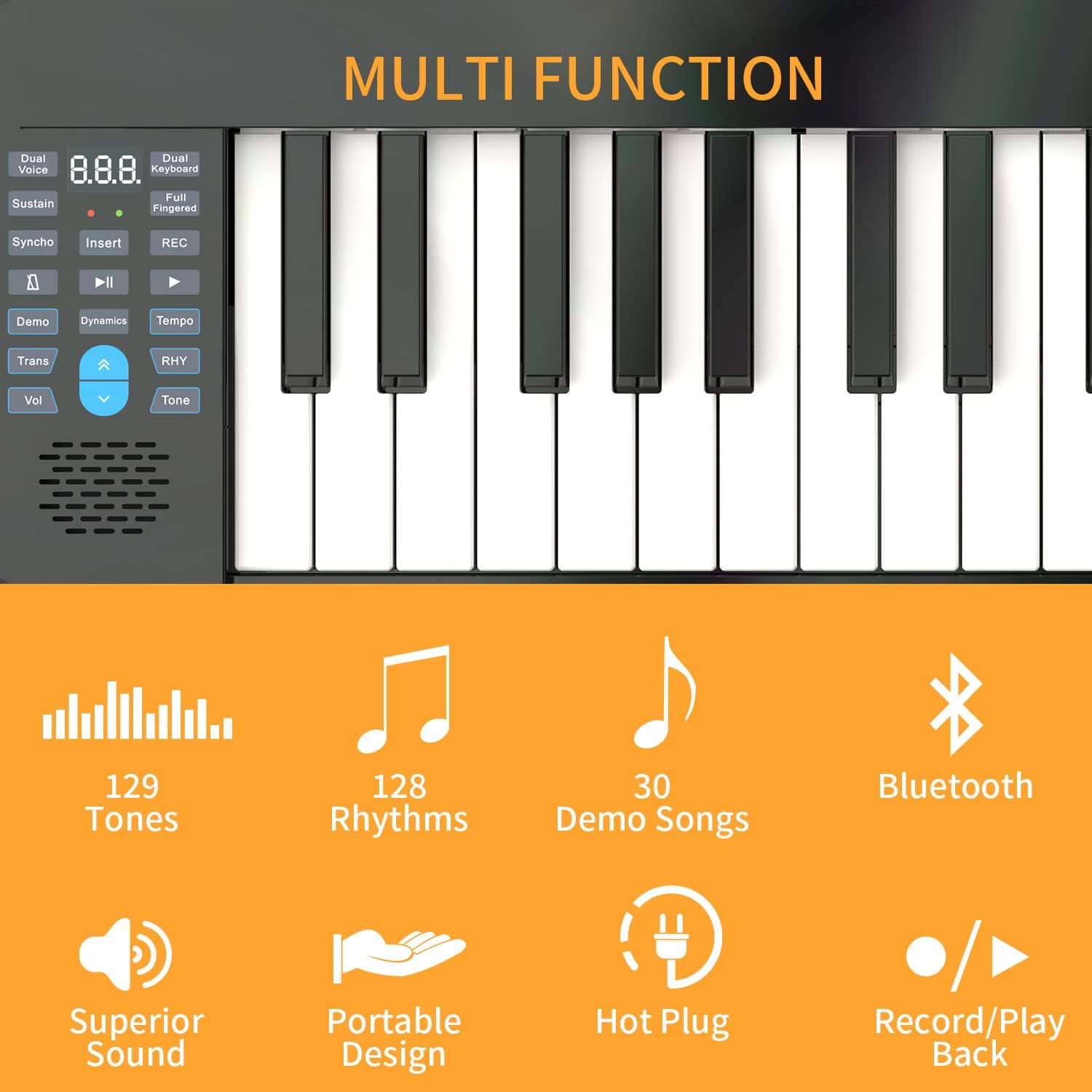
Image: A close-up view of the KONIX PJ61Z keyboard's control panel, showing buttons for Dual Voice, Sustain, Synchro, Demo, Transpose, Volume, Tone, Rhythm, and the display. Icons indicate features like 129 Tones, 128 Rhythms, 30 Demo Songs, Bluetooth, Superior Sound, Portable Design, Hot Plug, and Record/Playback.
2. Advanced Functions:
- Bluetooth MIDI Function:
- Ensure Bluetooth is enabled on your smart device (tablet, smartphone, computer).
- On your device, open a compatible piano learning app (e.g., Garage Band, Perfect Piano, Pop Piano).
- Within the app's settings, search for and connect to the KONIX keyboard via Bluetooth MIDI.
- Once connected, you can use the keyboard to control the app's sounds and features, enhancing your learning and playing experience.
- Record and Playback: Press the 'Record' button to begin recording your performance. Press 'Playback' to listen to your recorded piece.
- Dual Voice: This function allows you to layer two different tones simultaneously. Refer to the specific button on the control panel.
- Split Function: Divides the keyboard into two sections, each with its own tone, useful for duets or teaching.
- Teaching Mode: Engage teaching mode to follow along with built-in lessons or app-based tutorials.
- Transpose: Adjust the pitch of the entire keyboard up or down in semitone steps without changing your finger positions.

Image: An illustration demonstrating the MIDI functionality of the KONIX keyboard. It shows the keyboard connected wirelessly to a tablet, and wired to a desktop computer and a smartphone, all running music software like Garageband, Perfect Piano, and Pop Piano. This highlights the keyboard's versatility in connecting with various intelligent devices for music creation and practice.
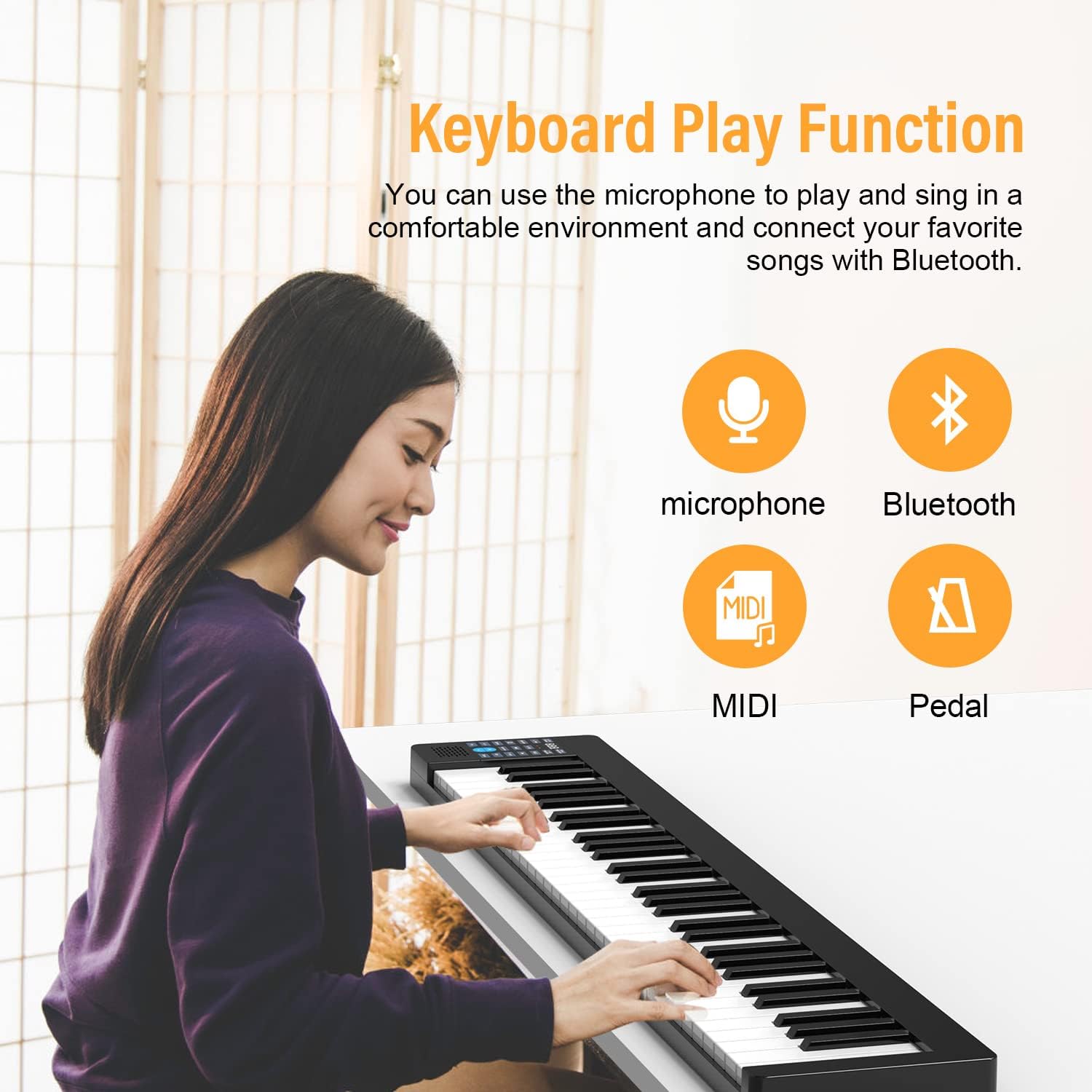
Image: A person playing the KONIX keyboard, with icons indicating Microphone, Bluetooth, MIDI, and Pedal functions. This illustrates the various ways the keyboard can be used for performance and connectivity.
Maintenance
- Cleaning: Use a soft, dry cloth to wipe down the keyboard's surface. For stubborn dirt, a slightly damp cloth can be used, but ensure no moisture enters the keys or control panel. Avoid abrasive cleaners or solvents.
- Storage: When not in use, store the keyboard in its provided carrying bag to protect it from dust and scratches. Keep it in a cool, dry place away from direct sunlight and extreme temperatures.
- Battery Care: To prolong battery life, avoid fully discharging the battery frequently. If storing for an extended period, charge the battery to about 50% and recharge every few months.
- Handling: Handle the keyboard with care. Avoid dropping it or placing heavy objects on it, as this can damage the internal components or keys.
Troubleshooting
If you encounter issues with your KONIX keyboard, please refer to the following common troubleshooting steps:
| Problem | Possible Cause | Solution |
|---|---|---|
| No sound from speakers/headphones. |
|
|
| Bluetooth MIDI connection issues. |
|
|
| Keys not responding or inconsistent touch sensitivity. |
|
|
| Short battery life. |
|
|
If the problem persists after trying these solutions, please contact KONIX customer support for further assistance.
Specifications
| Feature | Detail |
|---|---|
| Model Name | PJ61Z |
| Number of Keys | 61 |
| Key Type | Touch Sensitive |
| Tones | 129 types |
| Rhythm Patterns | 128 types |
| Demo Songs | 30 built-in |
| Connectivity | Bluetooth MIDI, USB, 3.5mm Headphone Jack, Aux-In |
| Power Source | Built-in Rechargeable Lithium Battery, Corded Electric (USB) |
| Battery Type | 1 Lithium Ion battery required |
| Item Weight | 7.73 pounds (approx. 3.5 kg) |
| Package Dimensions | 38.8 x 8.8 x 4 inches (approx. 98.5 x 22.4 x 10.2 cm) |
| Color | Black |
| Supported Software | Garage Band, Perfect Piano, Pop Piano |
Warranty and Support
For information regarding warranty coverage, returns, or technical support, please refer to the documentation included with your purchase or visit the official KONIX website. You may also contact KONIX customer service directly for assistance with any product-related inquiries.
KONIX Official Store: Visit the KONIX Store on Amazon
Related documentsPJ61Z


Ask a question about this manual
Ask about setup, troubleshooting, compatibility, parts, safety, or missing instructions. Manuals+ will review the question and use this page’s manual context to help answer it.