
1. Introduction
This manual provides detailed instructions for the installation, configuration, operation, and maintenance of your Ruijie Reyee Wi-Fi 6 Ceiling Access Point, model RG-RAP2260(G). Please read this manual thoroughly before using the device to ensure proper setup and optimal performance.
2. Safety Information
- Power Supply: Use only the specified power adapter (DC 12V/1.5A) or a Power over Ethernet (PoE) source that complies with IEEE 802.3at/af standards.
- Installation Environment: Install the device in a dry, well-ventilated area, away from direct sunlight, heat sources, and strong electromagnetic fields.
- Mounting: Ensure the device is securely mounted to a stable surface (ceiling or wall) to prevent accidental falls.
- Maintenance: Do not open the device casing. Refer all servicing to qualified personnel.
3. Package Contents
Verify that all items are present in the package:
- 1 x Ruijie Reyee Wi-Fi 6 Ceiling Access Point (RG-RAP2260(G))
- Mounting Bracket
- Screws and Wall Plugs
- Quick Start Guide (may be included separately)
4. Product Overview
The Ruijie Reyee RG-RAP2260(G) is a high-performance Wi-Fi 6 (802.11ax) ceiling-mounted access point designed for robust wireless connectivity.
4.1 Front View
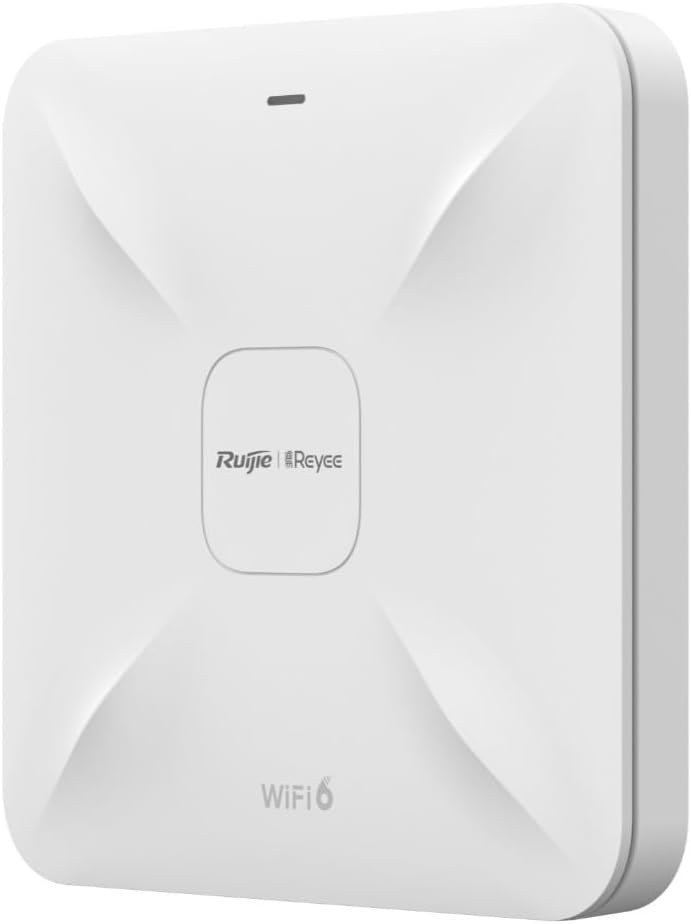
Image Description: This image displays the front view of the Ruijie Reyee RG-RAP2260(G) access point. It is a square-shaped white device with a subtle X-pattern on its surface, featuring the 'Ruijie | Reyee' logo centrally and 'WiFi 6' text at the bottom. A small LED indicator is visible at the top edge.
4.2 Rear View and Ports

Image Description: This image shows the rear panel of the Ruijie Reyee RG-RAP2260(G) access point. It features several ports and a reset button. From left to right, the ports are labeled 'RESET', 'LAN2', 'LAN1/PoE', and 'DC=12V'. There are also mounting points visible around the perimeter.
4.3 LED Indicators
The LED indicator on the front of the device provides status information:
- Solid Blue: Device is operating normally.
- Flashing Blue: Device is booting up or performing a firmware upgrade.
- Solid Red: Device error or failure.
- Off: Device is powered off.
5. Setup
5.1 Mounting the Access Point
- Choose a Location: Select a central location on a ceiling or wall for optimal Wi-Fi coverage. Avoid obstructions.
- Install Mounting Bracket: Use the provided screws and wall plugs to securely attach the mounting bracket to the chosen surface.
- Attach Access Point: Align the access point with the mounting bracket and twist it clockwise until it locks into place.
5.2 Powering the Device
The RG-RAP2260(G) can be powered in two ways:
- Power over Ethernet (PoE): Connect an Ethernet cable from a PoE-enabled switch or injector to the LAN1/PoE port on the access point. This provides both power and data connectivity.
- DC Power Adapter: Connect a 12V/1.5A DC power adapter (sold separately) to the DC=12V port. Then, connect an Ethernet cable from your network to either the LAN1/PoE or LAN2 port for data.
5.3 Initial Configuration
You can configure the access point using the Reyee Cloud App or a web browser.
5.3.1 Using the Reyee Cloud App
- Download the Reyee Cloud App from your mobile app store.
- Register or log in to your Reyee Cloud account.
- Tap '+' to add a new device and follow the on-screen instructions to scan the QR code on the device or manually add it.
- Configure your Wi-Fi network name (SSID) and password.
5.3.2 Using a Web Browser
- Connect your computer to the access point's network (either directly via Ethernet or to its default Wi-Fi SSID, if broadcast).
- Open a web browser and enter the default IP address (refer to the Quick Start Guide or device label for the specific IP, commonly 192.168.1.1 or 192.168.120.1).
- Enter the default username and password (e.g., admin/admin or as specified on the device label).
- Follow the setup wizard to configure your network settings, including SSID, security type, and password.
6. Operating
6.1 Connecting Devices to Wi-Fi
Once configured, your Wi-Fi network will be broadcast. On your wireless devices (smartphones, laptops, tablets):
- Go to Wi-Fi settings.
- Select your configured Wi-Fi network name (SSID).
- Enter the Wi-Fi password.
- Connect.
6.2 Guest Network
The RG-RAP2260(G) supports a guest network feature. This allows you to provide internet access to guests without giving them access to your main network resources. This feature can be enabled and configured through the Reyee Cloud App or the web management interface.
- Enable Guest Mode.
- Set a separate SSID and password for the guest network.
- Configure bandwidth limits or access restrictions if desired.
7. Maintenance
7.1 Firmware Updates
Regularly updating the firmware ensures optimal performance, security, and access to new features. Firmware updates can typically be managed via the Reyee Cloud App or the web management interface. It is recommended to perform updates during off-peak hours.
7.2 Cleaning
To clean the device, gently wipe the exterior with a soft, dry cloth. Do not use liquid cleaners or abrasive materials, as they may damage the casing or internal components.
7.3 Factory Reset
To restore the access point to its factory default settings:
- Ensure the device is powered on.
- Locate the RESET button on the rear panel (refer to Section 4.2).
- Using a paperclip or a similar pointed object, press and hold the RESET button for approximately 5-10 seconds until the LED indicator changes.
- Release the button. The device will reboot with factory default settings.
8. Troubleshooting
8.1 No Power
- Check if the power adapter is securely connected to the DC=12V port and a power outlet, or if the PoE source is active and connected to the LAN1/PoE port.
- Verify the power outlet is functional.
8.2 No Wi-Fi Signal
- Ensure the device is powered on and the LED indicator is solid blue.
- Check if the Ethernet cable is properly connected to the LAN1/PoE or LAN2 port and to your network.
- Verify Wi-Fi settings (SSID, password) in the configuration interface.
- Restart the access point.
8.3 Slow Wi-Fi Speed
- Check for interference from other wireless devices or networks.
- Ensure the access point is placed in an optimal location, free from obstructions.
- Verify your internet service provider's speed.
- Update the access point's firmware to the latest version.
9. Specifications
| Feature | Specification |
|---|---|
| Brand | RUIJIE |
| Model Name | RG-RAP2260(G) |
| Wi-Fi Standard | 802.11ac, 802.11ax (Wi-Fi 6) |
| Frequency Band Class | Dual Band |
| Connectivity Technology | Wi-Fi |
| Special Feature | Guest Mode |
| Antenna Type | Internal |
| Color | White |
| Compatible Devices | All compatible devices |
| Components Included | 1 Reyee WiFi 6 Dual Band 1775 Mbps Ceiling Access Point - White |
10. Warranty and Support
10.1 Warranty Information
This product comes with a standard manufacturer's warranty. Please refer to the warranty card included in your product packaging or visit the official Ruijie website for detailed warranty terms and conditions specific to your region.
10.2 Technical Support
For technical assistance, troubleshooting, or further inquiries, please contact Ruijie Networks customer support. Support resources, including FAQs and contact details, are available on the official Ruijie website:
- Website: www.ruijienetworks.com
- Email/Phone: Refer to the website for regional contact information.


