
LiANGSTAR ZZZ-BBB-UK-0801-C-148
LiANGSTAR Laptop Cooling Pad User Manual
Model: ZZZ-BBB-UK-0801-C-148
1. Introduction
Thank you for purchasing the LiANGSTAR Laptop Cooling Pad. This cooling pad is designed to enhance your laptop's performance and lifespan by providing efficient heat dissipation. It features multiple cooling fans, adjustable height settings for ergonomic comfort, and additional USB ports for convenience. Please read this manual carefully before use to ensure proper operation and maintenance.

Image: The LiANGSTAR Laptop Cooling Pad in use, supporting a laptop and featuring a side-mounted smartphone stand. The cooling fans are illuminated with blue light.
2. Product Features
- Efficient Cooling: Equipped with six powerful cooling fans for rapid heat dissipation.
- Adjustable Fan Speed: Independent control for two fan groups, allowing customization of airflow.
- Ergonomic Design: 7-level adjustable height and angle settings to promote comfortable posture and reduce strain on the neck and shoulders.
- Dual USB Ports: Two USB 2.0 ports for connecting additional peripherals, ensuring no loss of laptop ports.
- Integrated Smartphone Stand: A convenient, hidden stand to hold your smartphone.
- Quiet Operation: Designed for low noise levels, with a maximum operating noise of 25 dB.
- Durable Construction: Features a large area metal mesh surface for optimal heat transfer and durability.
- Anti-Slip Design: Includes an anti-slip stopper to prevent the laptop from sliding off.

Image: A close-up top view of the cooling pad, highlighting its six blue-illuminated fans, designed for powerful heat dissipation.
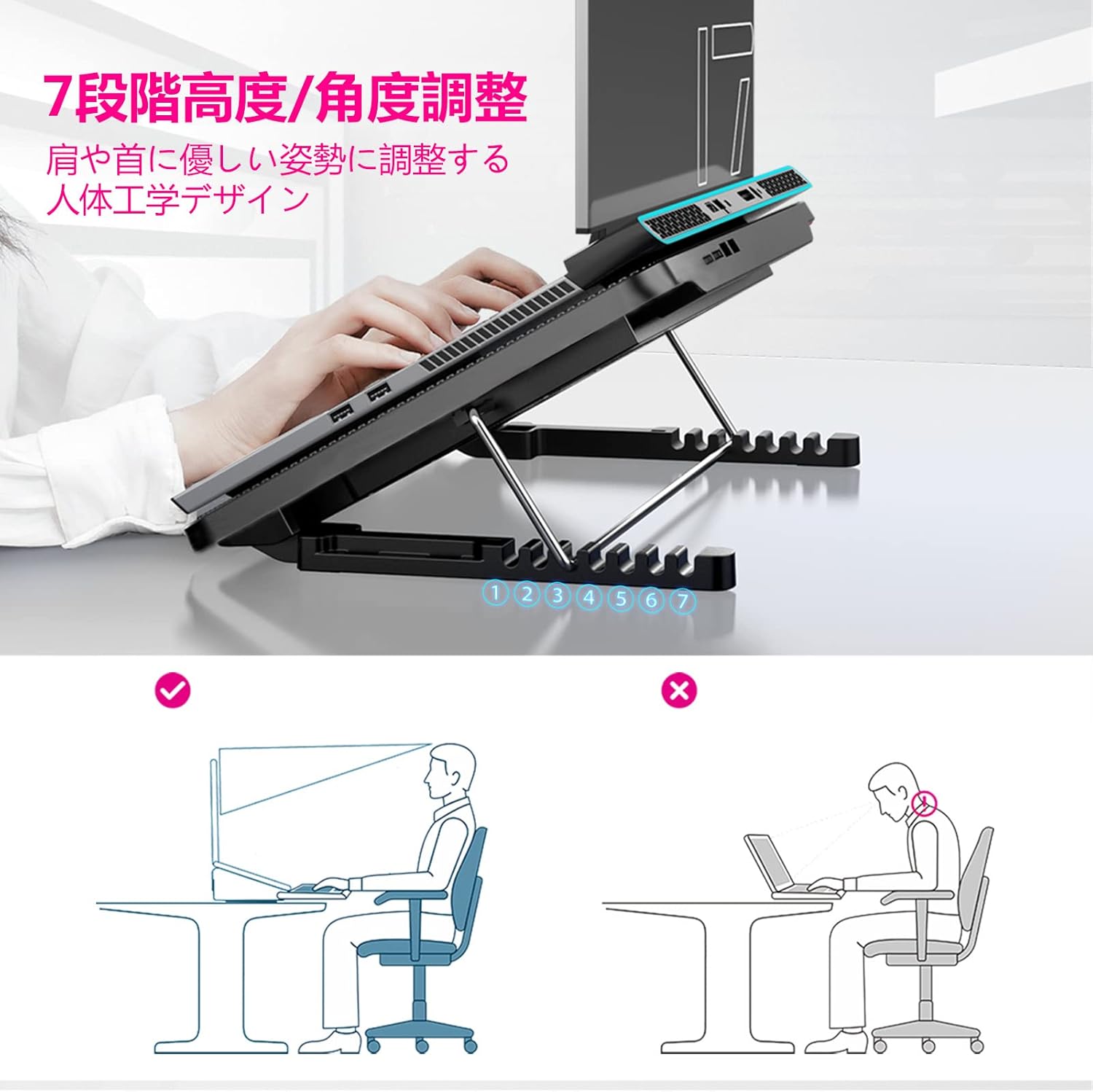
Image: An illustration demonstrating the 7-level height and angle adjustment feature of the cooling pad, promoting an ergonomic posture for users.
3. Package Contents
Please check the package for the following items:
- LiANGSTAR Laptop Cooling Pad x 1
- USB A to A Cable x 1
- User Manual x 1 (This document)
4. Setup Guide
- Unpack: Carefully remove the cooling pad and all accessories from the packaging.
- Place the Cooling Pad: Position the cooling pad on a stable, flat surface.
- Adjust Height (Optional): Adjust the cooling pad to your desired height and angle using the adjustable stand at the back. There are 7 levels of adjustment.
- Place Your Laptop: Carefully place your laptop on top of the cooling pad. Ensure it is centered and the anti-slip stopper is engaged to prevent sliding.
- Connect Power: Connect one end of the provided USB A to A cable to a USB port on the cooling pad and the other end to an available USB port on your laptop. The fans should start spinning and the blue LED lights will illuminate.
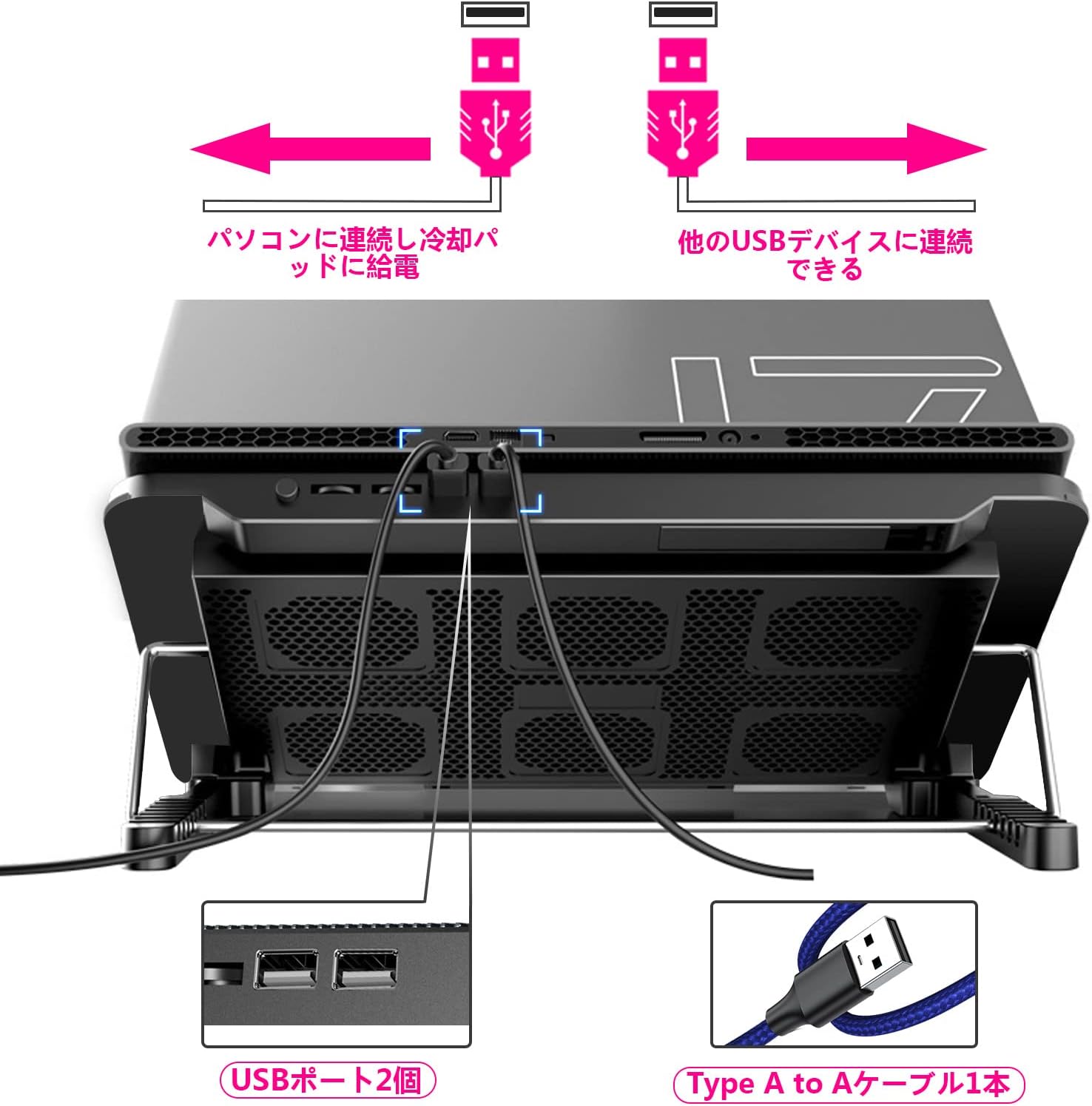
Image: The rear view of the cooling pad, illustrating the two USB ports and how to connect the provided USB cable to power the unit from a laptop.
5. Operating Instructions
5.1 Fan Speed and Mode Adjustment
The cooling pad features two independent fan control dials/buttons, allowing you to adjust the fan speed and activate different fan groups.
- Locate the two rotary dials or buttons on the side/front of the cooling pad.
- Rotate the dials or press the buttons to increase or decrease the fan speed.
- Each dial/button typically controls a specific group of fans (e.g., left three fans, right three fans, or all six fans). Experiment to find your preferred cooling mode.

Image: A visual guide to the fan speed adjustment dials and buttons, demonstrating how to activate different fan configurations (e.g., three fans, or all six fans).
5.2 Using the USB Ports
The cooling pad is equipped with two USB 2.0 ports. One port is used to power the cooling pad from your laptop. The other port can be used to connect other USB devices, such as a mouse, keyboard, or USB flash drive, effectively expanding your laptop's connectivity.
- Connect the cooling pad to your laptop's USB port using the provided cable.
- Plug your additional USB devices into the available USB port on the cooling pad.

Image: A detailed view of the two USB ports on the cooling pad, highlighting their function in providing power and expanding connectivity without occupying additional laptop ports.
5.3 Using the Smartphone Stand
A retractable smartphone stand is integrated into the cooling pad for your convenience.
- Gently pull out the hidden stand located on the side of the cooling pad.
- Place your smartphone into the stand.
- Push the stand back in when not in use.
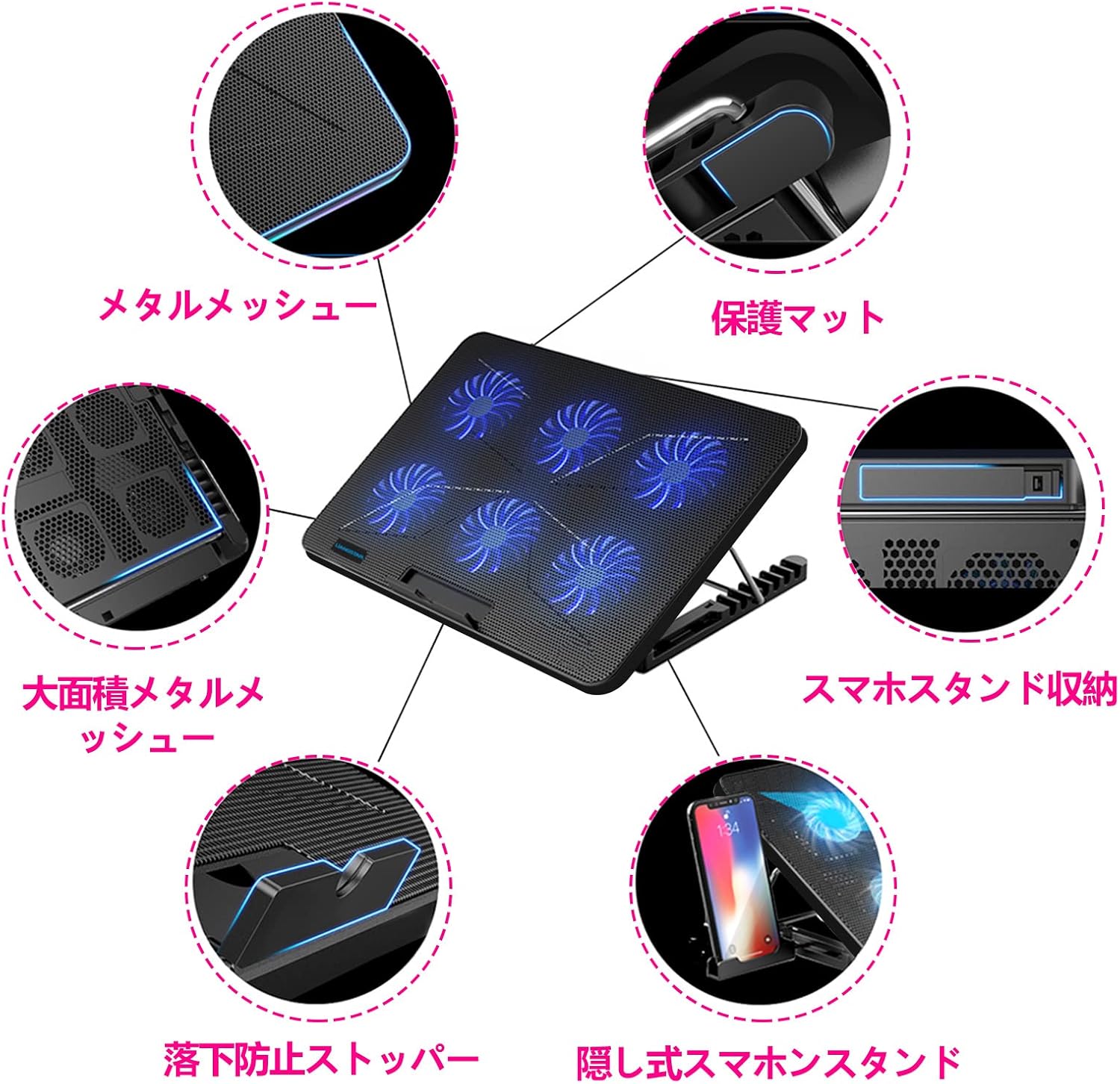
Image: An exploded diagram illustrating various features of the cooling pad, including the retractable smartphone stand, metal mesh, and anti-slip stopper.
6. Maintenance
To ensure the longevity and optimal performance of your LiANGSTAR Laptop Cooling Pad, follow these simple maintenance guidelines:
- Cleaning: Regularly wipe the surface of the cooling pad with a soft, dry cloth to remove dust. For stubborn dirt, a slightly damp cloth can be used, but ensure the pad is completely dry before reconnecting power.
- Dust Removal (Fans): Periodically use compressed air to clear dust from the fan blades and mesh to maintain efficient airflow. Do not insert fingers or objects into the fan area while the unit is powered on.
- Storage: When not in use for extended periods, store the cooling pad in a cool, dry place away from direct sunlight and extreme temperatures.
- Avoid Liquids: Keep the cooling pad away from liquids to prevent electrical damage.
7. Troubleshooting
If you encounter any issues with your cooling pad, please refer to the following common problems and solutions:
| Problem | Possible Cause | Solution |
|---|---|---|
| Fans are not spinning / LED lights are off. |
|
|
| Fans are spinning but cooling is ineffective. |
|
|
| Unusual noise from the fans. |
|
|
| Smartphone stand is stuck. |
|
|
8. Specifications
| Feature | Detail |
|---|---|
| Model Number | ZZZ-BBB-UK-0801-C-148 |
| Dimensions (L x W x H) | 36 cm x 25.5 cm x 3 cm (folded height) / 15.5 cm (max height) |
| Weight | 830 g |
| Material | Metal (mesh), Plastic |
| Number of Fans | 6 |
| Fan Speed | Up to 2100 ±10% RPM |
| Airflow | 75 CFM |
| Noise Level | Max 25 dB |
| USB Ports | 2 x USB 2.0 |
| Compatibility | Laptops up to 17.3 inches |
9. Warranty and Support
LiANGSTAR products come with a standard warranty. For specific warranty terms and conditions, please refer to the product packaging or contact your point of purchase. If you have any questions, require technical assistance, or need to report an issue, please contact LiANGSTAR customer support through the retailer's platform or the official LiANGSTAR website.
For the most up-to-date support information, please visit the official LiANGSTAR website or contact the seller directly via the Amazon platform.
Ask a question about this manual
Ask about setup, troubleshooting, compatibility, parts, safety, or missing instructions. Manuals+ will review the question and use this page’s manual context to help answer it.