
1. Introduction
This manual provides detailed instructions for the setup, operation, and maintenance of your Maxcio Smart Power Strip. This device integrates three individually controlled AC outlets and three USB ports with smart home capabilities, allowing remote control via a smartphone application and voice commands through Amazon Alexa or Google Assistant.
Key features include:
- Voice Control: Compatible with Amazon Alexa and Google Assistant for hands-free operation.
- APP Remote Control: Manage connected devices from anywhere using the Maxcio or Smart Life application.
- Timer Function: Schedule devices to turn on or off automatically.
- Surge Protection: Built-in protection against power surges.
- Individual Outlet Control: Each AC outlet can be controlled independently.
- USB Port Control: Three USB ports are controlled simultaneously as one unit.

Image 1.1: Maxcio Smart Power Strip with its accompanying mobile application interface.
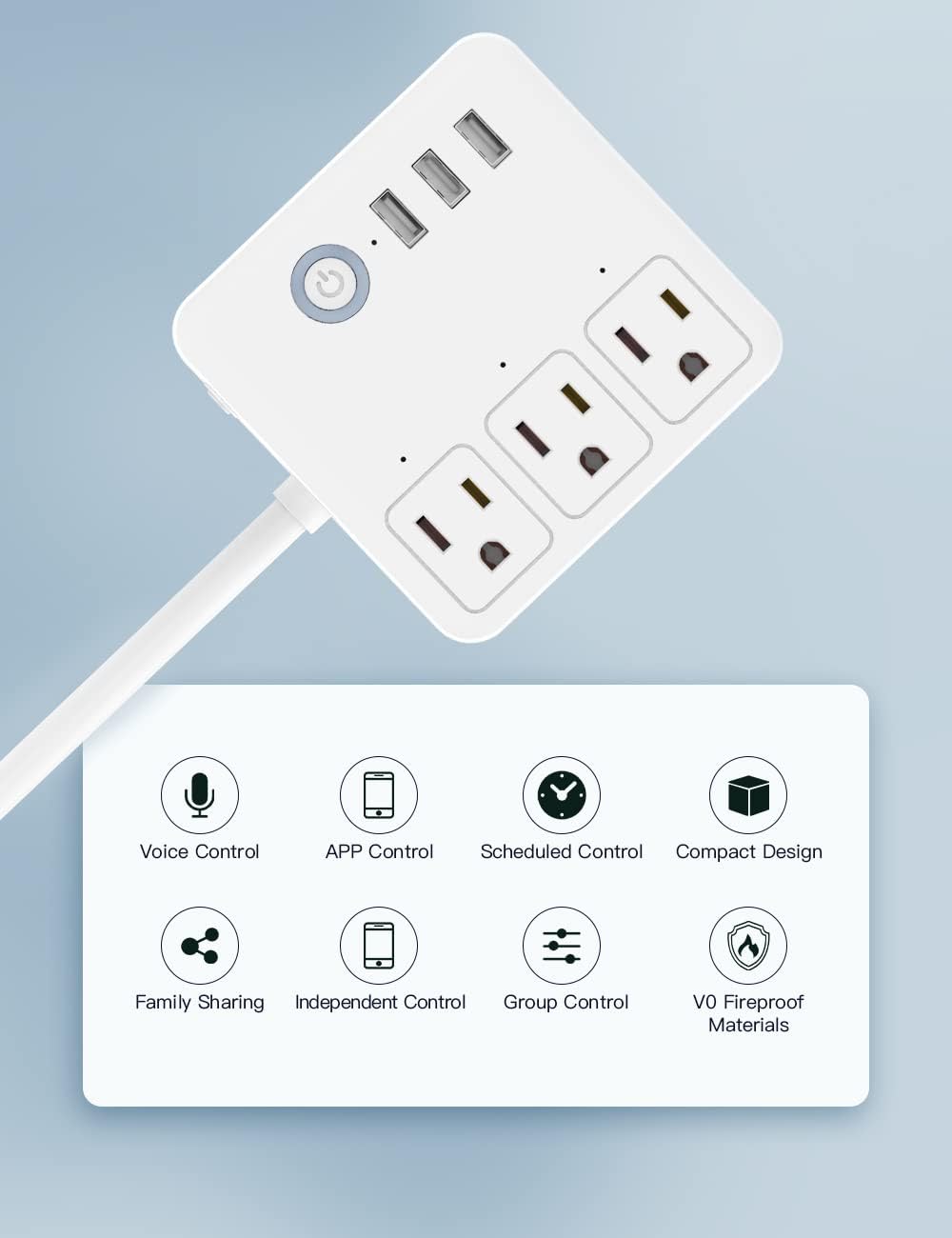
Image 1.2: Overview of the smart power strip's core functionalities.
2. Parts Included
Upon unpacking, please ensure all the following items are present:
- Smart Power Strip (x1)
- User Manual (x1)
- Binding Voice Assistants Guide (x1)
Product Diagram

Image 2.1: Labeled components of the Maxcio Smart Power Strip.
- V0 Flame Resistant Material
- 3 x Individually Controlled Outlets
- ON/OFF Button
- 3 x USB Ports
- Air Circuit-Breaker
3. Safety Information
To ensure safe operation and prevent damage to the product or injury, please observe the following precautions:
- Do not place this product near heating devices, such as microwave ovens or radiators.
- Protect the product from extreme temperatures, direct sunlight, strong jolts, high humidity, moisture, flammable gases, vapors, and solvents.
- Ensure the power strip is used within its specified electrical ratings (100-240V, 10A Max. input/output, 1200W/120V maximum power output).
- Do not disassemble or modify the device. Refer all servicing to qualified personnel.
- Keep out of reach of children.
4. Setup
4.1 Physical Connection
- Unpack the Maxcio Smart Power Strip and place it on a stable surface.
- Plug the power strip into a standard wall outlet. The power indicator light should illuminate.
4.2 App Download and Installation
- Download the Maxcio App or Smart Life App from the App Store (iOS 8.0 or above) or Google Play Store (Android 4.4 or above).
- Register or log in to your account within the application.
4.3 Wi-Fi Connection and Device Pairing
The smart power strip supports only 2.4GHz Wi-Fi networks. 5GHz Wi-Fi is not supported.
- Ensure your smartphone is connected to a 2.4GHz Wi-Fi network.
- Open the Maxcio or Smart Life App.
- Tap the "+" icon (or similar) to add a new device.
- Follow the on-screen instructions in the app to put the power strip into pairing mode (usually by pressing and holding the ON/OFF button until the indicator light blinks rapidly).
- Select the device type (e.g., "Power Strip" or "Socket") and confirm the blinking indicator light.
- Enter your Wi-Fi network password when prompted.
- Wait for the app to connect to the device. Once connected, you can rename the power strip and its individual outlets/USB ports for easier control.
5. Operating Instructions
5.1 APP Remote Control
After successful pairing, you can control the power strip from your smartphone app:
- Individual AC Outlets: Each of the three AC outlets can be turned on or off independently through the app interface.
- USB Ports: The three USB ports are controlled simultaneously as a single unit. There will be one switch in the app to control all USB ports.

Image 5.1: Remote control of the power strip via the smartphone application.

Image 5.2: The smart power strip actively charging multiple devices.
5.2 Voice Control
Integrate your smart power strip with Amazon Alexa or Google Assistant for voice-activated control. Follow the instructions in the "Binding Voice Assistants Guide" included with your product or refer to the app's integration section.
Example voice commands:
- "Alexa, turn on [Device Name]."
- "Hey Google, turn off [Outlet Name]."
- "Alexa, turn off the lights." (If an outlet is named 'lights')

Image 5.3: Voice control integration with smart assistants.
5.3 Timer Function
Use the app to set schedules for your connected devices:
- In the app, select the specific outlet or the USB group you wish to schedule.
- Navigate to the "Timer" or "Schedule" section.
- Set the desired ON/OFF times and repeat days.
- Save the schedule. The device will now operate automatically according to your settings.
5.4 Manual Control
The physical ON/OFF button on the power strip can be used to manually turn all connected AC outlets and USB ports on or off simultaneously. This button also serves to initiate pairing mode during setup.
6. Maintenance
To ensure the longevity and proper functioning of your Maxcio Smart Power Strip:
- Clean the device with a soft, dry cloth. Do not use liquid cleaners or aerosols.
- Ensure the power strip is unplugged before cleaning.
- Avoid blocking the ventilation openings, if any.
- Regularly check the power cord for any signs of damage. If damaged, discontinue use and contact customer support.
7. Troubleshooting
If you encounter issues with your Maxcio Smart Power Strip, please refer to the following common solutions:
- Device not connecting to Wi-Fi:
- Ensure your Wi-Fi network is 2.4GHz. 5GHz networks are not supported.
- Check if your Wi-Fi password is entered correctly in the app.
- Move the power strip closer to your Wi-Fi router.
- Restart your router and try the pairing process again.
- Voice control not working:
- Verify that the smart power strip is successfully linked to your Amazon Alexa or Google Assistant account.
- Ensure the device names in the voice assistant app match those in the Maxcio/Smart Life app.
- Check your internet connection.
- Outlets/USB ports not responding:
- Confirm the power strip is plugged in and receiving power.
- Check the app for the status of the individual outlets/USB ports.
- If the Air Circuit-Breaker (Item 5 in Product Diagram) has tripped, reset it by pressing the button.
- Try restarting the power strip by unplugging it for 10 seconds and plugging it back in.
8. Specifications
| Feature | Specification |
|---|---|
| Input | 110-240V~, 10A Max. |
| Output | 10A |
| AC Frequency | 50/60Hz |
| Wi-Fi Frequency | 2.4GHz Only |
| Maximum Power Output | 1200W/120V |
| Total AC Outlets | 3 (Individually Controlled) |
| Total USB Ports | 3 (Controlled Simultaneously) |
| Material | Polycarbonate (V0 Fireproof) |
| Maximum Surge Rating | 1200 Joules |
| Dimensions (Package) | 15.6 x 14.1 x 3.51 cm |
| Weight (Package) | 322 g |
9. Warranty Information
Maxcio products are designed and manufactured to the highest quality standards. This product is covered by a limited warranty against defects in materials and workmanship. Please refer to the warranty card included in your product packaging or contact Maxcio customer support for specific warranty terms and conditions.
10. Customer Support
For technical assistance, troubleshooting, or any inquiries regarding your Maxcio Smart Power Strip, please contact our customer support team. Contact details can typically be found on the Maxcio official website or on the product packaging.