
1. Product Overview
The Vonets VAR11N-300 is a compact and versatile 2.4GHz mini WiFi device designed to function as a WiFi Bridge, Wireless Repeater, and Mini Router. It provides solutions for converting WiFi to wired Ethernet or wired Ethernet to WiFi, catering to various networking needs such as connecting IP printers, medical devices, or extending WiFi coverage in hotels and homes.
Key functionalities include:
- WiFi Bridge Mode: Connects wired devices to a wireless network.
- WiFi Repeater Mode: Extends the range of an existing WiFi signal.
- Mini Router Mode: Provides internet access via a WAN connection, suitable for hotel environments.
The device supports WiFi 802.11b/g/n standards with a data rate of up to 300Mbps, offering a point-to-point transmission distance of up to 50 meters without obstacles.
2. Package Contents
Upon unboxing your Vonets VAR11N-300, please ensure all items are present:
- Vonets VAR11N-300 Device
- USB Power Cable
- Ethernet Cable
- Instruction Manual (this document)

Image: The Vonets VAR11N-300 device, a small white square, connected to a USB power cable and an Ethernet cable, illustrating the components included in the package.
3. Device Ports and Indicators
Familiarize yourself with the device's physical layout:
- WAN/LAN Ports: Two RJ45 ports that can be interchanged depending on the operating mode.
- DC5V Power Input: For connecting the USB power cable.
- Reset Button: Used to restore factory default settings.
- LED Indicators: Provide status information (e.g., power, network activity).

Image: A detailed view of the Vonets VAR11N-300's side, highlighting the Reset button, DC5V LAN port, and WAN port for easy identification.
4. Setup and Configuration
The VAR11N-300 can be configured via a web interface. Follow these steps for initial setup:
4.1 Initial Connection
- Connect the VAR11N-300 to your computer using the provided Ethernet cable.
- Power on the device by connecting the USB power cable to a 5V/1A power source (e.g., computer USB port, USB power adapter). Ensure the LED lights flash normally.

Image: A visual guide illustrating the three-step wireless quick configuration process, including connecting to the device's SSID, accessing the web interface, and selecting a WiFi network.
4.2 Accessing the Web Interface
- Open a web browser on your connected computer.
- In the address bar, enter either the configured domain
http://vonets.cfgor the default IP address192.168.253.254. - Log in using the default User ID and Password, both typically
admin.
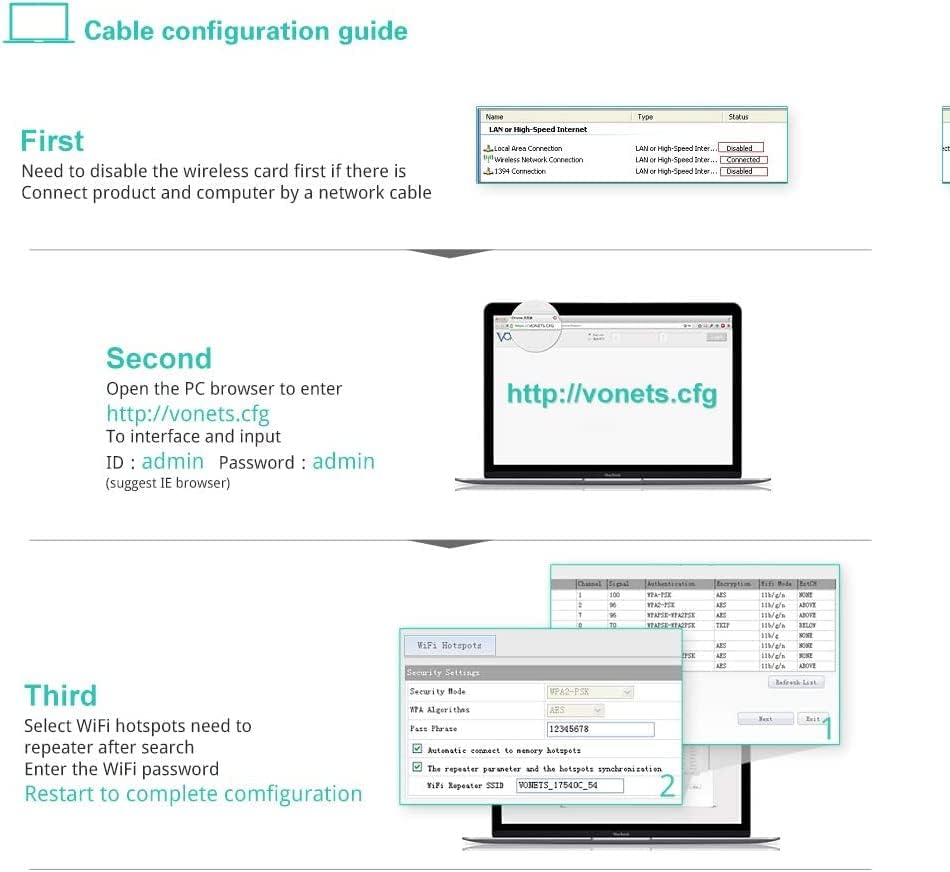
Image: A step-by-step cable configuration guide, detailing how to disable wireless, connect the device via Ethernet, access the web interface, log in, and configure WiFi settings.
4.3 Configuration Video Guide
For a visual walkthrough of the configuration process, including setting up bridge and repeater modes, please watch the official video below:
Video: This official Vonets configuration video demonstrates how to set up the VAR11N-300 in bridge and repeater modes using a computer, covering initial connection, accessing the web interface, and applying settings.
5. Operating Modes
The VAR11N-300 supports three primary operating modes:
5.1 WiFi Router Mode
In Router Mode, the device connects to a broadband modem via its WAN port and provides internet access to connected devices, both wired and wireless. This mode is ideal for creating a local network in environments like hotels.

Image: A diagram showing the setup for WiFi Router Mode (connecting to a modem and providing WiFi/Ethernet) and WiFi Bridge Mode (converting WiFi to wired Ethernet for devices like TVs).
5.2 WiFi Bridge Mode (AP Client)
Bridge Mode allows wired network devices (e.g., IP cameras, network printers, smart TVs) to connect to a wireless network. The VAR11N-300 converts the WiFi signal into a wired Ethernet connection.
5.3 WiFi Repeater Mode (Signal Extender)
Repeater Mode extends the coverage of an existing WiFi network. The VAR11N-300 receives the WiFi signal and re-broadcasts it, effectively increasing the wireless range. It also features a channel idle algorithm to automatically select the best WiFi channel, minimizing interference.

Image: A diagram demonstrating the WiFi Repeater mode, showing how the device extends WiFi coverage, and an illustration of the channel idle algorithm selecting an optimal channel.
6. Specifications
| Feature | Detail |
|---|---|
| Brand | Vonets |
| Model | VAR11N-300 |
| Wireless Communication Standard | 802.11b, 802.11g, 802.11n |
| Data Transfer Rate | 300 Megabits Per Second |
| Frequency Band Class | Single-Band (2.4 GHz) |
| Connector Type | RJ45 (2 ports: 1 WAN, 1 LAN, interchangeable) |
| Compatible Devices | Mobile phone, computer, IP devices, network printer, PLC, robot, medical devices |
| Range | Up to 50 meters (without obstacle and small data) |
| Power Supply | DC5V-15V (Typical 5V/1A recommended) |
| Item Weight | 0.07 Kilograms |

Image: A graphic illustrating the benefits of 802.11n technology, highlighting the 300Mbps WiFi transmission rate of the VAR11N-300 compared to older, slower standards.
7. Maintenance
To ensure optimal performance and security of your VAR11N-300, regular maintenance is recommended:
- Firmware Updates: Periodically check the Vonets official website for new firmware versions. Updating the firmware can improve performance, add new features, and fix bugs.
- Factory Reset: If the device experiences persistent issues or you forget your login credentials, you can perform a factory reset by pressing and holding the Reset button for approximately 5-10 seconds while the device is powered on. This will revert all settings to their default values.
- Physical Care: Keep the device in a well-ventilated area, away from direct sunlight, moisture, and extreme temperatures.
8. Troubleshooting
If you encounter issues with your Vonets VAR11N-300, consider the following troubleshooting steps:
- Cannot Access Web Interface:
- Ensure the device is properly powered and connected to your computer via Ethernet.
- Verify your computer's network adapter is set to obtain an IP address automatically (DHCP).
- Try both
http://vonets.cfgand192.168.253.254in your browser. - Disable any VPN or proxy settings on your computer.
- No Internet Connection in Bridge/Repeater Mode:
- Confirm the VAR11N-300 is successfully connected to the source WiFi hotspot. Check the signal strength in the web interface.
- Ensure the correct WiFi password for the source hotspot was entered during configuration.
- Reboot both the VAR11N-300 and your main router.
- Slow Connection Speed:
- Relocate the VAR11N-300 closer to the main router or the device needing connection to improve signal strength.
- Check for interference from other 2.4GHz devices (e.g., cordless phones, microwaves).
- Ensure the main router is operating on an optimal channel (the VAR11N-300 has an auto-channel selection feature in Repeater mode).
9. Warranty and Support
The Vonets VAR11N-300 comes with a standard manufacturer's warranty. Please refer to the warranty card included in your package or the official Vonets website for specific terms and conditions.
For technical assistance, troubleshooting, or any product-related inquiries, please contact Vonets customer support:
- Email: support@vonets.com
- Website: Visit the official Vonets website for FAQs, updated manuals, and driver downloads.


