
Audio Pro A38
Audio Pro A38 Wireless Bluetooth Floorstanding Speakers User Manual
Model: A38
Introduction
This manual provides detailed instructions for the setup, operation, and maintenance of your Audio Pro A38 Wireless Bluetooth Floorstanding Speakers. Please read this manual thoroughly before using the product to ensure proper functionality and to maximize your listening experience.
The Audio Pro A38 speakers are designed to deliver high-fidelity audio with versatile connectivity options, including WiFi, Bluetooth, AirPlay 2, Google Cast, and Spotify Connect. They are suitable for multiroom audio setups and enhance TV sound.
What's in the Box
- Audio Pro A38 Floorstanding Speakers (Pair)
- Power Cable x 2
- Quick Start Guide
- Speaker Cable
- Remote Control
Setup
1. Speaker Placement
Position the speakers in your desired listening area. For optimal stereo imaging, place them equidistant from your primary listening position and spaced appropriately apart. Ensure adequate ventilation around each speaker.
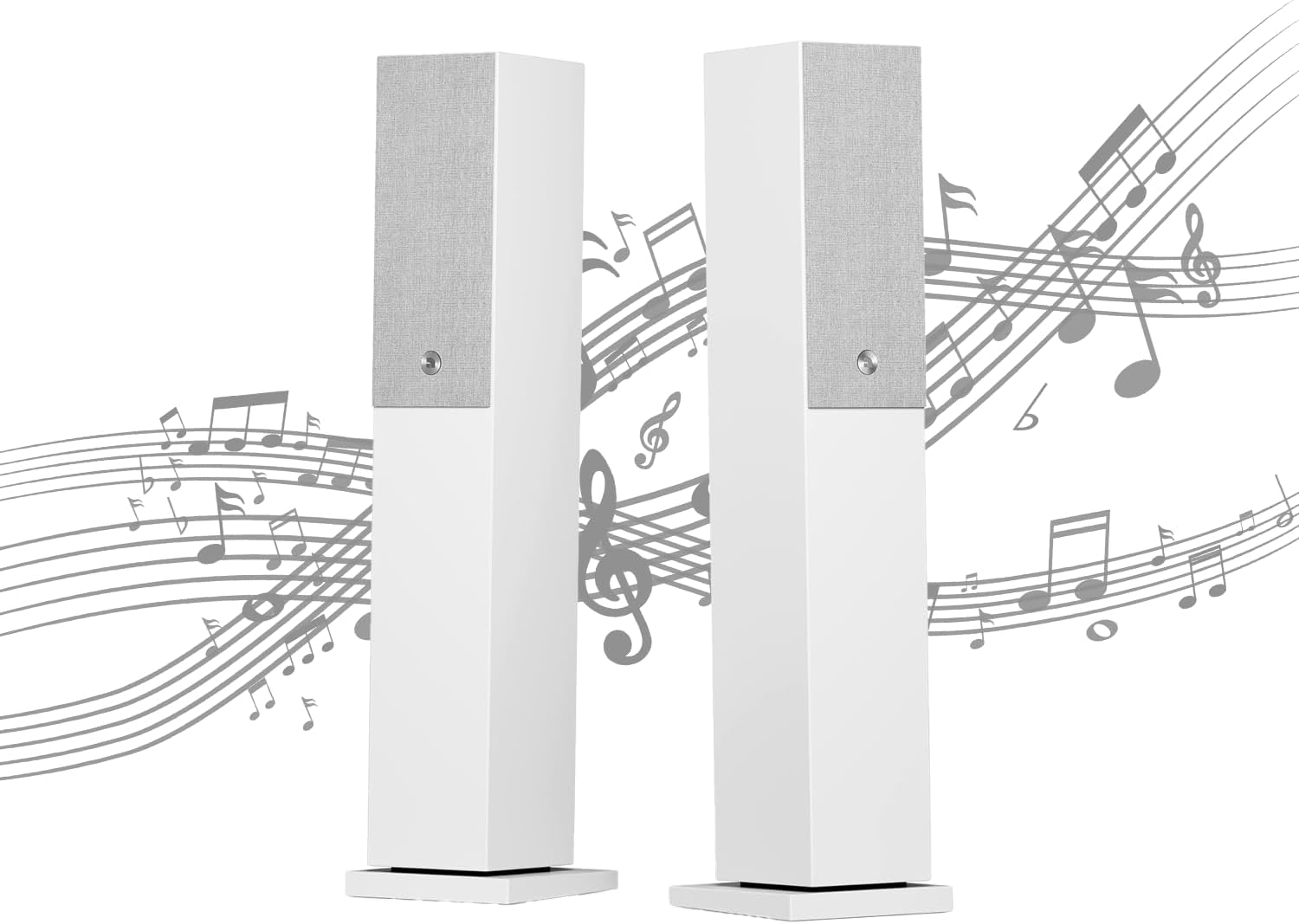
Image: Two white Audio Pro A38 floorstanding speakers, illustrating their design and potential placement in a room.
2. Connecting Power
Connect one power cable to each speaker and then plug them into a wall outlet. The speakers are designed for 100-240V AC, 50/60Hz power input.
3. Audio Connections
The A38 speakers offer multiple input options:
- Line In (RCA): For connecting analog audio sources like CD players or turntables (RIAA pre-amp may be required for turntables).
- Optical: For connecting digital audio sources such as TVs, game consoles, or media players.
- TV/ARC: Connect your TV via HDMI ARC for easy control using your TV remote and enhanced sound.
- WiFi: For multiroom streaming and access to services like AirPlay 2, Google Cast, and Spotify Connect.
- Bluetooth 4.2: For wireless connection to smartphones, tablets, and other Bluetooth-enabled devices.

Image: Rear panel of an Audio Pro A38 speaker, detailing the available audio input connections.
4. Initial Power On
After connecting power and desired audio sources, press the power button on the remote control or the speaker to turn on the system. The status indicator will illuminate.
Operation
1. Remote Control Functions
The included remote control allows for easy management of your speakers. Key functions include:
- Power: Turns the speakers on or off.
- Volume +/-: Adjusts the master volume.
- BT Pair: Initiates Bluetooth pairing mode.
- Inputs (BT, OPT, WIFI, TV, LINE): Selects the audio source.
- Presets (1-5): Accesses stored radio stations or playlists (configurable via the Audio Pro Control app).

Image: The Audio Pro remote control, highlighting its various buttons and functions.
2. Using the Audio Pro Control App
For advanced control, multiroom functionality, and sound adjustments, download the Audio Pro Control app for iOS or Android.
- Download for iOS: Audio Pro Control on Apple App Store
- Download for Android: Audio Pro Control on Google Play Store

Image: A smartphone screen showing the Audio Pro Control app, demonstrating its interface for managing speakers and multiroom audio.
3. Multiroom Streaming
The A38 speakers support multiroom audio. Use the Audio Pro Control app to group speakers, play different music in various rooms, or synchronize playback across your network.
4. Sound Customization
Within the Audio Pro Control app, you can fine-tune bass and treble settings. A virtual surround effect is available for the ARC input, offering a wider soundstage for movies. This effect can be adjusted in three steps to suit personal preferences and room acoustics.
Maintenance
- Cleaning: Use a soft, dry cloth to clean the speaker surfaces. Avoid abrasive cleaners or solvents.
- Ventilation: Ensure speaker vents are not obstructed to prevent overheating.
- Environment: Keep speakers away from direct sunlight, heat sources, and excessive moisture.
Troubleshooting
| Problem | Possible Cause | Solution |
|---|---|---|
| No power | Power cable disconnected; outlet not active. | Check power cable connections; try a different outlet. |
| No sound | Incorrect input selected; volume too low; audio cable issue. | Verify input source; increase volume; check audio cable connections. |
| Bluetooth connection issues | Speakers not in pairing mode; device too far; interference. | Ensure speakers are in BT pairing mode; move device closer; reduce interference. |
| TV randomly shutting off when connected via Bluetooth | Potential Bluetooth interference or compatibility issue with specific TV/Firestick models. | Try connecting via HDMI ARC or Optical instead of Bluetooth. Ensure TV and Firestick firmware are updated. Consult TV manufacturer support if issue persists. |
| Multiroom playback problems | Weak Wi-Fi signal; app configuration error. | Check Wi-Fi signal strength; restart router and speakers; reconfigure multiroom settings in the app. |
If problems persist, please contact Audio Pro customer support.
Specifications
| Feature | Detail |
|---|---|
| Model Name | Audio Pro A38 |
| Speaker Type | Tower, Floor Standing |
| Connectivity Technology | Optical, Bluetooth, Wi-Fi |
| Wireless Communication | Bluetooth 4.2 |
| Supported Internet Services | AirPlay 2, Google Cast, Spotify Connect |
| Audio Output Mode | Stereo, Surround |
| Speaker Maximum Output Power | 25 Watts |
| Product Dimensions (each) | 32.75"D x 8.26"W x 7.48"H |
| Item Weight (each) | 17.58 Kilograms (approx. 38.7 lbs) |
| Material | Metal |
| Control Method | Remote, App |
| Included Components | Power Cable x 2, Quick Start guide, Speaker cable, Remote control |
Warranty and Support
Warranty Information
The Audio Pro A38 speakers come with a Limited Warranty. Please refer to the warranty card included in your product packaging for specific terms and conditions. Retain your proof of purchase for warranty claims.
Customer Support
For technical assistance, troubleshooting not covered in this manual, or warranty inquiries, please visit the official Audio Pro website or contact their customer support directly. Contact information can typically be found on the Audio Pro website or in the quick start guide.
Ask a question about this manual
Ask about setup, troubleshooting, compatibility, parts, safety, or missing instructions. Manuals+ will review the question and use this page’s manual context to help answer it.