
Introduction
Welcome to your new Raydem Video Projector. This manual provides essential information for setting up, operating, and maintaining your projector to ensure optimal performance and longevity. Please read this manual thoroughly before using the product.
Key Features
- Native 1080P Resolution with 4K Support: Features a physical resolution of 1920x1080 and multi-layer refractive glass lenses for sharp, clear images. Supports 4K content.
- High Brightness: Delivers 550 ANSI lumens for a bright and colorful viewing experience.
- Fast 2.4G/5G WiFi: Enables seamless screen mirroring from smartphones and tablets without lag.
- Bluetooth 5.0: Connects wirelessly to external speakers or headphones for enhanced audio.
- Multiple Device Compatibility: Includes dual HDMI, A/V, and two USB ports for connecting various devices like TV sticks, gaming consoles, laptops, and external storage.
- Integrated HiFi Speakers: Built-in 10W dual stereo speakers provide a rich audio experience.
- Low-Noise Cooling System: Optimized radiator fan reduces noise by 20% and extends the projector's lifespan to 50,000 hours.
Package Contents
Verify that all items listed below are included in your package:
- Raydem Video Projector RD-881
- User Manual
- HDMI Cable
- AV Cable
- Remote Control
- Projector Lens Cover
Setup Guide
Placement
Position the projector on a stable, flat surface or mount it to the ceiling. Ensure there is adequate ventilation around the unit to prevent overheating. The optimal projection distance for a 100-inch screen is approximately 11 feet.

Image: Recommended projection sizes and distances for the Raydem projector.
Power Connection
Connect the power cable to the projector's power input port, then plug the other end into a standard electrical outlet.
Initial Power On
Press the power button located on the projector or on the remote control to turn on the device. The indicator light will illuminate.

Image: The Raydem Video Projector RD-881.
Operating Your Projector
Focus and Keystone Correction
Adjust the focus ring on the projector lens until the projected image appears sharp and clear. If the image is trapezoidal, use the keystone correction feature (accessible via the projector's menu or dedicated buttons) to square the image. The projector supports both manual focus and digital keystone correction.

Image: Focus adjustment and keystone correction controls.
Input Source Selection
Press the 'Source' button on the remote control or the projector's control panel to cycle through available input options (HDMI 1, HDMI 2, AV, USB).
WiFi Connection (Screen Mirroring)
Navigate to the WiFi settings in the projector's main menu. Select your desired 2.4G or 5G WiFi network and enter the password. For screen mirroring from a smartphone or tablet, ensure both devices are connected to the same WiFi network. Follow the on-screen instructions for iOS or Android mirroring. Note that streaming services like Netflix, Hulu, and Prime Video may require an HDMI connection via a streaming device due to copyright restrictions.

Image: WiFi connectivity for iOS and Android devices.
Bluetooth Audio Connection
Access the Bluetooth settings from the projector's menu. Enable Bluetooth and search for available devices. Select your external Bluetooth speaker or headphones to pair. This feature allows for enhanced audio output. Direct smartphone connection via Bluetooth for content streaming is not supported; use WiFi for screen mirroring.
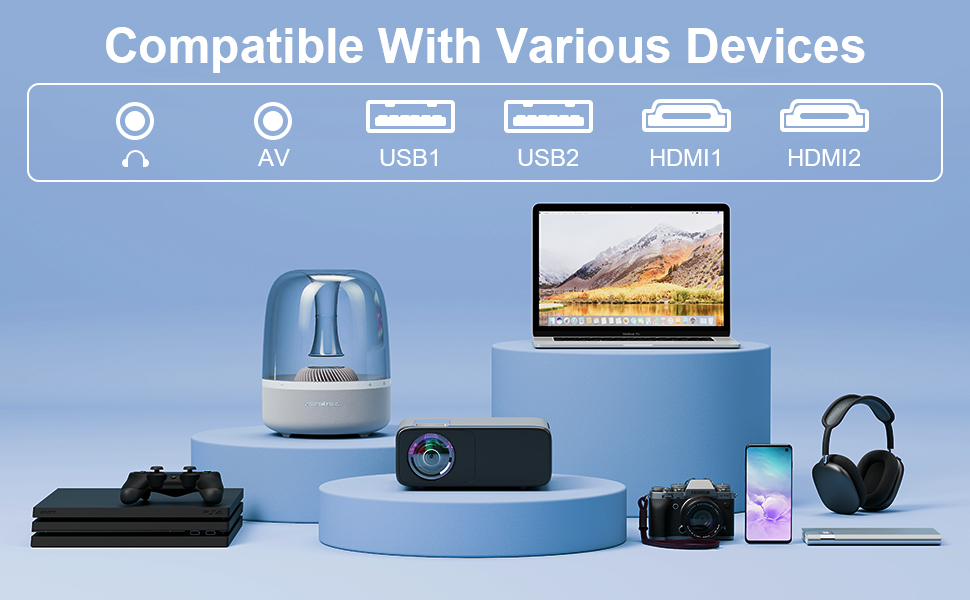
Image: Bluetooth audio connection for external speakers.
Connectivity
The Raydem projector offers a variety of ports for connecting external devices:
- HDMI Ports (x2): For connecting laptops, gaming consoles (PS5/Xbox, Switch), TV sticks (Fire TV Stick, Roku), and other HDMI-enabled devices.
- USB Ports (x2): For connecting USB flash drives or external hard drives to play media files directly.
- AV Port: For connecting older devices with AV output using the provided AV cable.
- 3.5mm Audio Jack: For connecting external speakers, soundbars, or headphones.

Image: Multiple device connectivity options for the projector.
Media Integration
Product Video Demonstration
Video: A short demonstration of the Raydem projector's image quality when projected onto a white wall.
Maintenance and Care
Lens Cleaning
Gently clean the projector lens with a soft, lint-free cloth specifically designed for optical surfaces. Avoid using abrasive materials or harsh chemical cleaners, as these can damage the lens coating.
Dust Removal
Regularly inspect and clean the ventilation vents to prevent dust buildup. Dust accumulation can impede airflow, leading to overheating and reduced performance. Use a soft brush or compressed air to carefully remove dust from the vents.
Storage
When the projector is not in use, always cover the lens with the provided lens cap to protect it from dust and scratches. Store the projector in a cool, dry, and well-ventilated area, away from direct sunlight and extreme temperatures.
Troubleshooting Common Issues
No Image / Blurry Image
- Ensure the power cable is securely connected and the projector is turned on.
- Check that the selected input source matches the connected device (e.g., HDMI 1, USB).
- Adjust the focus ring on the projector lens until the image is clear.
- If the image appears distorted (trapezoidal), use the keystone correction function in the projector's settings to correct it.
No Sound
- Verify the volume level on both the projector and the connected source device.
- If using external speakers, ensure they are properly connected via the 3.5mm audio jack or Bluetooth and are powered on.
- If using Bluetooth, confirm that the projector is correctly paired with your audio device.
WiFi Connection Issues
- Ensure both the projector and your smartphone/tablet are connected to the same 2.4G or 5G WiFi network.
- Double-check that the WiFi password is entered correctly.
- Try restarting the projector and your wireless router.
Dust Spots on Screen
If you observe persistent dark spots on the projected image, it may indicate dust accumulation inside the optical path of the projector. This issue typically requires professional cleaning and is not usually user-serviceable.
Product Specifications
| Brand | Raydem |
| Model | RD-881 |
| Native Resolution | 1920 x 1080P |
| Supported Resolution | Up to 4K |
| Brightness | 15000L / 550 ANSI Lumens |
| WiFi Connectivity | 2.4G/5G |
| Bluetooth | 5.0 |
| Speaker | Built-in 10W Dual Stereo Speakers |
| Input Ports | 2x HDMI, 1x AV, 2x USB |
| Output Ports | 1x 3.5mm Audio Jack |
| Item Weight | 3.8 pounds |
| Product Dimensions | 9.13 x 7.5 x 3.8 inches |
| Lamp Lifespan | 50,000 working hours |
Warranty and Customer Support
The Raydem Video Projector RD-881 is backed by a 2-year limited warranty. This warranty covers manufacturing defects and ensures the product meets its specified performance standards under normal use.
If you encounter any issues with your projector or require technical assistance, please contact Raydem customer service. You can typically find contact information through the Amazon platform where you made your purchase or within the documentation included in your product packaging. Please have your model number (RD-881) and purchase details ready when contacting support.
