
MSI CLUTCH GM11 WHITE
MSI Clutch GM11 White Gaming Mouse User Manual
Model: CLUTCH GM11 WHITE
Introduction
The MSI Clutch GM11 White Gaming Mouse is designed for precision and comfort, featuring a 5000 DPI optical sensor, durable Omron switches, and customizable RGB Mystic Light. Its symmetrical ergonomic design ensures suitability for various grip styles. This manual provides essential information for setup, operation, maintenance, and troubleshooting to ensure optimal performance.

Image: The MSI Clutch GM11 White Gaming Mouse shown alongside its product packaging.
Setup
1. Connecting the Mouse
The MSI Clutch GM11 White is a wired mouse. Connect the USB cable from the mouse to an available USB port on your computer. The mouse is plug-and-play, and basic functionality will be available immediately.
2. Software Installation (MSI Center)
For advanced customization, including DPI settings, button remapping, and RGB lighting effects, install the MSI Center software. This software can be downloaded from the official MSI website.
- Visit the official MSI website.
- Navigate to the support section for the Clutch GM11 White mouse.
- Download and install the latest version of MSI Center.
- Follow the on-screen instructions to complete the installation.

Image: Screenshot of the MSI Center software, used for customizing mouse settings and RGB lighting.
Operating the Mouse
1. Button Functions
The MSI Clutch GM11 White features six programmable buttons for enhanced control:
- Left Click Button: Primary action.
- Right Click Button: Secondary action/context menu.
- Scroll Wheel: Scrolls up/down. Can also be clicked for a middle-click function.
- DPI Switch Button: Located below the scroll wheel, cycles through DPI sensitivity levels.
- Side Buttons (2): Typically used for forward/backward navigation in web browsers or customizable in games.
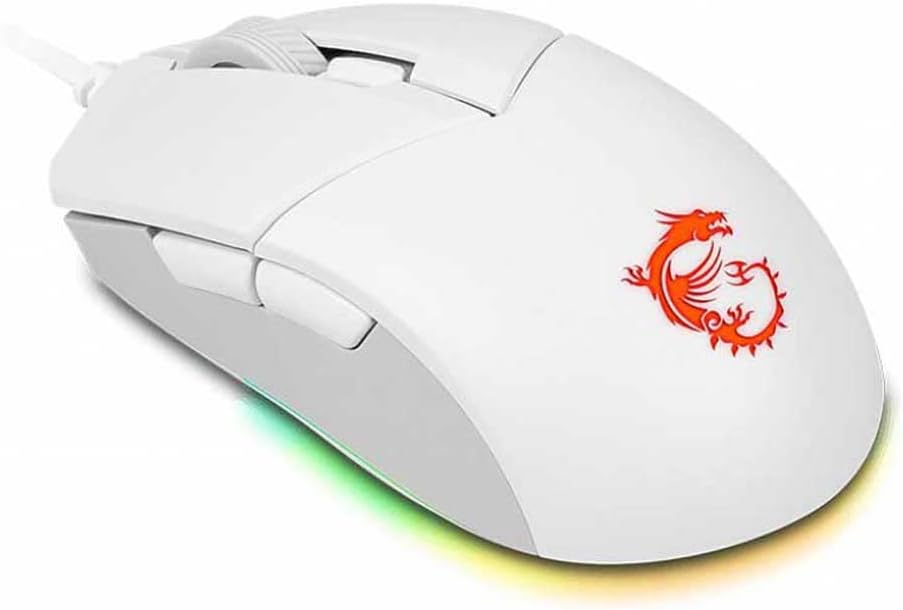
Image: A detailed view of the MSI Clutch GM11 White Gaming Mouse, highlighting its buttons and scroll wheel.
2. DPI Adjustment
The mouse features a 5-level DPI sensor, allowing you to adjust sensitivity on the fly. Press the DPI switch button to cycle through the preset DPI levels. Each DPI level is indicated by a different color on the mouse's RGB lighting:
- 400 DPI
- 800 DPI
- 1600 DPI
- 3200 DPI
- 5000 DPI
Custom DPI settings and additional levels can be configured using the MSI Center software.

Image: Visual representation of the 5-level DPI settings and their associated color indicators on the mouse.
3. RGB Mystic Light Customization
The MSI Clutch GM11 White features stunning RGB lighting with over 7 lighting effects, compatible with MSI Mystic Light. Use the MSI Center software to personalize the lighting colors and effects to match your setup.
- Steady
- Breath
- Wave
- Radar
- Horizon
- Ripple
- Reactive

Image: The MSI Clutch GM11 White Gaming Mouse showcasing different customizable RGB lighting effects.
4. Ergonomic Design
The mouse features a symmetrical design, making it suitable for both right-handed and left-handed users. The textured side grips provide a secure and comfortable hold during extended use.

Image: A diagram demonstrating the symmetrical shape of the MSI Clutch GM11, suitable for both left and right-handed users.

Image: Side profile of the mouse, emphasizing its ergonomic shape and textured grip for comfortable handling.
Maintenance
- Cleaning: Use a soft, dry cloth to clean the mouse surface. For stubborn dirt, slightly dampen the cloth with water or a mild cleaning solution. Avoid harsh chemicals.
- Sensor Care: Keep the optical sensor on the bottom of the mouse clean and free from dust or debris to ensure accurate tracking.
- Cable Management: Avoid sharp bends or excessive pulling on the USB cable to prevent damage.
Troubleshooting
| Issue | Possible Solution |
|---|---|
| Mouse not responding |
|
| Inaccurate tracking or cursor lag |
|
| RGB lighting not working or incorrect colors |
|
| Buttons not responding |
|
Specifications
| Feature | Detail |
|---|---|
| Brand | MSI |
| Model | CLUTCH GM11 WHITE |
| Sensor Type | Optical (PMW-3325) |
| DPI Levels | Up to 5000 DPI (5-level adjustable) |
| Switches | Omron Switches (10M click lifespan) |
| Buttons | 6 programmable buttons |
| Design | Symmetrical Ergonomic |
| Lighting | RGB Mystic Light (7+ effects) |
| Connectivity | Wired USB |
| Operating System | Windows 10 (and compatible with other Windows versions) |
| Item Weight | 3.14 ounces (approx. 89g) |
| Product Dimensions (LxWxH) | 4.65 x 2.44 x 1.46 inches (approx. 11.8 x 6.2 x 3.7 cm) |
Warranty and Support
For warranty information, technical support, or further assistance, please visit the official MSI support website or contact their customer service. Keep your proof of purchase for warranty claims.
Official MSI Support: www.msi.com/support