
1. Introduction
Thank you for purchasing the MARVO CM310 3-in-1 Gaming Combo. This package includes a gaming keyboard, a gaming mouse, and a mouse pad, designed to enhance your gaming experience. This manual provides detailed instructions for setup, operation, maintenance, and troubleshooting to ensure optimal performance of your new devices.
2. Package Contents
- MARVO CM310 Gaming Keyboard
- MARVO CM310 Gaming Mouse
- MARVO CM310 Gaming Mouse Pad
- User Manual (this document)
3. Product Overview
The MARVO CM310 combo offers a complete solution for your gaming setup, featuring a backlit keyboard, a precision gaming mouse, and a durable mouse pad.
3.1. MARVO CM310 Gaming Combo
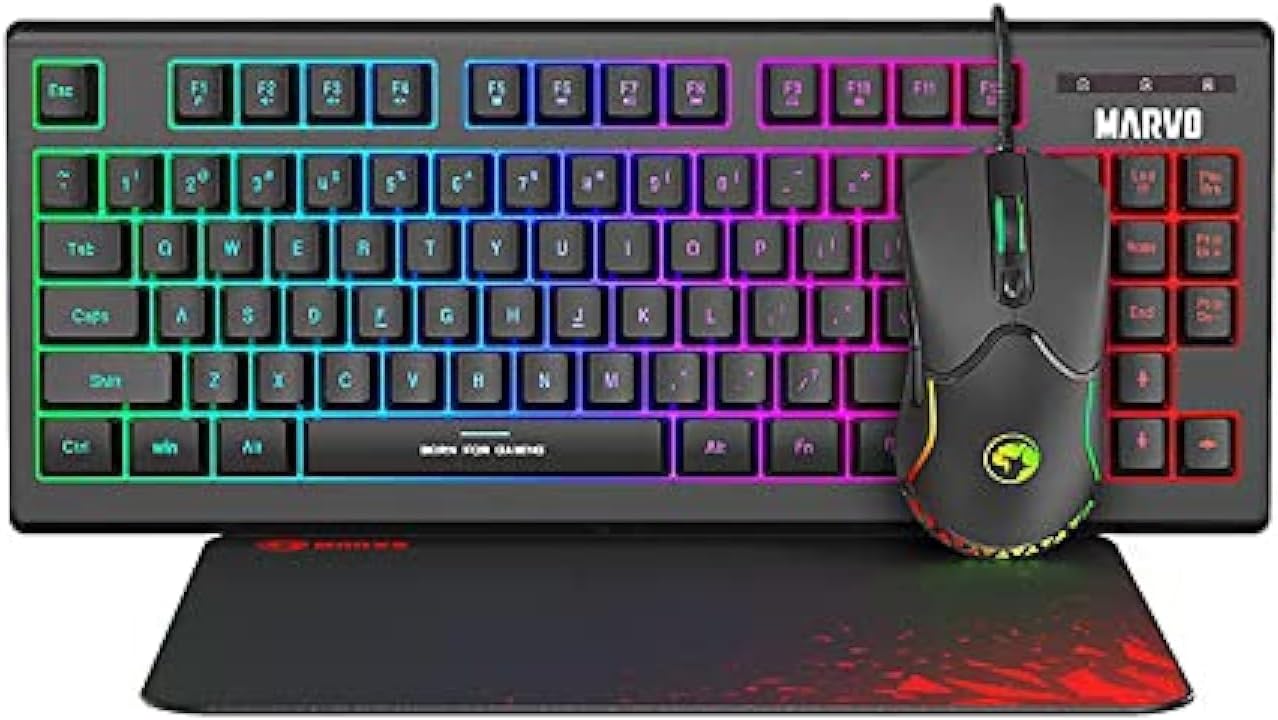
Image: The MARVO CM310 3-in-1 Gaming Combo, showcasing the backlit keyboard, gaming mouse, and mouse pad.
3.2. Gaming Keyboard
The keyboard features a compact layout with customizable backlighting, designed for comfortable and responsive typing during gaming sessions.

Image: Close-up view of the MARVO CM310 Gaming Keyboard, highlighting its backlit keys and layout.
3.3. Gaming Mouse
The gaming mouse is engineered for precision and control, featuring multiple buttons and adjustable sensitivity (DPI) to suit various gaming styles.
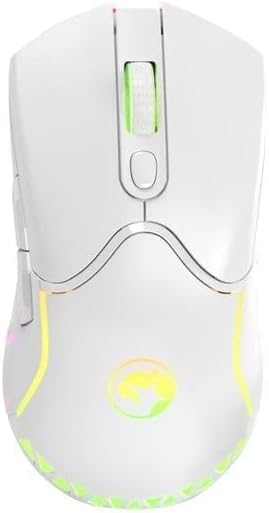
Image: Top-down view of the MARVO CM310 Gaming Mouse, showing its ergonomic design and scroll wheel.
3.4. Mouse Pad
The included mouse pad provides a smooth and consistent surface for optimal mouse tracking, enhancing accuracy and comfort.
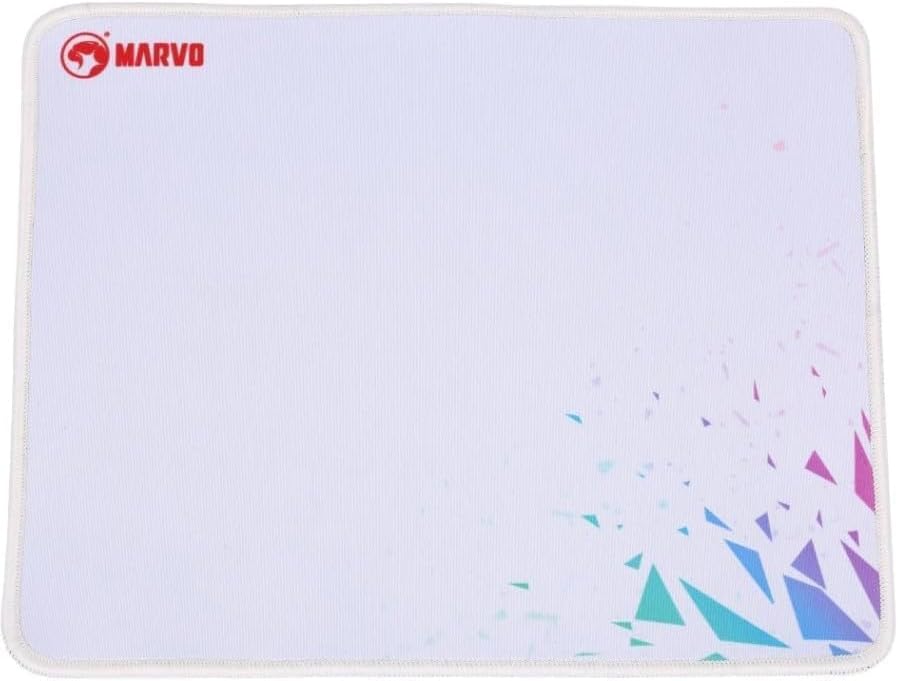
Image: The MARVO CM310 Gaming Mouse Pad, featuring a smooth surface and MARVO branding.
4. Setup Instructions
The MARVO CM310 combo is designed for plug-and-play functionality, requiring no additional drivers for basic operation.
- Connect the Keyboard: Locate an available USB port on your computer. Insert the USB connector of the MARVO CM310 Gaming Keyboard into the USB port.
- Connect the Mouse: Locate another available USB port on your computer. Insert the USB connector of the MARVO CM310 Gaming Mouse into the USB port.
- Position the Mouse Pad: Place the MARVO CM310 Gaming Mouse Pad on a flat, stable surface where you intend to use your mouse.
- System Recognition: Your operating system should automatically detect and install the necessary generic drivers for the keyboard and mouse. This process may take a few moments.
- Verify Functionality: Test the keyboard by typing and the mouse by moving the cursor and clicking.
5. Operating Instructions
5.1. Keyboard Functions
- Standard Keys: All standard alphanumeric and function keys operate as expected.
- Backlighting Control: The keyboard features integrated backlighting. Specific key combinations (e.g., Fn + Scroll Lock, Fn + Page Up/Down) may be used to cycle through lighting modes, adjust brightness, or change colors. Refer to the keyboard's keycap legends for exact combinations.
- Multimedia Keys: Some function keys (F1-F12) may have secondary multimedia functions (e.g., volume control, media playback) accessible by pressing the Fn key simultaneously.
5.2. Mouse Functions
- Left/Right Click: Standard primary and secondary click functions.
- Scroll Wheel: Used for vertical scrolling and as a middle click button.
- DPI Adjustment: The mouse typically includes a dedicated button (often located behind the scroll wheel) to cycle through different DPI (Dots Per Inch) sensitivity levels. Press this button to adjust cursor speed to your preference.
- Side Buttons: Additional buttons on the side of the mouse are often pre-assigned for 'forward' and 'back' navigation in web browsers or can be customized via software (if available).
6. Maintenance
Proper maintenance ensures the longevity and optimal performance of your MARVO CM310 gaming combo.
- Cleaning the Keyboard: Use a soft, dry cloth to wipe the surface of the keyboard. For deeper cleaning, use compressed air to remove dust and debris from between the keys. Avoid using harsh chemicals or abrasive materials.
- Cleaning the Mouse: Wipe the mouse surface with a soft, slightly damp cloth. Ensure no liquid enters the internal components. Clean the optical sensor area gently with a cotton swab if tracking issues occur.
- Cleaning the Mouse Pad: The mouse pad can be gently hand-washed with mild soap and water. Allow it to air dry completely before use.
- Storage: When not in use for extended periods, store the devices in a clean, dry environment away from direct sunlight and extreme temperatures.
7. Troubleshooting
If you encounter issues with your MARVO CM310 combo, refer to the following common solutions:
- Device Not Responding:
- Ensure the USB cables are securely connected to your computer's USB ports.
- Try connecting the devices to different USB ports.
- Restart your computer.
- Test the devices on another computer to rule out system-specific issues.
- Keyboard Backlighting Not Working:
- Check if the backlighting is turned off or set to the lowest brightness level using the keyboard's control keys (e.g., Fn + Scroll Lock, Fn + Page Up/Down).
- Ensure the keyboard is properly connected.
- Mouse Cursor Jumps or is Erratic:
- Clean the optical sensor on the bottom of the mouse.
- Ensure the mouse pad surface is clean and free of obstructions.
- Try adjusting the DPI settings of the mouse.
- Keys or Buttons Not Functioning:
- Ensure no debris is lodged under the key or button.
- If specific keys are not working, and general troubleshooting steps fail, the device may require service.
8. Specifications
| Feature | Detail |
|---|---|
| Brand | MARVO |
| Model Number | G-CM310BK |
| Connectivity Technology | USB (Wired) |
| Keyboard Special Feature | Backlit, Gaming |
| Compatible Devices | Gaming Console, PC |
| Package Dimensions | 18.5 x 7.09 x 1.81 inches |
| Item Weight | 2.16 pounds |
| Language | English |
9. Warranty and Support
MARVO products are manufactured to high-quality standards. This product is covered by a limited warranty against defects in materials and workmanship from the date of purchase. Please retain your proof of purchase for warranty claims.
For technical support, warranty inquiries, or further assistance, please refer to the contact information provided on the official MARVO website or your retailer's support channels. Do not attempt to repair the device yourself, as this may void the warranty.


