
Blackweb BWA21HO008C
Blackweb 1440p 5 Megapixel USB Webcam User Manual
Model: BWA21HO008C
Brand: Blackweb
1. Introduction
The Blackweb BWA21HO008C 1440p 5 Megapixel USB Webcam is designed to provide high-quality video and still image capture for your personal computer. It features an integrated adjustable light ring to ensure optimal illumination in various environments, enhancing your communication and recording experience. This manual provides instructions for setting up, operating, maintaining, and troubleshooting your webcam.
2. Product Features
- Up to 1440p Resolution @ 30 frames per second (fps) for clear video.
- 5 Megapixel still image resolution for high-quality photos.
- Built-in adjustable 3-level LED ring light to provide optimal lighting.
- Adjustable base designed to fit various sizes of computer monitors, laptop screens, or stand on flat surfaces.
- USB plug and play functionality for easy setup without additional drivers.
3. Package Contents
Please check the package for the following items:
- 1 x Blackweb 1440p 5 Megapixel USB Webcam (Model: BWA21HO008C)
- 1 x User Manual
4. Setup Guide
4.1 Physical Setup
- Positioning the Webcam: Open the adjustable base of the webcam. Place the webcam on top of your computer monitor or laptop screen, ensuring the front lip of the base rests securely on the front of the screen and the rear clip holds the back. Alternatively, the base can be folded to allow the webcam to stand on a flat surface such as a desk.
- Connecting to Your Computer: Insert the USB cable from the webcam into an available USB port on your computer.

Image: Side view of the Blackweb webcam demonstrating its adjustable base for mounting on a monitor or laptop screen.
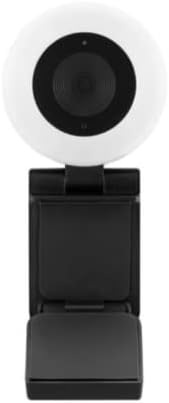
Image: Front view of the Blackweb webcam, highlighting the central lens and the surrounding adjustable light ring.
4.2 Software Setup
The Blackweb BWA21HO008C webcam is a plug-and-play device, requiring no additional driver installation for most operating systems (Windows, macOS, Chrome OS). Upon connecting, your computer should automatically detect and configure the webcam.
- Automatic Detection: Once connected, your operating system should recognize the webcam as a new video device.
- Application Selection: To use the webcam, open your preferred video conferencing software (e.g., Zoom, Microsoft Teams, Skype) or recording application. Navigate to the video/camera settings within the application and select "Blackweb BWA21HO008C" (or similar name) as your video input device.
5. Operating Instructions
5.1 Using the Webcam
Once connected and recognized by your system and chosen in your application, the webcam is ready for use in video calls, live streaming, or recording.
- Ensure your chosen application is open and the webcam is selected as the active camera source.
- Adjust the webcam's angle manually to frame your desired view.
5.2 Adjusting the Light Ring
The webcam features a built-in adjustable 3-level LED light ring to improve illumination in low-light conditions.
- Locate the light control button, typically found on the top or side of the webcam body.
- Press the button repeatedly to cycle through the brightness levels: Low, Medium, High, and Off. Select the level that best suits your lighting needs.

Image: Angled view of the Blackweb webcam, highlighting the prominent light ring and the camera lens.
6. Maintenance
- Cleaning: To clean the webcam lens and body, use a soft, dry, lint-free cloth. Avoid using harsh chemicals, abrasive materials, or excessive moisture, as these can damage the device. Ensure the device is disconnected from your computer before cleaning.
- Storage: When not in use, store the webcam in a cool, dry place, away from direct sunlight, extreme temperatures, and high humidity.
7. Troubleshooting
- No Image/Video:
- Ensure the USB cable is securely connected to both the webcam and your computer.
- Try connecting the webcam to a different USB port on your computer.
- Verify that the webcam is selected as the active video input device in your application's settings.
- Restart your computer.
- Poor Video Quality:
- Ensure adequate lighting in your environment; use the built-in light ring if necessary.
- Clean the webcam lens with a soft, dry cloth.
- Confirm your application settings are configured for 1440p resolution if desired and your internet connection is stable if streaming.
- Light Ring Not Working:
- Ensure the webcam is connected to a powered USB port.
- Press the light control button multiple times to cycle through all brightness settings.
- If the issue persists, try connecting the webcam to a different USB port or computer.
8. Specifications
| Model Number | BWA21HO008C |
| Video Resolution | Up to 1440p @ 30 fps |
| Still Image Resolution | 5 Megapixel |
| Connectivity | USB |
| Special Features | Adjustable 3-level LED light ring, Low Light capability |
| Compatible Devices | Personal Computer |
| Color | Black |
| Dimensions (L x W x H) | 16.2 x 10.5 x 5.9 cm (approximate parcel dimensions) |
| Weight | 170 g (approximate parcel weight) |
9. Safety Information
- Do not expose the device to water, rain, or excessive moisture.
- Do not attempt to disassemble, modify, or repair the device yourself. Refer all servicing to qualified personnel.
- Keep the device out of reach of children and pets.
- Use only with compatible devices and power sources as specified.
- Avoid placing the webcam in direct sunlight or near heat sources.
10. Warranty and Support
For warranty information, technical support, or customer service inquiries regarding your Blackweb BWA21HO008C webcam, please refer to the documentation provided at the point of purchase or contact your retailer. You may also visit the official Blackweb support website for further assistance, if available.
Ask a question about this manual
Ask about setup, troubleshooting, compatibility, parts, safety, or missing instructions. Manuals+ will review the question and use this page’s manual context to help answer it.