
1. Introduction
This manual provides detailed instructions for the BoxWave SlimKeys Bluetooth Keyboard with Trackpad, designed for use with the Apple iPhone 13 mini. Please read this manual thoroughly before using the product to ensure proper operation and to maximize its lifespan.
The SlimKeys Bluetooth Keyboard integrates responsive chiclet-style keys and a full-functioning trackpad, transforming your iPhone 13 mini into a portable workstation. Its ultra-thin and lightweight design makes it an ideal travel companion.
2. Package Contents
- BoxWave SlimKeys Bluetooth Keyboard with Trackpad
- USB Charging Cable
- User Manual
3. Product Features
- Integrated Keyboard and Trackpad: Combines a full QWERTY keyboard with a responsive trackpad for enhanced navigation.
- Slim and Lightweight Design: At approximately 3/16 inch thick, it is highly portable without compromising key size for comfortable typing.
- Bluetooth Version 3.0: Ensures fast pairing and seamless wireless communication with your device.
- Battery Conservation: Features an on/off switch to extend battery life when not in use.
- Portable: Designed for easy transport in bags or luggage.

Figure 3.1: Top-down view of the SlimKeys Bluetooth Keyboard, showing the full keyboard layout and integrated trackpad.
4. Setup
4.1 Charging the Keyboard
- Locate the charging port on the side of the keyboard.
- Connect the small end of the provided USB charging cable to the keyboard's charging port.
- Connect the larger end of the USB cable to a USB power source (e.g., computer USB port, USB wall adapter).
- The charging indicator light will illuminate. Once fully charged, the light will typically change color or turn off.
4.2 Powering On/Off
- To power on the keyboard, slide the 'ON/OFF' switch, usually located on the side or back, to the 'ON' position. A power indicator light will briefly illuminate.
- To power off the keyboard, slide the 'ON/OFF' switch to the 'OFF' position. This conserves battery life when the keyboard is not in use.
4.3 Bluetooth Pairing
Follow these steps to pair your BoxWave SlimKeys Bluetooth Keyboard with your Apple iPhone 13 mini:
- Ensure the keyboard is fully charged and powered on.
- On your iPhone 13 mini, go to Settings > Bluetooth.
- Turn on Bluetooth. Your iPhone will begin searching for nearby Bluetooth devices.
- On the keyboard, press the Bluetooth pairing button (often labeled 'Connect' or with a Bluetooth symbol). The Bluetooth indicator light on the keyboard will start blinking, indicating it is in pairing mode.
- On your iPhone, locate 'BoxWave Keyboard' or a similar name in the list of 'Other Devices' and tap on it.
- If prompted, enter the pairing code displayed on your iPhone screen using the keyboard, then press Enter.
- Once paired, the Bluetooth indicator light on the keyboard will stop blinking and remain solid or turn off, and your iPhone will show the keyboard as 'Connected'.

Figure 4.1: Keyboard with highlighted power switch and Bluetooth pairing button locations.
5. Operating Instructions
5.1 Keyboard Usage
Once paired, the keyboard functions like a standard computer keyboard. Simply open any application on your iPhone that requires text input (e.g., Messages, Notes, Safari) and begin typing. The on-screen keyboard will automatically disappear, allowing you to use the physical keyboard.
5.2 Trackpad Usage
The integrated trackpad allows for precise cursor control and navigation on your iPhone 13 mini. Basic gestures include:
- Single Finger Tap: Functions as a left-click to select items or activate buttons.
- Two Finger Scroll: Drag two fingers up or down on the trackpad to scroll through content.
- Cursor Movement: Move a single finger across the trackpad to move the cursor on your iPhone screen.
5.3 Special Function Keys
The keyboard may include function keys (F1-F12) or dedicated media control keys. These keys often require pressing the 'Fn' key simultaneously with the desired function key to activate their secondary functions (e.g., volume control, play/pause, screen lock).
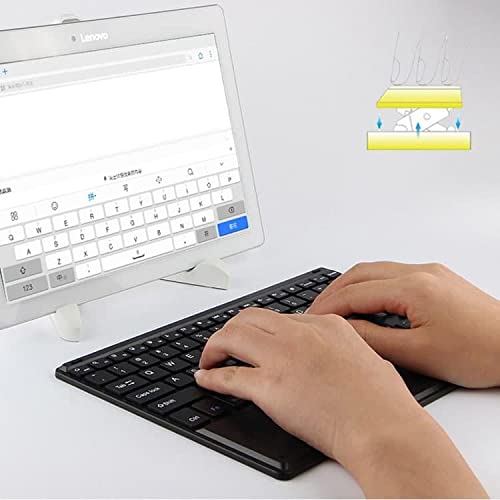
Figure 5.1: User demonstrating typing on the SlimKeys Bluetooth Keyboard.
6. Maintenance
6.1 Cleaning
- Ensure the keyboard is powered off before cleaning.
- Use a soft, lint-free cloth slightly dampened with water or a mild electronics cleaner to wipe the surface.
- Avoid using harsh chemicals, abrasive cleaners, or excessive moisture, as these can damage the keyboard.
- For dust or debris between keys, use compressed air.
6.2 Battery Care
- To prolong battery life, power off the keyboard when not in use.
- Avoid fully discharging the battery frequently. Recharge when the low battery indicator appears.
- Store the keyboard in a cool, dry place if not used for extended periods.
7. Troubleshooting
If you encounter issues with your BoxWave SlimKeys Bluetooth Keyboard, refer to the following common solutions:
- Keyboard not powering on: Ensure the battery is charged. Connect the charging cable and allow it to charge for at least 30 minutes before attempting to power on again.
- Keyboard not pairing:
- Ensure the keyboard is in pairing mode (Bluetooth indicator blinking).
- Make sure Bluetooth is enabled on your iPhone 13 mini.
- Move the keyboard closer to your iPhone.
- Forget the device from your iPhone's Bluetooth settings and attempt to pair again.
- Restart both the keyboard and your iPhone.
- Keys not responding:
- Check if the keyboard is still connected via Bluetooth.
- Ensure the battery is not critically low.
- Try reconnecting the keyboard by turning it off and on, or by re-pairing.
- Trackpad not working:
- Ensure the keyboard is connected.
- Check for any settings on your iPhone that might disable external trackpads.
- Clean the trackpad surface to remove any debris.
8. Specifications
| Feature | Specification |
|---|---|
| Brand | BoxWave |
| Model Number | bw-1977-29861-11782 |
| Hardware Interface | Bluetooth |
| Bluetooth Version | 3.0 |
| Compatible Devices | Apple iPhone 13 mini, Smartphones, Laptops |
| Keyboard Description | Wireless |
| Special Features | Portable, Integrated Trackpad |
| Power Source | Battery Powered |
| Dimensions (Approx.) | 257mm x 172mm x 5mm |

Figure 8.1: Dimensions and operating system compatibility of the SlimKeys Bluetooth Keyboard.
9. Warranty and Support
9.1 Warranty Information
For specific warranty details, please refer to the warranty card included with your product or visit the official BoxWave website. Keep your proof of purchase for any warranty claims.
9.2 Customer Support
If you require further assistance or have questions not covered in this manual, please contact BoxWave customer support through their official website or the contact information provided with your purchase documentation.