
1. Introduction
The DEKCO 2K Outdoor Security Camera (Model: DC5E) is designed to provide robust and reliable surveillance for your home or property. Featuring 2K (2304*1296P) resolution, a 350° horizontal and 90° vertical pan and tilt function, and advanced motion detection with auto-tracking, this camera ensures comprehensive coverage. It supports multiple night vision modes, two-way audio communication, and offers flexible storage options. Built with IP66 weatherproofing, it is suitable for various outdoor conditions.

Figure 1.1: DEKCO 2K Outdoor Security Camera
2. What's in the Box
Upon opening your DEKCO 2K Security Camera package, you should find the following components:
- DEKCO 2K Security Camera (Model: DC5E)
- Security Camera Power Adapter
- Positioning Sticker
- Mounting Screws and Wall Plugs
- Mounting Positioning Plate
- User Manual

Figure 2.1: Package Contents
3. Specifications
| Feature | Specification |
|---|---|
| Model Name | DC5E |
| Indoor/Outdoor Usage | Outdoor |
| Video Capture Resolution | 3 MP (2K: 2304*1296P) |
| Connectivity Protocol | Wi-Fi (2.4GHz only, not 5GHz) |
| Pan & Tilt Angle | Horizontal 350°, Vertical 90° |
| Night Vision | Infrared/Full-color/Auto (Smart) modes, 30 Meters range |
| Two-Way Audio | Built-in microphone and speaker |
| Storage Options | Micro SD card (up to 128GB, not included), Encrypted Cloud Storage |
| Weatherproof Rating | IP66 (-4°F to +122°F / -20°C to +50°C) |
| Power Source | Corded Electric (Adapter length: 6.5 ft) |
| Dimensions (L x W x H) | 7.48 x 6.1 x 4.72 inches |
| Item Weight | 1.39 pounds |
4. Setup and Installation
4.1 Powering On
Before installation, ensure the camera is powered on. Plug the provided power adapter into a suitable electrical socket and connect it to the camera's power input.
4.2 App Download and Connection (CloudEdge App)
- Download the App: Search for and download the "CloudEdge" app from your device's App Store (iOS) or Google Play Store (Android).
- Register/Log In: Follow the in-app instructions to register a new account or log in if you already have one.
- Add Device: Select the option to add a new device. Choose "Smart Camera (WiFi)" from the device list.
- Connect to 2.4GHz WiFi: IMPORTANT: The DEKCO camera only supports 2.4GHz WiFi networks, not 5GHz. Ensure your phone is connected to a 2.4GHz network during setup.
- Scan QR Code: The app will generate a QR code. Remove any protective film from the camera lens. Point the camera lens at the QR code on your phone screen, maintaining a distance of 5-8 inches (15-25 cm).
- Confirmation: You will hear a prompt sound from the camera when the QR code is successfully scanned. The indicator light on the camera will turn blue from red, signifying a successful connection.
4.3 Physical Installation
Choose a suitable outdoor location for installation. The recommended installation height is 7-10 feet (approximately 2.1-3 meters) for optimal coverage and motion detection.
- Positioning: Take out the positioning sticker from the package. Stick it on the desired wall location where you intend to mount the camera.
- Drilling: Use an electric drill with a 15/64" (6mm) drill bit to drill holes at the marked locations on the positioning sticker.
- Insert Wall Plugs: Insert the provided wall plugs into the drilled holes. Use a hammer to gently tap them flush with the wall surface.
- Install Positioning Plate: Align the mounting positioning plate with the drilled holes and secure it to the wall using the provided screws. Use a screwdriver to tighten the screws firmly.
- Mount Camera: Hang the camera onto the installed positioning plate by inserting the camera's base into the slot on the plate. Ensure it is securely seated.
Video 4.1: DEKCO DC5E Installation and Network Setup Guide. This video demonstrates the steps for physically installing the camera and connecting it to your home network using the CloudEdge app.
4.4 Micro SD Card Insertion
For local storage of recordings, you can insert a Micro SD card (up to 128GB, not included) into the camera's designated slot. Locate the Micro SD card slot, typically covered by a rubber stopper for weather protection. Gently insert the card until it clicks into place. Ensure the cover is securely closed after insertion.
5. Operating Instructions
5.1 Pan & Tilt 360° View
The DEKCO camera offers a wide viewing angle with its pan (horizontal) and tilt (vertical) capabilities. You can remotely control the camera's movement through the CloudEdge app to monitor all areas without blind spots. The camera supports a vertical 90-degree and a horizontal rotation of 350 degrees.

Figure 5.1: Pan & Tilt Control via App
5.2 Human Motion Detection & Auto Tracking
Enable human motion tracking in the app to allow the camera to automatically detect, record, and track human movement. When motion is detected, you will receive instant alerts directly on your iOS/Android device, keeping you informed of any activity.

Figure 5.2: Motion Tracking and Alert System
5.3 Night Vision Modes & Floodlight
The DEKCO camera offers three night vision modes: infrared, full-color, and auto (smart). It features a built-in bright floodlight function, providing amazing clarity even in extremely dark environments. The smart mode can automatically switch between infrared and full-color based on detected motion or light conditions.

Figure 5.3: Infrared, Full-Color, and Alarm Night Vision Modes
5.4 Two-Way Audio
Equipped with a built-in microphone and speaker, the camera allows for two-way audio communication. You can establish a conversation with visitors or deter unwelcome individuals directly through the app.
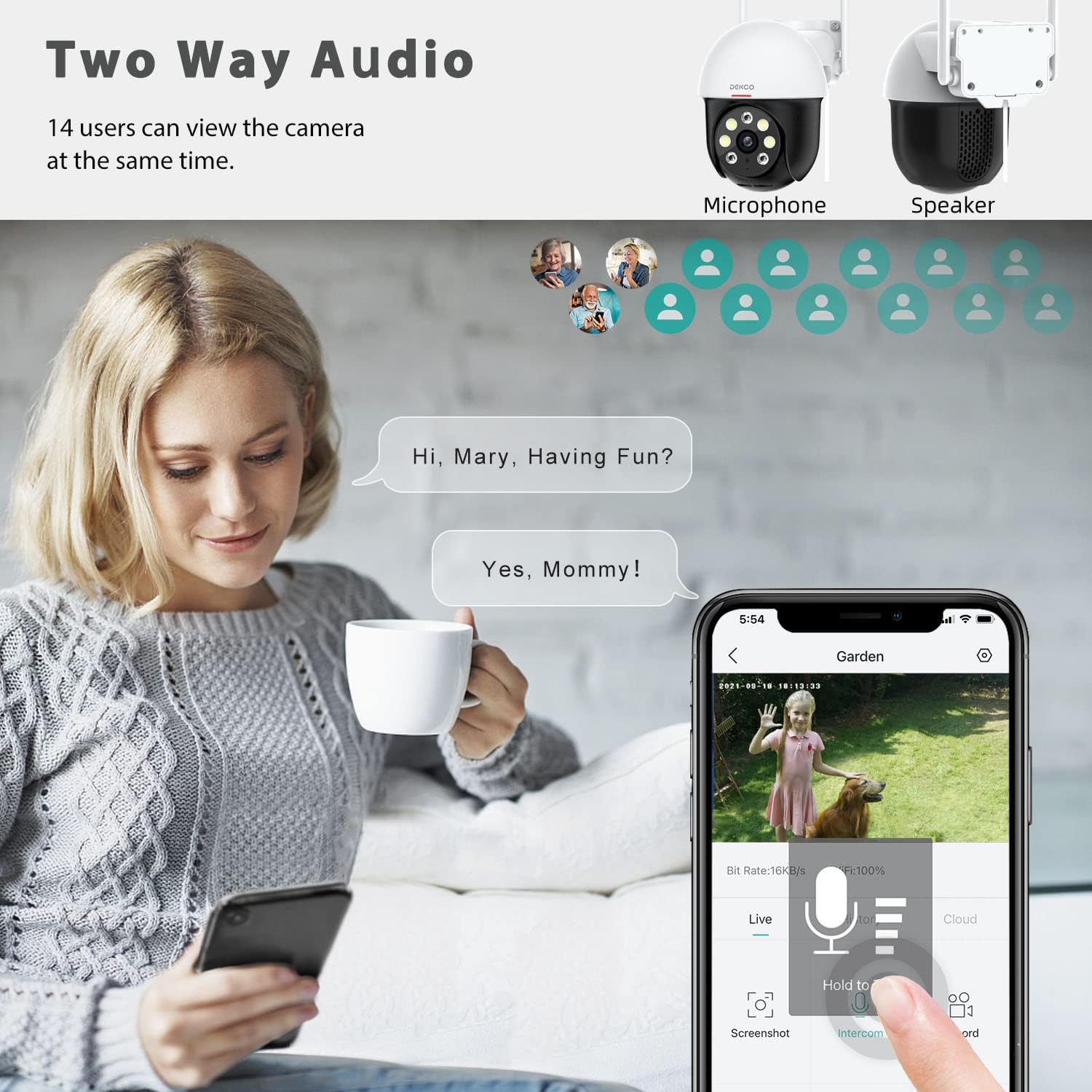
Figure 5.4: Two-Way Audio Communication
5.5 24/7 Recording and Event Recording
The camera supports continuous 24/7 recording or event-based recording triggered by motion detection. You can play back recordings at any time via the CloudEdge app, ensuring you don't miss any important details.

Figure 5.5: Recording Playback on App
5.6 Multi-User Access
You can create several guest accounts within the CloudEdge app and share access to the camera's live feed and recordings with family and friends, allowing multiple users to monitor the property simultaneously.
6. Maintenance
To ensure the longevity and optimal performance of your DEKCO outdoor security camera, regular maintenance is recommended:
- Cleaning: Periodically clean the camera lens and housing with a soft, damp cloth to remove dust, dirt, or debris that may obstruct the view or affect image quality. Avoid using harsh chemicals or abrasive materials.
- Weather Protection: While the camera is IP66 weatherproof, extreme weather conditions (heavy snow, ice, prolonged direct sunlight) can still impact performance. Ensure the camera is securely mounted and consider additional shielding if exposed to severe elements.
- Firmware Updates: Regularly check the CloudEdge app for any available firmware updates for your camera. Updates often include performance improvements, bug fixes, and new features.
- Power Connection: Ensure the power connection remains secure and free from damage.
7. Troubleshooting
If you encounter issues with your DEKCO 2K Security Camera, refer to the following common troubleshooting tips:
- Camera Offline:
- Check your Wi-Fi connection and ensure it is stable and within range.
- Verify the camera's power supply is connected and functioning correctly.
- Restart the camera by unplugging and re-plugging the power adapter.
- Ensure your router is broadcasting a 2.4GHz Wi-Fi signal.
- Poor Image Quality:
- Clean the camera lens to remove any smudges or dirt.
- Ensure there are no obstructions in the camera's field of view.
- Check your internet speed; a slow connection can affect streaming quality.
- Motion Detection Issues:
- Adjust the motion detection sensitivity settings in the CloudEdge app.
- Ensure the camera's view is clear of moving objects like tree branches that might cause false alarms.
- Unable to Connect to Wi-Fi:
- Confirm you are attempting to connect to a 2.4GHz Wi-Fi network. The camera does not support 5GHz.
- Double-check your Wi-Fi password.
- Ensure the camera is close enough to your Wi-Fi router during the initial setup process.
- Reset the camera (refer to the user manual for specific reset instructions if needed).
For further assistance, please contact DEKCO customer support.
8. Warranty and Support
DEKCO offers lifetime support for its brand products. If you have any questions, concerns, or require technical assistance regarding your DEKCO 2K Security Camera, please feel free to contact the "DekcoCare" Online Support Team. Refer to the product packaging or the CloudEdge app for specific contact information.