
1. Introduction
This manual provides detailed instructions for the installation, operation, and maintenance of your JouSecu 5MP Wireless Security Camera System NVR-W3541. This system is designed for reliable 24/7 surveillance, offering high-definition video, full-color night vision, and smart detection features for various environments such as homes, offices, shops, and warehouses.
The system includes an 8-channel Network Video Recorder (NVR) and 4 Super HD 5MP outdoor/indoor WiFi bullet cameras. It features a plug-and-play setup, human detection, one-way audio, and IP66 weatherproof cameras.
2. What's in the Box
Upon unpacking, please ensure all the following components are present:
- NVR Unit
- 4 x 5MP Wireless Bullet Cameras
- Power Adapter for NVR (DC 12V 2A)
- 4 x Power Adapters for Cameras (DC 12V 1A)
- USB Mouse
- Ethernet Cable
- Mounting Screws and Plugs
- User Manual (this document)
3. Setup and Installation
The JouSecu wireless security camera system is designed for easy plug-and-play setup. Cameras are pre-paired with the NVR at the factory.
3.1 System Overview and Connections
Familiarize yourself with the NVR and camera components and their connections.

Image: This diagram illustrates the various ports on the NVR unit, including Wi-Fi antenna connections, VGA, HDMI, LAN, USB, and power supply. It also highlights key camera components such as the antenna, waterproof casing, HD lens, and warning light.
3.2 Initial Power-Up and Auto-Pairing
Simply power on the NVR and the cameras. The system will automatically connect.

Image: This image demonstrates the simple power connection for both the NVR (12V/2A) and the wireless camera (12V/1A), highlighting the auto-pairing feature for immediate surveillance.
3.3 Camera Installation
Cameras can be mounted on ceilings or walls. The rotatable bracket allows for adjustable viewing angles.
Video: This video demonstrates the process of installing the camera, including adjusting the angle and utilizing the rotatable bracket for optimal positioning on a tree. It shows both ceiling and wall mounting options.

Image: This illustration highlights the ease of installation, showing cameras wirelessly connected to the NVR without the need for video cables, only power supply. It also indicates wireless range capabilities.
4. Operating Instructions
4.1 Remote Access via Mobile App
Access your surveillance system remotely using the dedicated mobile application. Ensure your NVR is connected to the internet.
Video: This video guides you through the process of setting up remote access on the mobile app, including downloading the 'XMEye Pro' app, logging in, adding a device by scanning the NVR's UID QR code, and viewing live streaming.

Image: This image displays how the surveillance feed can be viewed on various devices, including tablets, phones, PCs, and notebooks, supporting Windows, iOS, and Android platforms.
4.2 Full Color Night Vision
The 3MP cameras provide clear, colorful images even in total darkness, extending night vision up to 60 feet. This feature helps capture more detailed evidence.

Image: This image shows the mobile app interface for controlling night vision modes: Full Color Mode (using white LEDs), Infrared Mode (black and white), and Smart Mode (color only when motion is detected, otherwise B&W).

Image: A split image comparing traditional black and white night vision with the system's 3MP Super HD full-color night vision, demonstrating enhanced clarity and detail in low-light conditions.
4.3 Human Detection
The system features human detection to minimize false alarms. You will receive motion alerts when a person is detected.

Image: This image illustrates the human motion detection feature, showing a person highlighted by the camera and a corresponding instant alert notification on the mobile app (XMEye Pro).
4.4 One-Way Audio Function
Each camera has a built-in microphone, allowing you to hear sounds from the surveillance area through the phone app or monitor. Note: Cameras do not have speakers for two-way communication.
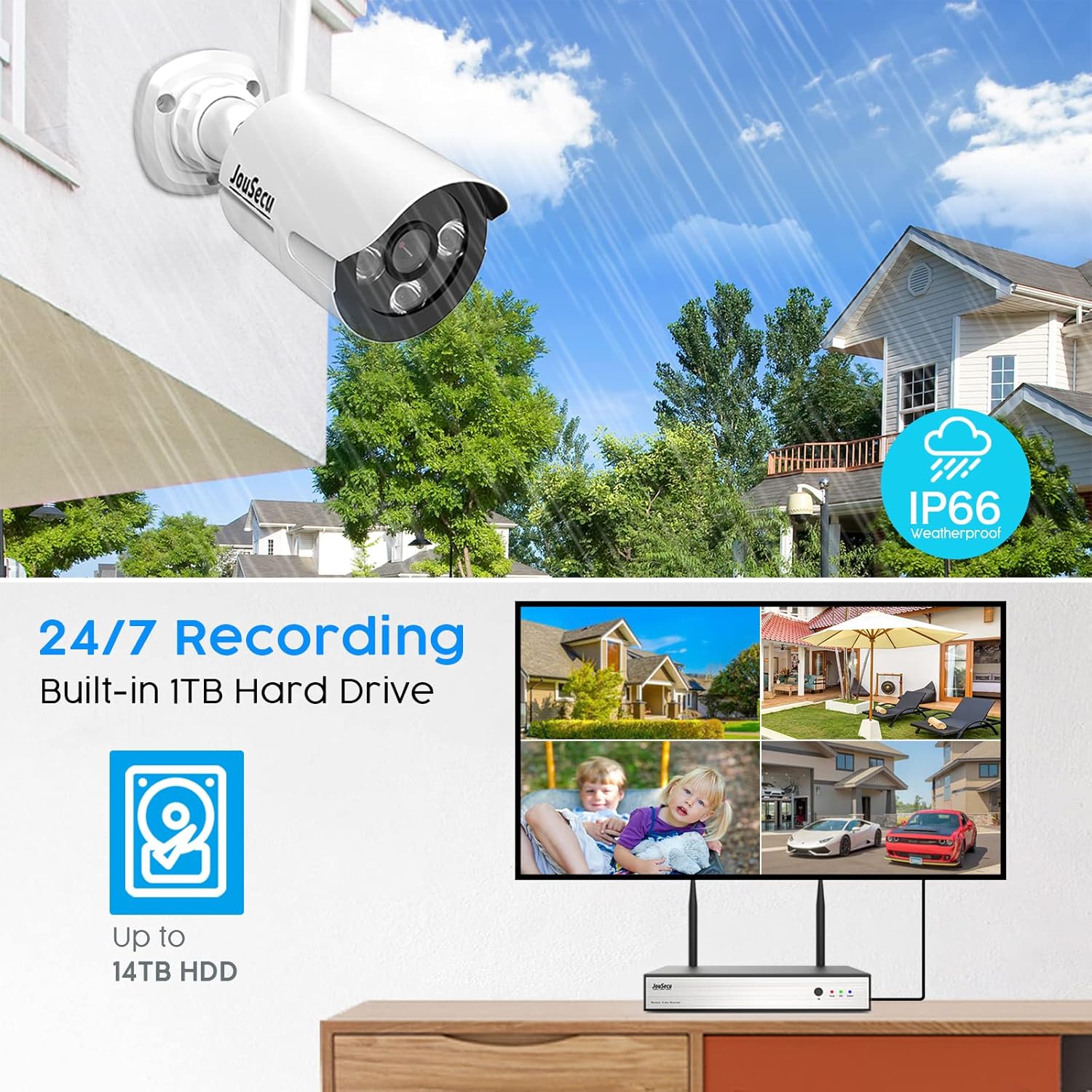
Image: This image highlights the one-way audio function, indicating that the camera is equipped with a microphone for audio recording during live viewing and playback.
4.5 24/7 Recording
The NVR supports continuous 24/7 recording. While the system may not include a pre-installed hard drive, it supports up to 14TB HDD for extensive storage.

Image: This image shows the NVR connected to a monitor displaying multiple camera feeds, emphasizing the 24/7 recording capability and the support for up to 14TB hard disk drive (HDD) for storage.
4.6 System Expandability
The 8-channel NVR system can be expanded to include up to 8 cameras. Compatible 3MP and 5MP cameras are available separately.
Video: This video demonstrates the system's expandability, showing how additional 3MP or 5MP cameras can be added to the NVR to reach a total of 8 channels.
5. Maintenance
The cameras are built with an IP66 weatherproof rating, ensuring reliable performance in various weather conditions, from -4°F to 122°F (-20°C to 50°C).
Regularly check camera lenses for dirt or obstructions and clean them gently with a soft cloth to maintain optimal image clarity. Ensure power connections are secure and free from damage. Periodically review recorded footage to ensure the system is functioning as expected.
6. Troubleshooting
If you encounter issues with your JouSecu security camera system, please refer to the following common troubleshooting steps:
- No Video Feed: Ensure all cameras and the NVR are powered on and connected correctly. Check network cables if using a wired connection. Verify cameras are paired with the NVR.
- Poor Image Quality: Clean camera lenses. Check for obstructions in the camera's field of view. Ensure the camera is within optimal range of the NVR for wireless signal strength.
- No Remote Access: Confirm the NVR is connected to the internet and has a stable network connection. Verify app settings and ensure the correct UID is entered. Check your router's firewall settings if necessary.
- Motion Detection Not Working: Review motion detection settings in the NVR or app. Ensure the detection area is correctly configured and sensitivity is appropriate.
- No Audio: Confirm the camera's microphone is enabled in the settings. Ensure volume is adjusted on your viewing device.
- Recording Issues: Check if a hard drive is installed in the NVR and if it has sufficient storage space. Verify recording schedules and settings.
For further assistance, please contact JouSecu customer support.
7. Specifications
| Feature | Specification |
|---|---|
| Brand | JouSecu |
| Model Number | NVR-W3541 |
| Connectivity Technology | Wireless |
| Video Capture Resolution | 1920p (3MP) |
| Number of Channels | 8 |
| Memory Storage Capacity | Supports up to 14 TB (HDD not included) |
| Color | 3MP |
| Power Source | DC 12V 2A (NVR); DC 12V 1A (Camera) |
| Item Dimensions (L x W x H) | 12.4 x 7.3 x 10.7 inches |
| Operating System | Linux |
| Night Vision Range | 60 Feet |
| Frame Rate | 60 fps |
| Recording Mode | Manual, Motion Detection |
| Hardware Interface | 802.11 ac/b/g/n |
| Viewing Angle | 60 Degrees |
| Weatherproof Rating | IP66 |
8. Warranty and Support
For warranty information and technical support, please refer to the official JouSecu website or contact their customer service directly. Keep your purchase receipt as proof of purchase for any warranty claims.
Contact Information: Please visit the JouSecu Store on Amazon for support resources.


