
1. Introduction
Thank you for choosing the Retoo Full HD Dash Cam with Reversing Camera. This comprehensive system is designed to enhance your driving safety and provide reliable video evidence in case of incidents. Featuring a 4.3-inch display, 1080p Full HD recording, wide-angle lenses for both front and rear views, night vision capabilities, and intelligent functions like loop recording, motion detection, and a G-sensor, this device offers peace of mind on the road.
2. Package Contents
Please verify that all components are present and in good condition upon opening the package:
- 1x Front Camera (integrated into rearview mirror)
- 1x Rear View Camera
- 1x 12V Car Charger
- Cabling for Mounting
- 2x Rubber Grips for Mirror Attachment
- Original Packaging
- User Manual (this document)

Image: All components included in the Retoo Dash Cam package.
3. Product Features
The Retoo Dash Cam system is equipped with several advanced features to ensure optimal performance and user convenience:
- 2-in-1 Design: Integrates a front dash cam into a rearview mirror and includes a separate rear camera for comprehensive vehicle coverage.
- High Resolution: Records video in 1080p Full HD for clear and detailed footage.
- Wide Viewing Angles: Features a 170° wide-angle lens for the front camera and a 120° wide-angle lens for the rear camera, providing an optimal field of view.
- Automatic Recording: Begins recording automatically when the vehicle's ignition is turned on.
- Motion Detection: Automatically starts recording if motion is detected in front of the camera when the vehicle is parked.
- G-Sensor: Detects sudden impacts or collisions and automatically locks the current video footage to prevent it from being overwritten.
- Loop Recording: Continuously records by overwriting the oldest unlocked footage when the memory card is full.
- Night Vision: Enhanced low-light performance for clear recordings in dark conditions.
- 4.3-inch Display: Integrated screen on the rearview mirror for live view, playback, and menu navigation.

Image: Wide viewing angles of the front (170°) and rear (120°) cameras.

Image: G-sensor functionality, automatically locking important video segments.
4. Setup
Follow these steps for proper installation of your Retoo Dash Cam system:
- Mount the Front Camera: Securely attach the mirror dash cam to your existing rearview mirror using the provided rubber grips. Ensure it is firmly fastened to prevent movement or accidental detachment during driving. If it feels loose after mounting, tighten the straps further.
- Install the Rear Camera: Mount the rear camera, typically on the rear window or near the license plate. Connect the rear camera cable to the integrated LCD screen on the mirror dash cam.
- Connect Power: Plug the 12V car charger into your vehicle's cigarette lighter socket and connect the other end to the mirror dash cam.
- Insert MicroSD Card: Insert a compatible MicroSD card (not included) into the designated slot on the dash cam. Ensure the card is formatted before first use (refer to Operating Instructions for formatting).

Image: Installation diagram for the front and rear cameras.

Image: Retoo Dash Cam installed on a car's rearview mirror.
5. Operating Instructions
Familiarize yourself with the device's controls and menu navigation:
- Power On/Off: The device will automatically power on and begin recording when connected to power and the vehicle starts. To manually power off, press and hold the power button.
- Menu Navigation: After starting the camera, press the MENU button (typically the second button from the left, often with a leaf icon).
- Browse Options: Use the LEFT and RIGHT arrow buttons to navigate through the main menu options.
- Select/Confirm: Press the OK button to select an option or confirm a setting.
- Exit Menu: To cancel a selection and return to the previous menu, press the MENU button again.
- Settings: Within the main menu, you can adjust various parameters including video resolution, loop recording duration, G-sensor sensitivity, motion detection, date/time, and interface language.
- Playback: Access recorded videos and photos through the playback mode in the menu.

Image: Driver's view of the integrated 4.3-inch display.

Image: Rear camera view displayed on the mirror, assisting with parking.
6. Maintenance
To ensure the longevity and optimal performance of your dash cam, follow these maintenance guidelines:
- Clean Lenses: Regularly clean the front and rear camera lenses with a soft, lint-free cloth to ensure clear video quality. Avoid abrasive materials that could scratch the lenses.
- Clean Screen: Wipe the 4.3-inch display with a soft cloth. Do not use harsh chemicals.
- Temperature Control: Avoid exposing the device to extreme temperatures (very hot or very cold) for extended periods, as this can affect battery life and component integrity.
- Check Connections: Periodically check all cable connections to ensure they are secure and free from damage.
- Format SD Card: Format the MicroSD card regularly (e.g., once a month) to maintain optimal recording performance and prevent data corruption. Back up any important footage before formatting.
7. Troubleshooting
If you encounter issues with your Retoo Dash Cam, refer to the following common troubleshooting steps:
| Problem | Possible Cause | Solution |
|---|---|---|
| Device does not power on. | No power, loose connection, faulty charger. | Check 12V car charger connection. Ensure vehicle's power outlet is working. Try a different power source if available. |
| Recording stops or freezes. | SD card full, faulty SD card, low-quality SD card. | Format the SD card. Replace with a high-speed (Class 10 or U1/U3) MicroSD card. Check loop recording settings. |
| Poor video quality. | Dirty lens, protective film still on lens, low resolution setting. | Clean camera lenses. Remove any protective film. Ensure video resolution is set to 1080p in settings. |
| G-sensor is too sensitive/not sensitive enough. | G-sensor sensitivity setting. | Adjust G-sensor sensitivity in the device settings menu. |
| Rear camera not displaying. | Loose connection, faulty cable/camera. | Check the connection of the rear camera cable to the main unit. Ensure the cable is not damaged. |
If the problem persists after trying these solutions, please contact customer support.
8. Specifications
| Feature | Detail |
|---|---|
| Brand | Retoo |
| Model Number | M011 |
| Color | Black or Grey |
| Screen Size | 4.3 Inches |
| Connections | USB |
| Special Features | Motion Detection, Sound Recording, G-sensor |
| Compatible Devices | Auto (Cars) |
| Battery Composition | Lithium-ion |
| Rechargeable Battery | Yes |
| Video Recording Resolution | 1080p |
| Mounting Type | Rearview Mirror Mount |
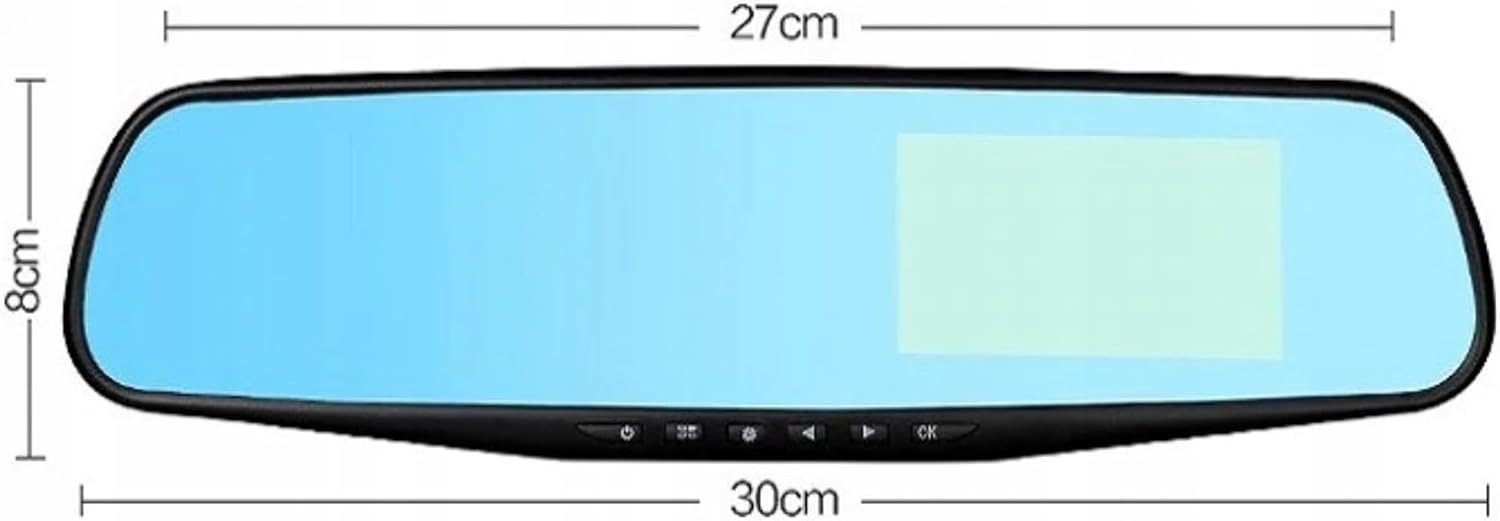
Image: Approximate dimensions of the mirror dash cam.
9. Warranty and Support
For warranty information or technical support, please refer to the purchase documentation or contact the seller directly. Retoo is committed to providing quality products and customer satisfaction.
For further assistance, please visit the official Retoo brand store or contact their customer service through the platform where the product was purchased.

