
Dalton 10kVA
Dalton 10 kVA Uninterruptible Power Supply (UPS) Unit
User Instruction Manual
1. Introduction
Thank you for choosing the Dalton 10 kVA Uninterruptible Power Supply (UPS) unit. This manual provides essential information for the safe and efficient operation of your UPS. Please read this manual thoroughly before installation and operation, and keep it for future reference.
This UPS is designed to provide reliable power protection for critical equipment, safeguarding against power outages, surges, and fluctuations. Its advanced technology ensures stable and clean power delivery, extending the lifespan of your connected devices.
2. Safety Information
Always observe the following safety precautions to prevent injury or damage to the UPS and connected equipment:
- Do not open the UPS casing. There are no user-serviceable parts inside. Refer all servicing to qualified service personnel.
- Ensure the UPS is connected to a grounded power outlet.
- Do not block ventilation openings. Adequate airflow is crucial for proper cooling.
- Avoid installing the UPS in areas with excessive dust, humidity, or extreme temperatures.
- Disconnect the UPS from the AC power source before performing any maintenance or moving the unit.
- Batteries can present a risk of electrical shock and high short-circuit current. Observe proper precautions when working with batteries.
3. Package Contents
Carefully unpack the UPS and check if all items are present and undamaged. If any items are missing or damaged, contact your dealer immediately.
- Dalton 10 kVA UPS Unit
- User Manual (this document)
- Input Power Cable
- Output Power Cables (quantity may vary)
- USB Communication Cable (for monitoring software)
- Software CD (if applicable)
4. Product Overview
The Dalton 10 kVA UPS is a robust power protection solution. Below is an overview of its typical components and features.
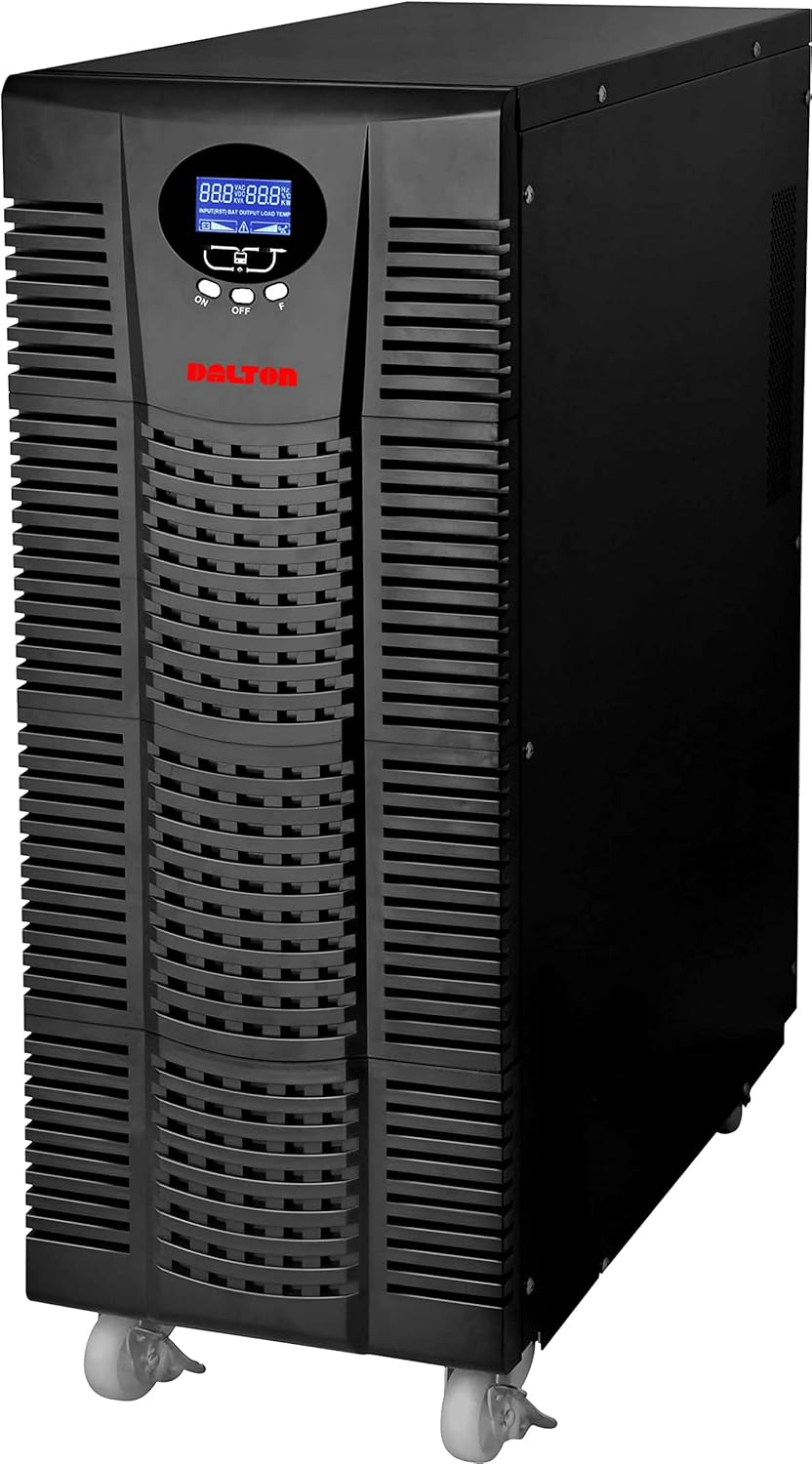
Figure 4.1: Front view of the Dalton 10 kVA UPS unit. This image displays the tall, black tower design of the UPS, featuring a prominent vented front panel for airflow and integrated wheels at the base for easy mobility. The control panel and display are visible towards the top of the unit.
4.1 Front Panel
- LCD Display: Shows real-time status, input/output voltage, battery level, load percentage, and error codes.
- Control Buttons: Used to navigate menus, acknowledge alarms, and perform system tests.
- Power Button: Turns the UPS on or off.
4.2 Rear Panel
- Input Power Connector: For connecting the UPS to the main AC power source.
- Output Receptacles: For connecting protected equipment.
- Communication Ports (USB/RS232): For connecting to a computer for monitoring and management.
- External Battery Connector (if applicable): For connecting optional external battery packs.
- Circuit Breaker: Provides overload protection.
5. Setup and Installation
Follow these steps for proper installation of your UPS unit:
- Placement:
- Place the UPS in a clean, dry, and well-ventilated area.
- Ensure sufficient clearance around the unit for proper airflow.
- Avoid direct sunlight, heat sources, and excessive moisture.
- Initial Battery Charge:
- Connect the UPS to a grounded AC power outlet.
- Allow the UPS to charge for at least 8 hours before connecting any equipment to ensure full battery capacity. The display will indicate charging status.
- Connecting Equipment:
- With the UPS turned off and fully charged, connect your critical equipment (computers, servers, networking devices) to the UPS output receptacles.
- Do not connect laser printers or other high-surge current devices to the battery-backed outlets, as this may overload the UPS.
- Powering On:
- Press and hold the power button on the front panel until you hear a beep and the display illuminates.
- The UPS will perform a self-test and then enter normal operating mode.
6. Operating Instructions
6.1 Normal Operation
Once powered on, the UPS continuously monitors the incoming AC power. In normal mode, it provides clean and stable power to connected devices.
6.2 Battery Mode
If the utility power fails or fluctuates outside acceptable limits, the UPS will automatically switch to battery mode, providing power from its internal batteries. An audible alarm will sound, and the LCD display will indicate "Battery Mode".
- During battery mode, save your work and shut down connected equipment gracefully to prevent data loss.
- The duration of battery backup depends on the load connected and the battery charge level.
6.3 Powering Off the UPS
To turn off the UPS and disconnect power to connected devices:
- Shut down all connected equipment.
- Press and hold the power button on the UPS until it powers off.
- Disconnect the UPS from the AC power outlet.
7. Maintenance
7.1 Battery Care
- Regularly charge the batteries by keeping the UPS connected to AC power.
- Perform a battery self-test periodically (refer to your UPS display menu for this option) to check battery health.
- Batteries have a limited lifespan (typically 3-5 years). Contact service for battery replacement when performance degrades.
7.2 Cleaning
- Clean the exterior of the UPS with a soft, dry cloth.
- Do not use liquid or aerosol cleaners.
- Ensure ventilation openings are free from dust and debris.
8. Troubleshooting
This section provides solutions to common issues you might encounter with your UPS.
| Problem | Possible Cause | Solution |
|---|---|---|
| UPS does not turn on. | No AC input power; Low battery; UPS fault. | Check power cord connection and wall outlet. Allow UPS to charge for several hours. Contact service if problem persists. |
| UPS beeps continuously in normal mode. | Overload; Battery fault. | Reduce connected load. Perform battery self-test. |
| Short backup time. | Overload; Old battery; Insufficient charging. | Reduce load. Replace battery. Ensure UPS is fully charged. |
For issues not listed here, or if solutions do not resolve the problem, please contact Dalton customer support.
9. Specifications
| Feature | Detail |
|---|---|
| Brand | Dalton |
| Model | 10 kVA UPS |
| Maximum Power | 10,000 Watts |
| Output Power | 10,000 Watts |
| Frequency Range | 50/60 Hz (± 3 Hz) |
| Connector Type | IEC 320, Battery |
| Color | Black |
| Material | Metal |
| ASIN | B09NC2FXNC |
| First Available Date | December 9, 2021 |
10. Warranty and Support
Dalton provides comprehensive support for its products. As authorized distributors in the Arab Republic of Egypt, we maintain an authorized service center for all Dalton UPS units.
- For technical assistance, troubleshooting, or warranty claims, please contact our authorized service center.
- Ensure you have your product model and ASIN (B09NC2FXNC) ready when contacting support.
- Unauthorized repairs or modifications will void the product warranty.
For more information, please visit the official Dalton website or contact your local distributor.
Ask a question about this manual
Ask about setup, troubleshooting, compatibility, parts, safety, or missing instructions. Manuals+ will review the question and use this page’s manual context to help answer it.