
1. Introduction
The Tobo Audio & Video USB Capture Card (Model TD-146CA) is a versatile device designed to convert analog audio and video signals into digital formats. This allows users to preserve old recordings from sources such as VCRs, camcorders, turntables, and cassette players by transferring them to a computer. The device features a USB 2.0 interface for easy connection and is compatible with various operating systems.
This manual provides detailed instructions for setting up, operating, and maintaining your Tobo Audio & Video USB Capture Card.
2. Package Contents
Please verify that all items are present in your package:
- 1x Tobo Audio & Video USB Capture Card (EzCAP USB Audio Capture)
- 1x 3.5mm Female to Female Connector
- 1x Installation Guide / User Manual
- 1x Software CD (for VHS to DVD 3.0 software)
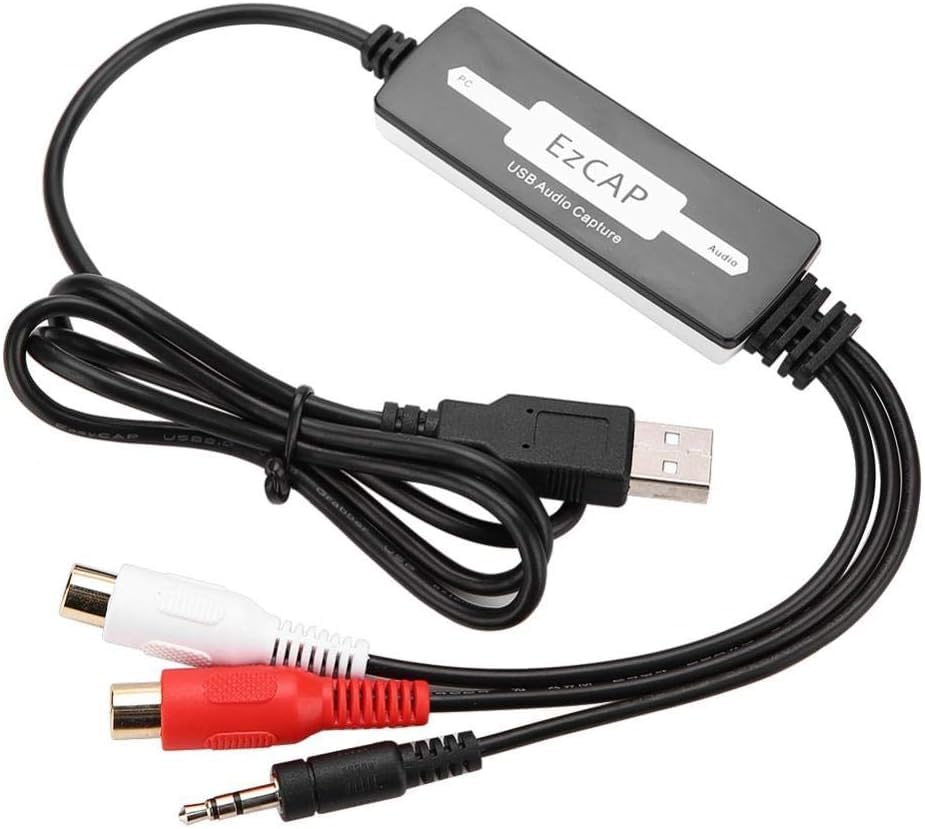
Image: Contents of the Tobo Audio & Video USB Capture Card package, including the capture device, cables, software CD, and manual.
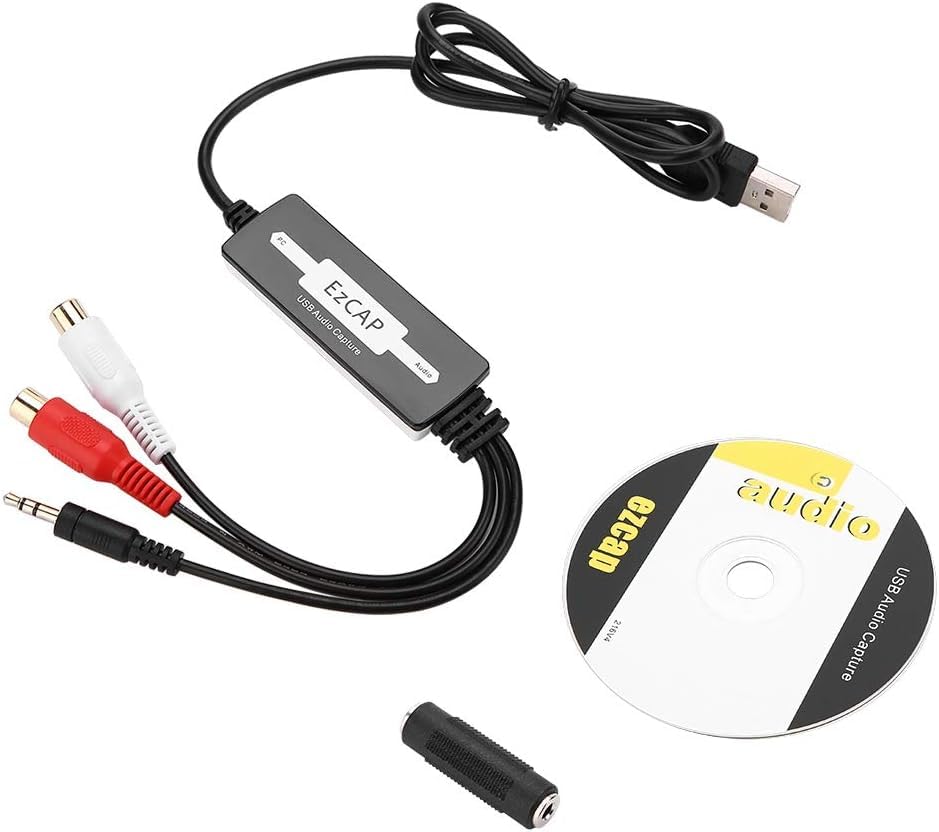
Image: The Tobo USB Audio Capture device, its accompanying software CD, and a 3.5mm female-to-female audio adapter.
3. Setup Guide
Follow these steps to set up your Tobo Audio & Video USB Capture Card:
- Install Application Software: Before connecting the device, install the provided capture and editing software (e.g., VHS to DVD 3.0 or Audacity) from the included CD or by downloading the latest version from the manufacturer's website. Ensure any anti-virus software is temporarily disabled during installation to prevent conflicts.
- Connect Audio/Video Source: Connect your analog audio/video source (e.g., VCR, camcorder, cassette player, turntable) to the Tobo USB Capture Card.
- For composite video and stereo audio, use the RCA (yellow for video, white for left audio, red for right audio) connectors.
- For S-Video, use the S-Video (miniDin 4pin) input.
- For 3.5mm audio input, use the 3.5mm jack. The included 3.5mm female-to-female connector can extend cables if needed.
- Connect to Computer: Plug the USB 2.0 connector of the capture card into an available USB 2.0 port on your computer (PC or Mac). The device is Plug and Play, and your operating system should automatically install the necessary drivers.
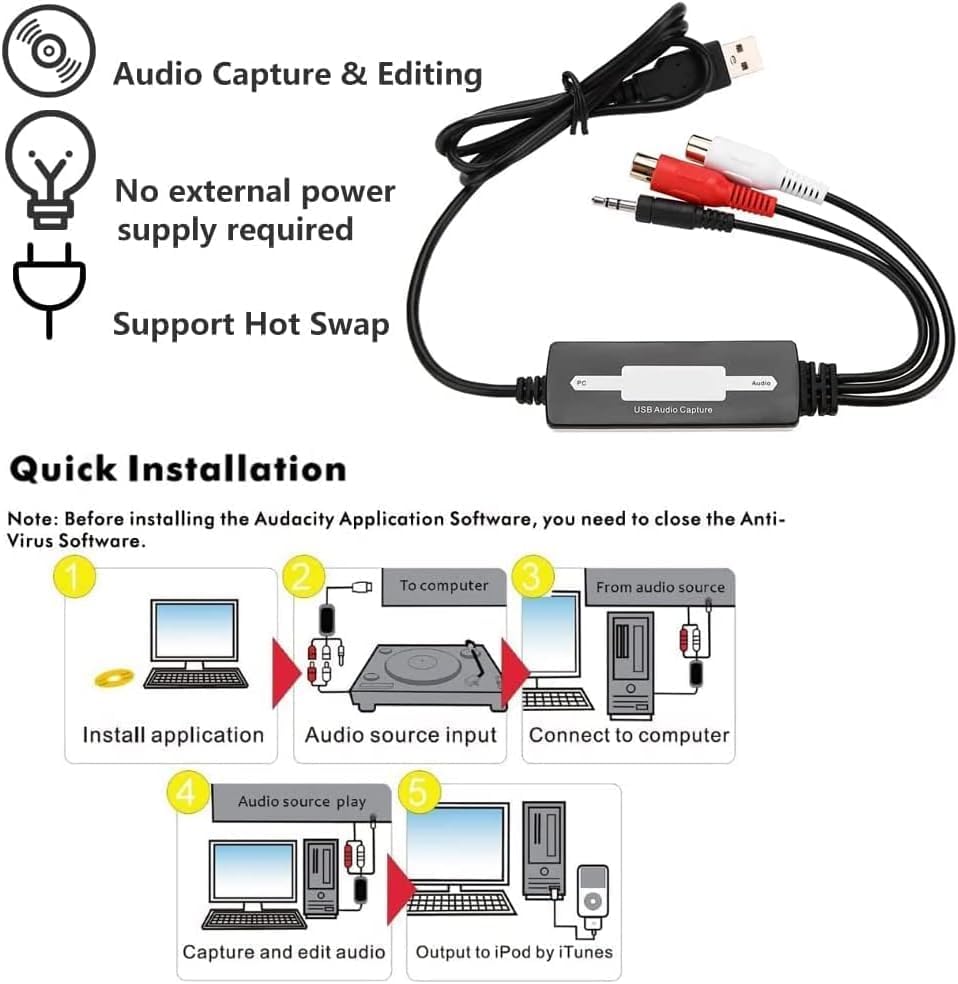
Image: Diagram illustrating the quick installation process: 1. Install application, 2. Audio source input, 3. Connect to computer, 4. Audio source play, 5. Capture and edit audio, Output to iPod by iTunes.

Image: The Tobo USB Audio Capture device shown connecting to a PC/laptop and various audio sources like a radio, cassette player, and record player.
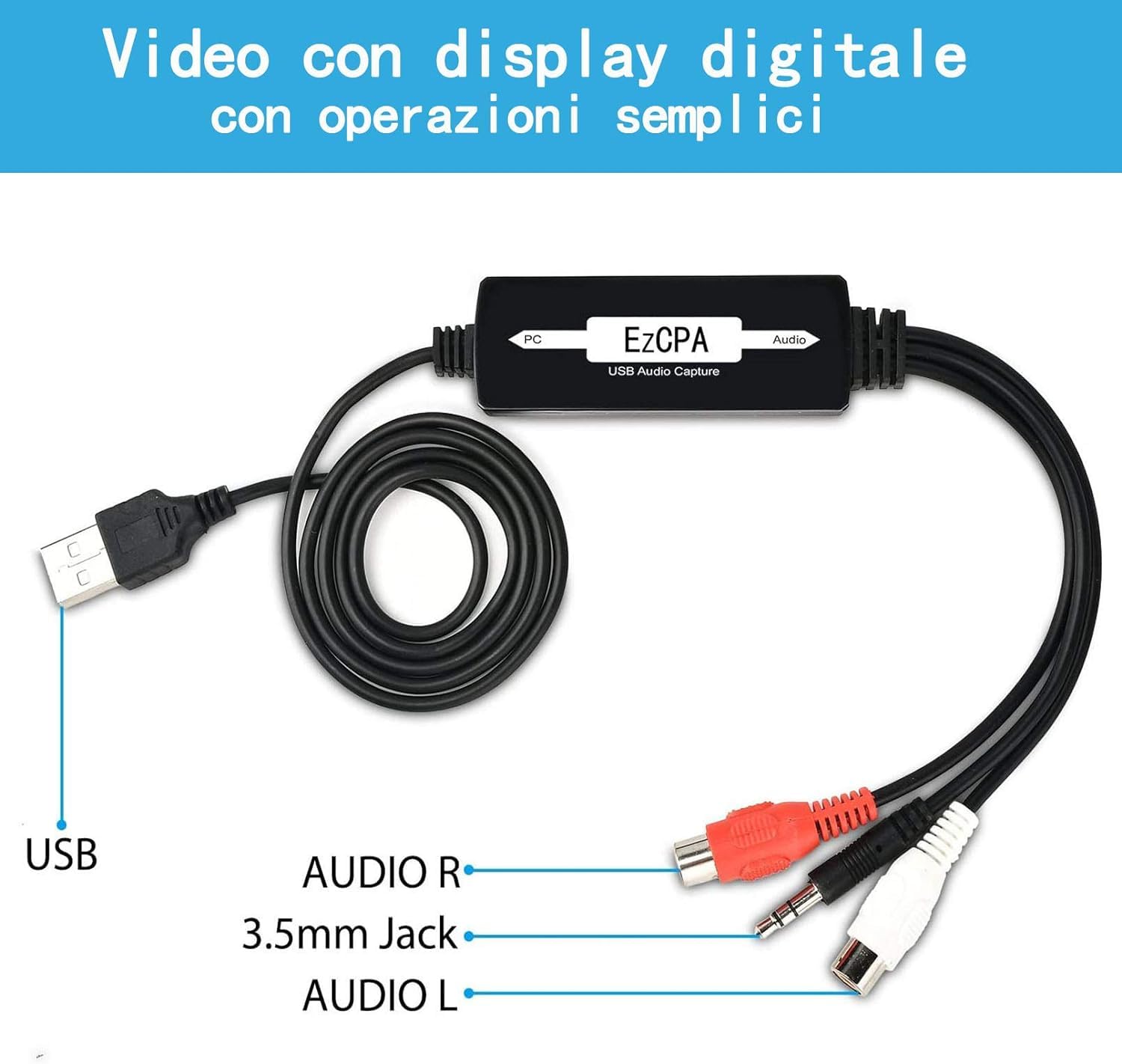
Image: Close-up of the Tobo USB Audio Capture device showing the USB connection, Audio R (red RCA), 3.5mm Jack (black), and Audio L (white RCA) inputs.
4. Operating Instructions
Once the device is set up, follow these steps to capture and edit audio/video:
- Launch Software: Open the installed audio/video capture software (e.g., Audacity for audio, VHS to DVD 3.0 for video).
- Select Input Device: In the software settings, select the Tobo USB Capture Card as your audio/video input device. It may appear as "USB Audio Device" or similar.
- Adjust Settings: Configure recording settings such as sample rate, bit depth, and output format (e.g., MP3, WAV for audio; VCD, DVD for video).
- Start Playback: Begin playing the audio or video from your analog source.
- Start Recording: In the software, click the "Record" button to begin capturing the signal.
- Monitor Recording: Monitor the recording level and quality within the software.
- Stop Recording: Once the playback is complete, click the "Stop" button in the software.
- Edit and Save: Use the software's editing features to trim, split, integrate, copy, paste, cut, or reduce noise from your captured media. Save the final digital file to your computer in the desired format. The software also supports burning to DVD or uploading video to platforms like YouTube.
- Snapshot Function: The device includes a button for taking still image snapshots during video capture.
5. Maintenance
To ensure the longevity and optimal performance of your Tobo Audio & Video USB Capture Card, follow these maintenance guidelines:
- Cleaning: Use a soft, dry cloth to clean the device. Avoid using liquid cleaners or solvents.
- Storage: Store the device in a cool, dry place away from direct sunlight and extreme temperatures when not in use.
- Cable Care: Handle cables gently. Avoid bending or twisting them sharply, which can damage internal wires.
- Software Updates: Periodically check for updates to your audio/video capture software to ensure compatibility and access to new features.
6. Troubleshooting
If you encounter issues with your Tobo Audio & Video USB Capture Card, refer to the following common problems and solutions:
- No Device Detected:
- Ensure the USB cable is securely connected to both the capture card and your computer.
- Try a different USB port on your computer.
- Restart your computer.
- Verify that the operating system drivers have installed automatically. Check Device Manager (Windows) or System Information (Mac).
- No Audio/Video Signal:
- Check all analog audio/video cable connections between the source device and the capture card.
- Ensure the analog source device (VCR, cassette player, etc.) is powered on and playing media.
- In your capture software, confirm that the correct input device (Tobo USB Capture Card) is selected.
- Adjust the input levels within the software.
- Poor Audio/Video Quality:
- Ensure all cables are in good condition and securely connected.
- Check the quality of the original analog source material.
- Adjust recording settings in the software (e.g., higher bitrate, resolution).
- Minimize background applications on your computer during recording to free up system resources.
- Software Installation Issues:
- Temporarily disable anti-virus software during installation.
- Ensure your operating system meets the software's minimum requirements.
- Try running the installer as an administrator (Windows).
7. Specifications
| Brand | Tobo |
| Model Name | USB Audio Capture Recorder Card |
| Item Model Number | USB 2.0 Video Capture Card (TD-146CA) |
| Hardware Interface | USB 2.0 |
| Audio Input | Stereo Audio L/R (RCA L/R connector), 3.5mm Jack |
| Video Input | Composite Video (RCA connector), S-Video (miniDin 4pin) |
| Video Capture Resolution | Up to 720x480 (NTSC, 30fps) / 720x576 (PAL, 25fps) |
| Compatible Operating Systems | Windows XP/Vista/7/8/8.1/10, Mac OS, Linux, Android |
| Special Features | Lightweight, Portable, Plug and Play, Hot-swappable |
| Product Dimensions (LxWxH) | 12 x 6 x 4 cm |
| Item Weight | 40 g |
| Power Supply | USB Powered (No external power required) |
8. Warranty and Support
Warranty: Tobo offers a free replacement for three months and a one-year warranty service from the date of purchase. Please retain your proof of purchase for warranty claims.
Technical Support: If you have any questions, require assistance with setup, operation, or troubleshooting, please contact Tobo Digital customer support. We aim to respond to all inquiries within 24 hours.
- Helpline: +91-22-49722666
- Manufacturer/Packer: Tobo Digital LLP. Mumbai, India.
- Importer: Tobo Digital