
1. Introduction
This manual provides detailed instructions for the installation, operation, and maintenance of your JEYI NVMe M.2 to 5 SATA Adapter. This adapter is designed to expand your desktop PC's storage capabilities by converting an M.2 NVMe slot into five internal SATA III 6Gb/s ports, supporting both SSDs and HDDs.
Key features include:
- Adds 5 SATA ports to an M.2 NVMe slot.
- Supports PCIe 3.0 x2 interface, offering speeds up to 1700 MB/s.
- Plug and Play functionality, no drivers required.
- Supports UASP/TRIM, AHCI mode, and Native Command Queuing (NCQ).
- Compatible with PCI Express Ver.3.1a and SATA version 3.2 specifications.
- Supports SATA power saving modes (partial and slumber).
- Enables software RAID groups for up to 5 drives.

Figure 1.1: JEYI NVMe M.2 to 5 SATA Adapter, showing the M.2 connector and five SATA ports.
2. Package Contents
Please verify that all items are present in the package before proceeding with installation:
- JEYI NVMe M.2 to 5 SATA Adapter Card
- Aluminum Heatsink (pre-installed or separate)
- Mounting Screws
- Small Screwdriver

Figure 2.1: Detailed view of the adapter's components and included accessories, such as the heatsink, screws, and screwdriver.
3. Setup and Installation
Follow these steps to properly install the JEYI NVMe M.2 to 5 SATA Adapter into your desktop PC.
- Power Off and Disconnect: Before beginning, ensure your computer is completely powered off and disconnected from the power outlet.
- Open PC Case: Carefully open your computer's case to access the motherboard.
- Locate M.2 NVMe Slot: Identify an available M.2 NVMe slot on your motherboard. This adapter requires an M-Key M.2 slot that supports PCIe 3.0 x2.
- Insert Adapter: Gently insert the JEYI NVMe M.2 to 5 SATA Adapter into the M.2 slot at a slight angle. Press down firmly until it clicks into place.
- Secure Adapter: Use the provided screw to secure the adapter to the motherboard's M.2 standoff.
- Connect SATA Drives: Connect your SATA SSDs or HDDs to the five SATA ports on the adapter using standard SATA data cables. Ensure a secure connection for each drive.
- Connect Power: Ensure your SATA drives are connected to the power supply unit (PSU) of your computer. The adapter itself draws power from the M.2 slot.
- Close PC Case and Power On: Close your PC case, reconnect the power cable, and power on your computer.

Figure 3.1: The adapter installed in an M.2 slot on a motherboard, with SATA cables connected to the five ports.
The adapter is Plug and Play, meaning no additional drivers are typically required for most operating systems, including Windows and Linux. Your operating system should automatically detect the connected SATA drives.
4. Operating Instructions
Once installed, the JEYI NVMe M.2 to 5 SATA Adapter functions as a standard SATA controller, providing five additional SATA III 6Gb/s ports.
- Drive Detection: Upon booting your system, the connected SATA drives should be detected by your operating system. You may need to initialize and format new drives through Disk Management (Windows) or equivalent tools (Linux) before they can be used.
- Performance: The adapter supports SATA III 6Gb/s speeds for each connected drive, leveraging the PCIe 3.0 x2 interface for a total bandwidth of up to 1700 MB/s. Actual performance may vary based on your system configuration and the drives used.
- Software RAID: This adapter supports the creation of software RAID groups across the five connected drives. Refer to your operating system's documentation for instructions on configuring software RAID (e.g., Storage Spaces in Windows, mdadm in Linux). Note that this adapter does not provide hardware RAID functionality.
- Advanced Features: The adapter supports UASP (USB Attached SCSI Protocol) for improved performance with compatible devices, TRIM for SSD optimization, AHCI (Advanced Host Controller Interface) mode, IDE programming interface, and Native Command Queuing (NCQ).
- Power Saving: The adapter supports PCI Express Physical Layers power saving modes and SATA power saving modes (partial and slumber) to reduce power consumption when drives are idle.
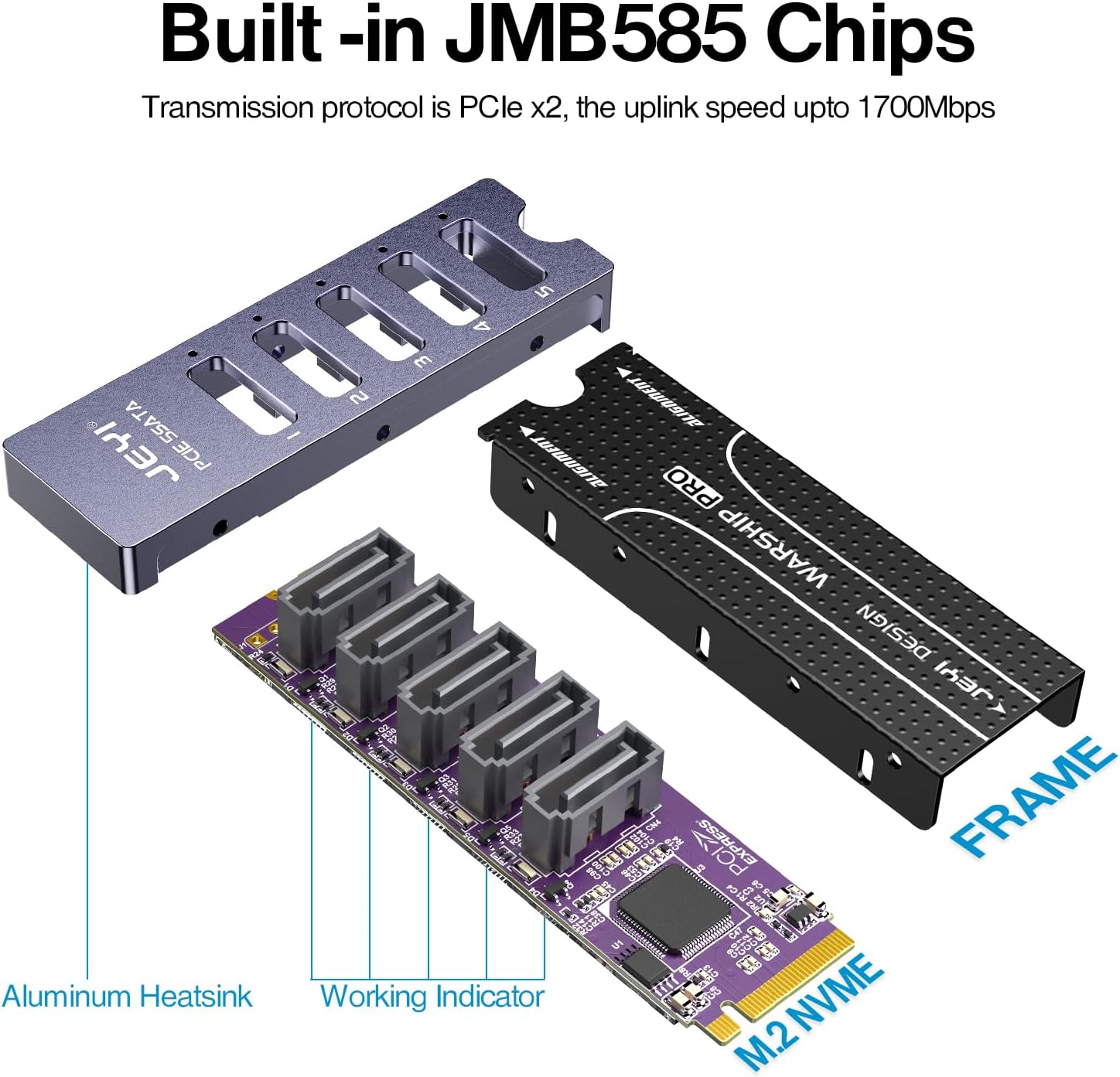
Figure 4.1: Internal view of the adapter, highlighting the JMB585 chip and aluminum heatsink for efficient operation.
5. Maintenance
The JEYI NVMe M.2 to 5 SATA Adapter is a low-maintenance component. To ensure its longevity and optimal performance, consider the following:
- Dust Prevention: Regularly clean the interior of your PC case to prevent dust buildup on the adapter and other components, which can impede airflow and lead to overheating.
- Secure Connections: Periodically check that all SATA data and power cables are securely connected to the adapter and drives. Loose connections can lead to intermittent drive detection issues.
- Environmental Conditions: Operate the adapter within a stable temperature and humidity environment. Avoid extreme temperatures or moisture.
- Physical Handling: When handling the adapter, avoid touching the gold contacts or electronic components directly. Always hold it by the edges.
6. Troubleshooting
If you encounter issues with your JEYI NVMe M.2 to 5 SATA Adapter, refer to the following common troubleshooting steps:
- Drives Not Detected:
- Ensure the adapter is fully seated in the M.2 slot and secured with the screw.
- Verify that all SATA data and power cables are securely connected to both the adapter and the drives.
- Check your motherboard's BIOS/UEFI settings to ensure the M.2 slot is enabled and configured correctly (e.g., set to PCIe mode if applicable).
- Test the drives directly connected to the motherboard's SATA ports (if available) to rule out drive issues.
- For new drives, ensure they are initialized and formatted in your operating system's Disk Management utility.
- Intermittent Drive Disconnections:
- This can often be caused by loose SATA cable connections. Re-seat all cables.
- Ensure adequate power supply to the drives. Insufficient power can lead to instability.
- Check for overheating. Ensure proper airflow within your PC case. The adapter includes a heatsink to manage its temperature.
- Update your motherboard's BIOS/UEFI to the latest version, as this can sometimes resolve compatibility issues.
- Slow Performance:
- Verify that your M.2 slot supports PCIe 3.0 x2 or higher. Lower PCIe versions or configurations may limit bandwidth.
- Ensure your SATA drives are capable of SATA III (6Gb/s) speeds.
- Check for background processes or other system bottlenecks that might be affecting drive performance.
If the issue persists after following these steps, please contact JEYI customer support for further assistance.
7. Specifications
| Feature | Specification |
|---|---|
| Model Number | JY-5SATA |
| Interface | M.2 NVMe (M-Key) |
| PCIe Standard | PCI Express Ver.3.1a (PCIe 3.0 x2) |
| SATA Standard | SATA version 3.2 (SATA III 6Gb/s) |
| Number of SATA Ports | 5 |
| Max Transfer Speed | Up to 1700 MB/s (PCIe 3.0 x2 bandwidth) |
| Chipset | JMB585 |
| Supported OS | Windows, Linux (Plug and Play) |
| Dimensions (L x W x H) | 8 x 2.3 x 1.2 centimeters |
| Compatible Devices | Desktop Computer |
8. Warranty and Support
JEYI products are designed for reliability and performance. For warranty information and technical support, please refer to the official JEYI website or contact their customer service directly.
Please have your product model number (JY-5SATA) and purchase details ready when contacting support.
For the latest drivers (if applicable, though this device is Plug and Play) and FAQs, visit the JEYI support page.