
1. Package Contents
Verify that all items are present in your package:
- Spedal 4K Ultra HD Webcam FF931
- Remote Control
- Mini Tripod
- USB-A to USB-C Adapter
- Quick Guide

Image 1.1: The Spedal 4K Webcam FF931 is shown with its included accessories: a remote control, a mini tripod, and a USB-A to USB-C adapter. The webcam features a sleek black design with '4K ULTRA HD' and 'Spedal' branding visible on the front.
2. Setup
2.1 Physical Installation
The Spedal FF931 webcam offers flexible mounting options:
- Monitor/Laptop Mount: Unfold the integrated clip to securely attach the webcam to the top of your computer monitor or laptop screen. Ensure the clip is stable and the webcam is level.
- Tripod Mount: For desktop use or alternative positioning, screw the webcam onto the included mini tripod. The tripod provides stability and allows for precise angle adjustments.
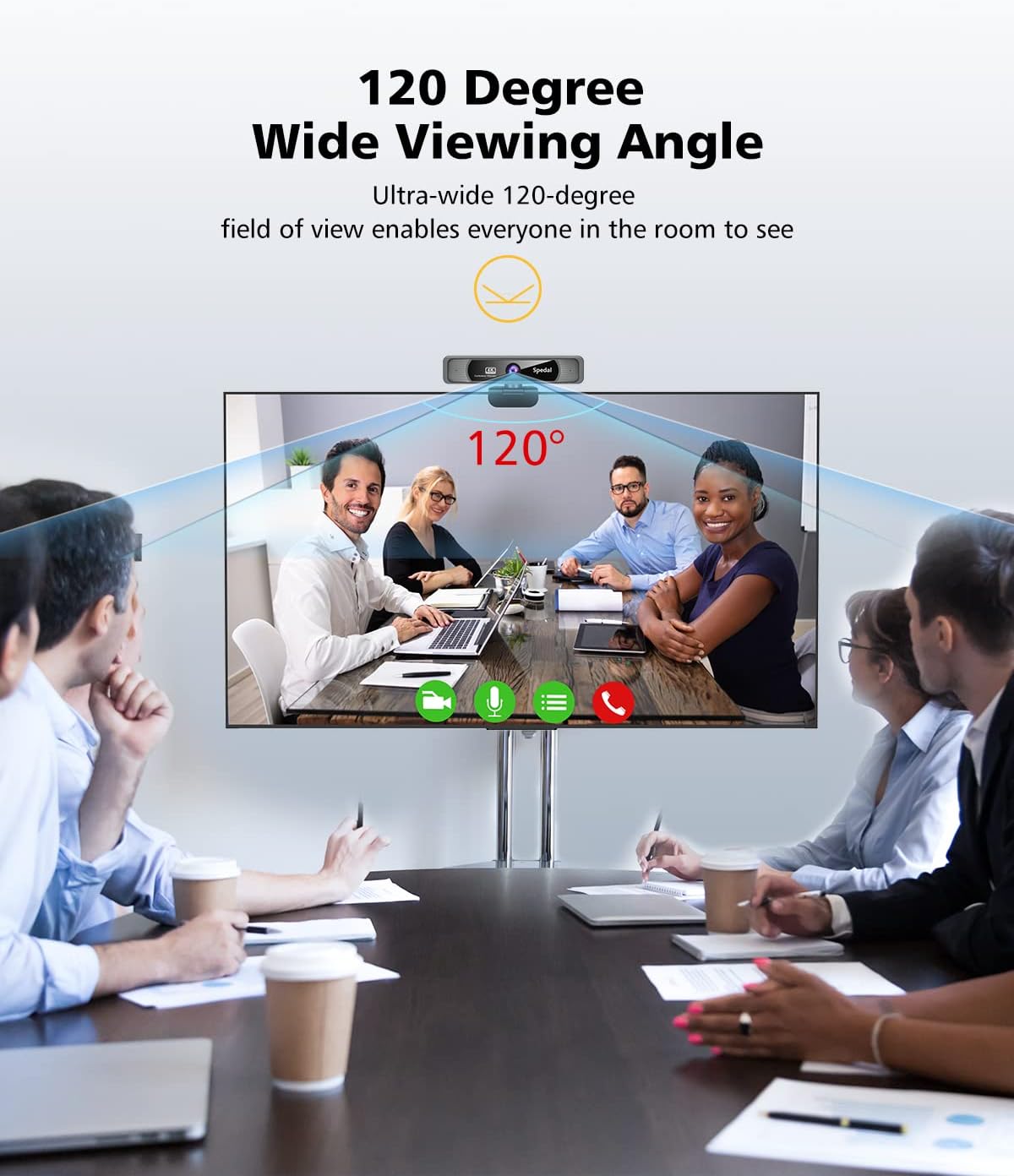
Image 2.1: The Spedal 4K Webcam FF931 is shown mounted on a laptop screen, illustrating its wide 120-degree field of view. The image depicts a group of people in a meeting, highlighting the webcam's ability to capture multiple participants within a single frame.
2.2 Connection
The webcam features a Plug & Play design, requiring no driver installation:
- Connect the webcam's USB cable directly to an available USB-A port on your computer.
- If your computer only has USB-C ports, use the provided USB-A to USB-C adapter to connect the webcam.
- The webcam will be automatically recognized by your operating system.

Image 2.2: This image demonstrates the versatility of the Spedal 4K Webcam FF931's connectivity. It shows the included USB Type-C adapter, allowing the webcam to be connected to both traditional USB-A ports and modern USB-C ports on a laptop, ensuring broad compatibility.
2.3 Optional Software
For advanced customization and features, optional Spedal software is available. This software allows you to adjust exposure, contrast, resolution, and colors, and provides features like image filters and a virtual camera.
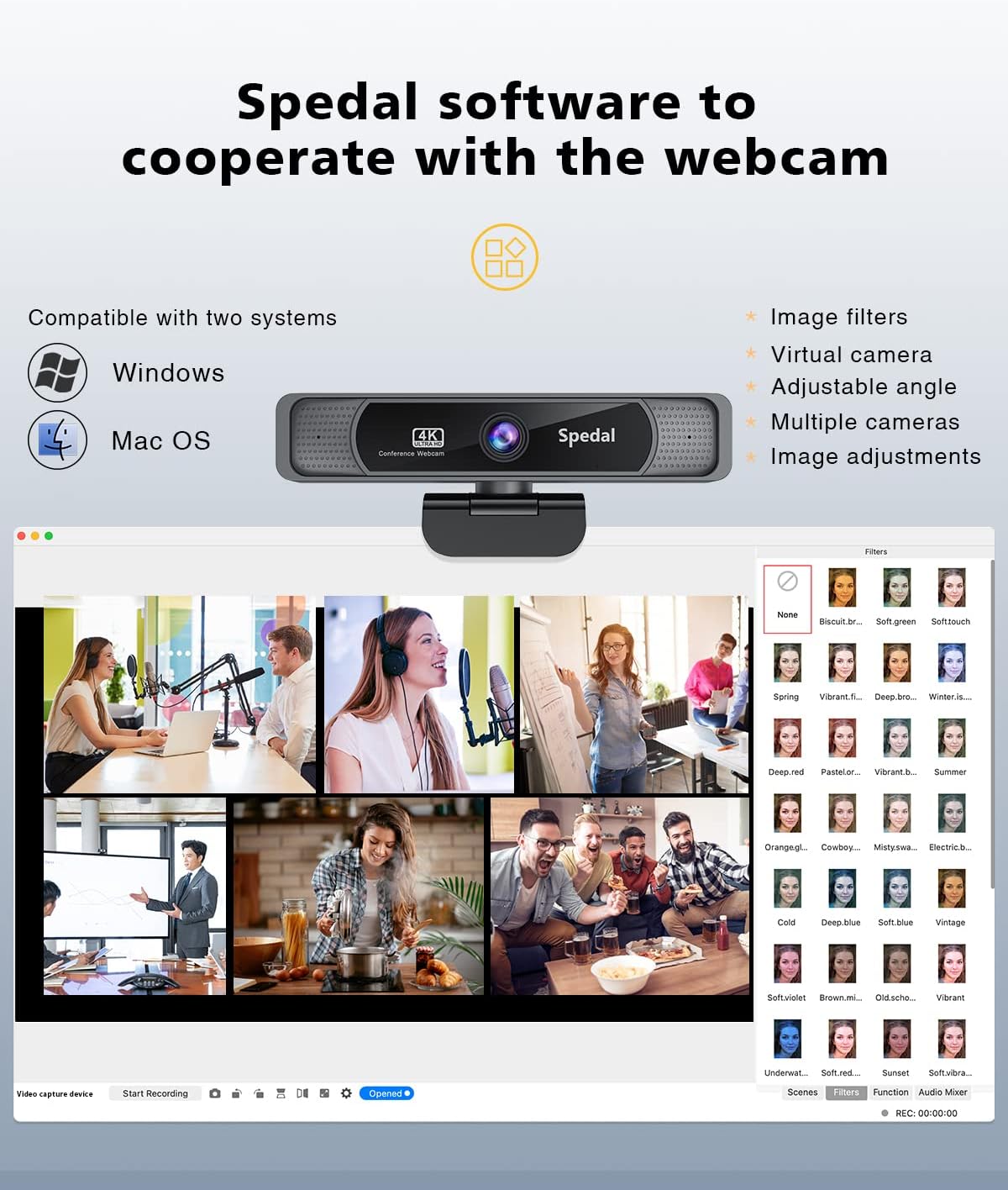
Image 2.3: The Spedal software interface is displayed, compatible with Windows and macOS. It showcases various features such as image filters, virtual camera options, adjustable angles, and multiple camera support, allowing users to fine-tune their webcam experience.
3. Operating Instructions
3.1 Basic Functions
- 4K Ultra HD Video: The webcam delivers sharp and clear video at 3840 x 2160 resolution at 30 frames per second (fps), utilizing an 8MP 1/2.7" CMOS sensor and a 7-lens professional optical lens.
- 120° Wide-Angle: Capture a broader view, ideal for group meetings or presentations, ensuring everyone is visible.
- AI Noise-Reduction Microphones: Built-in stereo microphones with AI noise reduction technology capture clear audio up to 3 meters, minimizing background distractions.

Image 3.1: This comparison highlights the superior image quality of the Spedal 4K Webcam FF931. It shows a side-by-side view of a subject captured in 4K/8MP resolution versus 1080p, demonstrating the enhanced sharpness and detail provided by the 4K resolution.

Image 3.2: The Spedal 4K Webcam FF931 is depicted in a conference setting, emphasizing its built-in AI noise reduction dual microphones. The image illustrates how the microphones enhance clarity by minimizing background noise, ensuring crystal-clear online voice communication.
3.2 Using the Remote Control
The included remote control provides convenient access to various webcam settings:
- Zoom: Adjust the 4x digital zoom (effective at resolutions below 4K).
- Brightness: Increase or decrease video brightness.
- Saturation: Adjust color saturation.
- Mute: Mute or unmute the microphone.
- Mirror & Flip: Change the image orientation.
- Pan: Adjust the camera's horizontal position when zoomed in.
- 50Hz/60Hz: Adjust the flicker frequency.
- Factory Reset: Restore default settings.
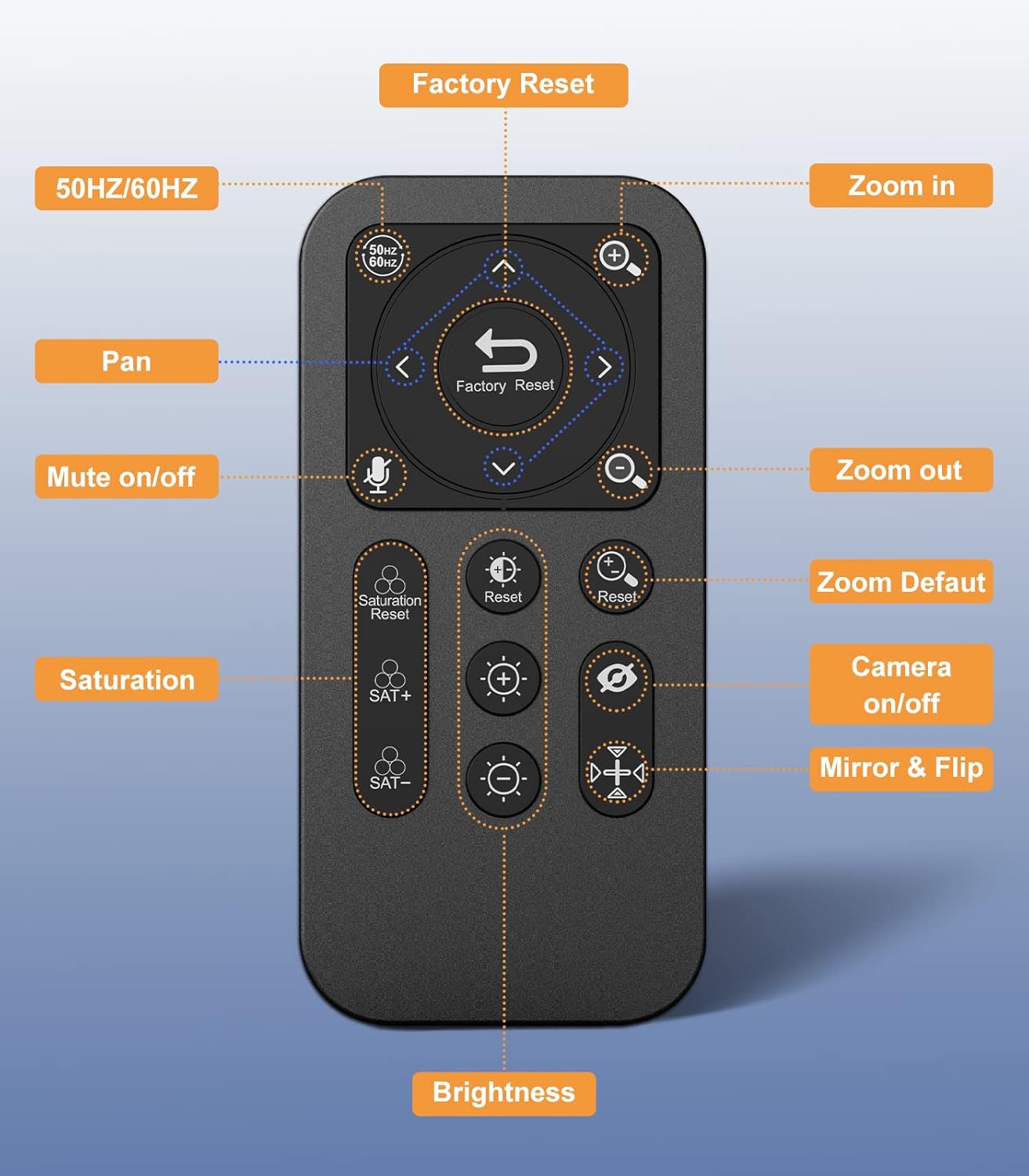
Image 3.3: This image provides a detailed view of the Spedal 4K Webcam FF931's remote control, with each button clearly labeled for its function. Key controls include Factory Reset, Zoom In/Out, Pan, Mute On/Off, Saturation adjustment, Brightness adjustment, Camera On/Off, and Mirror & Flip.

Image 3.4: This visual demonstrates the adjustable light correction feature of the Spedal 4K Webcam FF931. It shows three panels: underexposed, perfect, and overexposed, illustrating how users can adjust saturation and brightness via the remote control to achieve optimal image and video quality.

Image 3.5: This image illustrates the 4X digital zoom capability of the Spedal 4K Webcam FF931, controlled by the included remote. It displays a sequence of images from 1X to 4X zoom, along with controls for panning, highlighting the flexibility in framing the subject. Note: Zoom buttons function when resolution is below 4K.
3.3 Compatibility
The Spedal FF931 webcam is compatible with a wide range of operating systems and platforms:
- Operating Systems: Windows, macOS, Linux.
- Platforms: Zoom, Skype, Teams, OBS, and other major video conferencing and streaming applications.
4. Maintenance
To ensure optimal performance and longevity of your Spedal FF931 webcam:
- Cleaning: Gently wipe the lens and body of the webcam with a soft, dry, lint-free cloth. Avoid using harsh chemicals or abrasive materials.
- Storage: When not in use, store the webcam in a clean, dry place away from direct sunlight and extreme temperatures.
5. Troubleshooting
If you encounter issues with your Spedal FF931 webcam, refer to the following common solutions:
- No Image/Video:
- Ensure the USB cable is securely connected to both the webcam and your computer.
- Try connecting to a different USB port.
- Restart your computer.
- Check your application's settings to ensure the Spedal webcam is selected as the video input device.
- Poor Video Quality:
- Ensure adequate lighting in your environment.
- Clean the webcam lens with a soft cloth.
- Check your application's video settings to ensure 4K resolution is selected if supported.
- Use the remote control or optional Spedal software to adjust brightness and saturation.
- No Sound/Poor Audio:
- Ensure the microphone is not muted via the remote control or your computer's settings.
- Check your application's audio settings to ensure the Spedal webcam is selected as the audio input device.
- Ensure you are within 3 meters of the webcam for optimal microphone pickup.
- Factory Reset: If issues persist, use the 'Factory Reset' button on the remote control to restore the webcam to its default settings.
6. Specifications
| Brand | Spedal |
| Model | FF931 |
| Photo Sensor Technology | CMOS (1/2.7") |
| Video Recording Resolution | 4K (3840 x 2160) at 30fps, 1080p |
| Maximum Focal Length | 1400 Millimeters |
| Maximum Aperture | f/2 |
| Video Capture Format | MJPG, YUY2 |
| Supported Audio Format | Multiple audio formats |
| Connectivity Technology | USB (USB-A, USB-C with adapter) |
| Field of View | 120 Degrees |
| Microphone | Built-in Stereo with AI Noise Reduction (3m pickup) |
| Zoom | 4x Digital Zoom (via remote) |
7. Product Videos
Video 7.1: This video provides an overview of the Spedal 4K Webcam FF931, demonstrating its unboxing, physical setup on a laptop, and the ease of its plug-and-play functionality. It also highlights the wide 120-degree viewing angle and the clarity of the 4K resolution, showcasing the remote control's basic functions like brightness and mute.
Video 7.2: This video further illustrates the capabilities of the Spedal 4K Webcam FF931, focusing on its 8-megapixel sensor and 120-degree wide-angle view, which allows for capturing more of the surrounding environment. It also demonstrates the effectiveness of the built-in noise reduction feature for clear audio and the convenience of the 4x digital zoom controlled by the remote.
8. Warranty and Support
For warranty information, technical support, or service inquiries, please refer to the contact details provided in your product packaging or visit the official Spedal website. Keep your purchase receipt as proof of purchase for warranty claims.


