
1. Product Overview
The Spedal 4K UHD Webcam is designed to provide high-quality video and audio for various applications, including video conferencing, streaming, online teaching, and video calling. It features advanced imaging technology, intelligent audio processing, and convenient remote control capabilities.
Package Contents
- Spedal 4K UHD Webcam
- Remote Control
- USB-A to USB-C Cable
- USB-C to USB-A Adapter
- Mini Tripod

Image: Spedal 4K UHD Webcam, remote control, USB cables, and mini tripod included in the package.
2. Setup Guide
Connecting the Webcam
- Mounting: Place the webcam on top of your monitor, laptop screen, or attach it to the included mini tripod. Ensure it is stable and securely positioned.
- Connect to Computer: Plug the USB-A end of the provided cable into an available USB port on your computer. If your computer only has USB-C ports, use the included USB-C to USB-A adapter.
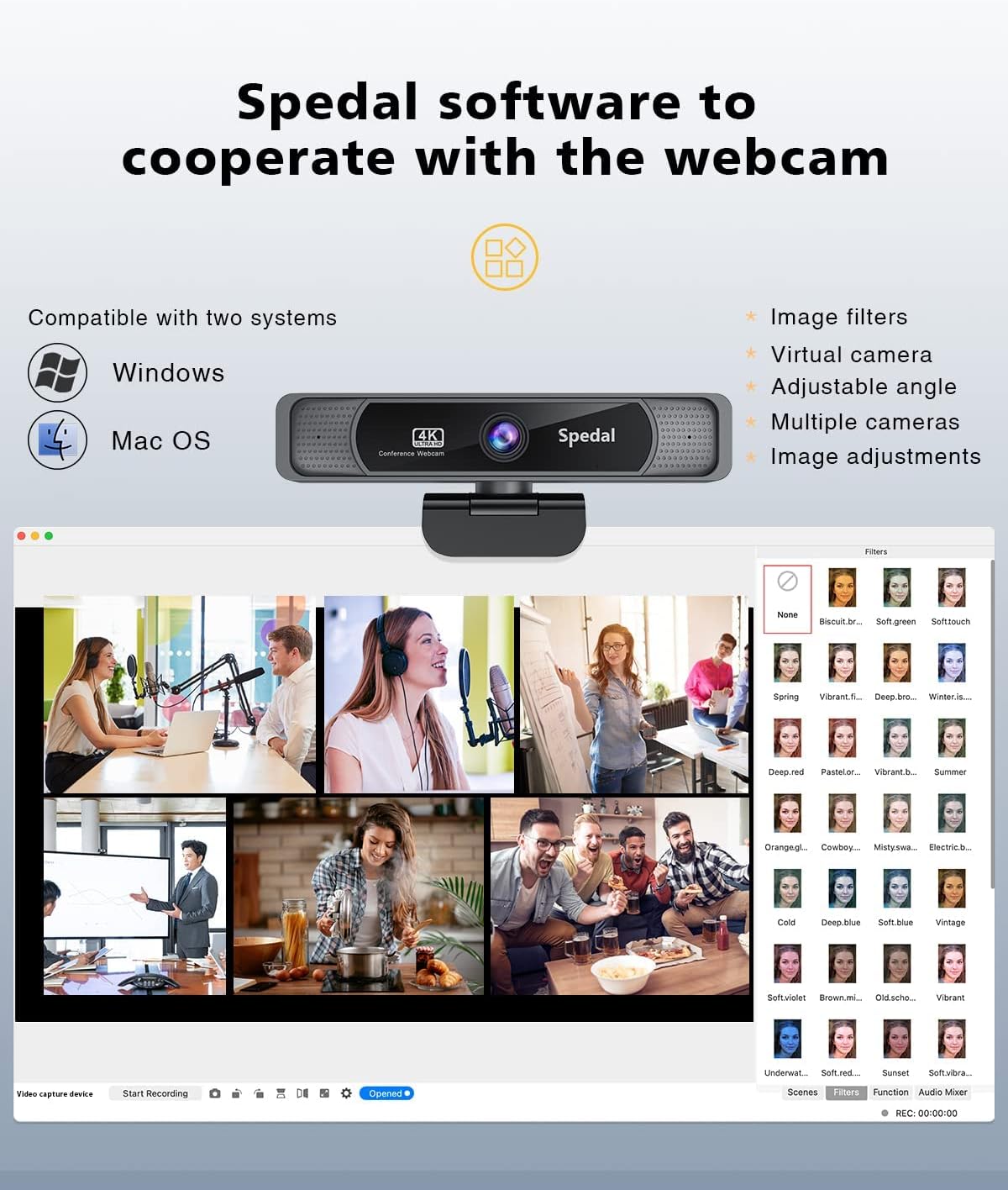
Image: The webcam includes a USB Type-C adapter for versatile connectivity with both USB-A and USB-C input ports.
Initial Setup
The Spedal 4K UHD Webcam is designed for plug-and-play functionality. Most operating systems (Windows, macOS) will automatically detect and install the necessary drivers upon connection.
- Allow a few moments for your computer to recognize the device.
- Open your preferred video conferencing or streaming application (e.g., Zoom, Skype, Microsoft Teams).
- In the application's settings, select "Spedal 4K UHD Webcam" as your video and audio input device.
3. Operating Instructions
Video Quality and Features
- 4K Ultra HD Resolution: The webcam features an 8MP 1/3” CMOS image sensor, providing a resolution of up to 3840x2160 at 30 frames per second for sharp and clear video.
- 120° Wide Angle: The wide field of view is ideal for group video conferences, allowing more participants to be seen without distortion.
- Fixed Focus: Ensures consistent clarity without the need for continuous autofocus adjustments.

Image: Comparison showing the superior clarity of 4K/8MP video output compared to 1080P.

Image: Illustration of the 120-degree wide-angle view, suitable for video conferences without distortion.
Audio Features
The webcam includes built-in dual stereo microphones with Automatic Noise Reduction technology. This feature helps eliminate background noise, ensuring your voice is captured clearly within a 3-meter range, making it suitable for various communication scenarios.

Image: The webcam features built-in AI noise reduction dual microphones for clear audio in various environments.
Remote Control Functions
The included remote control allows for convenient adjustment of webcam settings from a distance.
- 4x Digital Zoom: Zoom in and out gradually (Note: Zoom functions optimally when resolution is below 4K).
- Mute On/Off: Quickly mute or unmute the microphone.
- Adjusting Brightness: Control the video brightness.
- Adjusting Saturation: Modify color saturation.
- Pan: Adjust the camera's horizontal view after zooming in.
- Mirror & Flip: Change the video orientation.
- Factory Reset: Restore default settings.

Image: Demonstrates the 4X digital zoom capability using the remote control, allowing for closer focus.

Image: Shows how adjustable light correction via the remote can improve image quality from underexposed or overexposed to perfect.
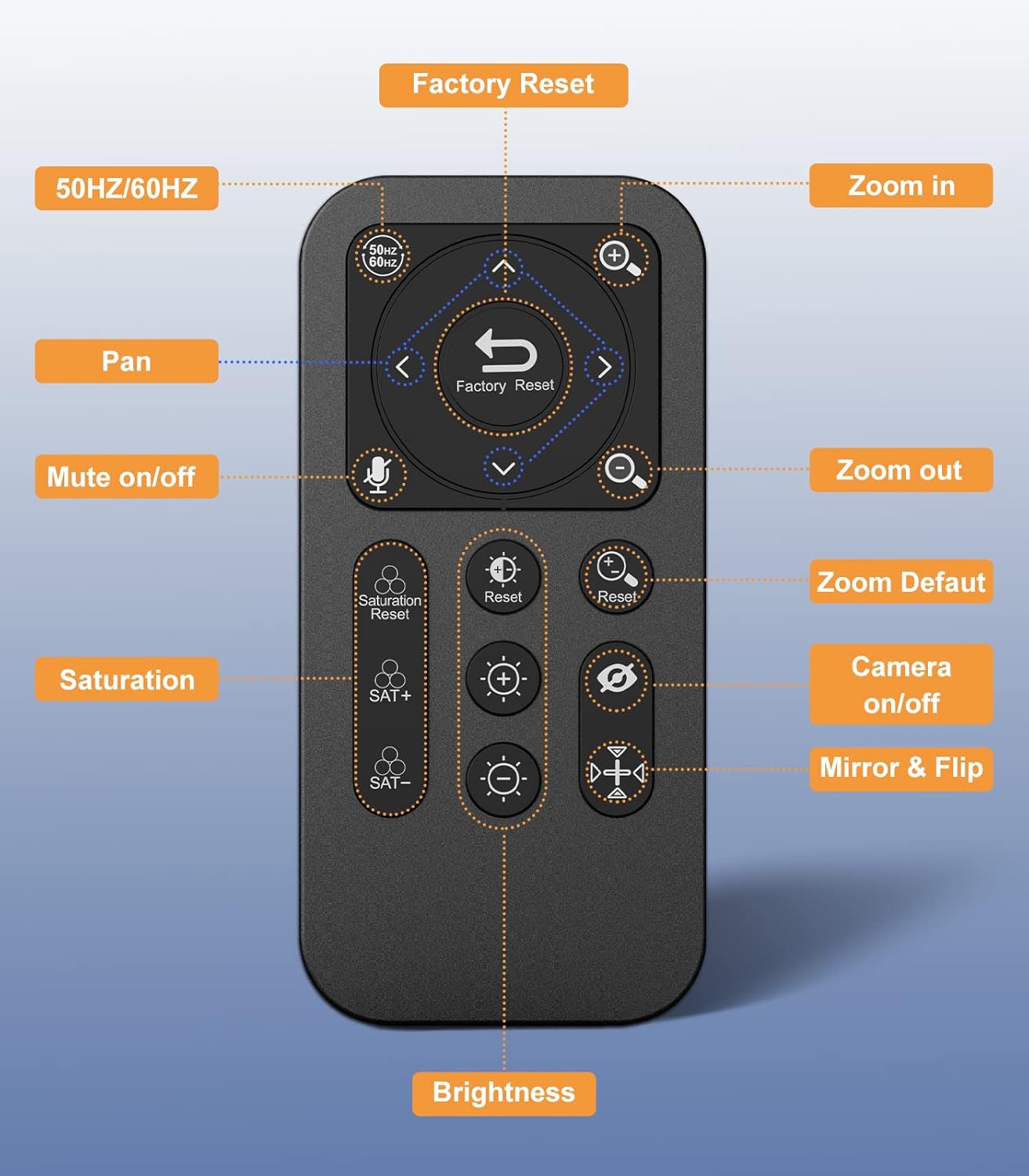
Image: Detailed diagram of the remote control buttons and their corresponding functions, including zoom, mute, brightness, and factory reset.
Spedal Software Control
For advanced customization, you can download the official Spedal software from the Spedal website. This software allows you to modify various parameters:
- Exposure
- Focus
- Resolution
- Saturation
- Contrast
- PLF (HZ)
- White Balance
The software also supports video recording and can be used with other webcam brands.
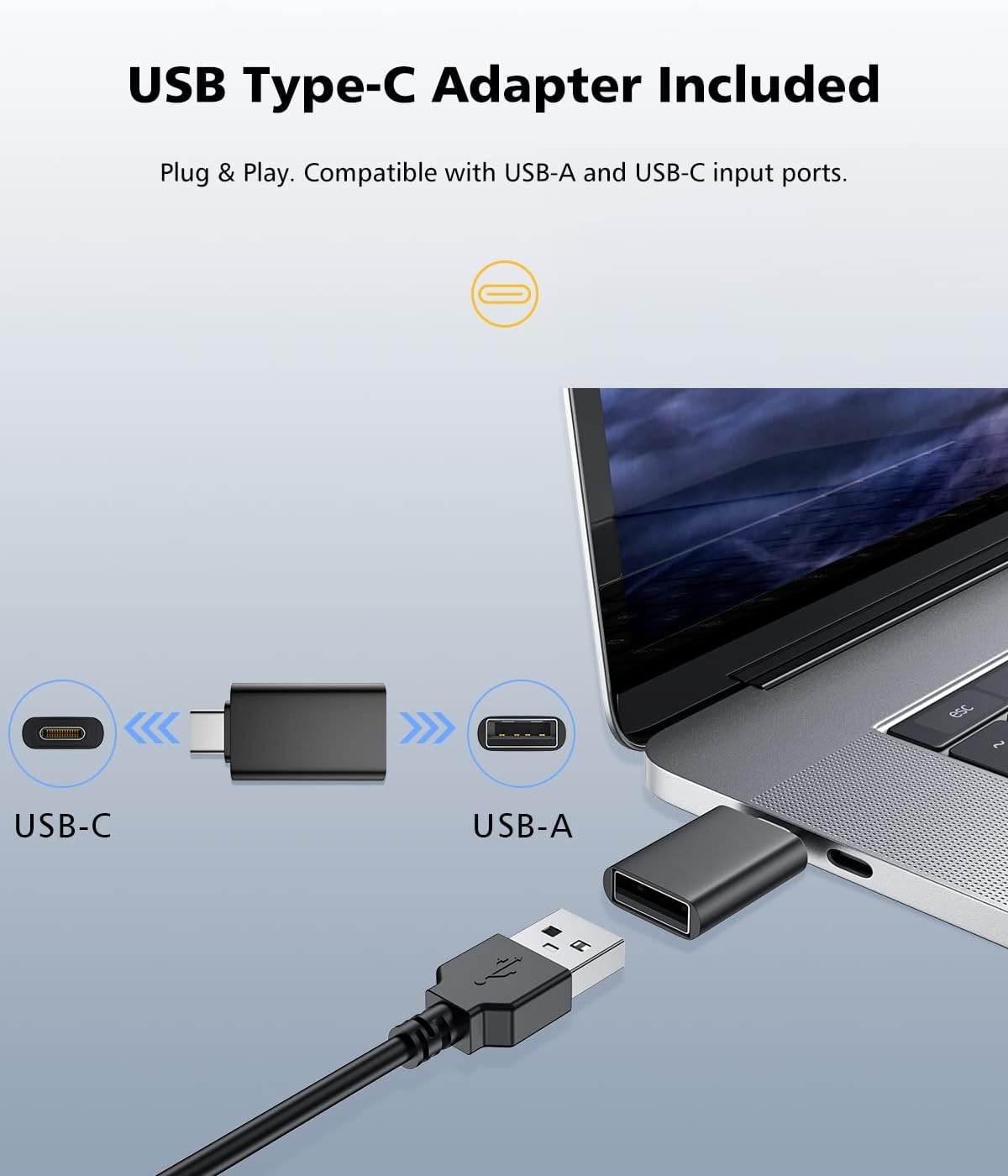
Image: Screenshot of the Spedal software interface, showing options for image filters, virtual camera, adjustable angle, multiple cameras, and image adjustments.
Usage Scenarios
The Spedal 4K UHD Webcam is versatile for various applications:
- Conferencing: Ideal for professional meetings with clear video and audio.
- Streaming: Provides high-resolution output for live broadcasts.
- Online Teaching: Enhances virtual classroom experiences.
- Video Calling: Ensures high-quality personal communication.

Image: The webcam is shown being used for distance learning, conferencing, and live streaming, highlighting its versatility.
Official Product Video
Video: An official product video demonstrating the features and usage of the Spedal 931 4K UHD Webcam, including its plug-and-play setup, high resolution, and remote control capabilities.
4. Maintenance
To ensure the longevity and optimal performance of your Spedal 4K UHD Webcam, follow these maintenance guidelines:
- Cleaning: Use a soft, dry cloth to clean the webcam lens and body. Avoid using abrasive cleaners or solvents that could damage the surface.
- Storage: When not in use, store the webcam in a cool, dry place away from direct sunlight and extreme temperatures.
- Cable Care: Avoid bending or twisting the USB cable excessively to prevent internal damage.
5. Troubleshooting
If you encounter issues with your Spedal 4K UHD Webcam, refer to the following common solutions:
| Problem | Possible Cause | Solution |
|---|---|---|
| No video/audio output | Loose connection, incorrect device selection, driver issue | Ensure USB cable is securely connected. Check if the webcam is selected as the default device in your application settings. Try a different USB port. Restart your computer. |
| Video flickering or poor quality | Lighting conditions, software settings, cable issue | Adjust lighting in your environment. Use the Spedal software or remote control to adjust brightness, saturation, and PLF (HZ) settings. Ensure the USB cable is not damaged. |
| Microphone not picking up sound | Microphone muted, incorrect device selection, software issue | Ensure the microphone is not muted via the remote control or software. Verify "Spedal 4K UHD Webcam" is selected as the audio input device in your application settings. Check system sound settings. |
| Remote control not working | Battery low, line of sight blocked | Replace remote control batteries. Ensure there is a clear line of sight between the remote and the webcam. |
6. Specifications
| Feature | Detail |
|---|---|
| Brand | Spedal |
| Model Number | FF931 |
| Video Capture Resolution | 4K (3840x2160) at 30 fps |
| Photo Sensor Technology | CMOS (8 Megapixels) |
| Field of View | 120° Wide Angle |
| Focus Type | Fixed Focus |
| Microphone | Built-in Dual Stereo Microphones with AI Noise Reduction |
| Connectivity Technology | USB (USB-A and USB-C compatible) |
| Item Weight | 1.04 pounds |
| Package Dimensions | 6.1 x 4.57 x 3.03 inches |
| Color | Black |
7. Warranty and Support
Spedal products are manufactured with quality and reliability in mind. For specific warranty information and terms, please refer to the documentation included with your purchase or visit the official Spedal website.
For technical support, driver downloads, or further assistance, please visit the manufacturer's support page or contact their customer service. Keep your purchase receipt for warranty claims.


