
1. Introduction
Thank you for choosing the FreedConn KY Pro Motorcycle Bluetooth Intercom. This device is designed to enhance your riding experience by providing seamless communication, music enjoyment, and navigation assistance. Featuring a Qualcomm 5.0 Bluetooth chip, it ensures stable and fast connections for various functions including group intercom, music sharing, phone calls, and FM radio.
Please read this manual thoroughly before using the device to ensure proper operation and to maximize its features.

Image 1.1: FreedConn KY Pro Intercom highlighting key features like music sharing, 6-rider intercom, 2-phone connectivity, built-in FM radio, noise reduction, stereo sound, Bluetooth EDR, and waterproof/dustproof design.
2. Package Contents
Verify that all items are present in your package:
- FreedConn KY Pro Bluetooth Intercom Unit
- Stereo Ear Speakers
- Noise Canceling Microphone (Boom Microphone for open-face helmets, Soft Wire Microphone for full-face helmets)
- USB Type-C Charging Cable
- Helmet Mounting Bracket (Clip and Adhesive options)
- User Manual
3. Product Overview
Familiarize yourself with the main components and controls of your KY Pro intercom unit:
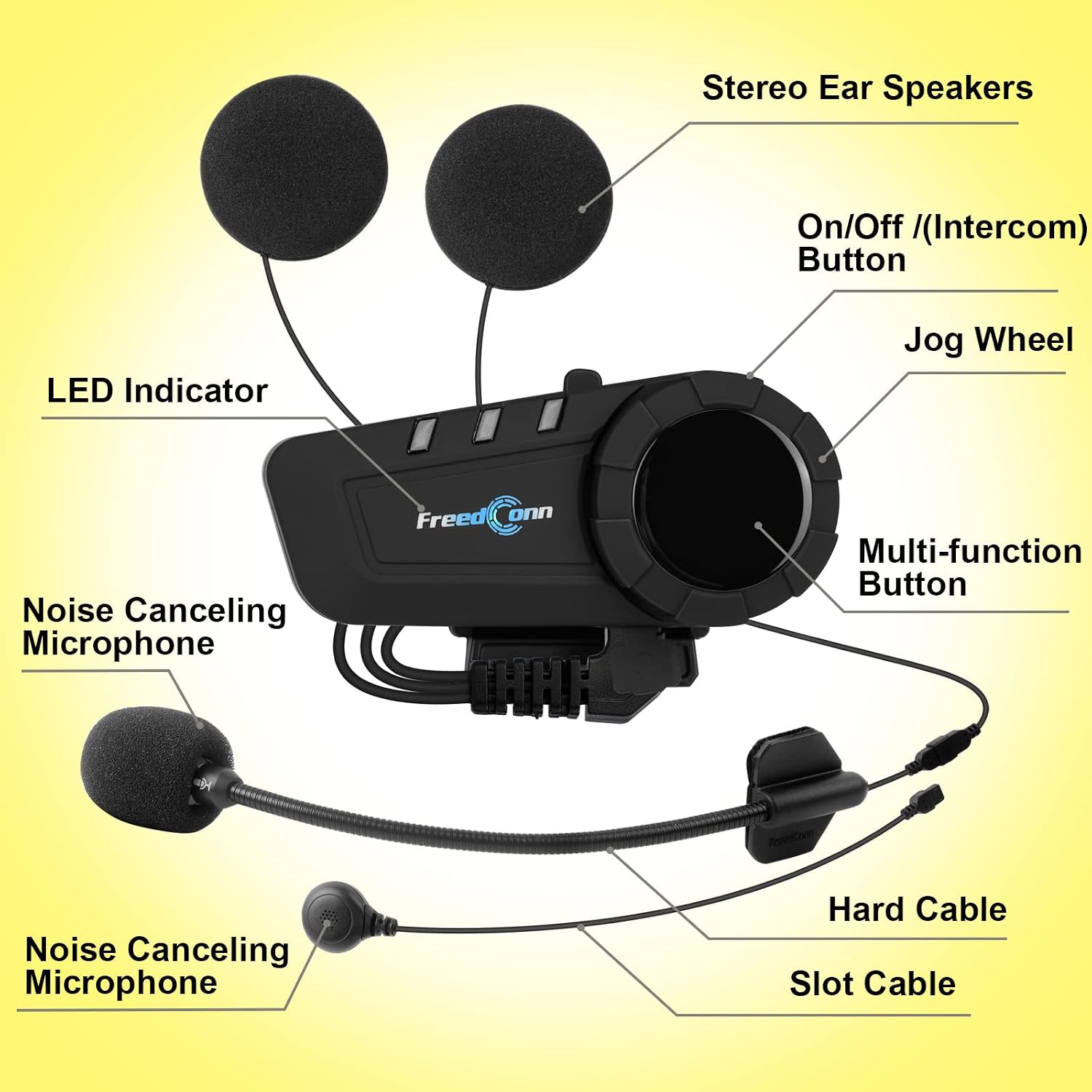
Image 3.1: Detailed diagram showing the FreedConn KY Pro unit with labels for Stereo Ear Speakers, On/Off (Intercom) Button, Jog Wheel, LED Indicator, Multi-function Button, Noise Canceling Microphone (boom and soft wire types), Hard Cable, and Slot Cable.
- On/Off (Intercom) Button: Powers the device on/off, initiates/ends intercom calls.
- Jog Wheel: Adjusts volume, navigates menus, changes FM stations, skips music tracks.
- Multi-function Button: Controls music playback, answers/ends phone calls, activates voice assistant.
- LED Indicator: Displays device status (pairing, charging, operating mode).
- USB Type-C Port: For charging and data transfer.
- Microphone Input: Connects the noise-canceling microphone.
- Speaker Output: Connects the stereo ear speakers.
4. Setup and Installation
4.1 Charging the Device
Before first use, fully charge the KY Pro unit. Connect the provided USB Type-C cable to the charging port on the intercom unit and to a USB power source (e.g., computer, wall adapter). The LED indicator will show charging status and turn off when fully charged. A full charge takes approximately 2.5 hours.
4.2 Installing on Helmet
Choose between the clip-on bracket or the adhesive bracket for mounting the intercom unit to your helmet. Ensure the unit is securely attached and positioned for easy access to controls.
- Mounting the Intercom Unit:
- Clip-on Bracket: Slide the bracket between the helmet shell and the inner padding on the left side. Tighten the screws if necessary.
- Adhesive Bracket: Clean the desired area on the left side of your helmet. Peel off the protective film from the adhesive pad and firmly press the bracket onto the helmet for at least 30 seconds. Allow 24 hours for the adhesive to cure before use.
- Installing Speakers:
Attach the stereo speakers inside the helmet, aligning them with your ears. Use the provided adhesive pads if needed. Ensure the speaker wires are tucked neatly under the helmet padding.
- Installing Microphone:
Select the appropriate microphone for your helmet type:
- Boom Microphone (for open-face/flip-up helmets): Attach the microphone to the inside of the helmet, positioning it close to your mouth.
- Soft Wire Microphone (for full-face helmets): Secure the microphone inside the chin bar, near your mouth.
- Connecting Cables: Plug the speaker and microphone cables into their respective ports on the KY Pro intercom unit.
4.3 Powering On/Off
- Power On: Press and hold the On/Off (Intercom) Button for approximately 3 seconds until the LED indicator flashes blue.
- Power Off: Press and hold the On/Off (Intercom) Button for approximately 3 seconds until the LED indicator flashes red and then turns off.
4.4 Bluetooth Pairing with Mobile Phone
The KY Pro can connect to two mobile phones simultaneously.
- With the device powered off, press and hold the Multi-function Button for approximately 5 seconds until the LED indicator flashes red and blue alternately. This indicates pairing mode.
- On your mobile phone, enable Bluetooth and search for "FreedConn KY Pro".
- Select "FreedConn KY Pro" from the list of available devices to pair. Once paired, the LED indicator will flash blue slowly.
- To pair a second phone, repeat steps 1-3. The device will automatically connect to both phones when powered on.
4.5 Intercom Pairing (Group Communication)
The KY Pro supports group intercom communication for up to 6 riders. The maximum intercom distance is up to 2000 meters in optimal conditions, with 30-200 meters between two individual riders.

Image 4.1: Illustration of multiple riders communicating via FreedConn KY Pro intercoms, demonstrating group intercom functionality for up to 6 riders.
- Ensure both intercom units are powered on and not connected to any other intercoms.
- On the first unit, press and hold the On/Off (Intercom) Button for approximately 5 seconds until the LED indicator flashes red and blue alternately.
- On the second unit, press and hold the On/Off (Intercom) Button for approximately 5 seconds until the LED indicator flashes red and blue alternately.
- Briefly press the On/Off (Intercom) Button on either unit. The units will search and pair with each other. Once paired, the LED indicators will flash blue slowly.
- To add more units to the group, repeat the pairing process with each new unit, starting from an already paired unit.
- Universal Pairing: The KY Pro can also pair with intercoms from other brands like Cardo, Lexin, or Sena. Refer to the specific pairing instructions for the third-party device and initiate universal pairing mode on the KY Pro (usually by holding a specific button combination).
5. Operating Instructions
5.1 Phone Functions
- Answer Call: Briefly press the Multi-function Button.
- End Call: Briefly press the Multi-function Button.
- Reject Call: Press and hold the Multi-function Button for 2 seconds.
- Redial Last Number: Double-press the Multi-function Button.
- Activate Voice Assistant (Siri/Google Assistant): Triple-press the Multi-function Button.
5.2 Music Playback
- Play/Pause: Briefly press the Multi-function Button.
- Next Track: Rotate the Jog Wheel forward.
- Previous Track: Rotate the Jog Wheel backward.
- Volume Up: Rotate the Jog Wheel forward and hold.
- Volume Down: Rotate the Jog Wheel backward and hold.
- Music Sharing: While playing music, briefly press the On/Off (Intercom) Button to share music with one other paired KY Pro unit. (Note: Music sharing is limited to two devices).
5.3 Intercom Communication
- Start Intercom: Briefly press the On/Off (Intercom) Button to initiate a 1-to-1 intercom call with the last paired unit.
- End Intercom: Briefly press the On/Off (Intercom) Button.
- Group Intercom: After all units are paired in a group, a single press of the On/Off (Intercom) Button on any unit will activate the group intercom.
- Switching between Intercom and Phone/Music: When an intercom call is active, incoming phone calls or music playback will temporarily pause the intercom. The intercom will resume after the phone call ends or music is paused.
5.4 FM Radio

Image 5.1: The FreedConn KY Pro unit attached to a helmet, indicating its built-in FM radio functionality.
- Turn On FM Radio: Press and hold the Jog Wheel for 2 seconds.
- Turn Off FM Radio: Press and hold the Jog Wheel for 2 seconds again.
- Scan Stations: Briefly rotate the Jog Wheel forward or backward to scan for the next/previous available station.
- Volume Adjustment: Rotate the Jog Wheel forward or backward and hold to adjust volume.
5.5 GPS Navigation
Once paired with your mobile phone, the KY Pro will automatically relay GPS voice instructions from your navigation app. Ensure your phone's navigation app is running and audio output is directed to Bluetooth.
6. Maintenance
- Cleaning: Use a soft, damp cloth to clean the intercom unit. Do not use harsh chemicals or solvents.
- Water Resistance: The KY Pro is IP65 waterproof and dustproof, effectively preventing rain and dust ingress. However, avoid submerging the device in water.
- Storage: Store the device in a cool, dry place when not in use. For long-term storage, charge the battery to about 50% every few months to prolong battery life.
- Battery Care: The integrated 570 mAh battery offers long standby time (168 hours) and usage (11 hours music/talk, 10 hours intercom). Avoid extreme temperatures as they can affect battery performance.

Image 6.1: The FreedConn KY Pro unit mounted on a helmet, with text indicating its IP65 waterproof and dustproof rating, designed to prevent rain.
7. Troubleshooting
| Problem | Possible Cause | Solution |
|---|---|---|
| Device does not power on. | Low battery. | Charge the device for at least 30 minutes. |
| Cannot pair with phone. | Device not in pairing mode; phone Bluetooth off; too many paired devices. | Ensure device is in pairing mode (flashing red/blue). Turn on phone Bluetooth. Clear previous pairings on phone or device. |
| Intercom not connecting. | Units not in pairing mode; out of range; interference. | Ensure both units are in intercom pairing mode. Move closer to each other. Try re-pairing. |
| No audio from speakers. | Speakers not connected; volume too low; faulty speakers. | Check speaker connection. Increase volume using the Jog Wheel. Test with another audio source. |
| Microphone not working. | Microphone not connected; positioned incorrectly; faulty microphone. | Check microphone connection. Ensure it's close to your mouth. |
| Poor sound quality. | Speakers positioned incorrectly; wind noise; interference. | Adjust speaker position. Ensure microphone is protected from wind. Reduce distance between intercom units. |
8. Specifications
- Model: KY Pro
- Bluetooth Version: 5.0 (Qualcomm Chip)
- Intercom Range: Up to 2000m (group), 30-200m (between 2 riders)
- Group Intercom Support: Up to 6 riders
- Battery Capacity: 570 mAh
- Charging Time: Approximately 2.5 hours
- Music Playback Time: Up to 11 hours
- Talk Time: Up to 11 hours
- Intercom Time: Up to 10 hours
- Standby Time: Up to 168 hours
- Charging Port: USB Type-C
- Water Resistance: IP65 (Waterproof and Dustproof)
- Frequency Response: 20 Hz to 20,000 Hz
- Impedance: 32 Ohms
- Noise Control: Active Noise Suppression
- Compatible Devices: Cardo, Lexin, Sena (Universal Pairing)
- Features: Built-in FM Radio, Voice Assistant (Siri/Google Assistant), Music Sharing (2 devices)
9. Warranty and Support
For warranty information or technical support, please refer to the warranty card included in your package or contact FreedConn customer service through their official website or the retailer where you purchased the product. Keep your purchase receipt as proof of purchase.


