1. Introduction
Thank you for choosing the Gens ace IMARS III Pro 100W 10A Lipo Battery Charger. This intelligent balance charger is designed for efficient and safe charging of various battery types, including LiPo, LiFe, LiHv (1-6S), and NiMH (3-18S) batteries. With a maximum charging power of 100W and a charging current of 0.1-10A, it provides a reliable solution for your FPV and RC vehicle battery needs. This manual provides essential information for the safe and effective operation of your charger.
2. Safety Instructions
Please read all safety warnings and instructions carefully before using this product. Failure to do so may result in fire, electric shock, serious injury, or property damage.
- Always operate the charger in a well-ventilated area, away from flammable materials.
- Never leave the charger unattended during operation.
- Ensure the charger is compatible with your battery type and cell count. Incorrect settings can cause severe damage.
- Do not charge damaged, swollen, or leaking batteries.
- Keep the charger away from water, moisture, and extreme temperatures.
- Use only the original power cord and accessories provided with the charger.
- Keep out of reach of children.
- Disconnect the charger from the power source and batteries when not in use.
3. Package Contents
Verify that all items are present in your package:
- Gens ace IMARS III Pro Charger
- AC Power Cord
- XT60 to T-Plug (Deans) Adapter Cable
- XT60 to Tamiya Adapter Cable
- XT60 to EC3 Adapter Cable
- Balance Board Adapter
- User Manual

Image: The Gens ace IMARS III Pro charger shown with its display, control buttons, and the various adapter cables and power cord included in the package.
4. Product Features and Components
4.1. Charger Overview
The IMARS III Pro features a compact design with an intuitive interface for ease of use.
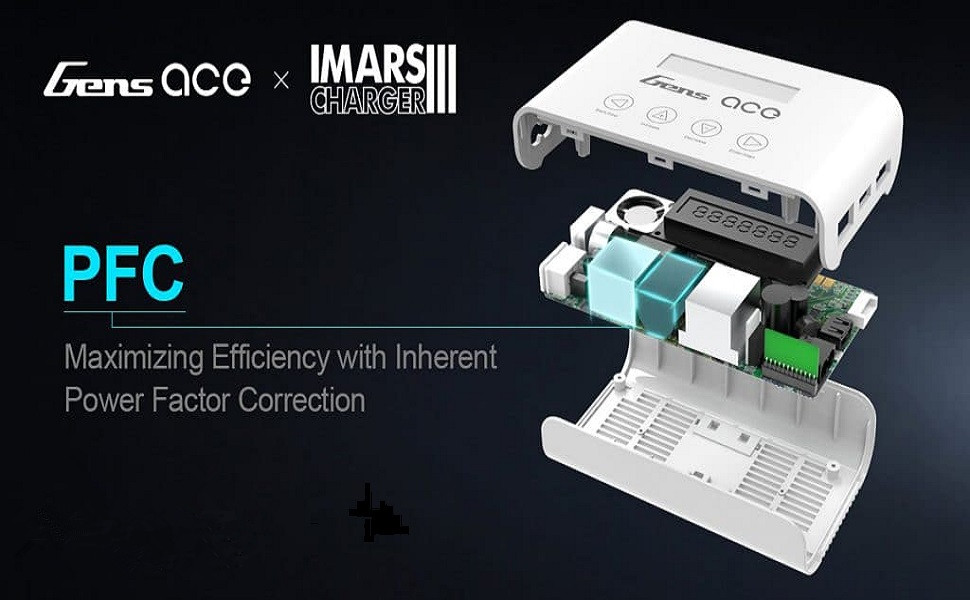
Image: The Gens ace IMARS III Pro charger displaying its menu on the LCD screen, with various RC batteries in the background, highlighting its compatibility and user interface.
4.2. Ports and Connections
The charger is equipped with essential ports for power input and battery connections.

Image: A detailed view of the Gens ace IMARS III Pro charger's side and rear panels, clearly labeling the XT60 output port, USB charging port (5V/2.4A), balance board connector, and the AC power input.
- XT60 Output: Main charging port for connecting batteries.
- USB Port (5V/2.4A): For charging mobile devices or powering accessories.
- Balance Board Connector: Used for connecting the balance board to monitor individual cell voltages during charging.
- AC Input: Connects the charger to a standard wall outlet (100-240V).
4.3. Control Interface
The charger features a clear LCD display and four tactile buttons for navigation and control:
- Sel/Mode: Selects menu options or changes modes.
- Increase (+): Increases values or navigates up.
- Decrease (-): Decreases values or navigates down.
- Enter/Stop: Confirms selections or starts/stops charging processes.
4.4. Advanced Protection Features
The IMARS III Pro incorporates multiple safety mechanisms to ensure secure charging.

Image: An exploded view diagram of the Gens ace IMARS III Pro charger, illustrating its internal components and highlighting five key protection features: Built-in Voltage Stabilizer, Over-Temperature Protection, Over-Charge Protection, Over-Current Protection, and Short Circuit Protection.
- Built-in Voltage Stabilizer: Ensures stable power delivery.
- Over-Temperature Protection: Prevents overheating during operation.
- Over-Charge Protection: Protects batteries from being charged beyond their safe voltage limits.
- Over-Current Protection: Safeguards against excessive current flow.
- Short Circuit Protection: Automatically shuts down in case of a short circuit.
4.5. Efficient Design
The charger is engineered for both performance and portability.

Image: An internal diagram of the Gens ace IMARS III Pro charger, emphasizing the Power Factor Correction (PFC) technology designed to maximize charging efficiency.
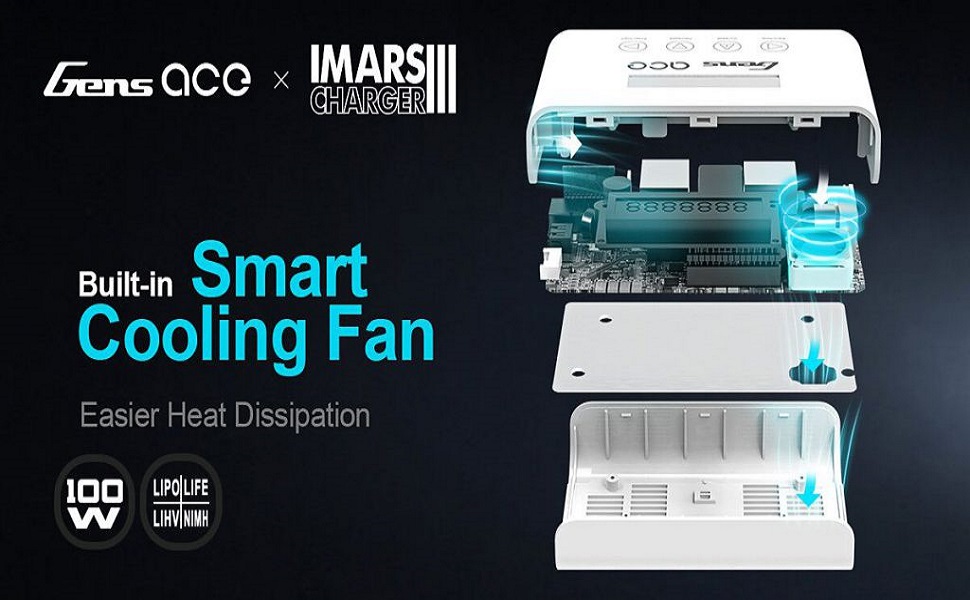
Image: An internal diagram of the Gens ace IMARS III Pro charger, showcasing its integrated AC to DC conversion design for improved overall performance and direct wall power compatibility.

Image: An internal diagram of the Gens ace IMARS III Pro charger, illustrating the placement and function of its built-in smart cooling fan, designed for efficient heat dissipation during operation.
- Sleek and Portable Design: Compact form factor for easy transport and storage.
- Integrated AC-DC Power: Built-in power supply allows direct connection to wall outlets (100-240V).
- Smart Cooling Fan: Automatically activates to dissipate heat, maintaining optimal operating temperature.
5. Setup
5.1. Connecting to Power
- Connect the provided AC power cord to the AC Input port on the rear of the charger.
- Plug the other end of the AC power cord into a standard wall outlet (100-240V).
- The charger will power on and display the initial screen.
5.2. Connecting Batteries
- Identify the correct charging cable and adapter for your battery (e.g., XT60, T-Plug).
- Connect the main discharge plug of your battery to the XT60 Output port on the charger, using an appropriate adapter if necessary.
- For LiPo, LiFe, or LiHv batteries, connect the battery's balance lead to the balance board adapter, then connect the balance board adapter to the Balance Board Connector on the charger. Ensure the balance lead is inserted correctly, matching the cell count.
- For NiMH batteries, only the main discharge plug connection is required.
6. Operating Instructions
6.1. Basic Navigation and Menu Selection
Upon powering on, the charger will display the main menu. Use the control buttons to navigate and select options.
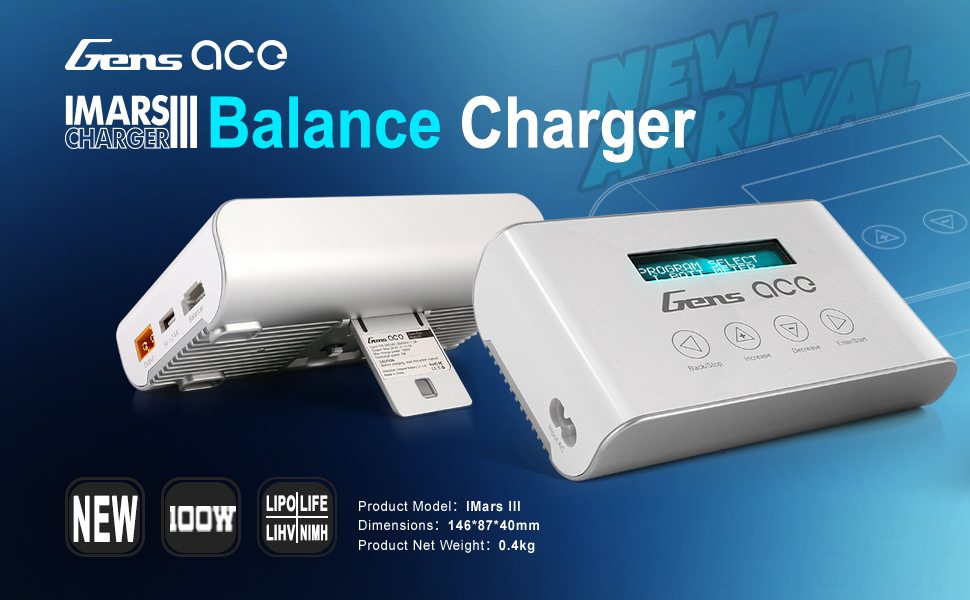
Image: A visual guide demonstrating the four-step operation of the Gens ace IMARS III Pro charger: 1. Press 'Enter/Start' to choose charging modes and battery type. 2. Press 'Increase' or 'Decrease' to select functions, charging current, and voltage. 3. Press 'Enter/Start' for 3 seconds to confirm. 4. Hold 'Back/Stop' to check cell charging voltage or enter test mode.
- Power On: Connect the charger to AC power. It will initialize for approximately 2 seconds before entering the main menu.
- Menu Navigation: Use the Sel/Mode button to cycle through the main menu options (e.g., Charge Mode, Battery Test Mode, System Settings).
- Adjusting Values: Once a mode is selected, use the Increase (+) and Decrease (-) buttons to adjust parameters like charging current, voltage, or cell count.
- Confirm/Start: Press the Enter/Stop button to confirm a selection or to start a charging process.
- Stop/Back: Press the Enter/Stop button to stop an ongoing process. Hold the Sel/Mode button to go back to the previous menu or check individual cell voltages during charging.
6.2. Charging LiPo/LiFe/LiHv Batteries
- From the main menu, select the appropriate battery type (LiPo, LiFe, or LiHv).
- Choose the desired charging mode: Charge (standard charge), Balance Charge (recommended for LiPo/LiFe/LiHv), or Storage (charges/discharges to storage voltage).
- Set the correct cell count (e.g., 3S, 4S, 6S) and charging current (e.g., 2.2A for a 2200mAh battery). Refer to your battery's specifications for recommended charging rates.
- Press and hold the Enter/Stop button for 3 seconds to start the charging process. The charger will perform a battery check before starting.
- Monitor the display for charging status, current, voltage, and individual cell voltages.
- The charger will automatically stop when the battery is fully charged or reaches storage voltage.
6.3. Charging NiMH Batteries
- From the main menu, select NiMH battery type.
- Choose the Charge mode.
- Set the desired charging current.
- Press and hold the Enter/Stop button for 3 seconds to start charging.
- The charger uses Delta Peak detection to automatically stop charging when the battery is full.
6.4. Battery Test Mode
This mode allows you to check the voltage of your battery cells.
- From the main menu, select Battery Test Mode.
- Connect your battery's main and balance leads as described in Section 5.2.
- The display will show the total voltage and individual cell voltages.
7. Maintenance
- Cleaning: Use a soft, dry cloth to clean the charger's exterior. Do not use solvents or abrasive cleaners.
- Storage: Store the charger in a cool, dry place, away from direct sunlight and moisture. Disconnect all batteries and the power cord before storing.
- Inspection: Regularly inspect the charger, cables, and connectors for any signs of damage. Do not use if any damage is found.
8. Troubleshooting
| Problem | Possible Cause | Solution |
|---|---|---|
| Charger does not power on | No AC power; Faulty power cord | Check AC connection and wall outlet; Try a different power cord if available. |
| Charging error message | Incorrect battery type/cell count; Damaged battery; Poor connection | Verify battery settings; Inspect battery for damage; Reconnect battery securely. |
| Charger gets hot | Normal operation; Poor ventilation; Excessive charging current | Ensure adequate ventilation; Reduce charging current if necessary; The built-in fan should manage heat. |
| Balance charging takes too long | Cells are significantly out of balance | This is normal for heavily unbalanced batteries. Allow the charger to complete the process. |
9. Specifications
| Feature | Detail |
|---|---|
| Product Model | GEA100WMPRO |
| Input Voltage | AC 100-240V |
| Max Charging Power | 100W |
| Charging Current Range | 0.1 - 10.0A |
| Discharge Current Range | 0.1 - 1.5A |
| LiPo/LiFe/LiHv Cell Count | 1 - 6S |
| NiMH Cell Count | 3 - 18S |
| USB Output | 5V / 2.4A |
| Product Dimensions | 3.43 x 1.57 x 5.75 inches (87 x 40 x 146 mm) |
| Item Weight | 14.1 ounces (400g) |
| Display Type | Backlight 2x6 LCD |
| Safety Certification | CE |
10. Warranty and Support
Gens ace products are manufactured to high-quality standards. This product typically comes with a one-year limited warranty from the date of purchase, covering manufacturing defects. Please retain your proof of purchase for warranty claims.
For technical support, troubleshooting assistance, or warranty inquiries, please contact Gens ace customer service through their official website or the retailer where the product was purchased. Provide your product model number (GEA100WMPRO) and a detailed description of the issue for faster service.


