
IROAD X5
IROAD X5 2CH Dash Camera User Manual
Model: X5
Introduction
This manual provides detailed instructions for the installation, operation, and maintenance of your IROAD X5 2CH Dash Camera. Please read this manual thoroughly before using the product to ensure proper functionality and to maximize its features. The IROAD X5 is designed to provide high-definition video recording for your vehicle, enhancing safety and security on the road.
Product Overview
The IROAD X5 is a dual-channel dash camera system, featuring a front camera and a rear camera for comprehensive vehicle surveillance. It records in Full HD 1080p for both channels, ensuring clear video quality.
Included Components
- Front Camera & Rear Camera
- Wi-Fi Dongle
- Quick Guide & Extra Double-sided Tape
- Uninterrupted Fuse Cable
- Rear Camera Cable
- Cradle

Image: IROAD X5 Front and Rear Dash Camera units.
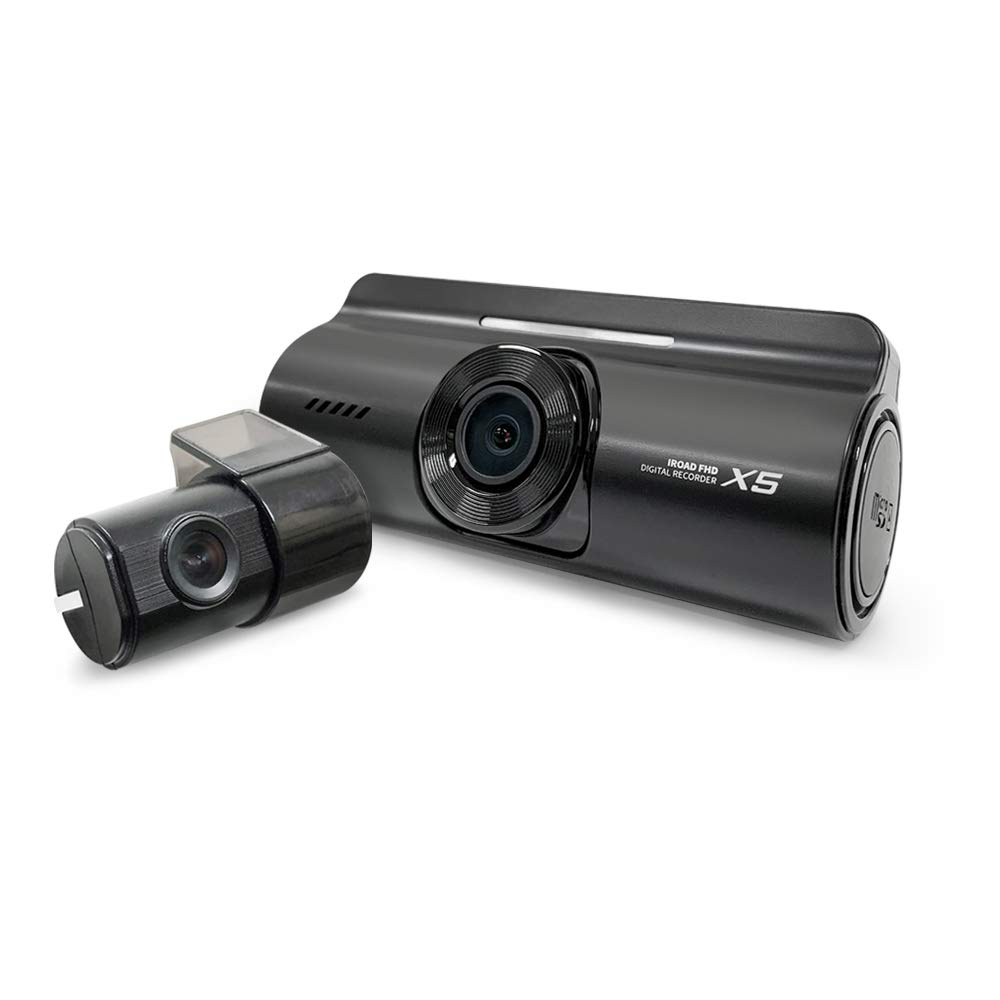
Image: IROAD X5 Front and Rear Dash Camera units, showing the main camera and the smaller rear camera.
Setup
Installation Steps
- Mounting the Front Camera: Clean the windshield area where the camera will be mounted. Attach the cradle to the front camera. Remove the protective film from the double-sided tape on the cradle and firmly press it onto the windshield, ideally behind the rearview mirror for an unobstructed view.
- Connecting the Rear Camera: Route the rear camera cable from the front camera to the rear windshield. Mount the rear camera using its adhesive, ensuring a clear view of the rear. Connect the cable to the designated port on the front camera.
- Power Connection: Use the provided Uninterrupted Fuse Cable to connect the dash camera to your vehicle's fuse box. This connection allows for continuous recording, including parking mode. Consult a professional if you are unsure about fuse box wiring.
- Wi-Fi Dongle Insertion: Insert the Wi-Fi dongle into the dedicated USB port on the main camera unit. This enables wireless connectivity for viewing and managing recordings via the IROAD mobile application.

Image: IROAD X5 Dash Camera installed in a car, mounted on the windshield.
Operating Instructions
Recording Modes
- Continuous Recording: The camera automatically begins recording when the vehicle's ignition is turned on. Recordings are saved in 1-minute segments.
- Event Recording: In the event of an impact or sudden braking, the G-sensor triggers event recording, saving a separate video file (e.g., 10 seconds before and 20 seconds after the event).
- Parking Mode: When the vehicle is parked and the ignition is off, the camera enters parking mode. It records only when motion or impact is detected, conserving power and storage.
Advanced Features
- Night Vision: The IROAD X5 utilizes ISP (Image Signal Processing) technology to enhance video clarity in low-light conditions, such as dark alleyways or underground parking lots. This feature brightens images captured during night time parking mode.
- Advanced Driver Assistance Systems (ADAS): The system provides audio and visual alerts for:
- Lane Departure Warning System (LDWS): Alerts if the vehicle deviates from its lane.
- Front Collision Warning System (FCWS): Warns of an imminent collision with a vehicle ahead.
- Front Vehicle Departure Warning (FVDW): Notifies you when the vehicle in front starts moving.
- Wi-Fi Connectivity: Connect your smartphone to the dash camera via Wi-Fi using the IROAD mobile application. This allows for live view, playback of recorded videos, settings adjustment, and firmware updates.

Image: Key features of the IROAD X5 Dash Camera.

Image: Illustration of Night Time Picture Quality Correction.
Maintenance
Data Management
- JDR File System (Format-Free): The IROAD X5 utilizes the JDR file system, which enhances stability and reduces the need for frequent memory card formatting. Recordings are automatically saved securely.
- Auto Recovery System: This system ensures that saved images can be memorized and restored. It also allows users to adjust data allocation and space according to their needs.

Format Free System

Data Recovery
Battery Discharge Prevention
The IROAD X5 includes a Battery Discharge Prevention Function. This feature automatically detects when the vehicle's battery voltage drops below a certain point and cuts off power to the dash camera. This prevents the vehicle's battery from being completely drained, ensuring the car can start. Once initiated, recording stops and the device powers off.

Battery Discharge Prevention
Troubleshooting
- Camera not powering on: Check the power cable connection to the fuse box and ensure the vehicle's ignition is on. Verify the fuse is not blown.
- Recording issues (e.g., no recording, corrupted files): Ensure the memory card is properly inserted. Although the JDR system reduces the need, occasionally formatting the memory card (via the mobile app or PC viewer) can resolve issues. Check for firmware updates.
- Wi-Fi connection problems: Ensure the Wi-Fi dongle is securely inserted. Restart the dash camera and your smartphone's Wi-Fi. Make sure you are within range of the dash camera's Wi-Fi signal.
- ADAS alerts not working: Ensure the GPS module (if external and purchased separately) is connected and receiving a signal. Calibrate the ADAS settings via the mobile app or PC viewer if necessary.
- Parking mode not activating: Verify the dash camera is connected using the Uninterrupted Fuse Cable. Check the battery discharge prevention settings in the app to ensure the voltage cut-off is not set too high.
For persistent issues, please refer to the official IROAD support website or contact customer service.
Specifications
| Feature | Detail |
|---|---|
| Model Name | X5 |
| Video Capture Resolution | 1080p (Full HD) |
| Connectivity Technology | Wireless (Wi-Fi) |
| Product Dimensions | 9 x 4 x 3 cm |
| Item Weight | 60 g |
| Colour | Black |
| Mounting Type | Adhesive Mount |
| Manufacturer | JAEWONCNC |
| Importer | NEXEX TECHNOLOGIES |
| Date First Available | 27 November 2021 |
Warranty and Support
The IROAD X5 Dash Camera typically comes with a 1-year warranty. Please retain your proof of purchase for warranty claims. For technical support, firmware updates, or further assistance, please visit the official IROAD website or contact your local distributor.
Official IROAD Store: Visit the IROAD Store on Amazon
Related documentsX5


Ask a question about this manual
Ask about setup, troubleshooting, compatibility, parts, safety, or missing instructions. Manuals+ will review the question and use this page’s manual context to help answer it.