
FOREVER Fitband

FOREVER Fitband
Fitness Tracker Smartband User Manual
Introduction
Welcome to the user manual for your FOREVER Fitband fitness tracker. This guide provides essential information on setting up, operating, maintaining, and troubleshooting your device to ensure optimal performance and a comprehensive understanding of its features. Please read this manual carefully before using your Fitband.
1. Setup
1.1 Initial Charging
Before first use, fully charge your Fitband. Connect the charging cable to the designated port on the device and to a standard USB power source. A full charge typically takes approximately 2 hours. The battery icon on the display will indicate charging status.

Image: The Fitband displaying its charging port and key specifications like battery capacity and standby time.
1.2 App Installation
To unlock the full functionality of your Fitband, download the companion application on your smartphone. The app is compatible with both Android and iOS devices.
- For Android devices, search for the 'FOREVER Fitband' app on Google Play Store.
- For iOS devices, search for the 'FOREVER Fitband' app on the Apple App Store.

Image: The Fitband shown alongside a smartphone screen, illustrating the mobile application interface.
1.3 Device Pairing
- Ensure your Fitband is charged and your smartphone's Bluetooth is enabled.
- Open the installed 'FOREVER Fitband' application on your smartphone.
- Follow the on-screen instructions within the app to search for and connect to your Fitband. The device name will typically appear as 'Fitband' or similar.
- Confirm the pairing request on both your smartphone and the Fitband, if prompted.
2. Operating
2.1 Basic Navigation
The Fitband features a touch-sensitive display. Tap or swipe on the screen to navigate through different functions and menus. Refer to the in-app guide for specific gesture controls.
2.2 Key Features
Your FOREVER Fitband offers several features to monitor your daily activity and well-being:
- Heart Rate Monitor: Tracks your heart rate throughout the day.
- Pedometer: Counts your steps taken.
- Calorie Counter: Estimates calories burned based on activity.
- Sport Modes: Dedicated modes for various activities such as walking, running, cycling, and hiking, providing specific metrics for each.
- Notifications: Receives alerts for calls, messages, and app notifications from your paired smartphone.
- Sleep Monitor: Analyzes your sleep patterns and duration.
- Weather: Displays current weather information when connected to your smartphone.

Image: The Fitband's screen displaying various health and activity tracking icons, including heart rate, calorie count, sleep, weather, pedometer, and notifications.

Image: The Fitband's screen illustrating the selection of different sports modes, such as walking, running, cycling, and hiking.
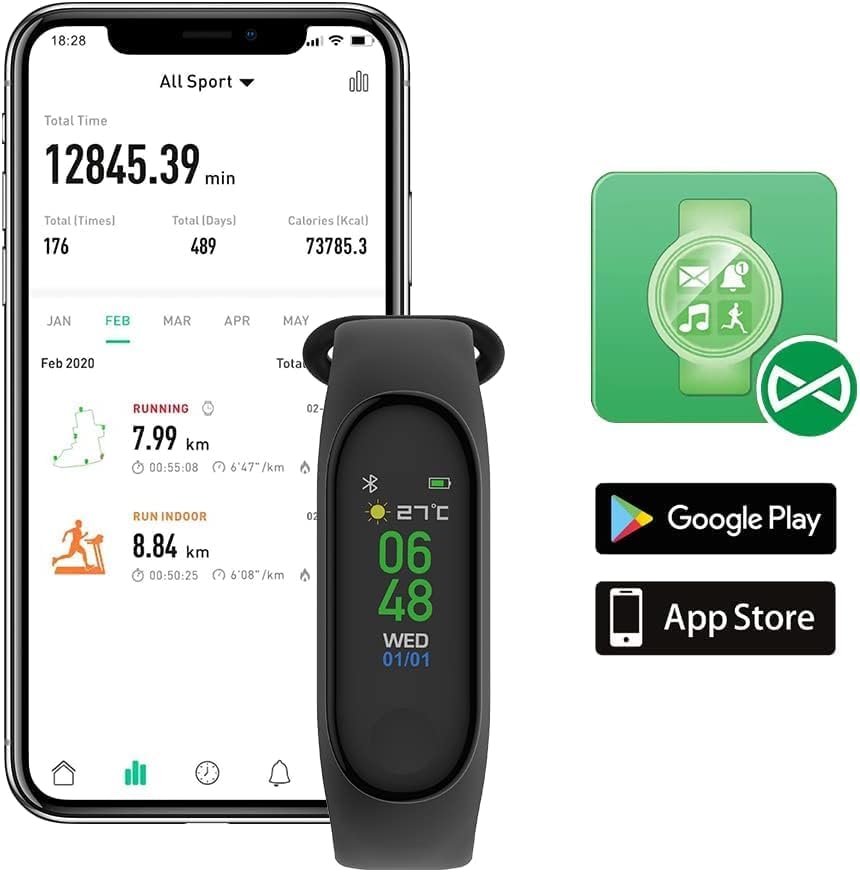
Image: A person sleeping while wearing the Fitband, demonstrating its sleep monitoring capability.
3. Maintenance
3.1 Cleaning
To maintain your Fitband, regularly clean the device and strap with a soft, dry cloth. Avoid using harsh chemicals or abrasive materials, as these can damage the device. Ensure the charging contacts are clean and dry.
3.2 Water Resistance
The Fitband has an IP65 water resistance rating. This means it is protected against dust ingress and low-pressure water jets from any direction. It is suitable for daily use, such as washing hands or light rain exposure. However, it is not recommended for swimming, showering, or prolonged submersion in water.
3.3 Battery Care
To prolong battery life, avoid fully discharging the device frequently. Charge the Fitband when the battery level is low. The device offers up to 10 days of standby time on a single charge.
4. Troubleshooting
If you encounter issues with your Fitband, please refer to the following common solutions:
- Device not turning on: Ensure the device is fully charged. Connect it to the charger and wait a few minutes before attempting to turn it on again.
- Not connecting to smartphone:
- Verify Bluetooth is enabled on your smartphone.
- Ensure the Fitband is within Bluetooth range (typically 10 meters).
- Restart both your Fitband and smartphone.
- Try unpairing and re-pairing the device through the app settings.
- Inaccurate activity tracking (steps, heart rate):
- Ensure the Fitband is worn snugly on your wrist, about one finger's width above your wrist bone.
- Calibrate the device through the companion app if a calibration option is available.
- Movement during activities like driving may sometimes be misinterpreted as steps.
- Short battery life:
- Reduce the frequency of heart rate monitoring or screen brightness if adjustable.
- Ensure the device is not constantly searching for a Bluetooth connection.
- Check for any background app activity that might be draining the battery.
If the issue persists after attempting these steps, please consult the support section of the companion app or contact FOREVER customer support.
5. Specifications
| Feature | Detail |
|---|---|
| Brand | FOREVER |
| Model Number | Fitband |
| Color | Black |
| Operating System | AsteroidOS |
| Connectivity | Bluetooth 5.0 |
| Special Features | Notification, Activity Tracker, Heart Rate Tracker |
| Compatible Devices | Smartphone (Android, iOS) |
| Battery Composition | Lithium-ion |
| Battery Capacity | 90 mAh |
| Standby Time | Up to 10 days |
| Sensor Type | Optical |
| Water Resistance | IP65 |
| Strap Length | 245 mm |
| Weight | 23 g |
6. Warranty and Support
For information regarding product warranty, please refer to the documentation provided with your purchase or visit the official FOREVER website. For technical support or further assistance, please contact FOREVER customer service through their official channels.
Related documentsFitband


Ask a question about this manual
Ask about setup, troubleshooting, compatibility, parts, safety, or missing instructions. Manuals+ will review the question and use this page’s manual context to help answer it.