
Introduction
This manual provides detailed instructions for the installation, operation, and maintenance of your Soundstream VRCPAA-7DR 7-inch Double DIN Touchscreen Car Stereo. Please read this manual thoroughly before using the product to ensure proper function and to prevent damage. Keep this manual for future reference.
Important Safety Information
- Professional Installation Recommended: Installation of this product requires technical expertise. It is highly recommended to have it installed by a qualified professional.
- Power Source: Connect the unit only to a 12V DC power supply with a negative ground.
- Wiring: Ensure all wiring is correctly connected according to the wiring diagram to prevent short circuits or damage. Insulate all exposed wires.
- Driving Safety: Do not operate the unit's functions that may distract you from driving. Always prioritize road safety.
- Temperature: Avoid exposing the unit to extreme temperatures or direct sunlight for extended periods.
- Moisture: Keep the unit away from moisture and water to prevent electrical hazards.
- Ventilation: Ensure adequate ventilation around the unit to prevent overheating.
Package Contents
Verify that all items are present in the package before installation:
- Soundstream VRCPAA-7DR Head Unit
- Wiring Harnesses
- Mounting Brackets
- GPS Antenna (if applicable)
- Remote Control
- User Manual (this document)

Image: Contents of the Soundstream VRCPAA-7DR package, showing the head unit, various wiring harnesses, mounting hardware, and the instruction manual.
Setup and Installation
Wiring Connections
Refer to the wiring diagram provided with your unit for specific connections. Ensure all connections are secure and properly insulated. Incorrect wiring can cause damage to the unit or your vehicle's electrical system.
- Power (Yellow): Connect to constant 12V power.
- Accessory (Red): Connect to switched 12V power (ignition).
- Ground (Black): Connect to vehicle chassis ground.
- Speaker Outputs: Connect to vehicle speakers (ensure correct polarity).
- Reverse Camera Input (Brown/Purple): Connect to the reverse light trigger for automatic camera display.
- Steering Wheel Control (SWC): Connect to your vehicle's SWC wires. An external adapter may be required for some vehicles.
- RCA Outputs: For external amplifiers (Front, Rear, Subwoofer).
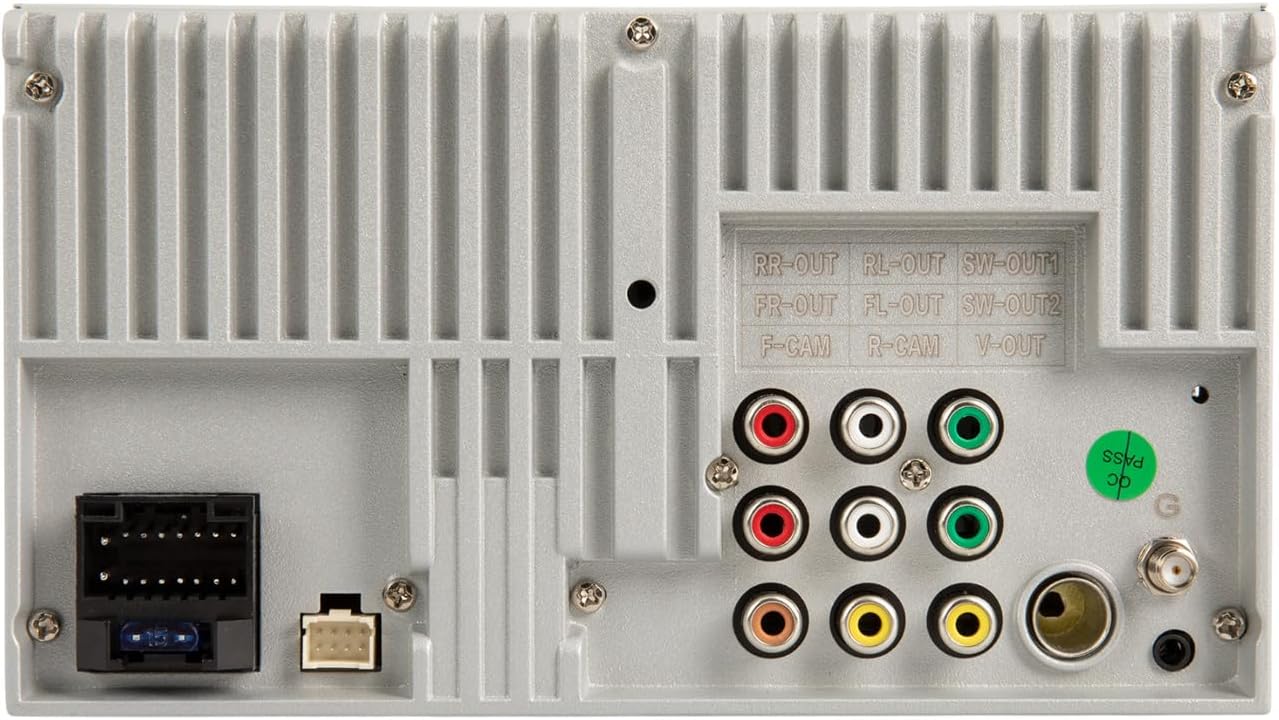
Image: Rear panel of the VRCPAA-7DR unit, highlighting RCA outputs for front, rear, and subwoofer, along with camera inputs and main power/speaker harness connections.
Physical Installation
- Remove the existing car stereo from your vehicle's dashboard.
- Mount the VRCPAA-7DR unit into the double DIN opening using the provided mounting brackets.
- Connect all necessary wiring harnesses, including power, ground, speakers, and any auxiliary inputs/outputs.
- Secure the unit in place.
- Test all functions before fully reassembling the dashboard.
Operating Instructions
Basic Controls
The VRCPAA-7DR features a 7-inch high-definition touchscreen for primary control. Physical buttons and a rotary encoder are located on the left side for quick access to volume, voice assistant, and mode selection.

Image: The VRCPAA-7DR touchscreen interface showing various application icons, including Maps, Spotify, YouTube Music, and Phone.
Wireless Apple CarPlay & Android Auto
This unit supports wireless Apple CarPlay and Android Auto for seamless smartphone integration.
- Ensure Bluetooth is enabled on your smartphone and the VRCPAA-7DR.
- On the VRCPAA-7DR, navigate to the CarPlay or Android Auto icon.
- Follow the on-screen prompts to pair your phone. For Apple CarPlay, select your device from the list. For Android Auto, ensure the Android Auto app is installed on your phone.
- Once connected, your phone's compatible apps will appear on the stereo's display, allowing for navigation, music, and communication.

Image: A visual representation of the VRCPAA-7DR's compatibility with Wireless Apple CarPlay and Android Auto, showing the interface and relevant logos.
Bluetooth Hands-Free Calling and Audio Streaming
Connect your smartphone via Bluetooth for hands-free calling and wireless audio streaming.
- On the VRCPAA-7DR, go to the Bluetooth menu.
- Enable Bluetooth on your phone and search for available devices.
- Select "Soundstream VRCPAA-7DR" from your phone's list and confirm the pairing code.
- Once paired, you can make/receive calls and stream audio directly to the stereo.

Image: The VRCPAA-7DR interface demonstrating hands-free calling capabilities via Bluetooth 5.0, with support for voice assistants like Siri and Google Assistant.
Media Playback (USB, AUX, MicroSD)
The unit supports various media sources for audio and video playback.
- USB: Insert a USB drive into the designated USB port. The unit will automatically detect and display playable media files.
- AUX: Connect an external audio device using a 3.5mm audio cable to the AUX input. Select AUX mode on the stereo.
- MicroSD: Insert a MicroSD card into the slot. The unit will access media files stored on the card.
FM/AM Radio
Access the Radio function from the main menu. Use the touchscreen to scan for stations, save presets, and switch between FM and AM bands.
Camera Input Operation
The VRCPAA-7DR supports both front and rear camera inputs (cameras sold separately).
- Rear Camera: When properly connected, the display will automatically switch to the rear camera view when the vehicle is put into reverse. Parking guide lines may be displayed.
- Front Camera: Can be accessed manually through the menu or configured for automatic display in certain scenarios (e.g., after shifting out of reverse).

Image: Illustration of front and rear parking camera functionality, showing the car stereo displaying a rear camera feed with parking assist lines.
Steering Wheel Control (SWC)
If your vehicle has factory steering wheel controls and you have connected the SWC wires (and potentially an adapter), you can program the unit to respond to these controls. Refer to the unit's settings menu for SWC learning/programming options.
Audio Settings (Equalizer)
Access the audio settings menu to adjust sound characteristics. The unit features a 13-band equalizer to fine-tune the audio output to your preference. Adjust bass, treble, balance, fader, and subwoofer levels as needed.
Maintenance
- Cleaning the Screen: Use a soft, lint-free cloth to gently wipe the touchscreen. For stubborn smudges, slightly dampen the cloth with water or a screen cleaner designed for electronics. Avoid harsh chemicals.
- General Cleaning: Use a dry, soft cloth to clean the unit's exterior.
- Avoid Liquids: Do not spray liquids directly onto the unit.
- Firmware Updates: Check the Soundstream website periodically for any available firmware updates for your model. Follow instructions carefully if performing an update.
Troubleshooting
| Problem | Possible Cause | Solution |
|---|---|---|
| No power | Incorrect wiring; Blown fuse; Loose connection. | Check power and ground connections. Verify fuse integrity. Ensure all wires are securely connected. |
| No sound | Speaker wires disconnected; Volume too low; Mute function active; Incorrect audio source. | Check speaker wiring. Increase volume. Deactivate mute. Select correct audio source. |
| Bluetooth not connecting | Bluetooth not enabled on phone/unit; Incorrect pairing process; Interference. | Ensure Bluetooth is on for both devices. Re-attempt pairing. Move closer to the unit. |
| CarPlay/Android Auto not working wirelessly | Phone not compatible; Wi-Fi/Bluetooth issues; Software glitch. | Ensure phone supports wireless CarPlay/Android Auto. Restart phone and unit. Check for phone OS updates. |
| Rear camera not displaying | Camera not connected; Reverse trigger wire not connected; Camera faulty. | Verify camera and trigger wire connections. Test camera functionality. |
| Unit resets randomly | Low voltage at startup; Electrical interference; RDS feature enabled. | Ensure stable 12V power supply. Check for proper grounding. Try disabling the RDS feature in settings. Consult a professional for advanced electrical diagnostics. |
If problems persist after attempting these solutions, please contact Soundstream customer support or a qualified technician.
Specifications
| Model Number | VRCPAA-7DR |
| Screen Size | 7 Inches |
| Display Type | LCD Touchscreen |
| Display Resolution | 1024x600 |
| Connectivity Technologies | Auxiliary, Bluetooth, RCA, USB |
| Wireless Communication | Bluetooth, Wireless Apple CarPlay, Wireless Android Auto |
| Special Features | Equalizer, Touchscreen |
| Product Dimensions | 7 x 7 x 4 inches |
| Item Weight | 4.44 pounds |
| Manufacturer | SOUNDSTREAM |
Warranty and Support
For warranty information and technical support, please refer to the warranty card included with your product or visit the official Soundstream website. Keep your proof of purchase for warranty claims.
Online Resources: www.soundstream.com


