Introduction
This manual provides detailed instructions for the setup, operation, and maintenance of your NPET K10 Pink Gaming Keyboard and NPET WK20 Wireless Keyboard. Please read this manual thoroughly before using the keyboards to ensure optimal performance and longevity.

Image: The NPET K10 Pink Gaming Keyboard (top) and the NPET WK20 Wireless Keyboard (bottom) shown together.
NPET K10 Pink Gaming Keyboard Features
- Professional Gaming Design: Features UV coated keycaps and injection laser carving ABS keycaps for durability and fade resistance.
- Colorful Illumination: Offers 4 LED lighting backlit modes, including a 7-color alternate breathing effect.
- Adjustable Height: Equipped with two angle feet on the back to adjust keyboard height for ergonomic comfort.
- Multimedia Hot Keys: Includes 14 hotkeys for quick access to various functions.

Image: The NPET K10 Pink Gaming Keyboard, illustrating its 104-key standard layout and 26 anti-ghosting keys for simultaneous input.
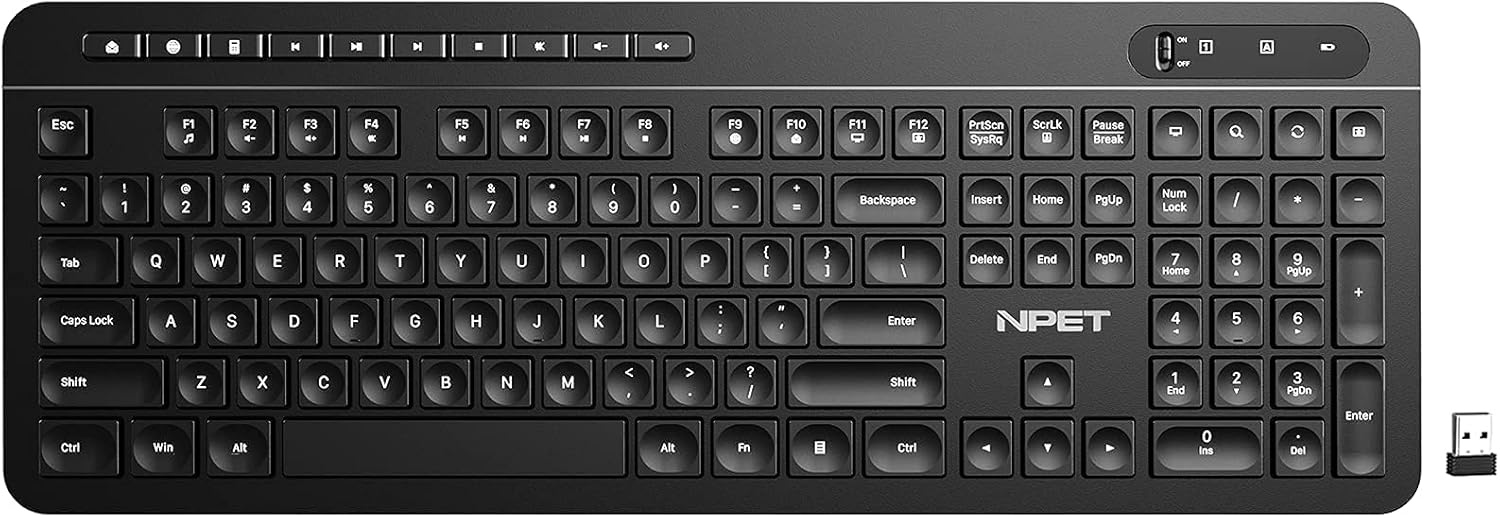
Image: Diagram illustrating the ergonomic design of the NPET K10, including medium height keycaps for faster response and adjustable rear feet for comfortable typing angles.
NPET WK20 Wireless Keyboard Features
- Power-Saving Design: Optimized for long battery life, up to 24 months with a single 1.5V AAA alkaline battery (not included).
- On/Off Switch: Features a convenient power switch to conserve battery life when not in use.
- Automatic Sleep Mode: Enters auto-sleep after 10 minutes of inactivity to further save power.
- 12 Multimedia Shortcuts: Provides quick access to media controls and other functions via FN key combinations.
- 104 Keys Layout: Full-size layout with arrow keys and a number pad for comprehensive functionality.
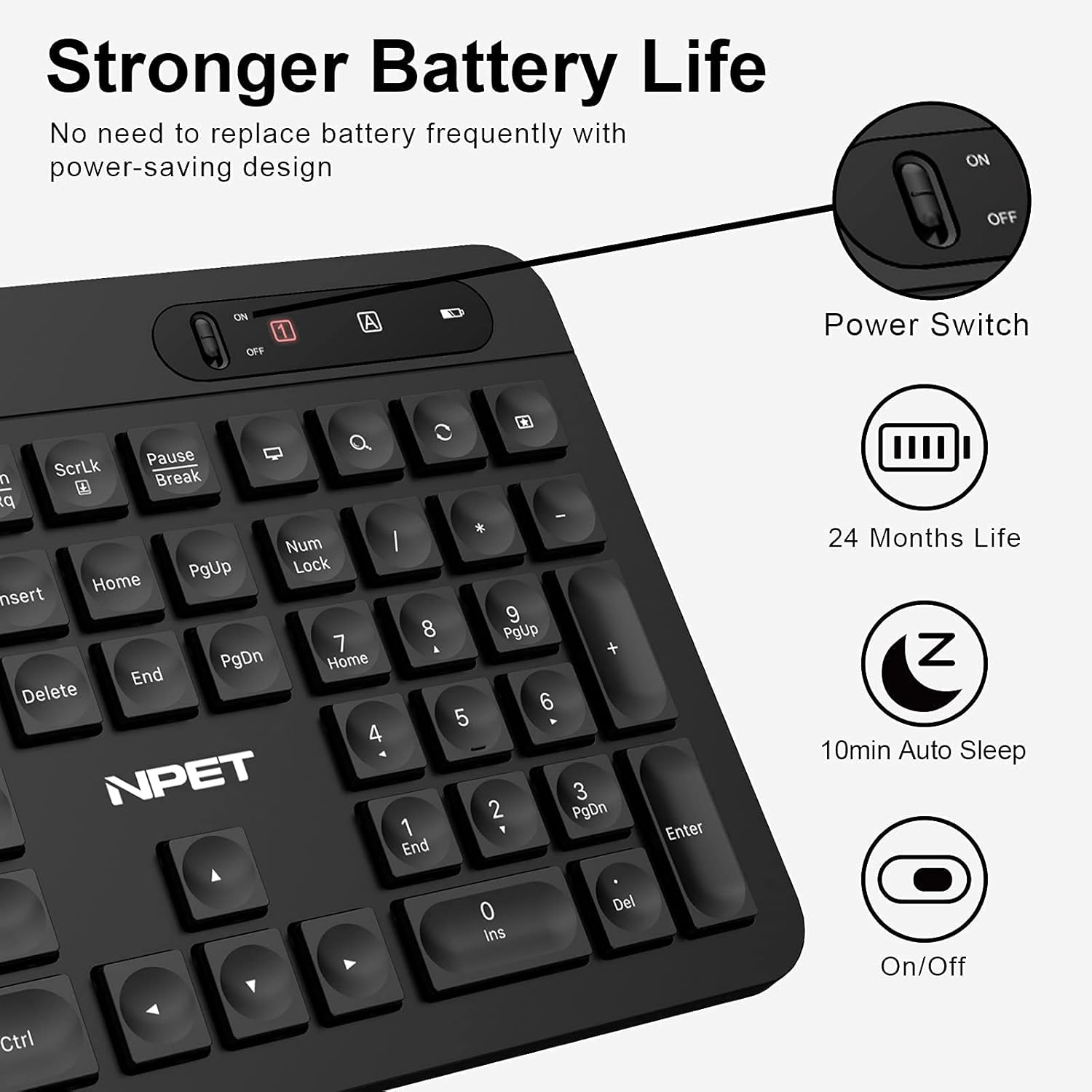
Image: The NPET WK20 Wireless Keyboard shown with its compact USB receiver, highlighting its wireless connectivity.

Image: Details of the NPET WK20's power-saving features, including the on/off switch, 24-month battery life, and 10-minute auto-sleep function.
Setup Instructions
NPET K10 Pink Gaming Keyboard (Wired)
- Unpack the K10 keyboard from its packaging.
- Connect the USB cable of the keyboard to an available USB port on your computer.
- The operating system will automatically detect and install the necessary drivers. This may take a few moments.
- Once installation is complete, the keyboard is ready for use.
NPET WK20 Wireless Keyboard
- Unpack the WK20 keyboard and the USB receiver from its packaging.
- Locate the battery compartment on the underside of the keyboard.
- Insert one 1.5V AAA alkaline battery (not included), ensuring correct polarity (+/-).
- Close the battery compartment cover.
- Plug the USB receiver into an available USB port on your computer.
- Turn on the keyboard using the power switch located on the top right side of the keyboard.
- The operating system will automatically detect and install the necessary drivers. The keyboard should now be ready for use.
Operating Instructions
NPET K10 Pink Gaming Keyboard
- Backlight Modes: Press the LED key (usually near Scroll Lock) to cycle through the 4 available LED lighting modes, including a breathing effect.
- Multimedia Hotkeys: Use the dedicated 14 hotkeys located on the top row for quick access to functions like volume control, media playback, and more.
- WASD and Arrow Key Swap: For gaming, press FN + W simultaneously to swap the functionality of the WASD keys with the arrow keys. Press again to revert.
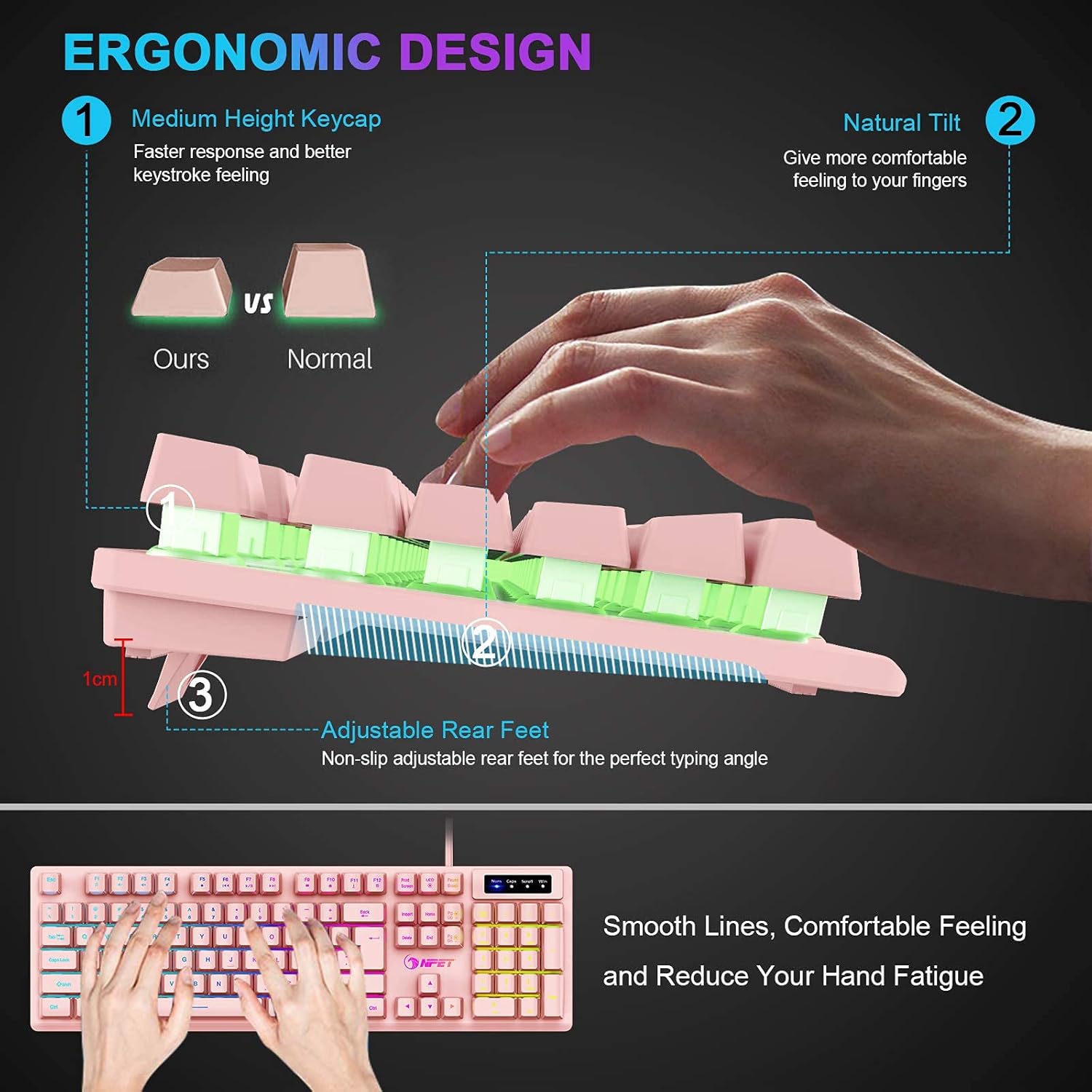
Image: Illustration of the FN+W key combination on the NPET K10 keyboard, used to interchange the WASD keys with the arrow keys for gaming preferences.
NPET WK20 Wireless Keyboard
- Power On/Off: Use the slide switch on the top right of the keyboard to turn the power ON or OFF.
- Multimedia Shortcuts: Press and hold the FN key, then press one of the F1-F12 keys to activate its corresponding multimedia function (e.g., FN+F1 for media player, FN+F2 for volume down).

Image: The NPET WK20 Wireless Keyboard highlighting the 12 multimedia shortcuts accessible by combining the FN key with the F1-F12 function keys.
- Auto-Sleep Function: The keyboard will automatically enter sleep mode after 10 minutes of inactivity to conserve battery. Press any key to wake it up.
Maintenance
- Cleaning: Use a soft, dry cloth to wipe the surface of the keyboard. For stubborn dirt, a slightly damp cloth can be used, ensuring no liquid enters the keyboard. Avoid harsh chemicals.
- Battery Replacement (WK20): When the keyboard's performance degrades or it stops responding, replace the AAA battery. Ensure the power switch is OFF before replacing the battery. Dispose of old batteries responsibly.
- Storage: Store the keyboard in a cool, dry place away from direct sunlight and extreme temperatures.
Troubleshooting
General Issues
- Keyboard not responding:
- For K10 (wired): Ensure the USB cable is securely connected to both the keyboard and the computer. Try a different USB port.
- For WK20 (wireless): Ensure the USB receiver is securely plugged into a USB port. Check if the keyboard is turned ON. Replace the AAA battery if necessary. Try a different USB port for the receiver.
- Keys not working correctly:
- Check for any debris under the keycaps.
- Ensure no liquid has been spilled on the keyboard.
NPET K10 Specific Issues
- Backlight not working:
- Ensure the keyboard is properly connected.
- Press the LED key to cycle through modes; it might be turned off or in a very dim mode.
NPET WK20 Specific Issues
- Intermittent connection or lag:
- Ensure the keyboard is within range of the USB receiver (typically up to 10 meters).
- Minimize interference from other wireless devices (e.g., Wi-Fi routers, cordless phones).
- Try moving the USB receiver to a different port, preferably one closer to the keyboard.
- Replace the battery.
Specifications
| Feature | NPET K10 (Pink Gaming Keyboard) | NPET WK20 (Wireless Keyboard) |
|---|---|---|
| Brand | NPET | NPET |
| Connectivity Technology | Wired (USB) | Wireless (USB Receiver) |
| Keyboard Description | Gaming | Wireless |
| Special Feature | Backlit, Anti-ghosting, Multimedia Hotkeys, Adjustable Height | Power-Saving, Auto-Sleep, Multimedia Shortcuts |
| Color | Pink | Black (as per images) |
| Material | Acrylonitrile Butadiene Styrene (ABS) | Acrylonitrile Butadiene Styrene (ABS) |
| Compatible Devices | Gaming Console, PC | PC |
| Battery (WK20 only) | N/A | 1 x 1.5V AAA Alkaline Battery (not included) |
| Battery Life (WK20 only) | N/A | Up to 24 months |
Safety Information
- Do not expose the keyboards to water or excessive moisture.
- Avoid dropping or subjecting the keyboards to strong impacts.
- Do not attempt to disassemble or repair the keyboards yourself. Contact customer support if issues arise.
- Keep out of reach of children.


