
Important Safety Instructions
Please read this manual carefully before using the product and keep it for future reference. Failure to follow these instructions may result in electric shock, fire, or serious injury.
- Only support 2.4GHz WiFi for app connection.
- Suitable for low-pile carpets that are less than 0.6 inches thick; long-pile carpets are not compatible.
- Keep the robot vacuum away from wet areas, such as kitchens or bathrooms, to prevent damage.
- Avoid operating the robot in areas with strong direct sunlight or on pure black ground, as this may affect sensor performance.
- While your robot vacuum is cleaning, do not pick it up and move it, or move the charging station, as this can disrupt its navigation.
- The SmartAI Robot Vacuum provides a real-time map for cleaning coverage status, but this map cannot be saved for future use.
- Please do not use the mopping function on carpets. If you need to vacuum on carpets, remove the mop holder first.
- The device can only vacuum or mop separately and cannot perform both functions simultaneously.
Product Overview
Key Features
- Vacuum and Mop 2-in-1: The SmartAI vacuum robot features a 510mL dustbin with a HEPA filter and a 300mL water tank with 3 adjustable water levels, suitable for wood and tile floors. It allows for wet mopping without soaking the floor.
- Smart Navigation System: Utilizes gyroscope planning to create human-like cleaning plans and perform efficient zigzag routes for both vacuuming and mopping, resulting in fewer overlaps and higher coverage. Equipped with smart sensors for high passability, anti-collision, and fall protection.
- Auto-docking and Resume: When the power level drops below 20%, the robot automatically activates recharge mode. Upon full recharge, it will continue the unfinished cleaning task from where it left off, ensuring efficient cleaning of large areas.
- App and Remote Control: Offers comprehensive control via a dedicated app, allowing real-time review of the cleaning map, switching modes, adjusting suction levels, recharging, or scheduling cleaning. It is also compatible with Alexa and Google Assistant for voice control.
- 2600mAh Battery Capacity: Provides a long endurance battery for up to 120 minutes of cleaning time, suitable for larger homes. Its ultra-slim design allows the robotic vacuum to easily reach hidden areas under beds, sofas, and other hard-to-reach spaces.
Components
The SmartAI G50W Robot Vacuum and Mop Combo typically includes the main robot unit, a charging dock, a power adapter, side brushes, a main brush, a dustbin, a water tank, and a cleaning tool.

Image: The SmartAI G50W Robot Vacuum and Mop Combo, showcasing the main unit, remote control, and smartphone app interface.
Setup Guide
1. Unpacking and Placement
- Remove all packaging materials and protective films from the robot and charging dock.
- Place the charging dock against a wall in an open area, ensuring there are no obstacles within 1 meter (3 feet) to the front and 0.5 meters (1.5 feet) to the sides.
- Connect the power adapter to the charging dock and plug it into a power outlet.

Image: Illustration showing two charging methods: auto-charge via the dock and manual charge for smaller rooms.
2. Initial Charging
Place the robot onto the charging dock. Ensure the charging contacts on the robot align with those on the dock. The indicator light on the robot will show charging status. Fully charge the robot before first use (approximately 4-5 hours).
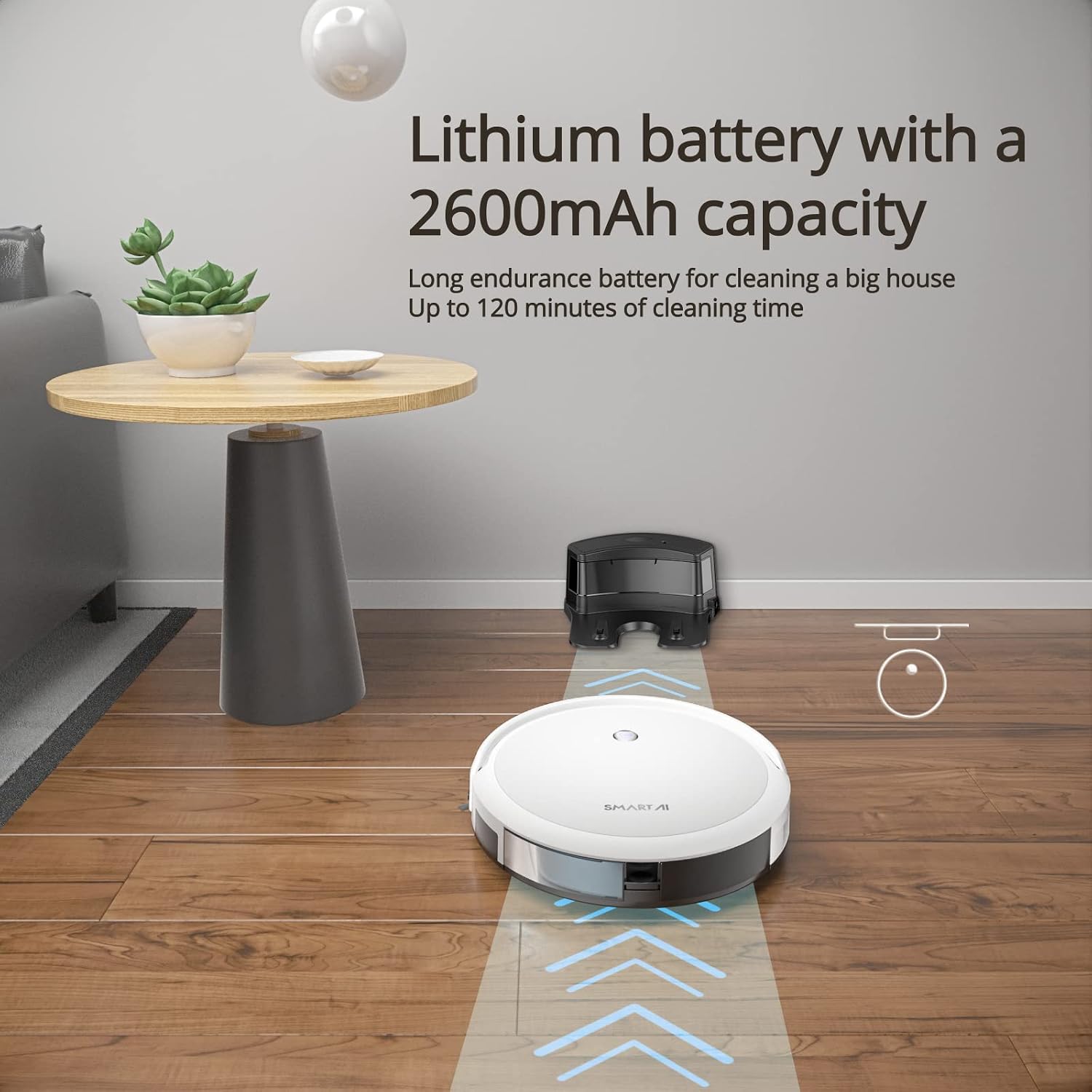
Image: The SmartAI G50W robot vacuum positioned on its charging dock, indicating the charging process.
3. App Connection (2.4GHz Wi-Fi Only)
- Download the SmartAI app from your smartphone's app store.
- Register an account and follow the in-app instructions to add your device.
- Ensure your smartphone is connected to a 2.4GHz Wi-Fi network during the setup process.
Operating Instructions
1. Starting a Cleaning Cycle
Press the power button on the robot or use the app/remote control to start a cleaning cycle. The robot will automatically begin cleaning in a zigzag pattern.

Image: Diagram illustrating the smart navigation system, showing zigzag cleaning routes and room mapping for efficient cleaning.
2. Vacuuming and Mopping
The robot can vacuum and mop. To mop, fill the water tank and attach it to the robot. The robot will automatically switch to mopping mode when the water tank is installed.

Image: Visual representation of the robot vacuum's dual functionality, showing it sweeping with the dustbin and mopping with the water tank.
Note: The robot cannot vacuum and mop simultaneously. Adjust water levels via the app for different floor types.
Video: Demonstrates the SmartAI G50 Robot Vacuum and Mop Cleaner in action, highlighting its 2600Pa suction and 2600mAh battery. Shows mopping with adjustable water levels and app/remote control.
3. Cleaning Modes
The SmartAI G50W offers multiple cleaning modes:
- Full House Cleaning: Cleans the entire accessible area.
- Edge Cleaning: Focuses on cleaning along walls and furniture edges.
- Spot Zigzag Cleaning: Concentrates on a specific dirty area using a zigzag pattern.
- Spot Spiral Cleaning: Cleans a concentrated area in a spiral pattern.
- Scheduled Cleaning: Set specific times for the robot to clean automatically.
- One-Touch Cleaning: Initiates a standard cleaning cycle with a single press.
- Remote Control Cleaning: Direct the robot using the included remote.
- Electronically Controlled Wet Mopping: Manages water output for mopping.

Image: Visual representation of various cleaning modes, including full house, edge, spot zigzag, spot spiral, scheduled, one-touch, remote control, and electronically controlled wet mopping.
4. App and Voice Control
Use the SmartAI app to monitor cleaning, adjust settings, and schedule tasks. The robot is also compatible with Alexa and Google Assistant for voice commands.

Image: A smartphone displaying the SmartAI app interface, showing real-time cleaning map, control options, and scheduling features.
Maintenance
Regular maintenance ensures optimal performance and extends the lifespan of your SmartAI G50W robot vacuum.
1. Emptying the Dustbin
Empty the 510mL dustbin after each cleaning cycle or when full. The HEPA filter should be cleaned every two weeks to maintain suction efficiency.

Image: Close-up of the robot vacuum's 510ml large dustbin, designed for easy removal and cleaning.
2. Cleaning the Water Tank
After mopping, empty any remaining water from the 300mL water tank and allow it to air dry completely to prevent mold or odors. Clean the mopping cloth regularly.

Image: The 300ml intelligent water tank, showing its design for controlled water release during mopping.
3. Cleaning Brushes and Sensors
Regularly inspect and clean the main brush and side brushes for tangled hair or debris. Use the provided cleaning tool if necessary. Wipe the sensors (anti-collision, cliff sensors) with a dry, soft cloth to ensure proper function and prevent navigation errors.

Image: Diagram illustrating the robot vacuum's smart sensors, demonstrating high passability over obstacles, anti-collision capabilities, and fall protection from edges.
Troubleshooting
If you encounter issues with your SmartAI G50W, refer to the following common problems and solutions:
Robot does not turn on or charge:
- Ensure the charging dock is powered and the robot is correctly aligned with the charging contacts.
- Check if the battery is completely depleted. Allow it to charge for several hours before attempting to turn it on.
Robot gets stuck frequently:
- Clear obstacles, loose cables, or thick rugs from the cleaning path.
- Ensure the robot's wheels and brushes are free of tangled hair or debris.
Poor cleaning performance:
- Empty the dustbin and clean the HEPA filter thoroughly.
- Clean the main brush and side brushes of any accumulated debris.
- Check if the suction level is set appropriately in the app for the type of floor being cleaned.
Mopping function not working:
- Ensure the water tank is filled with water and correctly installed.
- Check if the water output level is set in the app.
- Verify that the mopping cloth is clean and properly attached to the water tank.
App connection issues:
- Confirm your Wi-Fi network is 2.4GHz, as the robot does not support 5GHz networks.
- Restart your router, smartphone, and the robot vacuum.
- Ensure the robot is within range of your Wi-Fi signal.
Specifications
| Feature | Detail |
|---|---|
| Brand | SmartAI |
| Model Number | G50W |
| Suction Power | Up to 2600Pa |
| Dustbin Capacity | 510mL |
| Water Tank Capacity | 300mL |
| Battery Capacity | 2600mAh |
| Battery Life | Up to 120 minutes |
| Filter Type | HEPA |
| Navigation System | Gyroscope Planning |
| Control Methods | App Control, Remote Control, Voice Control (Alexa, Google Assistant) |
| Surface Recommendation | Hard Floors, Low-Pile Carpets |
| Color | White |
| UPC | 745437783019 |
Warranty and Support
For detailed warranty information, product registration, and technical support, please refer to the official SmartAI website or contact customer service through the contact details provided in your product packaging. Please retain your purchase receipt as proof of purchase for any warranty claims.

