
1. Introduction
The DGODRT 4K HDMI Switch Splitter (Model: KS901D) allows you to connect two HDMI source devices to four HDMI displays simultaneously. This device is designed to transmit audio and video signals from your selected input source to all four connected displays. It supports high-resolution video up to 4K@60Hz, including 4K HDR, Full HD, and 3D content, adhering to HDMI 2.0 and HDCP 2.2 standards. Additionally, it offers 3.5mm and SPDIF audio outputs for enhanced audio connectivity.
2. Product Features
- 2 Inputs, 4 Outputs: Connects 2 HDMI source devices to 4 HDMI displays. All 4 displays will show the same selected input.
- Ultra 4K@60Hz Resolution: Supports resolutions up to 3840 x 2160 at 60Hz.
- Advanced Video Support: Compatible with 4K HDR, Full HD, and 3D video formats.
- HDMI Standards: Adheres to HDMI 2.0 and HDCP 2.2 specifications.
- Audio Outputs: Features 3.5mm audio jack and SPDIF audio output for versatile audio connections.
- Broad Compatibility: Works with devices such as PCs, laptops, PS3, PS4, Xbox, HD players, Blu-ray players, gaming consoles, HDTVs, projectors, and monitors.
- Dual Switching Methods: Input sources can be switched using the included IR remote control or the manual button on the device.
3. Package Contents
Please check the package contents to ensure all items are present:
- 1 x DGODRT 4K HDMI Switch Splitter (Model: KS901D)
- 1 x IR Remote Control
- 1 x Power Adapter (DC 5V/2A)
- 1 x User Manual
Note: HDMI cables are not included and must be purchased separately.

Figure 3.1: Package Contents
4. Product Overview

Figure 4.1: Front and Rear Panel Layout
- IR Remote Control Receiver: Receives signals from the IR remote.
- Power Indicator: Illuminates when the device is powered on.
- HDMI Input Indicators (1, 2): Lights up to show which HDMI input is currently selected.
- 3.5mm Audio Output: Connects to headphones or external speakers.
- Button Switch (KEY): Manually cycles through HDMI input sources.
- HDMI IN 1, HDMI IN 2: Connect your HDMI source devices (e.g., PC, game console).
- HDMI OUT 1, HDMI OUT 2, HDMI OUT 3, HDMI OUT 4: Connect to your HDMI display devices (e.g., TV, monitor, projector).
- DC 5V/2A Power Input: Connect the included 5V/2A power adapter.
- SPDIF Audio Output: Connects to an audio receiver or soundbar for digital audio.
5. Setup and Installation
Follow these steps to set up your DGODRT 4K HDMI Switch Splitter:
- Connect HDMI Input Devices: Use HDMI cables (not included) to connect your source devices (e.g., PC, PS4, Xbox) to the HDMI IN 1 and HDMI IN 2 ports on the splitter.
- Connect HDMI Output Displays: Use HDMI cables (not included) to connect your display devices (e.g., HDTVs, monitors, projectors) to the HDMI OUT 1, HDMI OUT 2, HDMI OUT 3, and HDMI OUT 4 ports on the splitter.
- Connect Audio Output (Optional):
- For analog audio, connect headphones or speakers to the 3.5mm Audio Output.
- For digital audio, connect an audio receiver or soundbar to the SPDIF Audio Output.
- Connect Power: Plug the included 5V/2A power adapter into the DC 5V/2A port on the splitter, then plug the adapter into a standard electrical outlet. The power indicator light will illuminate.

Figure 5.1: Connection Diagram
Video 5.1: Official DGODRT HDMI Switch Splitter 2 in 4 Out Setup Guide. This video demonstrates the physical connections for input devices, output displays, and power to the HDMI switch splitter.
6. Operating Instructions
The HDMI Switch Splitter offers two methods for switching between input sources:
6.1. Using the IR Remote Control
Point the IR remote control towards the IR receiver on the front panel of the splitter.
- Press the '1' button to select HDMI Input 1.
- Press the '2' button to select HDMI Input 2.
6.2. Using the Panel Button Control
Press the 'KEY' button on the front panel of the splitter to cycle through the available HDMI input sources (HDMI IN 1, HDMI IN 2).

Figure 6.1: Switching Methods
6.3. Splitter Functionality
This device functions as a splitter, meaning all four HDMI outputs will display the exact same content from the currently selected HDMI input. It does not support displaying different content on different screens simultaneously.
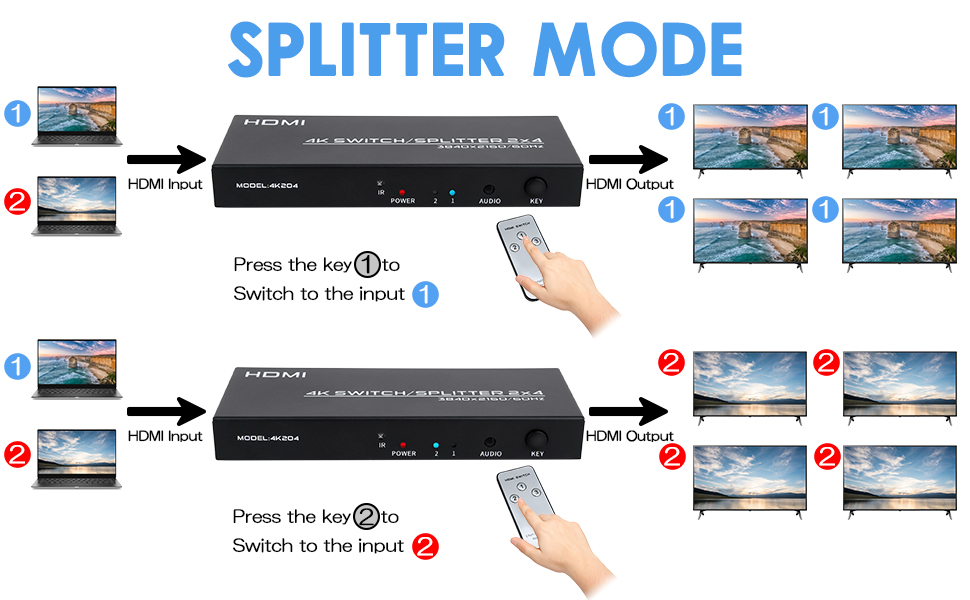
Figure 6.2: Splitter Mode - Same Content on All Displays

Figure 6.3: Splitter Limitation - Cannot Display Different Content
7. Troubleshooting
If you encounter issues with your HDMI Switch Splitter, please refer to the following common troubleshooting steps:
- No Signal on Display:
- Ensure the power adapter is securely connected to the splitter and a power outlet.
- Verify all HDMI cables are firmly connected to both the source devices, the splitter, and the displays.
- Try using different HDMI cables, especially high-speed HDMI 2.0 cables, as faulty or low-quality cables can cause signal loss.
- Confirm that your input source devices and displays are powered on and set to the correct HDMI input.
- Try restarting the source device, the splitter, and the display.
- Poor Picture Quality (Flickering, Distorted Image):
- Ensure all connected devices (source and display) support the desired resolution (e.g., 4K@60Hz).
- Use high-quality HDMI 2.0 cables, especially for 4K resolutions and HDR content.
- Check if the HDMI cable length exceeds the recommended maximum (typically 10 meters or 32.8 feet for 4K@60Hz without an active extender).
- No Audio Output:
- Verify that your audio output device (headphones, speakers, soundbar) is properly connected to the 3.5mm or SPDIF port and is powered on.
- Ensure the audio output device is set to the correct input source.
- Check the audio settings on your source device to ensure audio is being sent via HDMI.
- IR Remote Control Not Responding:
- Ensure there are no obstructions between the remote and the IR receiver on the splitter.
- Check and replace the battery in the remote control if necessary.
- Ensure you are within the effective range of the remote control.
8. Specifications
| Model Number | KS901D |
| Product Dimensions | 6.89 x 2.56 x 0.87 inches |
| Item Weight | 1.01 pounds |
| Color | Black |
| Connector Type | HDMI |
| Supported Resolutions | Up to 4K (3840 x 2160) @ 60Hz, 1080P, 720P |
| Video Features | 4K HDR, 3D, Full HD |
| HDMI Standard | HDMI 2.0 |
| HDCP Compliance | HDCP 2.2 |
| Audio Outputs | 3.5mm Audio, SPDIF Audio |
| Power Supply | DC 5V/2A |
| Compatible Devices | Television, Laptop, Projector, PC, Game Consoles, Monitor |

Figure 8.1: Supported Resolutions

Figure 8.2: Product Dimensions
9. Maintenance
To ensure the longevity and optimal performance of your DGODRT HDMI Switch Splitter, please follow these maintenance guidelines:
- Storage: Store the device in a cool, dry place away from direct sunlight and extreme temperatures.
- Cleaning: Use a soft, dry cloth to clean the exterior of the device. Do not use liquid cleaners or aerosol sprays.
- Handling: Avoid dropping the device or subjecting it to strong impacts.
- Ventilation: Ensure the device has adequate ventilation and that its vents are not blocked to prevent overheating.
10. Warranty and Support
For warranty information, technical support, or any questions regarding your DGODRT 4K HDMI Switch Splitter, please refer to the official DGODRT website or contact their customer support directly. Contact details are typically provided in the packaging or on the manufacturer's official product page.