
1. Introduction
Thank you for choosing the TRONIC 61-Key Mechanical Gaming Keyboard. This manual provides essential information for setting up, operating, maintaining, and troubleshooting your new keyboard. Please read this manual thoroughly before use to ensure optimal performance and longevity of your device.
2. Product Overview
The TRONIC 61-Key Mechanical Gaming Keyboard is a compact, wired keyboard designed for gaming and typing efficiency. It features professional mechanical keys, vibrant RGB backlighting, and full anti-ghosting capabilities. Its ergonomic design ensures comfort during extended use, and the durable ABS construction provides resistance against accidental drops and splashes.
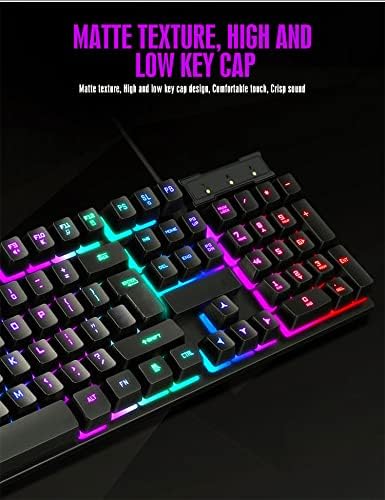
An overhead view of the TRONIC 61-Key Mechanical Gaming Keyboard, showcasing its compact layout and vibrant RGB backlighting across all keys.
Key Features:
- 61-Key Compact Layout: Provides more desk space for mouse movement and other peripherals.
- Mechanical Keys: Professional mechanical switches for responsive and tactile feedback.
- RGB Backlighting: Customizable rainbow backlighting with various effects and colors (red, green, yellow, blue, purple, cyan, pink).
- Full Anti-Ghosting: Allows multiple key presses to be registered simultaneously without conflict, crucial for gaming.
- Durable Construction: Made from high-resistance ABS thermoplastic material, designed to withstand daily use and minor liquid splashes.
- Laser-Engraved Keycaps: Characters are clear and luminous, ensuring visibility in dark environments.
- Ergonomic Design: Engineered for comfort during long typing and gaming sessions.

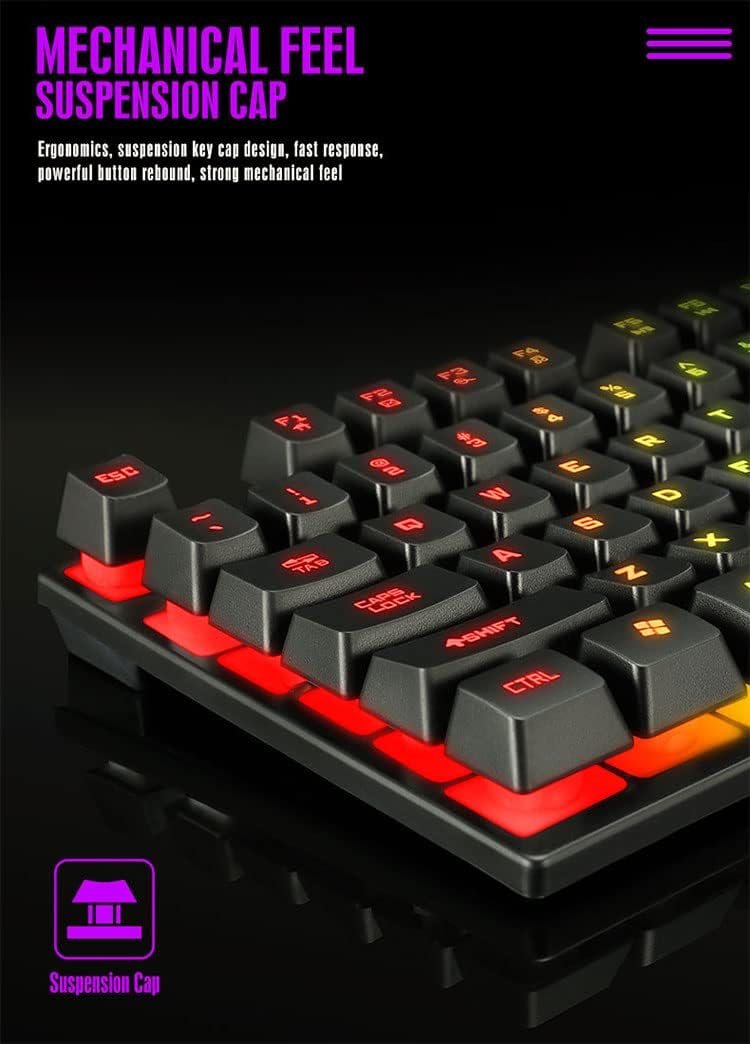
A detailed view of the keyboard's suspension keycap design, highlighting the mechanical feel and ergonomic profile for comfortable typing and gaming.
3. Setup
Setting up your TRONIC Mechanical Gaming Keyboard is a straightforward process.
Connecting the Keyboard:
- Unpack the keyboard and its USB cable from the packaging.
- Connect the USB cable to the keyboard's USB port.
- Plug the other end of the USB cable into an available USB port on your computer or laptop.
- The keyboard is plug-and-play; your operating system (Windows or Linux) should automatically detect and install the necessary drivers.
The TRONIC keyboard connected to a device via its integrated USB cable, ready for use.
Compatibility:
The keyboard is compatible with Windows and Linux operating systems. Note: This keyboard is not compatible with PS4 or XBOX gaming consoles.
4. Operating Instructions
Basic Keyboard Use:
Once connected, the keyboard functions as a standard QWERTY layout keyboard. The 61-key compact design includes all essential keys for typing and gaming. The UK layout ensures familiarity for users accustomed to this standard.
Backlight Control:
The keyboard features dynamic RGB backlighting. You can control the lighting effects and turn them on or off using a dedicated button on the keyboard. This button typically cycles through various rainbow lighting modes, including a cyclical breathing effect, and allows you to disable the lighting when not needed.

This image illustrates the location of the dedicated button for controlling the keyboard's RGB backlighting, allowing users to easily switch the lighting effects on or off.
Anti-Ghosting Function:
The full anti-ghosting feature ensures that every key press is registered accurately, even when multiple keys are pressed simultaneously. This is particularly beneficial in fast-paced gaming scenarios where complex key combinations are common.
5. Maintenance
Proper maintenance will help extend the life and performance of your TRONIC keyboard.
Cleaning:
- Disconnect the keyboard from your computer before cleaning.
- Use a soft, dry cloth to wipe down the keycaps and keyboard surface.
- For stubborn dirt, a slightly damp cloth with a mild cleaning solution can be used, ensuring no liquid enters the keyboard.
- Compressed air can be used to remove dust and debris from between the keys.
Durability:
The keyboard's ABS construction provides a degree of resistance to minor impacts and liquid splashes. However, it is not fully waterproof. Avoid submerging the keyboard in liquid or exposing it to excessive moisture.
6. Troubleshooting
If you encounter issues with your TRONIC keyboard, refer to the following common solutions:
- Keyboard Not Responding:
- Ensure the USB cable is securely plugged into both the keyboard and the computer.
- Try plugging the keyboard into a different USB port on your computer.
- Restart your computer.
- Backlight Not Working:
- Press the dedicated backlight control button to cycle through lighting modes or turn the backlight on.
- Ensure the keyboard is properly connected and receiving power.
- Keys Not Registering:
- Check for any physical obstructions under the keycaps.
- Ensure the keyboard drivers are correctly installed (usually automatic).
- Compatibility Issues:
- Remember, the keyboard is compatible with Windows and Linux. It is not compatible with PS4 or XBOX consoles.
If these steps do not resolve your issue, please contact TRONIC customer support for further assistance.
7. Specifications
| Feature | Specification |
|---|---|
| Brand | TRONIC |
| Model Number | B09MH9ZC6M |
| Connectivity Technology | Wired USB |
| Keyboard Description | Mechanical |
| Keyboard Layout | QWERTY (UK Layout) |
| Number of Keys | 61 |
| Backlight Support | RGB (Rainbow) |
| Compatible Operating Systems | Windows, Linux |
| Power Source | Cable Powered |
| Special Features | Backlit, Anti-Ghosting |
| Material | ABS Thermoplastic |
| Keystroke Lifespan | 10,000,000 keystrokes |
| Response Time | 2 ms |
| UPC / GTIN | 793072706689 |
8. Warranty and Support
For warranty information and customer support, please refer to the documentation included with your purchase or visit the official TRONIC website. Keep your proof of purchase for any warranty claims.