
1. Introduction
Thank you for purchasing the TURBOX Giantpeak Mechanical Feel RGB Gaming Keyboard. This manual provides essential information for setting up, operating, and maintaining your new keyboard. Please read this manual carefully before use to ensure optimal performance and longevity of your device.
2. Safety Information
- Keep the keyboard away from excessive heat, direct sunlight, and moisture.
- Although the keyboard is spill-resistant, avoid intentionally exposing it to large amounts of liquid. In case of spills, disconnect the keyboard immediately and allow it to dry completely before reconnecting.
- Do not attempt to disassemble or modify the keyboard. This will void the warranty and may cause damage.
- Use only with compatible devices and power sources as specified.
- Keep out of reach of children.
3. Package Contents
Please check the package for the following items:
- TURBOX Giantpeak Mechanical Feel RGB Gaming Keyboard
- User Manual (this document)
4. Product Overview
The TURBOX Giantpeak keyboard is designed for gaming, featuring a mechanical feel, customizable RGB lighting, and macro capabilities. It also includes a convenient mobile device holder.
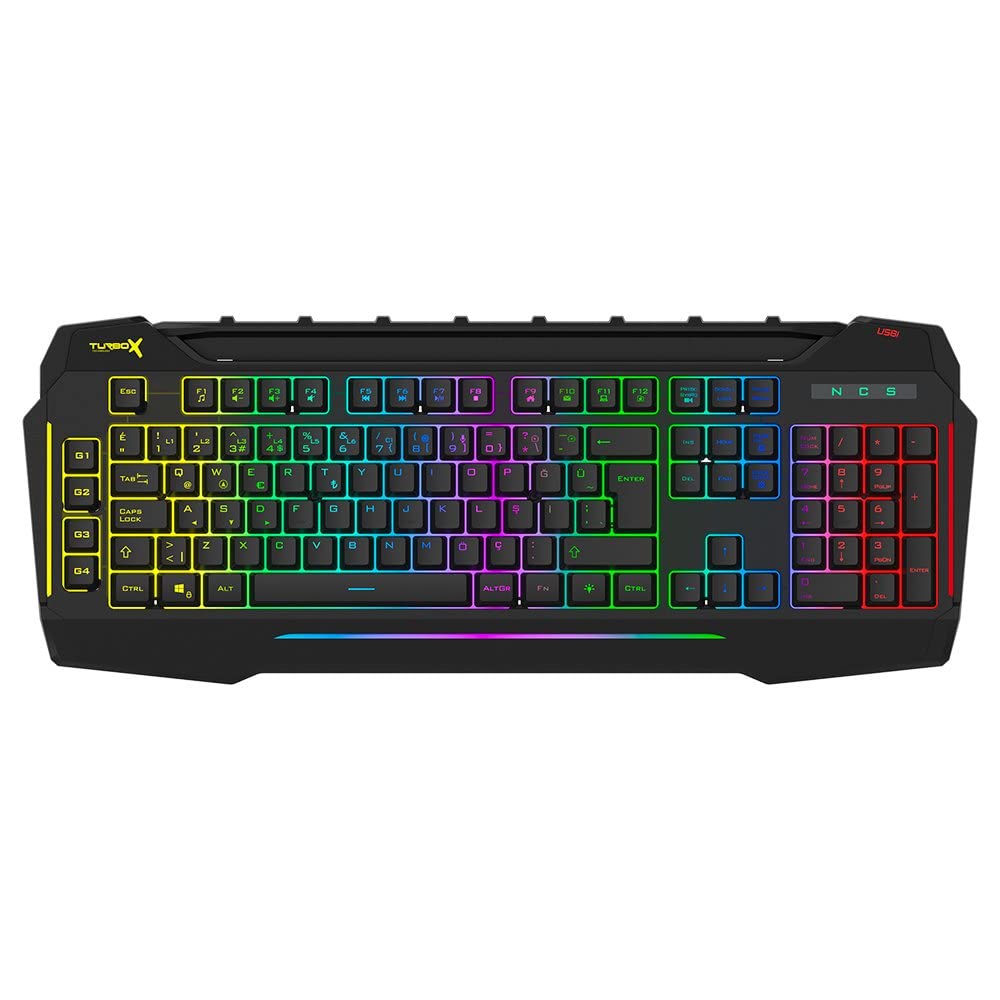
Figure 4.1: TURBOX Giantpeak keyboard with integrated mobile device stand.
This full-size keyboard offers a standard Q layout, providing a comfortable and responsive typing experience for both gaming and general use.

Figure 4.2: Top view of the TURBOX Giantpeak keyboard.
The keyboard features vibrant RGB backlighting that can be customized to various effects, including sound-sensitive modes. Its spill-resistant design provides added durability.

Figure 4.3: Angled view showing RGB lighting.
Dedicated macro keys (G1-G4) are located on the left side, allowing for quick execution of complex commands or sequences.

Figure 4.4: Close-up of programmable G-keys.
The keyboard also includes a full numeric keypad for data entry and additional functions.

Figure 4.5: Numeric keypad detail.
Connectivity is provided via a durable USB cable, ensuring a stable and responsive connection to your computer.

Figure 4.6: Side view with USB cable.
5. Setup
Follow these steps to set up your TURBOX Giantpeak keyboard:
- Unpack the Keyboard: Carefully remove the keyboard and any packaging materials from the box.
- Connect to Computer: Plug the USB connector of the keyboard into an available USB port on your desktop or laptop computer.
- Driver Installation: Your operating system (Windows, macOS, etc.) should automatically detect and install the necessary drivers. This process may take a few moments.
- Verify Functionality: Once drivers are installed, test the keyboard by typing in a text editor or browser to ensure all keys are functioning correctly. The RGB lighting should also illuminate.
6. Operating Instructions
6.1 Basic Keyboard Functions
The TURBOX Giantpeak keyboard operates like a standard Q-layout keyboard. All standard keys (alphanumeric, function keys, numeric keypad, navigation keys) function as expected.
6.2 RGB Lighting Control
The keyboard features customizable RGB backlighting with 7 different color options and sound-sensitive modes. Specific key combinations are used to cycle through lighting effects and adjust brightness:
- Change Lighting Mode: Use the Fn + Scroll Lock keys to cycle through various lighting effects.
- Adjust Brightness: Use the Fn + Page Up (increase) or Fn + Page Down (decrease) keys to adjust the brightness level of the backlighting.
- Sound-Sensitive Mode: The keyboard supports sound-sensitive lighting. Refer to specific software or key combinations (if available) for activation. (Note: Specific key combinations for sound-sensitive mode may vary or require software.)
6.3 Macro Programming (G1-G4 Keys)
The TURBOX Giantpeak keyboard includes 4 programmable macro keys (G1, G2, G3, G4) for executing custom commands or sequences. Follow these general steps for macro recording:
- Enter Macro Recording Mode: Press the MR key (Macro Record, usually near the G-keys). The keyboard's indicator light may flash to indicate recording mode.
- Select Macro Key: Press one of the G-keys (G1, G2, G3, or G4) where you want to save the macro.
- Record Sequence: Type the sequence of keys you wish to record. This can include multiple keystrokes, delays, and modifier keys.
- Exit Macro Recording Mode: Press the MR key again to save the macro and exit recording mode. The indicator light should stop flashing.
- Execute Macro: To use the recorded macro, simply press the assigned G-key.
Note: For advanced macro settings or specific software-based macro management, please check the manufacturer's website for any available utility software.
6.4 Mobile Device Holder
The integrated slot at the top of the keyboard is designed to hold smartphones or small tablets, providing a convenient viewing angle while gaming or working.
7. Maintenance
To ensure the longevity and performance of your keyboard, follow these maintenance guidelines:
- Cleaning: Use a soft, dry cloth to wipe the surface of the keyboard. For stubborn dirt, slightly dampen the cloth with water or a mild cleaning solution. Avoid harsh chemicals or abrasive materials.
- Dust Removal: Use compressed air to remove dust and debris from between the keycaps.
- Spill Management: In case of liquid spills, immediately disconnect the keyboard from your computer. Turn it upside down to drain any liquid and allow it to air dry completely for at least 24-48 hours before reconnecting.
- Storage: When not in use for extended periods, store the keyboard in a clean, dry environment.
8. Troubleshooting
If you encounter issues with your TURBOX Giantpeak keyboard, refer to the following common problems and solutions:
| Problem | Possible Solution |
|---|---|
| Keyboard is not responding. |
|
| RGB lighting is not working or is stuck. |
|
| Macro keys (G1-G4) are not working. |
|
| Keys are sticky or unresponsive. |
|
9. Specifications
| Feature | Detail |
|---|---|
| Model Name | Giantpeak |
| Part Number | ID9923266 |
| Brand | TURBOX |
| Connectivity Technology | USB Wired |
| Compatible Devices | Laptop, PC |
| Key Type | Mechanical Feel (Membrane) |
| Special Features | RGB Lighting, Macro Keys (4), Sound-Sensitive Lighting, Spill-Resistant, Mobile Device Holder |
| Number of Keys | 87 (Note: Visuals suggest a full-size layout, this number may refer to a specific key group or variant.) |
| Hardware Interface | USB |
| Package Dimensions | 51.2 x 22.2 x 5.2 cm |
| Item Weight | 1 Kilogram |
10. Warranty and Support
For warranty information and technical support, please refer to the warranty card included with your product or visit the official TURBOX website. Keep your proof of purchase for any warranty claims.
If you require further assistance, please contact TURBOX customer support through their official channels.