
Introduction
Thank you for choosing the LeadsaiL Wireless Keyboard and Mouse Combo. This manual provides essential information for setting up, operating, maintaining, and troubleshooting your new wireless peripheral set. Please read these instructions carefully before use to ensure optimal performance and longevity of your product.
Package Contents
- 1 x LeadsaiL Wireless Keyboard
- 1 x LeadsaiL Wireless Mouse
- 1 x USB Receiver (stored inside the mouse)
- 1 x User Manual
Setup Instructions
1. Battery Installation
The keyboard requires two (2) AA batteries and the mouse requires one (1) AA battery. Batteries are not included in the package.
- Open the battery compartment cover on the underside of the keyboard. Insert two AA batteries, ensuring correct polarity (+/-). Close the cover.
- Open the battery compartment cover on the underside of the mouse. Insert one AA battery, ensuring correct polarity (+/-). Close the cover.

Figure 1: Battery installation for keyboard and mouse. Note the USB receiver is stored in the mouse.
2. Connecting the USB Receiver
The 2-in-1 USB receiver is stored inside the mouse's battery compartment for convenience.
- Remove the USB receiver from its storage slot within the mouse's battery compartment.
- Plug the USB receiver into an available USB port on your computer (laptop or desktop PC).
- Turn on the power switch located on the underside of both the keyboard and the mouse.
- Your computer should automatically detect and install the necessary drivers. No additional software installation is required.

Figure 2: USB receiver connection to a laptop.
Setup Overview Video
Video 1: An overview of the LeadsaiL Retro Multicolored Wireless Combo, demonstrating its features and setup process.
Operating Instructions
Keyboard Functions
- Standard Typing: Use the keys for regular text input.
- Multimedia Keys: The keyboard features 12 multimedia keys (F1-F12) that can be accessed by pressing the Fn key simultaneously with the desired function key. These keys control media playback, volume, and other system functions.
- Indicator Lights: Located above the number pad, these lights indicate Num Lock, Caps Lock, and Low Battery status.

Figure 3: Multimedia keys for increased efficiency.

Figure 4: Keyboard indicator lights.
Mouse Functions
- Left/Right Click: Standard mouse button functions.
- Scroll Wheel: For vertical scrolling.
- DPI Adjustment: The mouse features 3 adjustable DPI levels (800, 1200, 1600). Press the DPI button (usually located near the scroll wheel) to cycle through the sensitivity settings.

Figure 5: Mouse DPI adjustment levels.
Energy Saving Feature
To conserve battery life, both the keyboard and mouse will enter a sleep mode after 3 minutes of inactivity. To wake them up, simply click any mouse button or press any key on the keyboard.

Figure 6: Auto Sleep & Energy Saving feature.
Compatibility
The LeadsaiL Wireless Keyboard and Mouse Combo is compatible with Windows XP/7/8/10/11 and Mac OS operating systems, as well as Chrome OS and Linux. It works with various devices including computers, laptops, and notebooks.

Figure 7: Wide compatibility with various operating systems.
Maintenance
Battery Replacement
When the low battery indicator light on the keyboard illuminates, or if the mouse or keyboard becomes unresponsive, it is time to replace the batteries. Follow the battery installation steps outlined in the Setup section.
Cleaning
To clean your keyboard and mouse, use a soft, dry cloth. For stubborn dirt, a slightly damp cloth with mild soap can be used, ensuring no liquid enters the device. Avoid using harsh chemicals or abrasive materials.
Troubleshooting
| Problem | Solution |
|---|---|
| Keyboard or mouse not responding |
|
| Lag or intermittent connection |
|
| Mouse cursor movement is erratic or slow |
|
Specifications
| Feature | Detail |
|---|---|
| Brand | LeadsaiL |
| Model Number | KF29 |
| Color | Colorful |
| Connectivity Technology | 2.4G Wireless (USB Receiver) |
| Special Feature | Ergonomic, Silent Click (Mouse), Scissor Structure (Keyboard) |
| Compatible Devices | Asus, Dell, HP, Lenovo, MacBook Air (and other compatible devices) |
| Movement Detection | Optical |
| Power Source | Battery Powered |
| Keyboard Layout | QWERTY |
| Number of Batteries | Keyboard: 2 AA, Mouse: 1 AA (not included) |
| Compatible Operating System Family | Windows, Mac OS, Chrome OS, Linux |
| Hand Orientation | Ambidextrous (Mouse) |
| Number of Keys | 99 |
| Wireless Range | Up to 10 meters (33 ft) |
| Mouse DPI | 800/1200/1600 adjustable |

Figure 8: Compact design and dimensions.
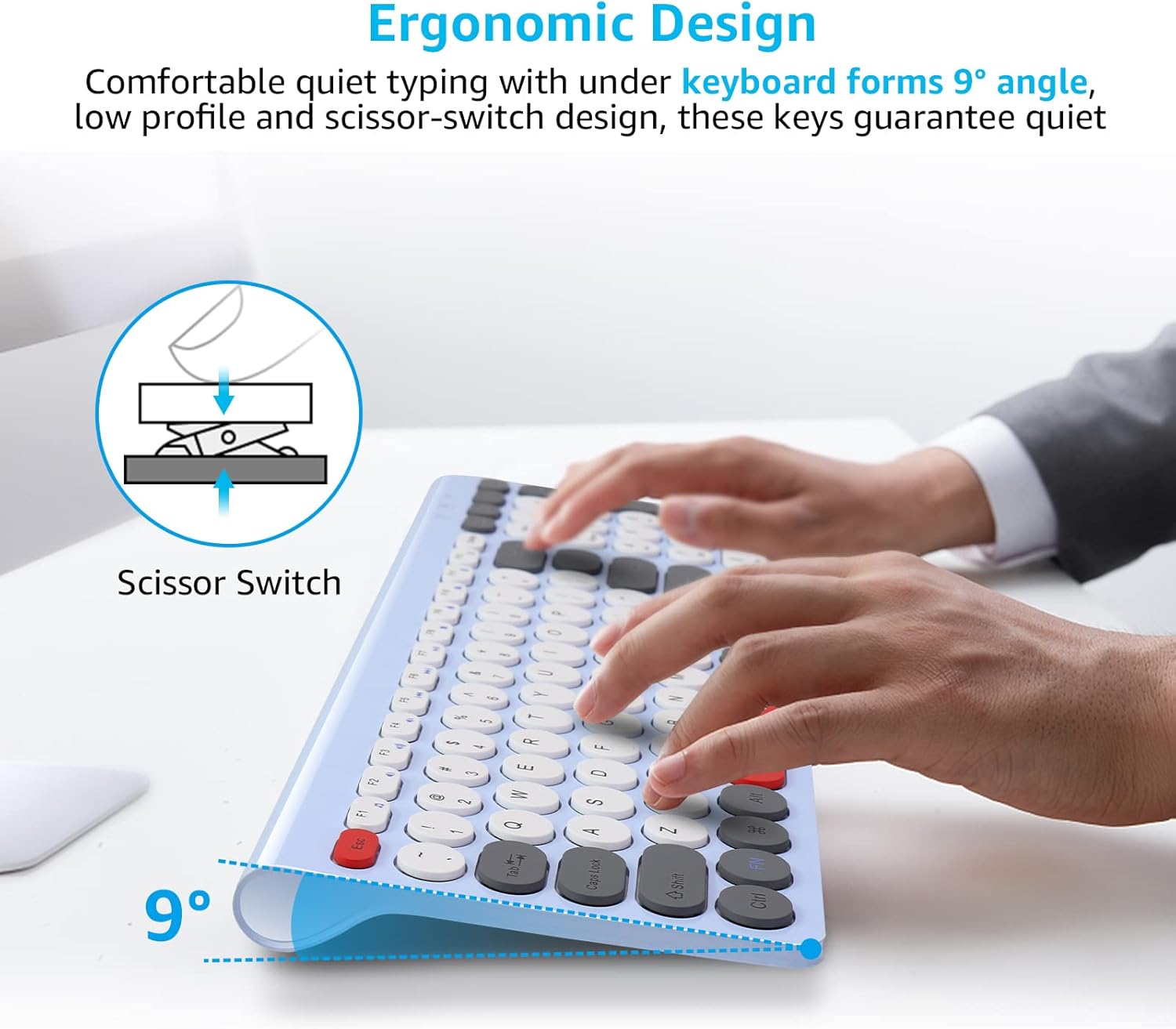
Figure 9: Ergonomic design with scissor switch keys.
Warranty Information
This LeadsaiL product comes with a Lifetime Warranty Against Manufacturer Defect. Please retain your proof of purchase for warranty claims. For more details, refer to the official LeadsaiL website or contact customer support.
Customer Support
If you encounter any issues or have questions regarding your LeadsaiL Wireless Keyboard and Mouse Combo that are not covered in this manual, please contact LeadsaiL customer support through the retailer's platform or the official LeadsaiL website for assistance.
