
1. Introduction
Thank you for choosing the LeadsaiL Wireless Keyboard and Mouse Combo. This product is designed to provide a convenient and efficient input solution for your computer. Featuring a compact design, silent keys, and a reliable 2.4G wireless connection, it is compatible with various operating systems including Windows and Mac OS.
2. Package Contents
The LeadsaiL Wireless Keyboard and Mouse Combo package includes the following items:
- 1 x Wireless Keyboard
- 1 x Wireless Mouse
- 1 x USB Receiver (stored inside the mouse battery compartment)
- 1 x User Manual
Video: Unboxing and overview of the LeadsaiL Wireless Keyboard and Mouse Combo. This video demonstrates the items included in the package and provides a visual introduction to the product's features.
3. Setup
3.1 Battery Installation
The keyboard and mouse require AA batteries (not included). Follow these steps to install them:
- For the Mouse: Open the battery compartment cover on the underside of the mouse. Insert one (1) AA battery, ensuring correct polarity. The USB receiver is located in this compartment. Close the cover.
- For the Keyboard: Open the battery compartment cover on the underside of the keyboard. Insert two (2) AA batteries, ensuring correct polarity. Close the cover.

Image: Illustration of battery placement for both the wireless mouse (1x AA battery) and keyboard (2x AA batteries). The image also highlights the storage location of the USB receiver within the mouse.
3.2 Connecting the USB Receiver
The keyboard and mouse share a single USB receiver for connection. This receiver is stored in the mouse's battery compartment.
- Remove the USB receiver from the mouse's battery compartment.
- Plug the USB receiver into an available USB port on your computer.
- The system will automatically detect and install the necessary drivers. No additional driver installation is required.

Image: A visual representation of the 2.4G wireless connection setup. The USB receiver is shown plugged into a laptop, enabling wireless communication with both the keyboard and mouse.
4. Operating Instructions
4.1 Power On/Off
Ensure the power switch on both the keyboard and mouse is in the 'ON' position. The mouse typically has a switch on its underside. The keyboard may have an indicator light to confirm it is active.
4.2 Keyboard Features
The keyboard features a compact layout with a full numeric keypad. It utilizes a scissor-structure button design for reduced noise and a comfortable typing experience.
- FN+ Shortcuts: The keyboard includes 12 FN+ shortcuts for quick access to multimedia functions such as mute, play/pause, backward, forward, and volume control. Press the 'FN' key simultaneously with the desired function key (F1-F12) to activate.
- Indicator Lights: The keyboard has indicator lights for Num Lock, Caps Lock, and low battery status.

Image: The keyboard layout showcasing the 12 multimedia keys. These keys, when used with the FN key, provide quick access to various functions, enhancing efficiency.

Image: A detailed view of the keyboard's scissor-structure keys, designed for quiet operation. The image also illustrates the ergonomic 10-degree tilt for comfortable typing.
4.3 Mouse Features
The wireless mouse offers silent clicks and an ambidextrous design for comfortable use by both left and right-handed users.
- Adjustable DPI: The mouse features 3 adjustable DPI levels (800, 1200, 1600) to customize cursor sensitivity. Press the DPI button (usually located near the scroll wheel) to cycle through the settings.
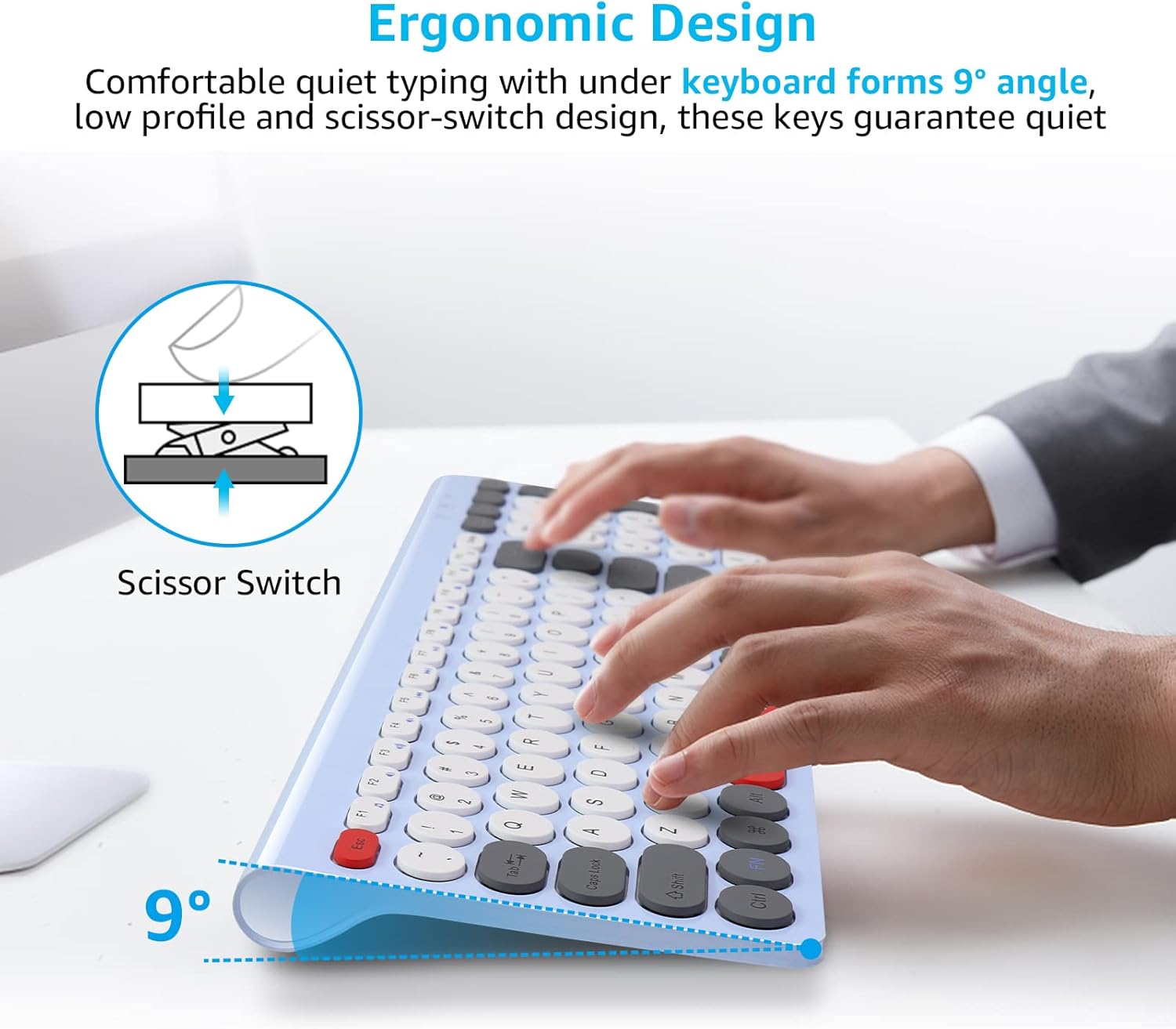
Image: The wireless mouse highlighting its quiet click buttons and three adjustable DPI settings (800, 1200, 1600) for precise control.
4.4 Energy Saving Mode
To conserve battery life, both the keyboard and mouse will enter a sleep mode after 3 minutes of inactivity. To wake them up, simply click any button on the mouse or press any key on the keyboard.

Image: A graphic depicting the automatic energy-saving function, showing the keyboard and mouse entering sleep mode after a period of inactivity to extend battery life.
5. Maintenance
To ensure the longevity and optimal performance of your LeadsaiL Wireless Keyboard and Mouse Combo, follow these maintenance guidelines:
- Cleaning: Use a soft, dry cloth to clean the surfaces of the keyboard and mouse. For stubborn dirt, a slightly damp cloth with mild soap can be used, ensuring no liquid enters the device.
- Battery Replacement: Replace batteries promptly when the low battery indicator illuminates or when performance degrades. Use high-quality AA batteries.
- Storage: When not in use for extended periods, turn off the devices to conserve battery life. Store them in a cool, dry place away from direct sunlight and extreme temperatures.
- Avoid Spills: Keep liquids away from the keyboard and mouse to prevent damage.
6. Troubleshooting
If you encounter issues with your LeadsaiL Wireless Keyboard and Mouse Combo, refer to the following common solutions:
- No Connection/Lag:
- Ensure the USB receiver is securely plugged into a working USB port on your computer.
- Check if the keyboard and mouse are powered on.
- Replace the batteries in both the keyboard and mouse.
- Move the devices closer to the USB receiver to reduce interference.
- Try plugging the USB receiver into a different USB port.
- Keys Not Responding:
- Check battery levels.
- Ensure no debris is lodged under the keys.
- Restart your computer.
- Mouse Cursor Jumps or is Erratic:
- Clean the optical sensor on the underside of the mouse.
- Ensure you are using the mouse on a suitable surface (a mouse pad is recommended).
- Check battery levels.
7. Specifications
| Feature | Detail |
|---|---|
| Product Dimensions | 14.57 x 5.51 x 0.2 inches |
| Item Weight | 1.37 pounds |
| Model Number | KF29 |
| Batteries Required | 3 AA batteries (1 for mouse, 2 for keyboard) |
| Connectivity Technology | 2.4G Wireless (USB Receiver) |
| Special Feature | Ergonomic, Silent Click, Adjustable DPI |
| Compatible Devices | Windows XP/7/8/10/11, Mac OS, Asus, Dell, HP, Lenovo, MacBook Air |

Image: Detailed dimensions of the LeadsaiL wireless keyboard and mouse, illustrating their compact and ultra-thin design for space-saving and portability.
8. Warranty and Support
LeadsaiL products are manufactured to high-quality standards. For warranty information, technical support, or customer service inquiries, please refer to the contact details provided on the product packaging or visit the official LeadsaiL website. Please retain your proof of purchase for warranty claims.
