
1. Introduction
This user manual provides comprehensive instructions for the Spedal DSP Radar Detector, Model VP388T. It covers product features, installation, operation, maintenance, and troubleshooting to ensure optimal performance and user safety. This device is designed to enhance driving awareness by detecting various radar and laser signals and providing real-time alerts.
2. Safety Information
Please read all safety warnings and instructions carefully before using the device. Failure to follow these instructions may result in injury or damage to the device.
- Do not operate the device in a manner that distracts you from driving. Always prioritize safe driving practices.
- Ensure the device is securely mounted and does not obstruct your view of the road or interfere with vehicle controls.
- Avoid exposing the device to extreme temperatures, direct sunlight for prolonged periods, or excessive moisture.
- Do not attempt to disassemble or repair the device yourself. Refer all servicing to qualified personnel.
- Use only the power cable and accessories provided by the manufacturer.
3. Package Contents
Verify that all items are present in the package:
- Spedal DSP Radar Detector (VP388T)
- Power Cable (for vehicle's 12V outlet)
- Mounting Bracket (suction cup or adhesive)
- USB Cable (for updates)
- User Manual (this document)
4. Product Overview
The Spedal DSP Radar Detector features a compact design with an intuitive display and controls. It integrates advanced DSP technology for radar detection and GPS for location-based alerts.
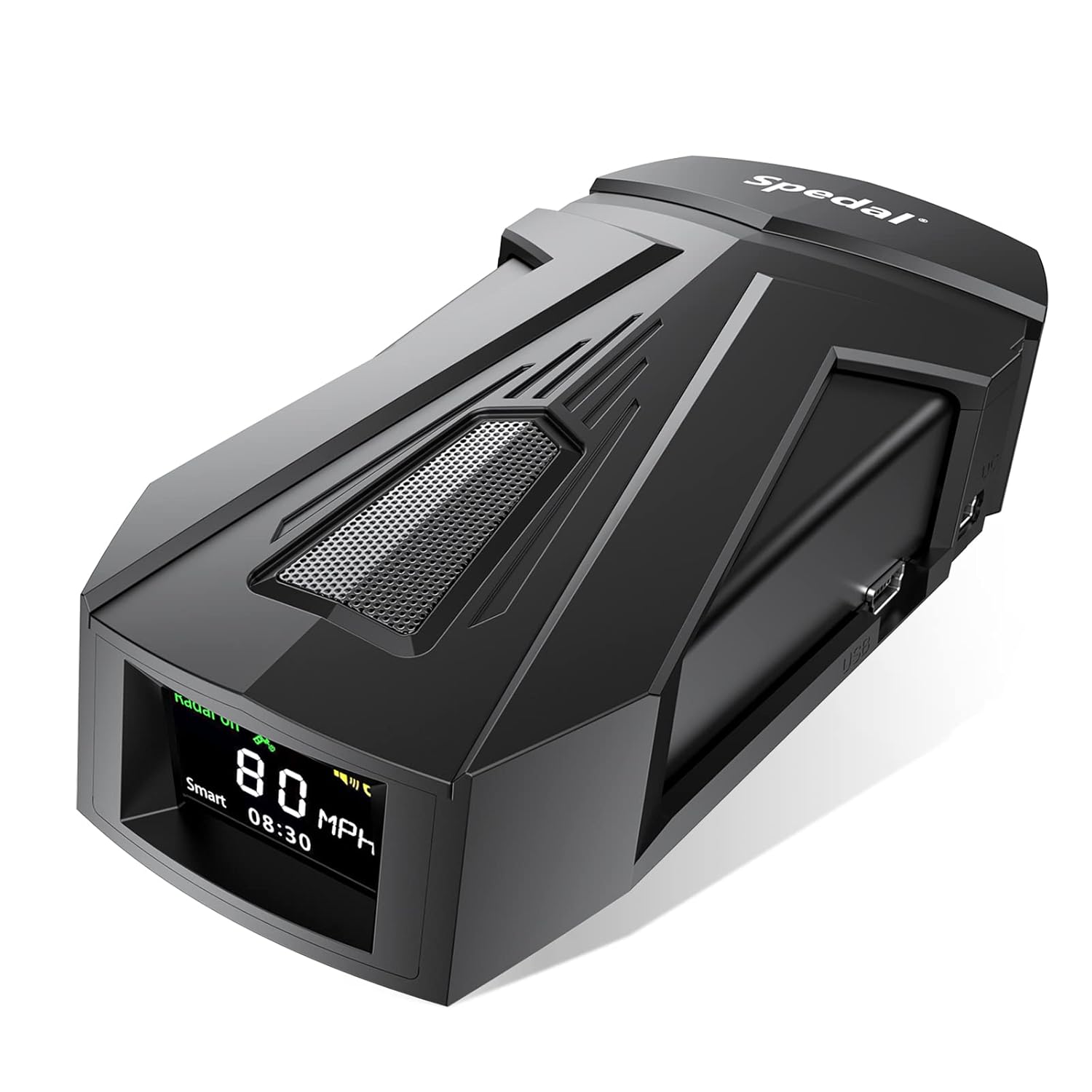
Figure 4.1: Front view of the Spedal DSP Radar Detector, highlighting its display and sleek design.

Figure 4.2: Illustration of the radar detector's all-round detection capabilities, covering X, K, Ka, Ku, Laser, and VG-2 bands.
4.1. Components and Controls
- Display Screen: Shows current speed, detection alerts, mode, and GPS status.
- Power/Volume Button: Turns the device on/off and adjusts alert volume.
- Menu Button: Accesses settings and configuration options.
- City/Highway Button: Toggles between urban and highway detection modes.
- Mute Button: Silences current alerts.
- USB Port: For connecting to a computer for database updates.
- Power Input: Connects to the vehicle's 12V power outlet.
5. Setup
Follow these steps to properly set up your Spedal DSP Radar Detector in your vehicle:
- Choose a Mounting Location: Select a location on your windshield that provides a clear, unobstructed view of the road ahead and behind, typically near the center of the dashboard or windshield. Ensure it does not block your driving view or airbag deployment.
- Attach the Mounting Bracket: Secure the suction cup or adhesive mounting bracket to the chosen location. Ensure the surface is clean and dry for optimal adhesion.
- Mount the Device: Slide the radar detector onto the mounting bracket until it clicks into place. Adjust the angle so the device is level and facing forward.
- Connect Power: Plug the small end of the power cable into the device's power input port. Plug the other end into your vehicle's 12V accessory outlet (cigarette lighter socket).
- Power On: The device should power on automatically when the vehicle's ignition is turned on. If not, press the Power button.

Figure 5.1: The radar detector installed on a vehicle's dashboard, showing its position relative to the driver's view.
6. Operating Instructions
Once powered on, the Spedal DSP Radar Detector will begin scanning for radar and laser signals. The display will show your current speed (via GPS) and the active mode.
6.1. Radar Detection
The device utilizes a radar Mmic-Luna enhanced receiving module and advanced digital radar frequency division processing for rapid response to various radar signals. It can detect lidar signals up to 2000 meters away.

Figure 6.1: Visual representation of the early warning system, showing various radar types detected by the device.

Figure 6.2: Illustration of the device's rapid response to radar signals, indicating detection ranges up to 2000 meters.
6.2. Smart Mode & Super Mode
The device offers intelligent modes to adapt to your driving environment:
- Smart Mode: Automatically adjusts detection sensitivity based on vehicle speed and environment (urban, suburban, high-speed road) to reduce false alerts and improve driving comfort.
- Super Mode: Allows customization of radar filtering levels and anti-interference settings according to your specific driving style and preferences.

Figure 6.3: Explanation of Smart Mode and Super Mode, detailing how they adapt to driving conditions and allow user customization.
6.3. GPS Technology
Integrated GPS technology provides stable and accurate satellite signals for enhanced safety and comfort:
- Real-Time Speed Display: Shows your current vehicle speed accurately.
- Location-Based Alerts: Provides alerts for section control, speed measurements, and other points of interest based on a continuously updated global highway database.
6.4. Advanced IVT Filtering
The IVT (In-Vehicle Technology) Filtering system helps to minimize false alerts by filtering out interference signals from sources such as Blind Spot Detection (BSD), Blind Spot Monitoring (BSM), inverted radar signals, strong light, and other vehicle-based technologies. This ensures that you receive more relevant and accurate warnings.
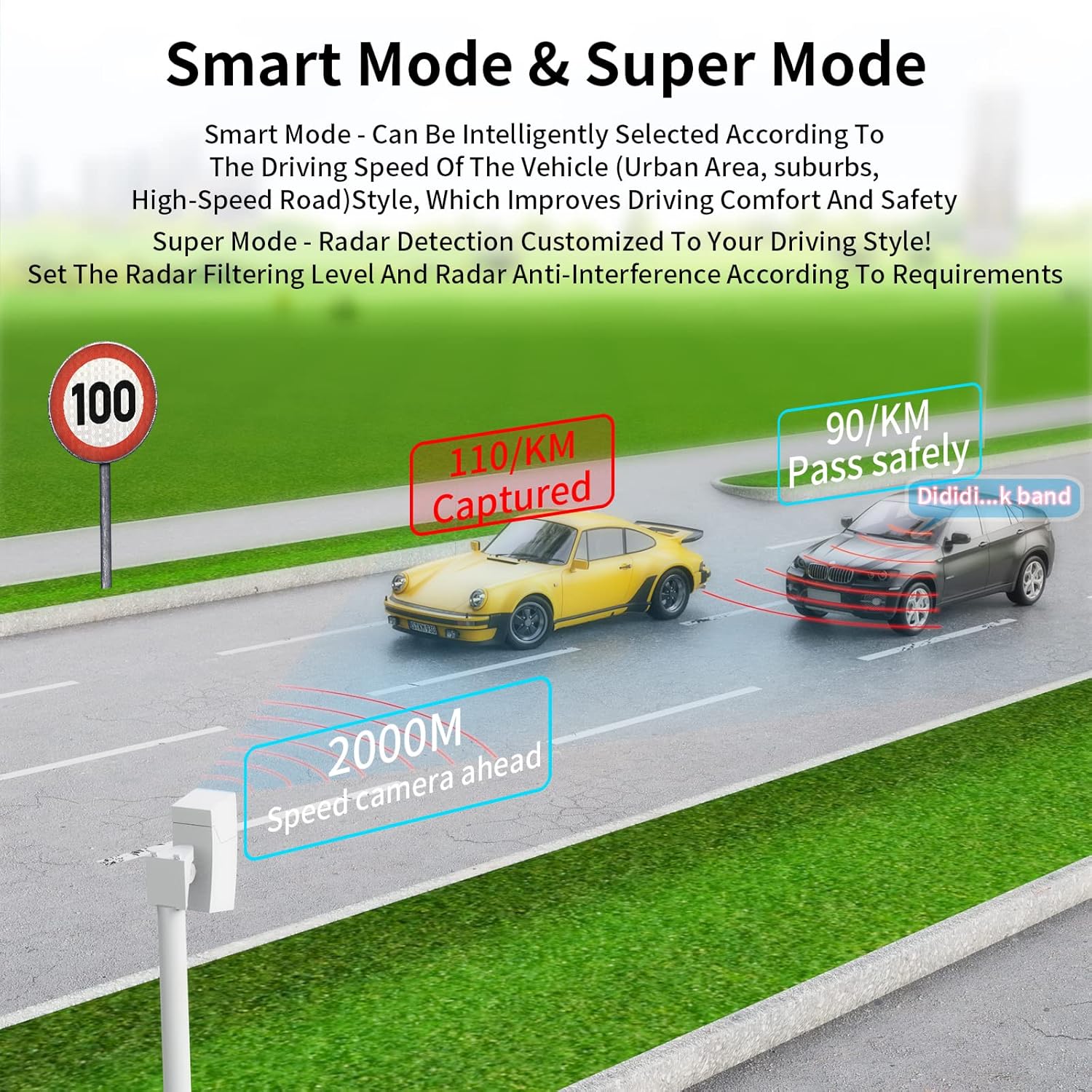
Figure 6.4: Visual representation of the IVT filtering process, showing how common interference signals like BSM and CVV are filtered.
7. Database Updates
The Spedal DSP Radar Detector features a built-in USB port for free monthly database updates. This ensures that your device's global highway data, including section control and speed measurement points, remains current and accurate.
7.1. Update Procedure
- Visit the official Spedal website (refer to product packaging or support information for the exact URL).
- Download the latest database update file and the update software to your computer.
- Connect your Spedal DSP Radar Detector to your computer using the provided USB cable.
- Run the update software and follow the on-screen instructions to transfer the new database to your device.
- Safely disconnect the device from your computer once the update is complete.
8. Maintenance
To ensure the longevity and optimal performance of your Spedal DSP Radar Detector, follow these maintenance guidelines:
- Cleaning: Use a soft, dry cloth to clean the exterior of the device. Do not use abrasive cleaners, solvents, or spray directly onto the device.
- Storage: When not in use for extended periods, store the device in a cool, dry place away from direct sunlight and extreme temperatures.
- Cable Care: Inspect the power and USB cables regularly for any signs of damage. Replace damaged cables immediately.
- Battery: The device contains a Lithium Ion battery. Do not attempt to replace it yourself. Dispose of the device according to local regulations at the end of its life cycle.
9. Troubleshooting
If you encounter issues with your Spedal DSP Radar Detector, refer to the following common problems and solutions:
| Problem | Possible Cause | Solution |
|---|---|---|
| Device does not power on. | No power from vehicle's 12V outlet; loose connection; faulty power cable. | Check vehicle's 12V outlet fuse; ensure power cable is securely connected at both ends; try a different 12V outlet if available; test with a known good power cable if possible. |
| No radar/laser alerts. | Device in Mute mode; low volume; incorrect mode setting (e.g., City mode in highway); no signals present. | Check mute setting; increase volume; switch to Highway mode if appropriate; ensure device has clear line of sight. |
| Frequent false alerts. | Interference from other vehicle systems (e.g., BSM); device sensitivity too high. | Ensure IVT Filtering is active; adjust sensitivity settings in Super Mode; try Smart Mode. |
| GPS not acquiring signal or inaccurate speed. | Obstructed GPS signal; device needs more time to acquire satellites; outdated GPS database. | Ensure device has clear view of the sky; allow several minutes for initial satellite acquisition; perform a database update. |
| Screen scrambled or unresponsive. | Software glitch; extreme temperature exposure. | Disconnect power, wait 30 seconds, then reconnect; ensure device is within operating temperature range. If problem persists, contact customer support. |
10. Specifications
| Feature | Detail |
|---|---|
| Brand | Spedal |
| Model | VP388T (DSP Radar Detector) |
| Dimensions (LxWxH) | 18 x 15 x 6.5 cm |
| Item Weight | 517 g |
| Battery Type | 1 Lithium Ion battery (included) |
| Radar Detection Range | Up to 2000 meters (Lidar) |
| Filtering Technology | Advanced IVT Filtering |
| GPS Features | Real-time alerts, speed display, free database updates |
11. Warranty and Support
Spedal is committed to providing high-quality products and customer satisfaction. If you encounter any problems with your device, please contact our customer service team.
Customer Service: Refer to the contact information provided on the product packaging or the official Spedal website for support. We are dedicated to resolving any issues you may have as soon as possible.
Free Database Updates: As mentioned, free monthly database updates are available via the built-in USB port to ensure your detector remains up-to-date with the latest road data.

