
Konnek Stein QC21S
Konnek Stein QC21S Indoor Security Camera User Manual
Model: QC21S | Brand: Konnek Stein
1. Product Overview
The Konnek Stein QC21S is an advanced 2K (2304 x 1296) wireless smart home IP camera designed for indoor security. It features dual-band 2.4G/5G WiFi connectivity, enabling flexible placement and reliable connection. This camera offers comprehensive monitoring capabilities including 355° horizontal and 110° vertical pan/tilt/zoom (PTZ) functionality, two-way audio communication, AI human motion detection with tracking, and clear infrared night vision.

Front view of the Konnek Stein QC21S Indoor Security Camera, showcasing its compact white design and camera lens.

An illustration highlighting the key features: PTZ control, HD resolution, cloud service, two-way audio, hotspot, motion detection, IR night vision, and motion auto-tracking.

Visual comparison demonstrating the superior clarity of 2K (2304x1296) resolution compared to 1080P (1920x1080) for enhanced visual and video recording.

An image illustrating the camera's efficient surveillance system, providing clear images both during the day and in low-light conditions with night vision.
2. Package Contents
Please check the package contents carefully upon opening to ensure all items are present and undamaged.
- Camera Body (Konnek Stein QC21S)
- USB-A Cable
- Power Adaptor
- User Manual (this document)
3. Setup Guide
Follow these steps to set up your Konnek Stein QC21S camera using the mobile application. Ensure your smartphone is connected to a 2.4 GHz Wi-Fi network during the initial setup process.
- Download the App: Scan the QR code below or search for "Smart Life" in your mobile app store (Google Play for Android, App Store for iOS) to download and install the application.
- Register/Log In: Open the Smart Life app and register a new account or log in if you already have one.
- Add Device: Tap the "+" icon or "Add Device" button in the app. Select "Security & Video Surveillance" and then choose "Smart Camera (Wi-Fi)".
- Power On Camera: Plug in your camera. Ensure the camera is powered on and ready for pairing. The camera will emit a prompt sound or indicate readiness.
- Confirm Indicator: In the app, confirm that the indicator light on the camera is blinking rapidly or that you hear a prompt tone. If not, reset the camera by pressing and holding the reset button (usually a small pinhole) until the indicator blinks rapidly or a tone is heard.
- Connect to Wi-Fi: Enter your 2.4 GHz Wi-Fi network name and password in the app. The camera supports both 2.4G and 5G dual-band WiFi, but initial setup often requires 2.4G.
- Scan QR Code: The app will display a QR code. Hold your phone with the QR code approximately 15-20 cm (6-8 inches) in front of the camera lens until you hear a confirmation tone from the camera.
- Connection Complete: Once the camera connects, it will indicate successful pairing. The app will then show the camera added to your device list. You can now rename the camera and begin using it.

A visual guide demonstrating the step-by-step process of setting up the camera using the Smart Life mobile application, from downloading the app to connecting the device via QR code.
Download the Smart Life App: http://smartapp.tuya.com/smartlife
4. Operating Instructions
4.1 Live View and PTZ Control
Once connected, access the live video feed through the Smart Life app. Use the on-screen controls to remotely pan (355° horizontal) and tilt (110° vertical) the camera lens to monitor different areas of your room. The camera also supports digital zoom.
An illustration showing the camera's 360° comprehensive monitoring capability with 355° horizontal and 80° vertical rotation.
4.2 Two-Way Audio
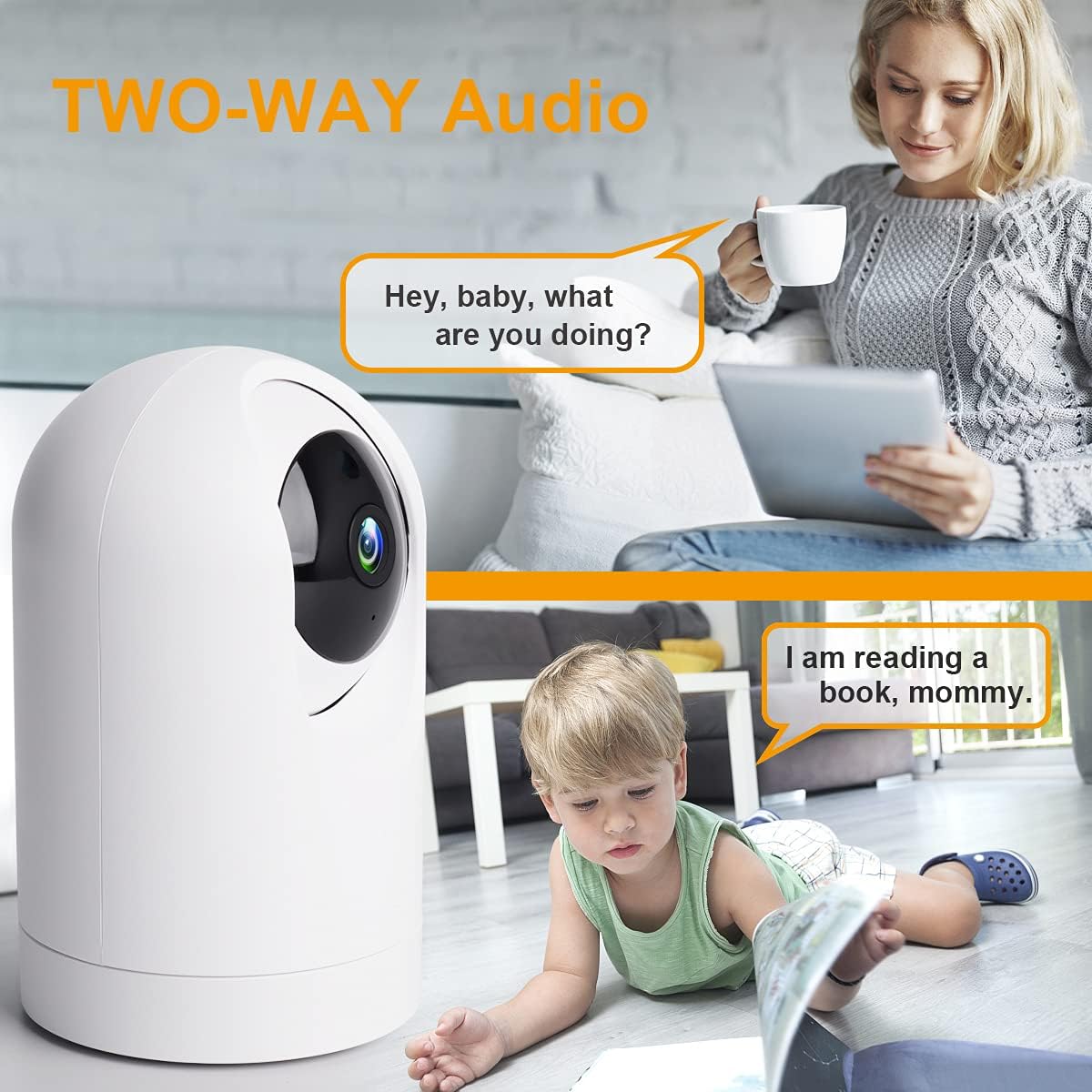
The built-in microphone and speaker allow for clear two-way communication. Tap the microphone icon in the app to speak, and listen through the camera's speaker. This feature is ideal for communicating with family members or pets.

An image depicting the two-way audio functionality, allowing real-time conversation between the user and individuals near the camera.
4.3 AI Human Motion Detection and Tracking
Enable AI human motion detection in the app settings. When human motion is detected, the camera will automatically track the movement, record a video clip, and send an alert notification to your smartphone. Motion events can be saved to an SD card or cloud storage.

An image illustrating the AI motion detection feature, showing an alert notification on a smartphone when suspicious activity is detected by the camera.
4.4 Night Vision
The camera is equipped with infrared lights for clear night vision, allowing it to record full HD live video even in complete darkness. This ensures continuous surveillance around the clock.
4.5 Storage Options
The camera supports local storage via a TF (microSD) card (up to 128GB) and optional cloud storage services. You can choose either option for recording and playback of video history.

An image showing the camera's support for both SD card local storage and cloud storage options for video recordings.
4.6 Multi-Terminal and Multi-User Sharing
The Smart Life app allows for multi-terminal viewing on Android and iOS devices. You can also share access to your camera's feed with other authorized users.

An image illustrating the ability to view the camera feed on multiple devices (phone, tablet) and share access with other users.
4.7 Voice Assistant Integration
The Konnek Stein QC21S camera is compatible with Amazon Alexa and Google Assistant. You can use simple voice commands to view your live camera feed on compatible smart displays.
5. Maintenance
- Cleaning: Use a soft, dry cloth to clean the camera body. For the lens, use a lens cleaning cloth specifically designed for optics. Do not use harsh chemicals or abrasive cleaners.
- Placement: Ensure the camera is placed in a stable location, away from direct sunlight, heat sources, and excessive moisture.
- Software Updates: Regularly check the Smart Life app for firmware updates to ensure optimal performance and security.
6. Troubleshooting
| Problem | Possible Cause | Solution |
|---|---|---|
| Camera fails to connect to Wi-Fi. | Incorrect Wi-Fi password; Camera too far from router; Not connected to 2.4 GHz network during setup; Router issues. | Double-check Wi-Fi password. Move camera closer to router. Ensure your phone is on a 2.4 GHz network during setup. Restart your router. Reset the camera and try setup again. |
| No indicator light or prompt tone during setup. | Camera not powered on correctly; Camera not in pairing mode. | Ensure the power adapter is securely connected. Press and hold the reset button on the camera for 5-10 seconds until you hear a prompt tone or the indicator light starts blinking rapidly. |
| Live view is blurry or dark. | Protective film on lens; Poor lighting; Night vision not active. | Remove any protective film from the camera lens. Ensure adequate lighting in the room. Check if night vision is enabled in the app settings if it's dark. |
| Two-way audio is unclear or not working. | Microphone/speaker blocked; App volume too low; Network latency. | Ensure nothing is obstructing the microphone or speaker. Adjust volume settings in the app and on your phone. Check your internet connection speed. |
For more detailed troubleshooting or specific issues, please refer to the official user manual PDF available online or contact customer support.
7. Specifications
| Feature | Detail |
|---|---|
| Model Name | QC21S |
| Indoor/Outdoor Usage | Indoor |
| Video Capture Resolution | 2K (2304 x 1296) |
| Connectivity Technology | Wireless (Wi-Fi) |
| Wireless Communication Technology | Wi-Fi (2.4G/5G Dual-Band) |
| Power Source | Corded Electric |
| Voltage | 5 Volts (DC) |
| Wattage | 10 watts |
| Controller Type | Google Assistant, Amazon Alexa, App |
| Mounting Type | Wall Mount (also suitable for table placement) |
| Special Features | HD Resolution, Night Vision, PTZ Technology, Motion Sensor (AI Human Detection) |
| Two-Way Audio | Yes |
| Storage Options | TF Card (up to 128GB), Cloud Storage |
| Color | White |
| Material | Plastic |
| Item Dimensions (L x W x H) | 1 x 1 x 1 inches |
| Item Weight | 13.1 ounces |
8. Warranty and Support
8.1 Manufacturer's Warranty
The Konnek Stein QC21S Indoor Security Camera comes with a 1-year manufacturer's warranty from the date of purchase. This warranty covers defects in materials and workmanship under normal use. Please retain your proof of purchase for warranty claims.
8.2 Additional Support
For further assistance, detailed instructions, or to download the complete user manual in PDF format, please refer to the official product support page or the document link provided at the time of purchase. You can also find the user manual PDF at: https://manuals.plus/m/cba3a38fdf5a6165f229686b2142bdbbe27727e2e796c909eaec5ce4ab42cea8
Related documentsQC21S


Ask a question about this manual
Ask about setup, troubleshooting, compatibility, parts, safety, or missing instructions. Manuals+ will review the question and use this page’s manual context to help answer it.