
1. Introduction
This manual provides instructions for the AITIAO CC2531 Sniffer USB Dongle, a wireless Zigbee analyzer module designed for protocol analysis and Bluetooth adapter functions. It is compatible with CC2531EMK and extends 8 IO ports for various firmware applications. This device is intended for use in industrial and scientific applications for electrical testing and circuit analysis.

Figure 1: The AITIAO CC2531 Sniffer USB Dongle (left) and its external antenna (right).
2. Product Features
- Extended IO Ports: Features 8 extendable IO ports, allowing compatibility with various firmware for Bluetooth adapter and protocol analyzer functionalities.
- Wireless Sniffer Module: Functions as a CC2531 Sniffer Module USB Dongle, compatible with CC2531EMK for Zigbee protocol analysis.
- Operating Frequency: Operates within the 2.405-2.485GHz frequency range for protocol analysis.
- Wireless Transmission Rate: Supports a wireless transmission rate of 250 Kbaud.
- Low Power Consumption: Consumes less than 20mA during reception and less than 25mA during transmission.
- Compact Design: Dimensions of 41mm x 16mm x 1.6mm for the main module.
3. Package Contents
The package includes the following items:
- 2 x AITIAO Wireless Zigbee CC2531 Sniffer USB Dongle
- 2 x External Antenna

Figure 2: One AITIAO CC2531 Sniffer USB Dongle with its external antenna connected.
4. Setup Instructions
- Attach the External Antenna: Carefully screw the external antenna onto the SMA connector located on the CC2531 Sniffer USB Dongle. Ensure it is finger-tight to establish a secure connection.
- Connect to Computer: Insert the USB dongle into an available USB port on your desktop computer.
- Driver Installation: Your operating system may automatically install necessary drivers. If not, you may need to manually install drivers for the CC2531 device. Refer to the specific driver documentation for your operating system.
- Software Installation: Install the required software for Zigbee protocol analysis or Bluetooth adapter functionality. This typically involves specific firmware (e.g., Sniffer or BTool) and associated applications. Follow the software provider's installation guidelines.
- Verify Recognition: After installation, verify that the device is recognized by your computer and the installed software. Check device manager for proper enumeration.

Figure 3: The CC2531 USB Dongle with its external antenna attached, viewed from an angle.
5. Operating Instructions
The AITIAO CC2531 Sniffer USB Dongle can be configured for different operational modes based on the firmware loaded onto it. Common uses include Zigbee protocol sniffing and acting as a Bluetooth adapter.
5.1. Zigbee Protocol Sniffer Mode
- Load Sniffer Firmware: Ensure the appropriate Zigbee sniffer firmware is loaded onto the CC2531 dongle. This typically requires a programming tool and specific software.
- Launch Sniffer Software: Open your preferred Zigbee protocol analysis software (e.g., Wireshark with Zigbee dissectors, SmartRF Packet Sniffer).
- Select Device: Within the software, select the CC2531 dongle as the capture interface.
- Configure Channel: Set the desired Zigbee channel for sniffing. The device operates in the 2.405-2.485GHz range.
- Start Capturing: Initiate packet capture to monitor Zigbee traffic. The software will display captured packets, allowing for detailed analysis of network communication.
5.2. Bluetooth Adapter Mode (BTool)
- Load BTool Firmware: If using the dongle as a Bluetooth adapter, ensure the BTool compatible firmware is loaded.
- Launch BTool Software: Open the BTool application or other compatible Bluetooth Low Energy (BLE) development tools.
- Connect to Device: Establish a connection between the software and the CC2531 dongle.
- Perform BLE Operations: Use the software to perform various BLE operations such as scanning for devices, connecting to peripherals, sending/receiving data, and debugging BLE applications.

Figure 4: Top view of the CC2531 USB Dongle with its external antenna connected.
6. Maintenance
- Cleaning: Use a soft, dry cloth to clean the exterior of the dongle. Avoid using liquid cleaners or solvents.
- Storage: Store the device in a cool, dry place away from direct sunlight and extreme temperatures.
- Handling: Handle the dongle and antenna carefully to prevent physical damage to the connectors or circuit board.
- Antenna Connection: Periodically check that the external antenna is securely attached.
7. Troubleshooting
- Device Not Recognized:
- Ensure the dongle is fully inserted into the USB port.
- Try a different USB port on your computer.
- Check Device Manager (Windows) or System Information (macOS/Linux) to see if the device is listed, even with an error. Reinstall drivers if necessary.
- Restart your computer.
- No Data Capture (Sniffer Mode):
- Verify that the correct sniffer firmware is loaded onto the dongle.
- Confirm that the sniffer software is configured to use the CC2531 device.
- Ensure the correct Zigbee channel is selected in the software, matching the network you intend to monitor.
- Check the proximity to the Zigbee network; signal strength can affect capture.
- Bluetooth Connection Issues (BTool Mode):
- Confirm BTool compatible firmware is loaded.
- Ensure the target Bluetooth device is discoverable and within range.
- Check for interference from other 2.4GHz devices.
8. Specifications
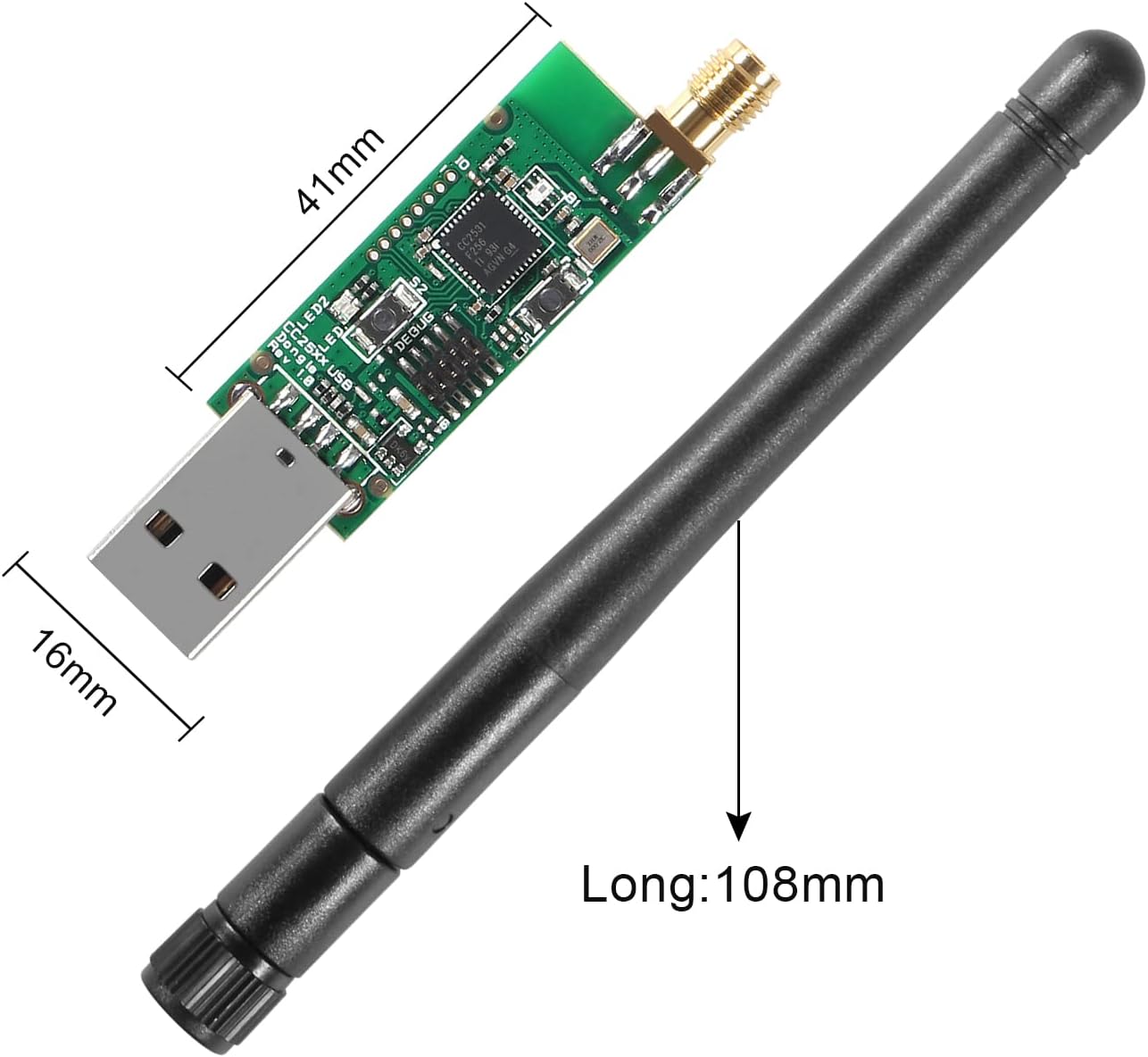
Figure 5: Dimensions of the CC2531 USB Dongle (41mm x 16mm) and the external antenna (108mm long).
| Feature | Detail |
|---|---|
| Brand | AITIAO |
| Model | CC2531 Sniffer USB Dongle |
| Hardware Interface | USB, Bluetooth |
| Operating Frequency | 2.405-2.485GHz |
| Wireless Transmission Rate | 250 Kbaud (250,000 Bits Per Second) |
| Power Consumption (Receiving) | <20mA |
| Power Consumption (Transmission) | <25mA |
| Product Dimensions (L x W x H) | 41mm x 16mm x 1.6mm (1.61" x 0.63" x 0.06") |
| Compatible Devices | Desktop Computers |
| Color | Black, Silver (referring to components) |
| UPC/GTIN | 701715496361 |
9. Warranty and Support
For warranty information and technical support, please refer to the documentation provided with your purchase or contact AITIAO customer service directly. Keep your purchase receipt for warranty claims.