
MageGee V510
MageGee V510 Wireless RGB Gaming Keyboard User Manual
Model: V510
Introduction
This manual provides detailed instructions for the setup, operation, maintenance, and troubleshooting of your MageGee V510 Wireless RGB Gaming Keyboard. Please read this manual carefully before using the product to ensure optimal performance and longevity.

Image: MageGee V510 Wireless RGB Gaming Keyboard, showcasing its full layout and vibrant backlighting.
1. Setup Instructions
1.1 Package Contents
- MageGee V510 Wireless RGB Gaming Keyboard
- 2.4G USB Receiver
- Type-C Charging Cable
- User Manual (this document)
1.2 Connecting the Keyboard
- Locate the 2.4G USB receiver. It is typically stored in a compartment on the keyboard or included separately in the packaging.
- Plug the 2.4G USB receiver into an available USB port on your PC or laptop.
- Turn on the keyboard using the power switch, usually located on the side or back of the keyboard.
- The keyboard should automatically connect to your device. If not, ensure the receiver is properly inserted and the keyboard is powered on.
The 2.4G wireless connection provides a stable transmission with reduced latency, offering a working distance of up to 10 meters.
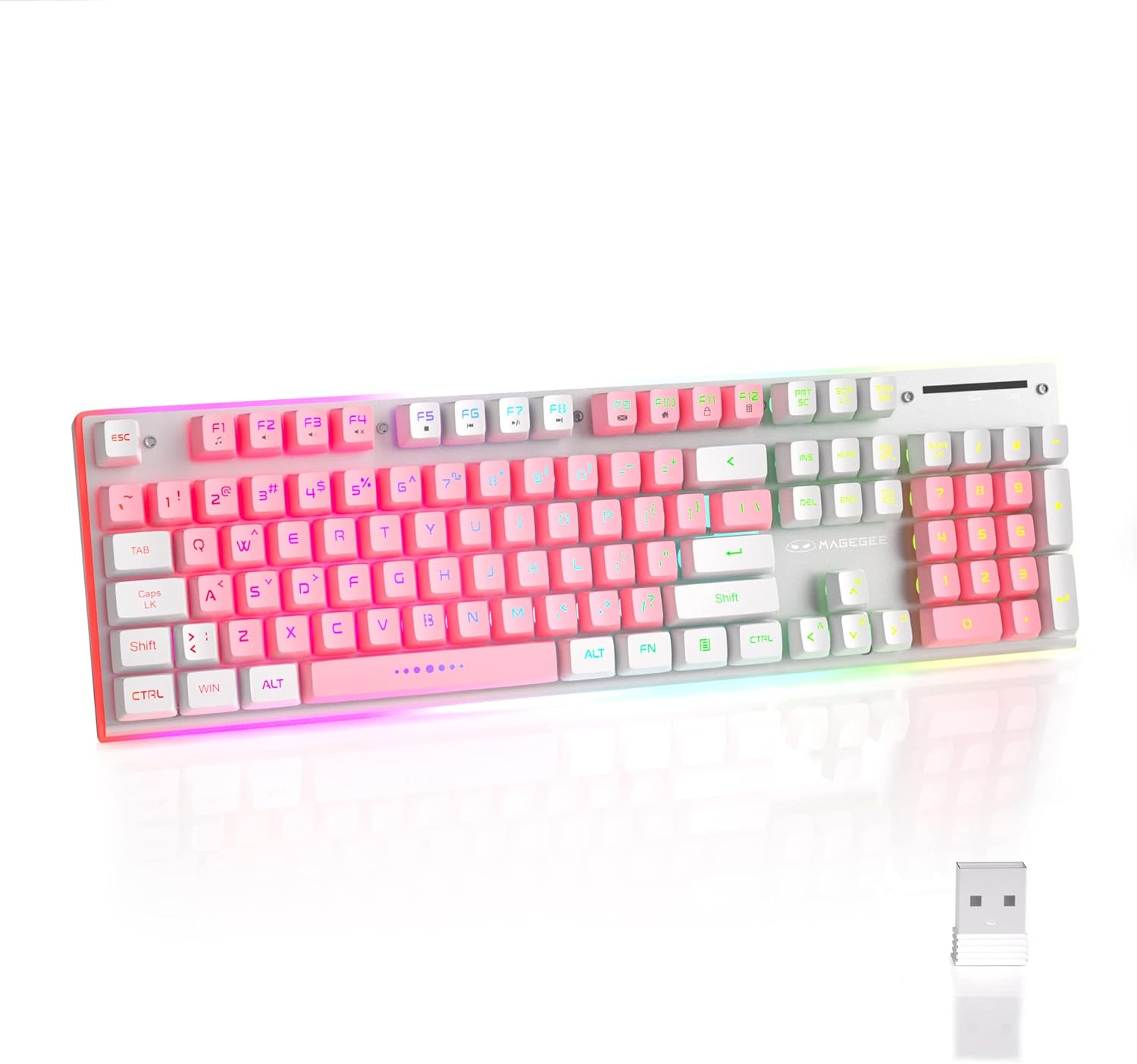
Image: The MageGee V510 keyboard shown alongside its compact 2.4G USB receiver, ready for wireless connection.

Image: Diagram illustrating the wireless connection between the keyboard and a laptop via the USB receiver, indicating a stable connection.
2. Operating Instructions
2.1 RGB Backlight Control
The V510 keyboard features dynamic RGB backlighting and unique side ambient lighting.
- Switch Backlight Effect: Press Fn + 1-5 to cycle through multiple backlight modes and 8 different colors.
- Turn On/Off Backlight: Press Fn + Scr (Scroll Lock key) to toggle the backlight on or off. Turning off the backlight conserves battery.
- Brighten/Dim Light: Press Fn + ↑ (Up Arrow) to increase brightness, and Fn + ↓ (Down Arrow) to decrease brightness.
- Adjust Light Speed: Press Fn + ← (Left Arrow) to slow down the light effect speed, and Fn + → (Right Arrow) to speed up the light effect.

Image: Visual guide to RGB backlight controls on the MageGee V510 keyboard, showing key combinations for changing effects, brightness, and speed.

Image: The MageGee V510 keyboard highlighting its unique surround LED strip, providing ambient lighting around all sides, not just keycap glow.

Image: A series of MageGee V510 keyboards demonstrating various brilliant RGB backlighting modes and switchable colors.
2.2 Multimedia Shortcut Keys
The keyboard includes 12 multimedia shortcut keys for quick access to frequently used programs and functions.
| Key Combination | Function |
|---|---|
| Fn + F1 | Player |
| Fn + F2 | Volume Down |
| Fn + F3 | Volume Up |
| Fn + F4 | Mute |
| Fn + F5 | Last Song |
| Fn + F6 | Next Song |
| Fn + F7 | Play/Pause |
| Fn + F8 | Stop |
| Fn + F9 | Home |
| Fn + F10 | |
| Fn + F11 | My Computer |
| Fn + F12 | Favorites |

Image: A diagram illustrating the 12 multimedia shortcut keys (Fn + F1-F12) and their corresponding functions on the MageGee V510 keyboard.
2.3 Charging the Keyboard
The MageGee V510 keyboard is equipped with a 2000mAh rechargeable battery.
- Connect the included Type-C charging cable to the charging port on the keyboard and to a USB power source (e.g., computer USB port, USB wall adapter).
- Charging time: Approximately 3.5 to 4 hours for fast charging, or 8 to 10 hours for slow charging.
- Battery life: Up to 20 hours of continuous use with RGB backlight, or up to 60 hours with monochrome backlight.

Image: Close-up view of the MageGee V510 keyboard's side, showing the power switch and the Type-C charging port.

Image: Graphic displaying the 2000mAh battery capacity and up to 60 hours of usage time for the MageGee V510 keyboard.
3. Maintenance
3.1 Cleaning the Keyboard
The MageGee V510 features a waterproof design and floating keycaps for easy cleaning.
- To clean dust and debris, use a soft brush or compressed air.
- For spills, gently wipe the surface with a damp cloth. Ensure the keyboard is powered off and disconnected from any charging cable before cleaning.
- Avoid submerging the keyboard in water.

Image: The MageGee V510 keyboard with water droplets on its surface, illustrating its waterproof design and floating keycaps for easy cleaning.
3.2 Keycap Information
The keyboard uses mixed-color double-shot keycaps, which are wear-resistant, durable, and do not fade. The keycaps are removable for deeper cleaning or customization.

Image: Close-up view of the MageGee V510 keyboard's mixed-color double-shot keycaps, showing a keycap removed to reveal the underlying switch mechanism.
4. Troubleshooting
- Keyboard not responding:
- Ensure the 2.4G USB receiver is securely plugged into a USB port on your computer.
- Verify the keyboard's power switch is in the "ON" position.
- Check the battery level. If low, connect the charging cable.
- Try plugging the USB receiver into a different USB port.
- Restart your computer.
- Backlight not working:
- Ensure the backlight is not turned off (press Fn + Scr).
- Check backlight brightness (press Fn + ↑).
- Ensure the keyboard has sufficient battery charge.
- Keys not registering or ghosting:
- The keyboard features 25-key anti-ghosting. If issues persist, ensure the keyboard is clean and free of debris under the keycaps.
- Try reconnecting the USB receiver.
- Connectivity issues:
- Ensure there are no significant obstructions between the keyboard and the USB receiver.
- Avoid placing the receiver near strong interference sources (e.g., Wi-Fi routers, other wireless devices).
If you encounter any persistent issues, please contact MageGee customer support for assistance.
5. Specifications
| Feature | Detail |
|---|---|
| Brand | MageGee |
| Model | V510 |
| Connectivity Technology | 2.4G Wireless (USB Receiver) |
| Keyboard Description | Gaming, Standard 104-key layout |
| Special Features | Ergonomic, RGB Backlit, Waterproof, 25-key Anti-ghosting, Metal Panel, Detachable Keycaps |
| Compatible Devices | Laptop, PC (Win 2000 / XP / ME / 7 / 8 / 10 / Vista / Mac) |
| Color | White/Pink |
| Backlight Color Management | RGB |
| Material | Plastic (with metal panel) |
| Battery Capacity | 2000mAh |
| Wireless Range | Up to 10 meters |
| Dimensions | Approx. 422mm (17.40in) x 133mm (5.37in) x 37mm (1.47in) |

Image: Technical drawing of the MageGee V510 keyboard showing its length (422mm), width (133mm), and height (37mm).

Image: Side profile of the MageGee V510 keyboard illustrating its ergonomic design with an 8-degree tilt and adjustable foot supports.

Image: An overview graphic highlighting key features of the MageGee V510 keyboard, including 2.4G Wireless, RGB Backlight, Surround Lighting, Mixed-Color Keycaps, Large Battery Capacity, Anti-Ghosting, and Ergonomic Design.
6. Warranty and Support
MageGee is committed to providing quality products and customer satisfaction.
- For any product issues or inquiries, please contact MageGee customer support.
- Refer to your purchase documentation for specific warranty terms and conditions.
Contact information for support is typically available on the official MageGee website or through your retailer.
Related documentsV510


Ask a question about this manual
Ask about setup, troubleshooting, compatibility, parts, safety, or missing instructions. Manuals+ will review the question and use this page’s manual context to help answer it.