
1. Product Overview
The NC GBS-8100 is a versatile video converter board designed for arcade game systems. It facilitates the conversion of VGA/SVGA/XGA/SXGA signals to CGA, RGBS, CVBS, or S-Video outputs, making it compatible with a wide range of display devices, including older arcade monitors and standard definition televisions. This board features true digital 24-bit A/D conversion for accurate color reproduction and offers user controls for image adjustment.
Key Features:
- Power Input: DC 5V/2A via 6.3mm connector.
- Input Signal Support: VGA/SVGA/XGA/SXGA resolutions (640x480, 800x600, 1024x768, 1280x1024).
- Output Options: CGA (15K), VGA bypass, Video (CVBS), S-Video.
- Image Control: Supports position and zoom adjustments.
- Color Depth: True digital 24-bit A/D converter for 16.7-million color conversion.
- OSD Menu: English On-Screen Display for adjustments.
- User Controls: Dedicated keys for Output Switch, Image Zoom, Image Position, and Output Adjust.
- Compatibility: Supports NTSC and PAL video standards.
Package Contents:
- 1x Video Output Converter Board (GBS-8100)
- 1x Power supply wire

Figure 1: The GBS-8100 converter board along with the included power supply wire and a multi-color signal cable.
2. Setup and Installation
This section provides instructions for connecting and setting up your GBS-8100 converter board.
2.1. Component Identification
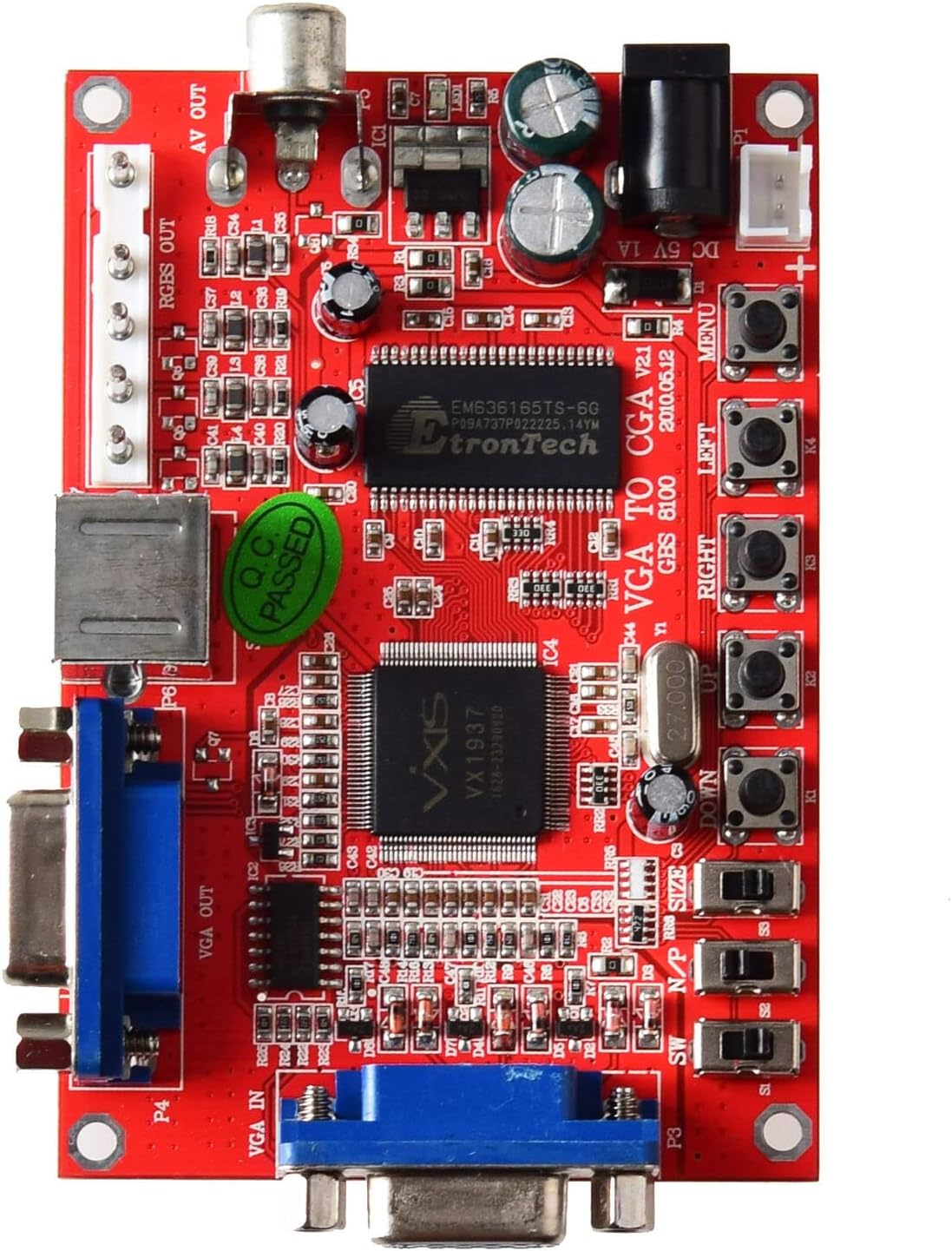
Figure 2: Top view of the GBS-8100 board, highlighting VGA IN, VGA OUT, AV OUT, RGBS OUT, S-Video port, DC 5V input, and control buttons.
- VGA IN (P3): Connect your source device (e.g., PC, game console) with a VGA output here.
- VGA OUT (P4): For VGA bypass, connect a VGA monitor here.
- RGBS/CGA OUT (P7): Connect to an arcade monitor or display that accepts RGBS or CGA signals.
- AV OUT (P5): Connect to a standard definition TV using a composite video cable.
- S-Video OUT (P6): Connect to a TV or display using an S-Video cable.
- DC 5V/2A Input: Connect the included power supply wire here. Ensure the power supply provides 5V DC at 2A.
- Control Buttons: Buttons for MENU, UP, DOWN, LEFT, RIGHT, Output Switch, Image Zoom, Image Position, Output Adjust.
2.2. Connection Steps
- Power Connection: Connect the provided power supply wire to the DC 5V/2A input on the GBS-8100 board. Connect the other end to a suitable 5V DC power source (not included, typically a power adapter).
- Input Source: Connect your VGA source (e.g., PC, arcade JAMMA board with VGA output) to the VGA IN (P3) port on the converter board.
- Output Display:
- For CGA/RGBS output: Connect your arcade monitor or display to the RGBS/CGA OUT (P7) port.
- For Composite Video (AV) output: Connect your TV to the AV OUT (P5) port.
- For S-Video output: Connect your TV to the S-Video OUT (P6) port.
- For VGA Bypass: Connect a VGA monitor to the VGA OUT (P4) port.
- Audio (Optional): If your source provides audio via VGA, ensure your display setup can handle it, or use a separate audio solution as this board primarily handles video.

Figure 3: Close-up view of the VGA IN, VGA OUT, and S-Video ports on the GBS-8100 board.
3. Operating Instructions
Once connected, power on the GBS-8100 board and your display. The board will automatically detect the input signal. Use the onboard buttons to navigate the OSD menu and adjust settings.
3.1. On-Screen Display (OSD) Menu
Press the MENU button to access the OSD. Use the UP and DOWN buttons to navigate through menu options, and LEFT and RIGHT buttons to change values or select sub-menus.
3.2. User Controls
- Output Switch: Cycles through available output modes (CGA, Video, S-Video, VGA Bypass).
- Image Zoom: Adjusts the zoom level of the displayed image.
- Image Position: Adjusts the horizontal and vertical position of the image on the screen.
- Output Adjust: Fine-tunes specific output parameters.
3.3. Supported Input/Output Resolutions
| Category | Details |
|---|---|
| Input Signal (Auto Scan) |
|
| Output Signal |
|
4. Maintenance
The GBS-8100 converter board is designed for durability and requires minimal maintenance.
- Cleaning: Use a soft, dry cloth to gently wipe the surface of the board. Avoid using liquid cleaners or solvents, as they may damage the electronic components.
- Environment: Operate the board in a clean, dry environment, away from excessive dust, moisture, and extreme temperatures.
- Handling: Handle the board by its edges to avoid touching components, especially when powered on.
- Power Off: Always disconnect power before making or changing any connections.
5. Troubleshooting
If you encounter issues with your GBS-8100 converter board, refer to the following common problems and solutions:
| Problem | Possible Cause / Solution |
|---|---|
| No image on display. |
|
| Image is distorted or flickering. |
|
| OSD menu not appearing or unresponsive. |
|
| Colors are incorrect. |
|
6. Specifications
Detailed technical specifications for the GBS-8100 converter board.
| Parameter | Value |
|---|---|
| Model Number | GBS-8100 |
| Power Supply Input | DC 5V/2A (6.3mm connector) |
| Input Signal Support | VGA/SVGA/XGA/SXGA (640x480, 800x600, 1024x768, 1280x1024) |
| Input Signal Frequencies |
|
| Output Signal Types | CGA (15K), VGA (Bypass), Video (CVBS), S-Video |
| Output Signal Resolutions |
|
| Color Conversion | True digital 24-bit A/D converter (16.7 million colors) |
| OSD Language | English |
| Dimensions (Approx.) | 3.94 x 3.15 x 1.18 inches (Package Dimensions) |
| Item Weight | 3.52 ounces (0.1 Kilograms) |
7. Warranty and Support
This section provides information regarding product warranty and customer support.
7.1. Warranty Information
Specific warranty details for the NC GBS-8100 converter board are typically provided at the point of purchase or within the product packaging. Please refer to your purchase receipt or contact the seller for precise warranty terms and conditions. Generally, electronic components may come with a limited manufacturer's warranty covering defects in materials and workmanship.
7.2. Customer Support
For technical assistance, troubleshooting beyond this manual, or inquiries regarding your product, please contact the seller or manufacturer directly. Contact information can often be found on the product packaging, the seller's website, or your purchase documentation.
For general inquiries, you may visit the NC Store on Amazon.


