
1. Product Overview
The Portronics Mport 31 is a versatile 4-in-1 USB hub designed to expand the connectivity of your laptop or PC. It features one USB 3.0 port and three USB 2.0 ports, allowing you to connect multiple peripherals simultaneously. This compact and lightweight hub facilitates high-speed data transfer and enhances your multitasking capabilities.

Image: The Portronics Mport 31 USB Hub, a compact device for expanding USB connectivity.
Key Features:
- 4-in-1 Connectivity: Includes 1 x USB 3.0 port and 3 x USB 2.0 ports.
- High-Speed Data Transfer: USB 3.0 port supports speeds up to 5 Gbps.
- Broad Compatibility: Connects to various USB-A devices like keyboards, mice, and flash drives.
- Compact and Lightweight Design: Easy to carry and use on the go.

Image: The Portronics Mport 31 USB Hub being placed into a pocket, illustrating its lightweight and compact design (weighs just 25 grams).
2. Setup Instructions
Setting up your Portronics Mport 31 USB Hub is a simple plug-and-play process. No additional drivers or software installation is required for most operating systems.
- Identify the USB-A Port: Locate an available USB-A port on your computer (laptop, desktop, or tablet).
- Connect the Hub: Insert the USB-A connector of the Mport 31 hub into the available USB-A port on your computer.
- System Recognition: Your operating system should automatically detect and install the necessary generic drivers for the hub. This process usually takes a few seconds.
- Ready for Use: Once recognized, the hub is ready to accept your USB devices.

Image: The Portronics Mport 31 USB Hub connected to a laptop, demonstrating universal connectivity with a printer and external hard drive.
3. Operating Instructions
The Portronics Mport 31 allows you to connect multiple USB devices to your computer. Follow these guidelines for optimal performance.
Connecting Devices:
- USB 3.0 Port: Use the blue-colored USB 3.0 port for devices that require high-speed data transfer, such as external hard drives, SSDs, or high-resolution webcams. This port supports speeds up to 5 Gbps.
- USB 2.0 Ports: The three black-colored USB 2.0 ports are suitable for standard peripherals like keyboards, mice, USB flash drives, printers, and other accessories. These ports support speeds up to 480 Mbps.
- Simultaneous Use: You can connect and use all four ports simultaneously.
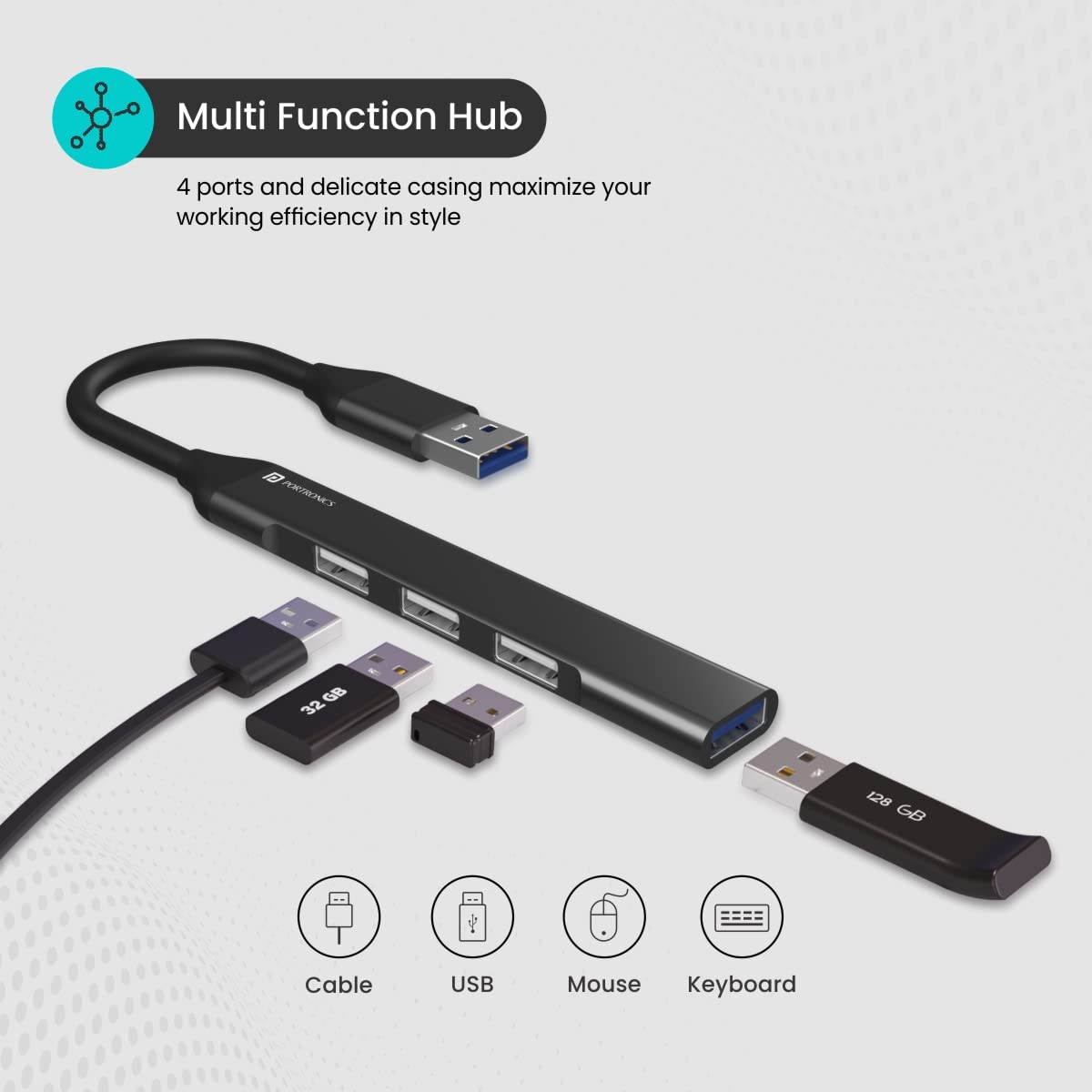
Image: The Portronics Mport 31 USB Hub connected to various devices including USB drives, a mouse, and a keyboard, highlighting its multi-functionality.
Data Transfer:
When transferring large files, ensure you are using the USB 3.0 port for the device requiring faster speeds. The actual transfer speed may vary depending on the connected device, your computer's specifications, and the operating system.

Image: A close-up of the Portronics Mport 31 USB Hub, illustrating the difference in data transfer speeds between USB 2.0 (up to 480 Mbps) and USB 3.0 (up to 5 Gbps).
4. Maintenance
To ensure the longevity and optimal performance of your Portronics Mport 31 USB Hub, follow these simple maintenance guidelines:
- Cleaning: Use a soft, dry cloth to wipe the surface of the hub. Avoid using liquid cleaners or abrasive materials, as they may damage the device.
- Storage: When not in use, store the hub in a cool, dry place away from direct sunlight and extreme temperatures.
- Handling: Avoid bending or twisting the cable excessively. The hub is designed with a durable polycarbonate enclosure and reinforced copper cord for stable connectivity.
- Protection: Keep the hub away from water, dust, and other contaminants.

Image: Hands demonstrating the flexibility and strength of the Portronics Mport 31 USB Hub's cable, indicating its durable construction.

Image: An illustration of the internal structure of the USB hub's cable, showing a protective cover and reinforced copper cords for reliable data transmission.
5. Troubleshooting
If you encounter issues with your Portronics Mport 31 USB Hub, refer to the following common troubleshooting steps:
- Device Not Recognized:
- Ensure the hub is securely plugged into your computer's USB port.
- Try connecting the hub to a different USB port on your computer.
- Unplug and re-plug the device into the hub.
- Restart your computer.
- Test the device by plugging it directly into your computer's USB port to confirm it functions independently.
- Slow Data Transfer Speed:
- Ensure you are using the USB 3.0 port on the hub for devices that require high speeds.
- Verify that your computer's USB port supports USB 3.0 (often indicated by a blue interior or SS symbol).
- Avoid connecting too many power-hungry devices simultaneously, as this can affect performance.
- Intermittent Connection:
- Check all connections for looseness.
- Ensure the hub's cable is not damaged or kinked.
- If the issue occurs after your system enters sleep mode, try unplugging and reconnecting the hub.
6. Specifications
| Brand | Portronics |
| Model Number | POR-1484 |
| Colour | Grey |
| Hardware Interface | USB |
| Special Feature | Fast Data Transfer |
| Compatible Devices | Desktops, Laptops, Tablets |
| Total USB Ports | 4 (1 x USB 3.0, 3 x USB 2.0) |
| Data Transfer Rate | Up to 5 Gigabits Per Second (USB 3.0) |
| Enclosure Material | Polycarbonate |
| Item Dimensions (L x W x H) | 9.2 x 1.6 x 0.8 Centimeters |
| Item Weight | 25 Grams |
| Country of Origin | India |

Image: The Portronics Mport 31 USB Hub with its dimensions labeled, illustrating its ultra-thin and multi-port design.
7. Warranty and Support
Portronics is committed to providing reliable products and excellent customer service.
Warranty Information:
The Portronics Mport 31 USB Hub comes with a 1-year manufacturer's warranty from the date of purchase. This warranty covers manufacturing defects. Please retain your purchase receipt as proof of purchase for warranty claims.
Customer Support:
For any assistance, technical support, or warranty-related queries, please contact Portronics customer service:
- Call/WhatsApp: 9555-245-245
- Support/Email: https://support.portronics.com
- Operating Hours: 10 AM - 6 PM (IST)

Image: Portronics Port-Care information, detailing personalized support, up to 1-year warranty, dedicated human support, and easy pickup & quick exchange services.


