
1. Introduction
Welcome to the user manual for your new Portronics Mport 31C 4-in-1 USB Hub. This manual provides detailed instructions on how to set up, operate, and maintain your device, ensuring optimal performance and longevity. Please read this manual thoroughly before using the product.
2. Product Overview
The Portronics Mport 31C is a versatile 4-in-1 USB hub designed to expand the connectivity of your USB-C enabled devices. It features one USB 3.0 port and three USB 2.0 ports, allowing you to connect multiple peripherals simultaneously, such as keyboards, mice, USB flash drives, and external hard drives. Its compact and lightweight design makes it an ideal companion for laptops and other portable devices.

Image: The Portronics Mport 31C USB Hub, a sleek grey device with a USB-C connector, shown connected to a laptop, illustrating its primary use case.
3. Key Features
- 4-in-1 Connectivity: Equipped with one USB 3.0 USB-A port and three USB 2.0 USB-A ports, enabling simultaneous connection of various devices.
- High-Speed Data Transfer: The USB 3.0 port supports data transfer speeds of up to 5Gbps, ideal for large files.
- Universal Compatibility: Type-C port ensures compatibility with MacBooks, laptops, PCs, and smartphones with USB-C ports.
- Compact and Portable: Lightweight design (approximately 25 grams) and small dimensions make it easy to carry.
- Durable Build: Features a sturdy metal casing and a reinforced copper cord for enhanced reliability and stability.
- Plug and Play: No drivers or software installation required for immediate use.

Image: The Mport 31C hub connected to a laptop, demonstrating its ability to connect to a printer, mouse, and external hard drive, highlighting its universal connectivity.

Image: A close-up of the Mport 31C hub with different USB devices plugged in, accompanied by icons representing data cables, USB drives, mice, and keyboards, emphasizing its multi-functional capabilities.

Image: An illustration detailing the data transfer speeds of the Mport 31C, showing USB 2.0 at up to 480 Mbps and USB 3.0 at up to 5 Gbps, highlighting its high-speed data transfer feature.
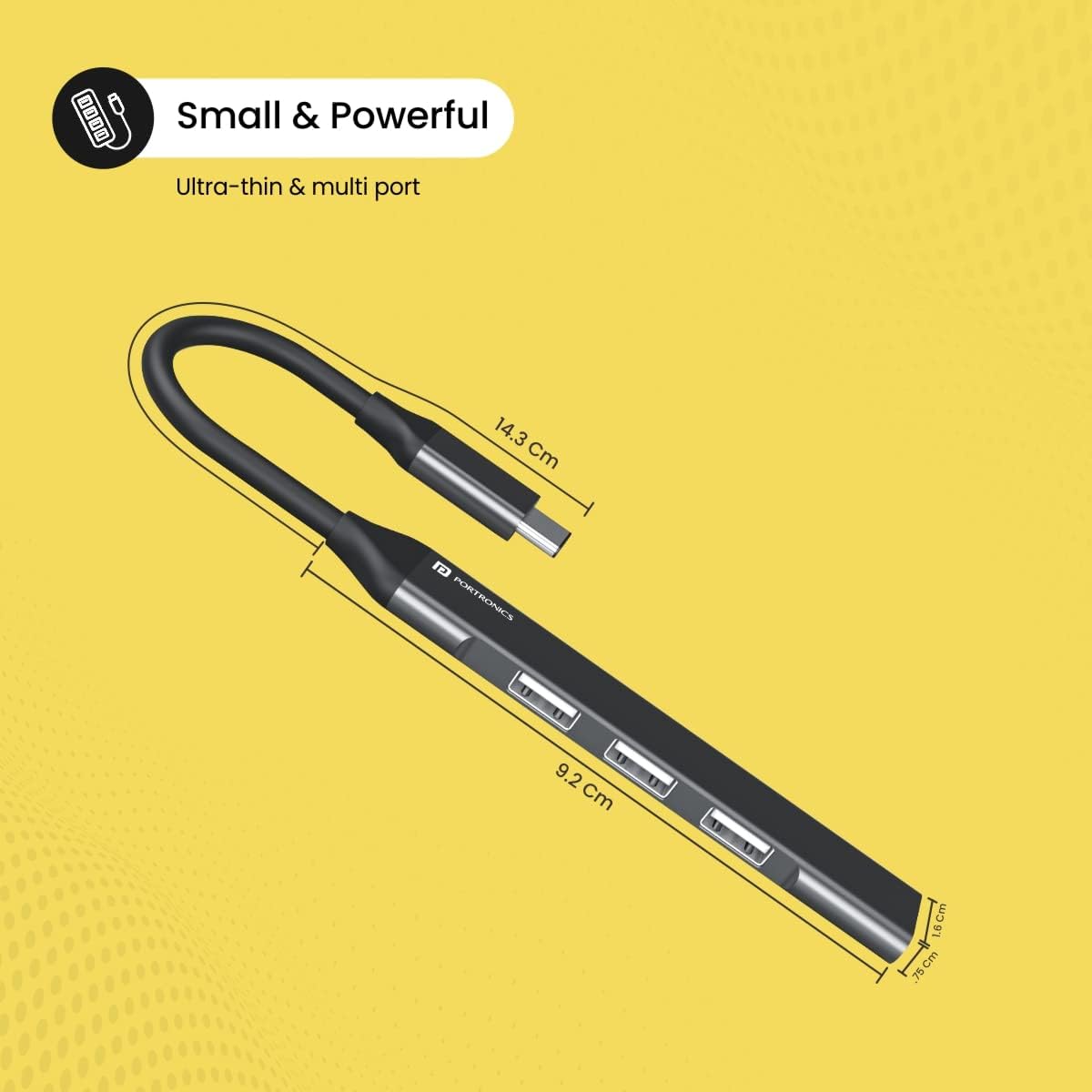
Image: A hand placing the Mport 31C USB Hub into a pant pocket, demonstrating its lightweight and compact nature, making it highly portable.

Image: A diagram showing the precise dimensions of the Mport 31C USB Hub, indicating its ultra-thin and multi-port design.

Image: Two hands bending the cable of the Mport 31C USB Hub, illustrating the strong and tough quality of the cable, ensuring stability and durability.

Image: A cross-section view of the Mport 31C USB Hub cable, highlighting its internal structure with a protective cover and reinforced copper cords, indicating safe, reliable, and stable data transmission.
4. Package Contents
Please check the package for the following items:
- 1 x Portronics Mport 31C USB Hub
5. Setup Guide
Setting up your Mport 31C USB Hub is straightforward. Follow these steps to begin using your device:
- Locate an available USB-C port on your laptop, computer, or compatible smartphone.
- Insert the USB-C connector of the Mport 31C hub firmly into the USB-C port of your device.
- The hub is plug-and-play, meaning no additional drivers are required. Your operating system should automatically recognize the hub.
- You can now connect your USB-A devices (e.g., mouse, keyboard, flash drive) into the available USB 3.0 and USB 2.0 ports on the hub.

Image: The Mport 31C hub connected to a laptop, with a mouse also connected to the hub, demonstrating a typical setup for expanded connectivity.
6. Operating Your USB Hub
Once connected, the Mport 31C functions as an extension of your device's USB ports. You can use it to connect various peripherals and transfer data.
- Connecting Devices: Simply plug your USB-A devices into any of the four available ports. The blue-colored port is the USB 3.0 port, offering higher data transfer speeds. The other three ports are USB 2.0.
- Data Transfer: For optimal performance when transferring large files, use the USB 3.0 port. It supports speeds up to 5Gbps. The USB 2.0 ports are suitable for connecting input devices like keyboards and mice, or for transferring smaller files at speeds up to 480Mbps.
- Multitasking: The hub allows you to connect multiple devices simultaneously, enhancing your productivity by enabling the use of various peripherals at once.

Image: A visual representation of the Mport 31C hub's ports, clearly labeling the USB 2.0 ports (up to 480 Mbps) and the USB 3.0 port (up to 5 Gbps), emphasizing its high-speed data transfer capabilities.

Image: The Mport 31C hub with multiple USB devices connected, including USB drives, and icons indicating its compatibility with data cables, USB devices, mice, and keyboards, showcasing its multi-functionality.

Image: A collage illustrating key benefits: connecting to multiple devices for multitasking, the hub's lightweight and compact design, its multi-functionality, and the high-speed data transfer of up to 5 Gbps via the USB 3.0 port.
7. Care and Maintenance
To ensure the longevity and optimal performance of your Mport 31C USB Hub, follow these maintenance guidelines:
- Cleaning: Use a soft, dry cloth to wipe the surface of the hub. Avoid using liquid cleaners or abrasive materials, as they may damage the finish or internal components.
- Storage: When not in use, store the hub in a cool, dry place away from direct sunlight and extreme temperatures.
- Handling: Avoid dropping the hub or subjecting it to strong impacts. While durable, excessive force can cause damage.
- Port Usage: Insert and remove USB devices gently. Avoid forcing connectors, especially when ports feel tight initially, as this can cause wear over time.
8. Troubleshooting
If you encounter any issues with your Mport 31C USB Hub, please refer to the following common problems and solutions:
| Problem | Possible Cause | Solution |
|---|---|---|
| Hub is not recognized by the computer. | Loose connection, faulty USB-C port on host device, or driver issue (rare for plug-and-play). | Ensure the USB-C connector is fully inserted. Try connecting the hub to a different USB-C port on your computer. Restart your computer. |
| Connected devices are not working or are intermittent. | Insufficient power, loose connection, or incompatible device. | Ensure devices are fully plugged into the hub. If connecting multiple high-power devices (e.g., external hard drives), your laptop's USB-C port might not supply enough power for all simultaneously. Try connecting fewer high-power devices or use a powered USB hub if available. Test devices directly connected to your computer's ports to rule out device issues. |
| Slow data transfer speeds. | Using a USB 2.0 port for high-speed transfer, or interference. | Ensure you are using the blue-colored USB 3.0 port for high-speed data transfer. Avoid connecting many power-hungry devices simultaneously if experiencing slowdowns. |
| Ports feel tight when plugging in devices. | New product tolerance. | This is common with new hubs. The ports will loosen slightly with regular use. Apply gentle, firm pressure when inserting devices. |
9. Technical Specifications
| Specification | Detail |
|---|---|
| Model Number | POR-1485 |
| Product Dimensions | 4.92 x 1.97 x 0.39 inches (12.5 x 5 x 1 cm) |
| Item Weight | 0.882 ounces (25 grams) |
| Hardware Interface | USB Type-C (input), USB 3.0 Type-A (1 port), USB 2.0 Type-A (3 ports) |
| Data Transfer Speed | Up to 5 Gbps (USB 3.0), Up to 480 Mbps (USB 2.0) |
| Compatible Devices | Laptops, PCs, smartphones with USB-C ports |
| Special Feature | Plug and Play |
| Color | Grey |
| Manufacturer | Portronics |
10. Warranty Information and Support
The Portronics Mport 31C USB Hub comes with a 1-year manufacturer's warranty from the date of purchase. This warranty covers manufacturing defects and issues arising from normal use.
For warranty claims, technical support, or any inquiries regarding your product, please contact Portronics customer service through their official website or the retailer from whom you purchased the product. Please retain your purchase receipt as proof of purchase for warranty purposes.


