
Introduction
This manual provides detailed instructions for the installation, operation, and maintenance of your GNCC W1 Wireless Security Camera System. Please read this manual thoroughly before using the product to ensure proper functionality and safety. The GNCC W1 system is designed to help you monitor your home, offering features like full HD 1080p resolution, color night vision, PIR detection, and two-way audio.
What's in the Box
Verify that all components are present in your package:
- 1 x GNCC W1 Battery-Powered Camera
- 1 x Smart Gateway (Hub)
- 1 x Power Adapter for Gateway
- 1 x Network Cable
- 1 x Camera Mounting Bracket
- 1 x Battery Charging Cable
- 1 x User Manual (English)
- Other accessories (screws, wall plugs)

Image: All components included in the GNCC W1 Security Camera System package.
Setup Instructions
Follow these steps to set up your GNCC W1 Security Camera System:
1. Gateway Setup
- Power On the Gateway: Connect the power adapter to the gateway and plug it into an electrical outlet. The red light on the gateway will flash.
- Connect to Router: Use the provided network cable to connect the gateway to your internet router.
- Download Osaio App: Download the Osaio app from your smartphone's app store (iOS or Android).
- Scan QR Code: Open the Osaio app and scan the QR code located on the bottom of the gateway to add it to your account.
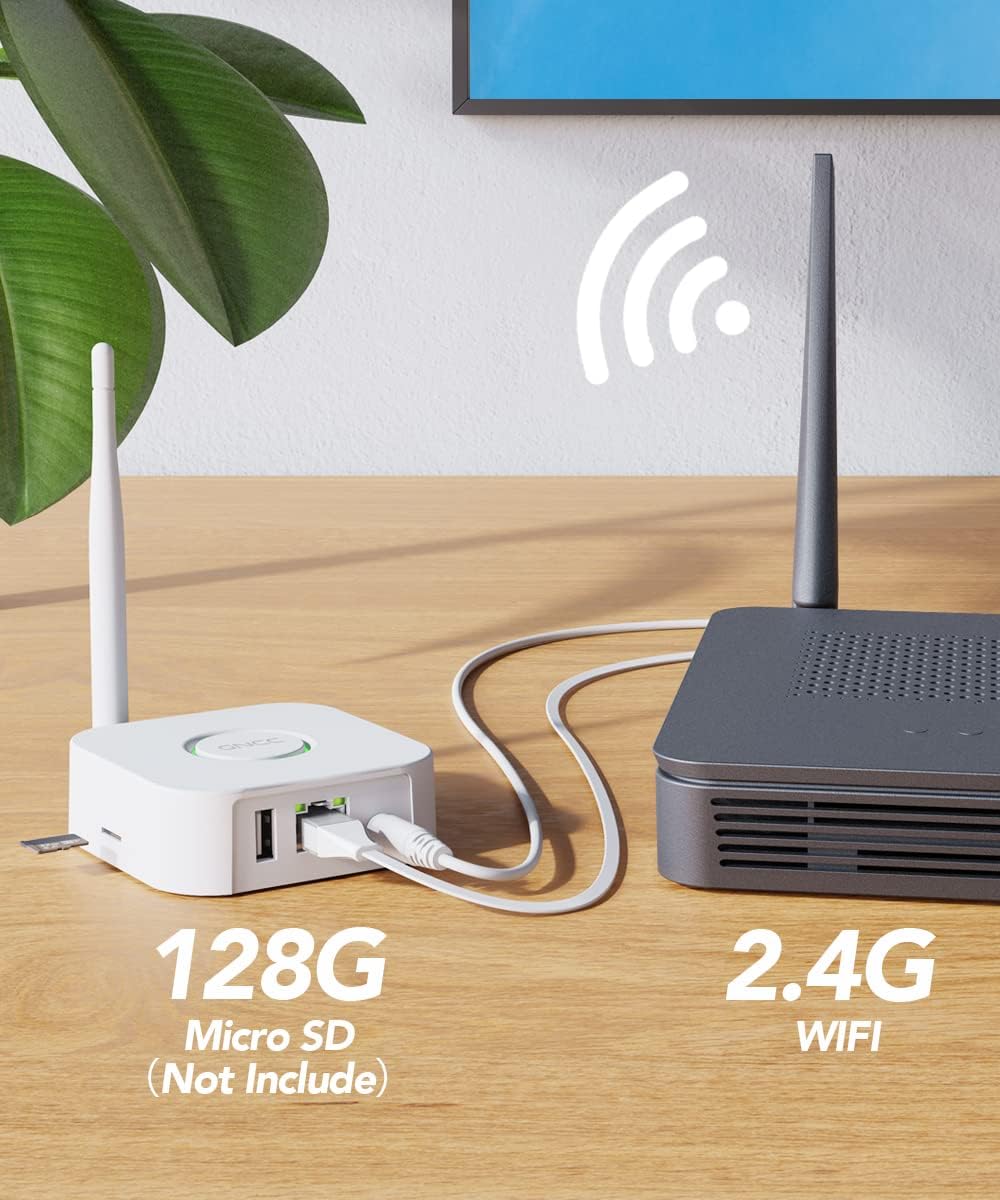
Image: The GNCC Gateway connected to a router, illustrating network setup and local storage option.
2. Camera Setup
- Power On Camera: Press and hold the button on the camera for 3 seconds to turn it on.
- Reset Camera (if needed): If the camera has been used before or is not responding, press and hold the button again for 6 seconds until you hear "Your camera has been reset." Wait for the red indicator light to flash.
3. Synchronize Camera with Gateway
- Initiate Gateway Sync: Press the button on the gateway until its red light changes to a flashing blue light.
- Complete Sync: The camera will automatically connect to the gateway. Once both the gateway light and the camera light turn green, the synchronization is complete.
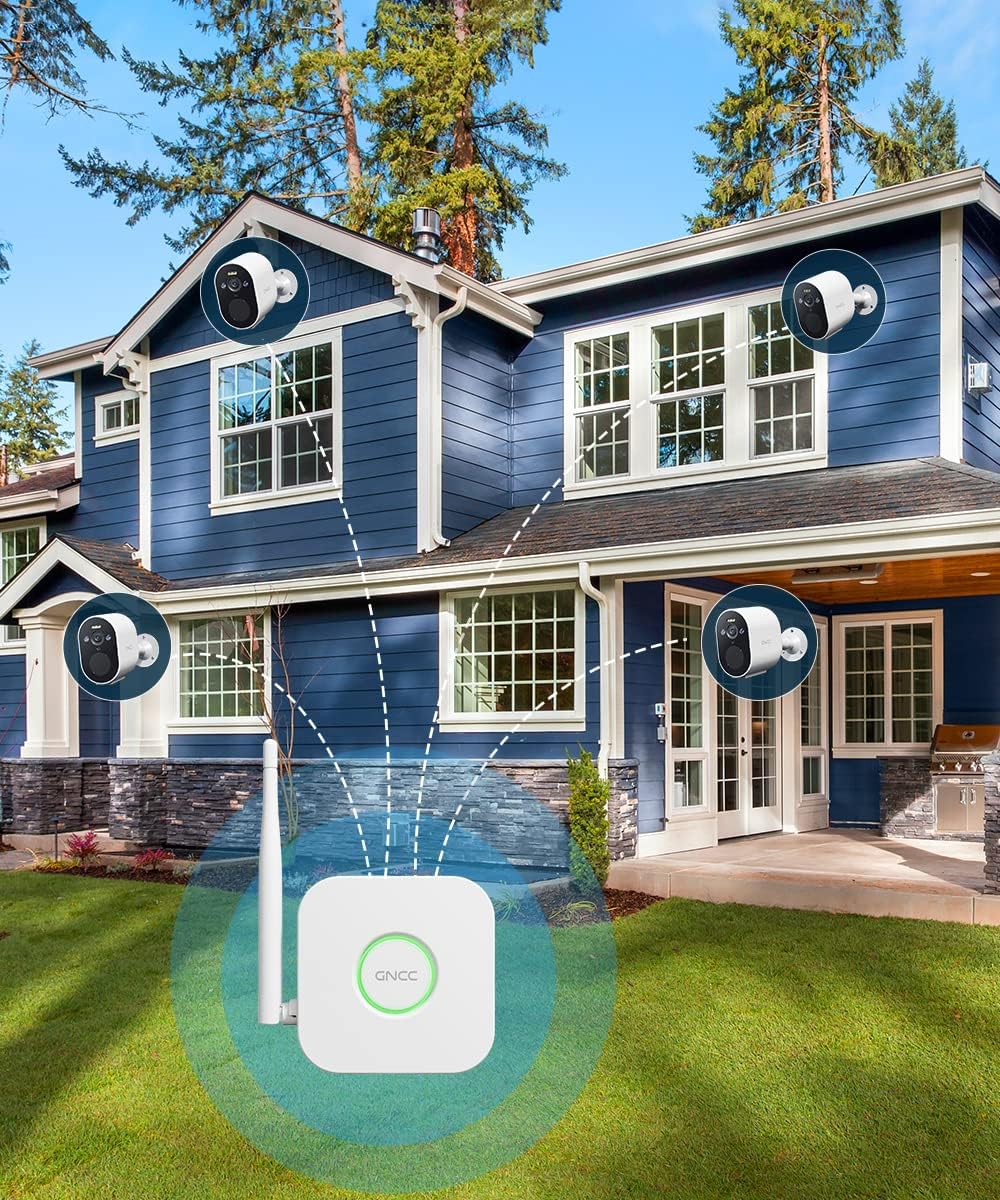
Image: Multiple GNCC W1 cameras connected to the smart gateway, demonstrating the system's wireless capability.
Operating Your GNCC W1 Camera System
PIR Detection
The camera utilizes intelligent human motion detection (PIR) technology to minimize false alarms caused by non-human object movement. When human motion is detected, the camera will trigger an alarm and send instant alerts to your Osaio app.

Image: The camera's PIR detection in action, highlighting its ability to identify human presence and trigger an alert.
Sound and Light Alarm
Upon detecting human movement, the camera activates both a sound alarm (siren mode) and a spotlight to deter intruders. Simultaneously, instant alerts are sent to your Osaio application.
Full HD 1080p Color Night Vision
The GNCC W1 camera provides Full HD 1080p resolution for clear video. Its color night vision feature, enabled by a spotlight, allows you to see vivid details even in low-light conditions. An infrared filter automatically switches between day and night modes.

Image: Demonstrating the difference between full-color night vision (with spotlight) and standard infrared night vision (without spotlight).
Local Storage
The system supports local storage of surveillance video on an SD card (not included, 8-128GB/C10 recommended) inserted into the gateway. This ensures your recorded video is safe even if the camera itself is tampered with or stolen.
Two-Way Audio
The camera features two-way audio, allowing you to communicate with visitors or deter unwanted guests directly through the Osaio app.
Osaio App Control
Manage your camera settings, view live feeds, receive alerts, and access recorded footage via the Osaio app on your smartphone. The system is compatible with Amazon Alexa and Google Assistant for voice control.
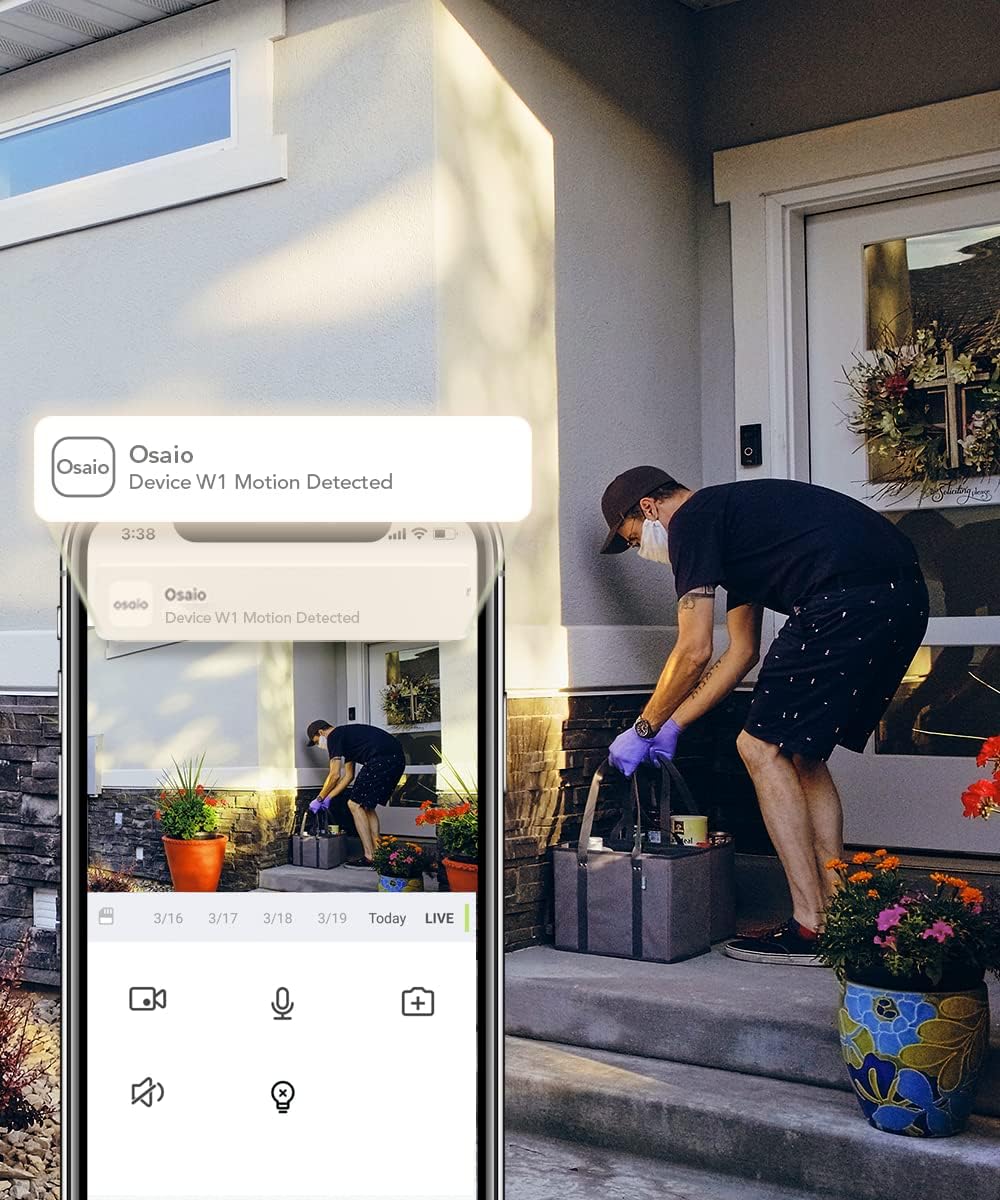
Image: The Osaio app interface displaying a motion detection alert and live view from the GNCC W1 camera.
Maintenance
Battery Life
The GNCC W1 camera is battery-powered and designed for extended use. A full charge typically lasts 7 to 15 days, depending on usage frequency and environmental conditions. Use the provided charging cable to recharge the camera when the battery level is low.
Weather Resistance
The camera is IP66 rated, making it resistant to dust and water jets. It is suitable for outdoor use and can withstand various weather conditions, with an operating temperature range from -20°C to 60°C.

Image: The GNCC W1 camera demonstrating its IP66 weather resistance and wide operating temperature range.
Cleaning
To clean the camera lens and body, use a soft, dry cloth. Avoid using harsh chemicals or abrasive materials that could damage the device.
Troubleshooting
- Camera not connecting to Gateway:
Ensure both the camera and gateway are powered on. Verify the gateway is connected to your router. Try resetting the camera by holding its button for 6 seconds until you hear "Your camera has been reset," then re-sync with the gateway.
- No alerts received:
Check your Osaio app notification settings on your smartphone. Ensure the camera's motion detection is enabled in the app. Verify your internet connection is stable.
- Poor video quality:
Ensure the camera lens is clean. Check for obstructions in the camera's field of view. A strong Wi-Fi signal between the gateway and camera is essential for optimal performance.
- Short battery life:
Frequent motion detection events, live viewing, and two-way audio usage can reduce battery life. Adjust motion sensitivity settings in the app to reduce unnecessary recordings. Ensure the camera is fully charged.
Specifications
| Model Name | W1 Home Security Camera |
| Dimensions | 7.2 x 5 x 8 cm; 460 grams |
| Video Resolution | 1080p Full HD |
| Field of View | 120 Degrees |
| Connectivity Technology | Wireless (2.4G Wi-Fi via Gateway) |
| Power Source | Battery Powered |
| Weather Resistance | IP66 |
| Night Vision | Color Night Vision, Infrared Filter |
| Storage | Local storage on Gateway (Micro SD card up to 128GB, not included) |
| Compatible Devices | Smartphone (Android / iOS), Amazon Alexa, Google Assistant |
| Special Features | PIR Human Detection, Two-Way Audio, Sound & Light Alarm, Spotlight |
Warranty and Support
For warranty information and technical support, please refer to the official GNCC website or contact their customer service. Keep your purchase receipt for warranty claims.
Online Resources: Visit the GNCC official website for FAQs, updated manuals, and support contact information.