
Introduction
This manual provides essential instructions for the safe and effective use of your Fujifilm Instax Mini EVO Hybrid Instant Camera. The Instax Mini EVO combines digital imaging with instant film printing, offering a versatile photographic experience. Please read this manual thoroughly before using the camera and retain it for future reference.

Figure 1: Fujifilm Instax Mini EVO Instant Camera. This image displays the camera's front, featuring the lens, flash, and power button, with an instant print of a beetle on a leaf partially ejected from the top.
Product Overview
Key Features
- Hybrid instant film camera functionality.
- Offers 10 lens effects and 10 film effects for a total of 100 creative expressions.
- Integrated selfie mirror for accurate self-portraits.
- Dual shutter buttons for both portrait and landscape orientations.
- Ability to save printed images to a smartphone via the free INSTAX MINI EVO App.
- Remote shooting control via smartphone using the INSTAX MINI EVO App.
- Print photos directly from a smartphone via Bluetooth.
- Supports image storage on a microSD card (not included).
- Produces high-quality, 2" x 3" INSTAX MINI instant photos.
Camera Components

Figure 2: Instax Mini EVO Camera Features. This diagram labels the main physical components of the camera, including the two shutter buttons, print lever, selfie mirror, USB-C charging port, and microSD card slot.
- Portrait Mode Shutter Button: Used for capturing images in portrait orientation.
- Landscape Mode Shutter Button: Used for capturing images in landscape orientation.
- Print Lever: Activates the printing process for selected images.
- Selfie Mirror: Located on the front, assists in framing self-portraits.
- USB-C Charging Port: For connecting the camera to a power source for charging.
- MicroSD Card Slot: For inserting a microSD card to expand storage capacity.
- Lens Dial: Rotates to select various lens effects.
- Film Dial: Rotates to select various film effects.
Included Components

Figure 3: What's in the Box. This image shows the camera, a wrist strap, a USB charging cable, and the printed user manual.
The package includes the Instax Mini EVO camera body, a wrist strap, and a USB charging cable. A detailed user manual is also provided.
Setup
1. Charging the Battery
Before initial use, fully charge the camera's built-in lithium-ion battery.
- Connect the supplied USB-C cable to the camera's USB-C port (refer to Figure 2).
- Connect the other end of the cable to a USB power adapter (not included) or a computer's USB port.
- The charging indicator light will illuminate during charging and turn off when charging is complete.
2. Inserting a MicroSD Card (Optional)
To expand storage for digital images, insert a microSD card (sold separately).
- Locate the microSD card slot on the camera (refer to Figure 2).
- Gently insert the microSD card with the contacts facing the correct direction until it clicks into place.
- To remove, push the card in slightly until it springs out.
3. Loading Instax Mini Film
The camera uses Instax Mini instant film (sold separately).
- Open the film compartment cover on the back of the camera.
- Align the yellow mark on the film pack with the yellow mark on the camera.
- Insert the film pack straight into the compartment. Do not press down on the film pack.
- Close the film compartment cover. The camera will automatically eject the black film cover sheet.

Figure 4: Instax Mini Film Dimensions. This image illustrates the standard size of Instax Mini film, which is 86mm by 54mm.
4. Initial Power On
Press and hold the power button to turn on the camera. Follow any on-screen prompts for initial setup, such as setting the date and time.
Operating Instructions
Taking Photos
- Select Lens Effect: Rotate the lens dial around the camera's main lens to choose from 10 different lens effects (e.g., Light Leak, Fisheye, Soft Focus, Blur).
- Select Film Effect: Rotate the film dial on the top of the camera to choose from 10 different film effects (e.g., Vivid, Sepia, Retro, Canvas).
- Frame Your Shot: Use the LCD screen on the back of the camera to compose your image. For selfies, use the built-in selfie mirror on the front.
- Adjust Exposure (Optional): On the LCD screen, navigate to the exposure settings to brighten or darken your image before capture.
- Capture the Image: Press either the portrait mode shutter button (top) or the landscape mode shutter button (side) to take the photo.

Figure 5: Lens Effects. This image demonstrates four of the ten available lens effects: Light Leak, Fisheye, Soft Focus, and Blur, as they would appear on an instant print.

Figure 6: Film Effects. This image demonstrates four of the ten available film effects: Vivid, Sepia, Retro, and Canvas, as they would appear on an instant print.

Figure 7: Exposure Adjustment. This image shows the camera's LCD screen with options to adjust exposure levels before taking a photo.
Printing Photos
- After taking a photo, it will appear on the LCD screen. You can review it before printing.
- To print, pull the print lever located on the side of the camera (refer to Figure 2).
- The camera offers two print modes: INSTAX-Rich Mode for bright, immersive prints, and INSTAX-Natural Mode for a classic, cooler look. Select your preferred mode before printing.
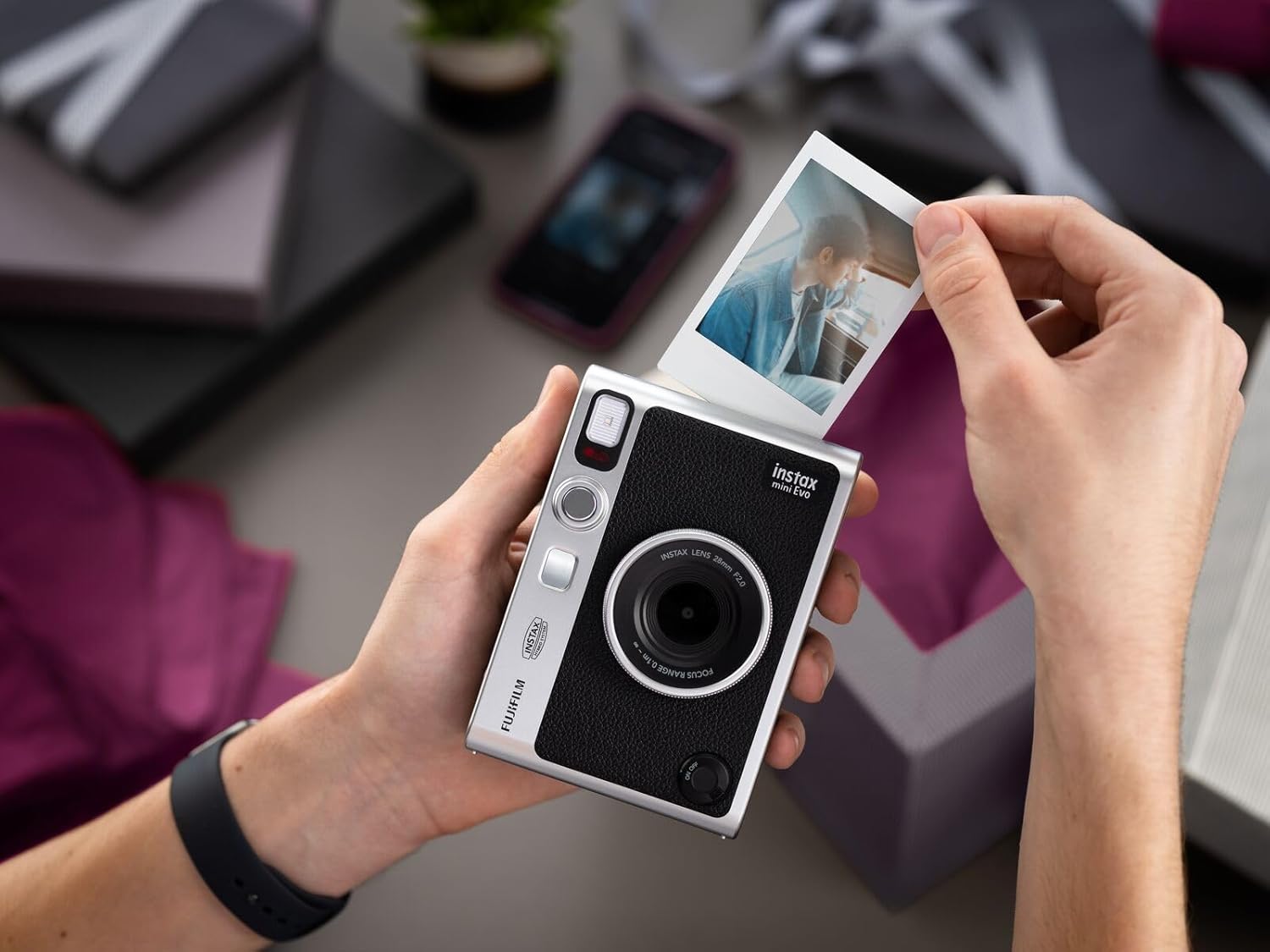
Figure 8: Printing an Instant Photo. This image shows an instant photo being ejected from the top slot of the Instax Mini EVO camera after the print lever has been activated.

Figure 9: Variety of Instant Prints. This image displays the Instax Mini EVO camera alongside several instant photos, illustrating the diverse range of images that can be captured and printed.
Using the INSTAX MINI EVO App
The free INSTAX MINI EVO App enhances your camera experience by connecting to your smartphone via Bluetooth.
- Download the App: Search for "INSTAX MINI EVO" in your smartphone's app store and install it.
- Connect via Bluetooth: Follow the in-app instructions to pair your camera with your smartphone.
- Remote Shooting: Use your smartphone as a remote control to capture photos with the camera.
- Print from Smartphone: Select images from your smartphone's gallery and print them directly using the Instax Mini EVO camera.
- Save Printed Images: Any image you print from the camera can be saved in a digital format to your smartphone via the app, facilitating easy sharing.

Figure 10: Direct Printing from Smartphone. This image shows the Instax Mini EVO app on a smartphone, demonstrating the ability to select and print images directly to the camera.

Figure 11: Smartphone Printer and Instant Camera Functionality. This image illustrates how the Instax Mini EVO functions as both an instant camera and a smartphone printer, showing the app interface for transferring and printing images.
Maintenance
Cleaning the Camera
- Use a soft, dry cloth to wipe the camera body.
- For the lens and LCD screen, use a lens cleaning cloth specifically designed for optical surfaces. Avoid abrasive materials.
- Do not use alcohol, thinners, or other volatile solvents, as they may damage the camera's finish.
Battery Care
- Recharge the battery regularly, even if the camera is not in frequent use, to maintain battery health.
- Avoid exposing the camera to extreme temperatures, which can affect battery performance and lifespan.
Film Storage
- Store Instax Mini film in a cool, dry place, away from direct sunlight and high humidity.
- Ensure film packs are sealed until ready for use to prevent exposure to light.
Troubleshooting
| Problem | Possible Cause | Solution |
|---|---|---|
| Camera does not power on. | Battery is depleted. | Charge the battery using the supplied USB-C cable. |
| Film does not eject. | Film pack is empty or incorrectly loaded. | Replace the film pack or re-load it correctly. Ensure the film compartment is closed securely. |
| Prints are too dark/light. | Incorrect exposure settings or lighting conditions. | Adjust exposure settings before taking the photo (refer to Figure 7). Ensure adequate lighting. |
| Cannot connect to smartphone app. | Bluetooth is off or pairing failed. | Ensure Bluetooth is enabled on both the camera and smartphone. Restart both devices and try pairing again. |
| Image quality is poor. | Dirty lens or film, or low-light conditions. | Clean the lens. Ensure sufficient lighting. Check film expiration date. |
Specifications
| Feature | Detail |
|---|---|
| Brand | Fujifilm |
| Model Name | Instax Mini EVO |
| Item Model Number | 16812493 |
| UPC | 074101204957 |
| Product Dimensions (L x W x H) | 5.78 x 4.06 x 3.39 inches |
| Item Weight | 10.1 ounces (0.63 Pounds) |
| Film Format Type | Instant (Instax Mini) |
| Special Feature | Auto Exposure |
| Batteries | 1 Lithium Ion battery (included) |
| Compatible Devices | Camera, Smartphone (via app) |
| Manufacturer | Fujifilm |
| Date First Available | November 18, 2021 |
Warranty and Support
For detailed warranty information and customer support, please refer to the official Fujifilm documentation included with your product or visit the Fujifilm support website.
An electronic version of the user manual is available for download: Fujifilm Instax Mini EVO User Manual (PDF).
Extended protection plans may be available from third-party providers. Please consult your retailer for more information.


