
ZOOAOXO M600
ZOOAOXO M600 MP3 Player User Manual
Model: M600
1. Introduction
This manual provides detailed instructions for the ZOOAOXO M600 MP3 Player. Please read this guide thoroughly to understand the device's features, setup procedures, and operational guidelines. Proper use and maintenance will ensure optimal performance and longevity of your device.
The ZOOAOXO M600 is a compact and lightweight digital media player designed for music playback, featuring a 64GB storage capacity, Bluetooth 5.2 connectivity, a built-in HD speaker, FM radio, voice recording capabilities, and an e-book function.
2. Product Overview
2.1 Key Features
- Large Storage Capacity: Equipped with 64GB of internal storage, capable of holding thousands of songs.
- Bluetooth 5.2: Provides stable and strong anti-interference wireless connection to Bluetooth headphones and speakers.
- HiFi Lossless Sound: Integrated powerful audio decoder chip delivers high-fidelity sound quality.
- Built-in HD Speaker: Allows music playback without the need for headphones.
- Multi-functional Device: Includes music playback, FM radio, voice recorder, and e-book reader.
- Compact and Portable: Mini design with a metal casing, weighing approximately 70g.
- Touch Buttons: Responsive touch controls for easy navigation.
- Supported Audio Formats: OGG, ACELP, MP3, WMA, APE, FLAC, WAV, AAC-LC.
2.2 Package Contents
- ZOOAOXO M600 MP3 Player (64GB)
- Earphones
- USB-C Charging/Data Cable
- USB Adapter for memory card (for PC connection)
- User Manual (this document)
2.3 Device Layout

Figure 2.3.1: Front and side view of the ZOOAOXO M600 MP3 Player, showing the screen, touch controls, and side ports.

Figure 2.3.2: Close-up view of the ZOOAOXO M600 MP3 Player highlighting the built-in HD speaker on the top edge.

Figure 2.3.3: The ZOOAOXO M600 MP3 Player screen showing the 64GB storage capacity, indicating ample space for media files.

Figure 2.3.4: An image illustrating the HiFi sound quality feature of the ZOOAOXO M600 MP3 Player, showing a woman enjoying music with headphones.
3. Setup
3.1 Charging the Device
Before first use, fully charge the MP3 player. Connect the provided USB-C cable to the device's charging port and the other end to a USB power adapter (not included) or a computer's USB port. The battery indicator on the screen will show charging status. A full charge typically takes a few hours.
3.2 Transferring Music and Files
- Connect the MP3 player to your computer using the provided USB-C cable.
- The device will appear as a removable disk drive on your computer.
- Drag and drop your music files (MP3, FLAC, WAV, etc.), e-books, or other supported files into the appropriate folders on the device.
- Alternatively, you can use the included USB adapter to connect the memory card directly to your PC for faster data transfer.
- Once files are transferred, safely eject the device from your computer before disconnecting the cable.
3.3 Initial Power On and Language Settings
Press and hold the power button to turn on the device. Upon first use, you may be prompted to select a language. Navigate through the options using the touch controls and confirm your selection. The device supports multiple languages.
4. Operating Instructions
4.1 Music Playback
- From the main menu, select "Music" to browse your audio files.
- You can navigate by folders, artists, albums, or use shuffle play.
- During playback, use the touch controls to play/pause, skip tracks, adjust volume, and access playback options.
- Playback Options: The device supports shuffle play, single loops, A-B repeat, equalizer settings, variable speed playback, and bookmark functions for audio files.
- The device features a powerful audio decoder chip for HiFi lossless sound quality.
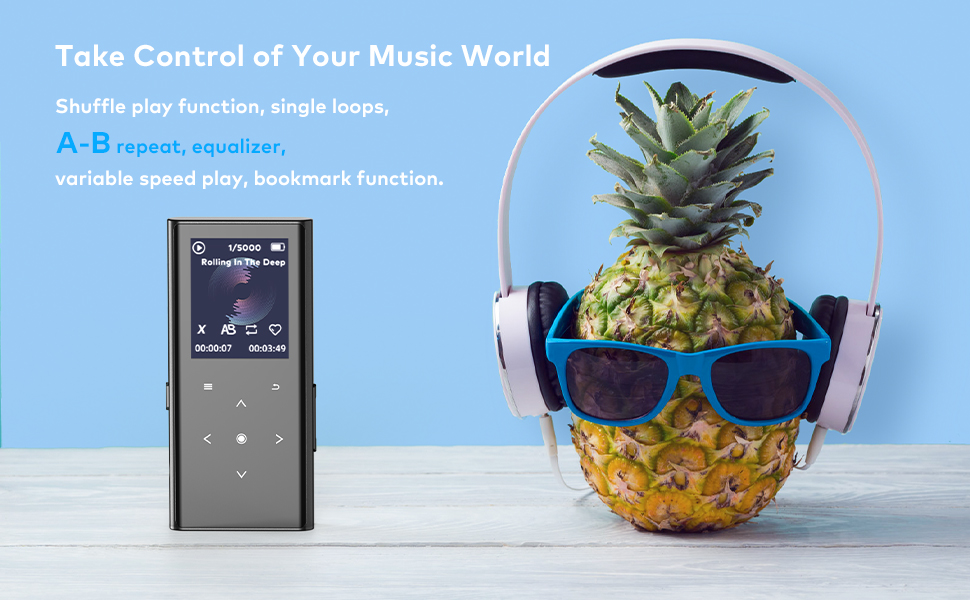
Figure 4.1.1: Image depicting the ZOOAOXO M600 MP3 Player's music control features, including shuffle, loops, A-B repeat, equalizer, variable speed, and bookmark functions.
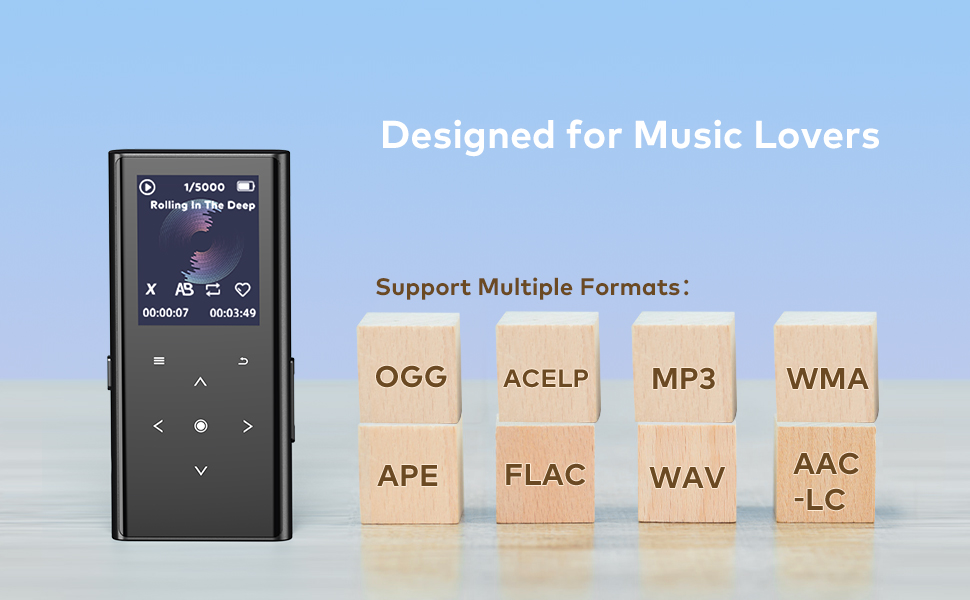
Figure 4.1.2: Visual representation of the ZOOAOXO M600 MP3 Player supporting multiple audio formats including OGG, ACELP, MP3, WMA, APE, FLAC, WAV, and AAC-LC.
4.2 Bluetooth Connectivity (Version 5.2)
- The ZOOAOXO M600 features Bluetooth 5.2 for stable and efficient wireless audio transmission.
- Note: The Bluetooth function is designed to connect exclusively with Bluetooth headphones and Bluetooth speakers. It does not support connection to smartphones or other devices for file transfer.
- To pair: Go to the Bluetooth menu on the device, enable Bluetooth, and search for available devices. Select your Bluetooth headphones or speaker from the list to pair.

Figure 4.2.1: An image illustrating the Bluetooth 5.2 connectivity of the ZOOAOXO M600 MP3 Player, showing it connecting to a speaker and headphones.
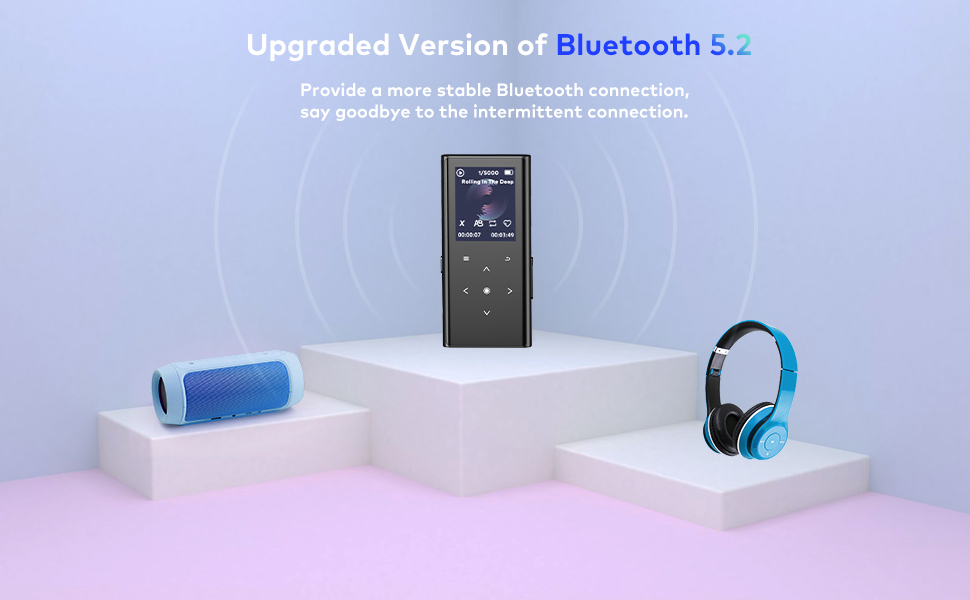
Figure 4.2.2: This image highlights the upgraded Bluetooth 5.2 version, promising a more stable connection and freedom from intermittent disconnections when paired with compatible audio devices.
4.3 FM Radio
- To use the FM radio function, you must connect wired headphones to the device. The wired headphones act as the antenna for receiving FM signals.
- Navigate to the "FM Radio" option from the main menu.
- You can auto-scan for stations or manually tune to a specific frequency.
4.4 Voice Recorder
- Select "Voice Recorder" from the main menu.
- Press the record button to start recording. Press again to pause/resume, and a third time to stop and save the recording.
- Recordings are saved in a dedicated folder and can be played back directly on the device.

Figure 4.4.1: The ZOOAOXO M600 MP3 Player demonstrating its simple recording function, suitable for interviews, learning, and conferences.
4.5 E-book Reader
- Access the "E-book" function from the main menu to read text files.
- Ensure your e-book files are in a compatible format (e.g., TXT) and transferred to the device.
- Use the navigation buttons to scroll through pages.
4.6 Using the Built-in Speaker
- The device features an integrated HD speaker, allowing you to listen to music or recordings without headphones.
- When headphones are not connected, audio will automatically play through the built-in speaker.
- To switch to headphone listening, simply plug in your wired headphones or connect a Bluetooth audio device.
5. Maintenance
- Cleaning: Use a soft, dry cloth to clean the device. Avoid using liquid cleaners or abrasive materials.
- Storage: Store the device in a cool, dry place away from direct sunlight and extreme temperatures.
- Battery Care: To prolong battery life, avoid fully discharging the battery frequently. Charge the device regularly, even if not in use for extended periods.
- Avoid Impact: While the device has a metal casing, avoid dropping or subjecting it to strong impacts, which can damage internal components.
6. Troubleshooting
6.1 Common Issues and Solutions
| Problem | Possible Cause | Solution |
|---|---|---|
| Device does not power on. | Low battery or device frozen. | Charge the device for at least 30 minutes. If still unresponsive, try a hard reset (refer to manual for specific reset method, usually holding power button for 10-15 seconds). |
| Cannot connect via Bluetooth. | Incorrect pairing procedure, device not in pairing mode, or attempting to connect to an unsupported device type. | Ensure your Bluetooth headphones/speaker are in pairing mode. Confirm the MP3 player's Bluetooth is enabled and scanning. Remember, the MP3 player's Bluetooth only connects to audio output devices (headphones/speakers). |
| Some music files do not play. | Unsupported file format or corrupted file. | Verify the file format is supported (OGG, ACELP, MP3, WMA, APE, FLAC, WAV, AAC-LC). Try converting the file to a different supported format. Ensure the file is not corrupted. |
| FM Radio not working. | Wired headphones not connected. | Wired headphones must be plugged into the 3.5mm jack as they serve as the antenna for FM reception. |
| Screen is unresponsive or frozen. | Software glitch. | Perform a soft reset by holding the power button until the device restarts. If the issue persists, ensure the device is charged and try a hard reset. |
| Language setting is not available in desired language. | Limited language support. | The device supports a selection of languages. If your specific language is not listed, choose the closest available language. |
7. Specifications
| Feature | Detail |
|---|---|
| Brand | ZOOAOXO |
| Model Name | M600 |
| Color | Black |
| Screen Size | 1.8 Inches |
| Connectivity Technology | Bluetooth 5.2 |
| Special Feature | Bluetooth, Built-in Speaker, Voice Recorder, FM Radio, E-book |
| Compatible Devices | Earphone, Laptop, Personal Computer (for data transfer) |
| Battery Composition | Lithium-polymer (1 included) |
| Rechargeable Battery | Yes |
| Memory Storage Capacity | 64 GB |
| Media Type | Micro SD (internal 64GB) |
| Included Components | Earphones |
| Product Dimensions | Approx. 3.58 x 1.65 x 0.35 inches |
| Product Weight | Approx. 70g |
8. Warranty and Support
ZOOAOXO is committed to providing satisfactory solutions for any issues you may encounter with your M600 MP3 Player. While specific warranty terms are not detailed, please contact the seller or ZOOAOXO customer support directly if you experience any problems or have questions regarding the device's operation or performance.
For assistance, please refer to the contact information provided with your purchase or visit the official ZOOAOXO support channels.
Related documentsM600


Ask a question about this manual
Ask about setup, troubleshooting, compatibility, parts, safety, or missing instructions. Manuals+ will review the question and use this page’s manual context to help answer it.