
1. Introduction
This manual provides instructions for the Dpofirs 7-Inch Mini Universal Bluetooth Keyboard. This ultra-slim keyboard is designed for portability and multi-system compatibility, featuring full keys and multimedia FN keys. It utilizes a scissor-foot key design for responsive typing and offers extended battery life.
2. Safety Information
- Keep the keyboard away from water and other liquids.
- Avoid extreme temperatures.
- Do not attempt to disassemble or repair the device yourself.
- Use only the provided USB cable for charging.
3. Package Contents
- 1 x Dpofirs 7-Inch Mini Universal Bluetooth Keyboard
- 1 x USB Cable
4. Product Overview
The Dpofirs 7-Inch Mini Universal Bluetooth Keyboard is a compact and versatile input device. It features a full QWERTY layout with additional multimedia function keys and indicator lights for CAPS Lock, Charge, Power, and Connect status.
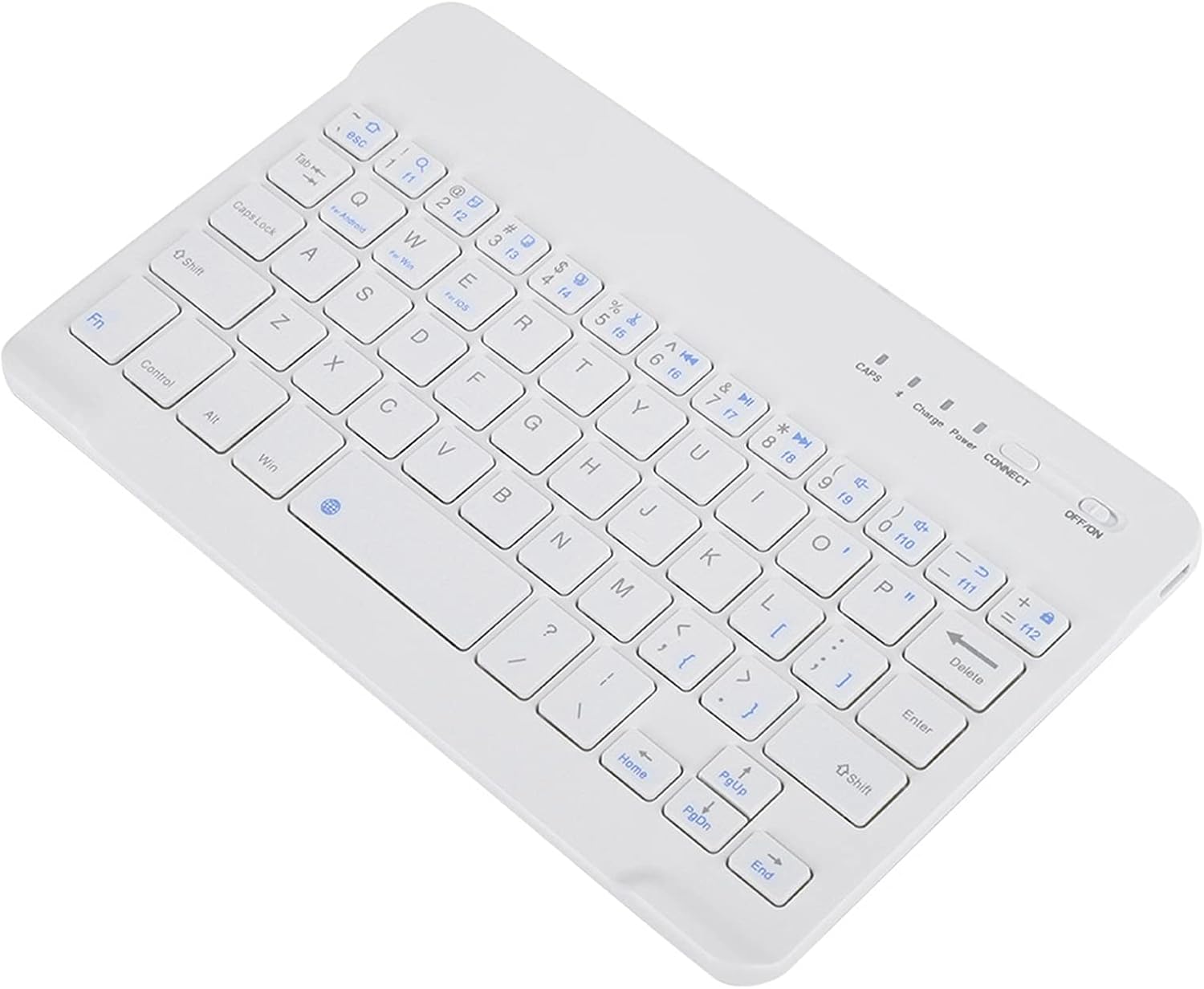
Figure 1: Top-down view of the Dpofirs 7-Inch Mini Universal Bluetooth Keyboard, showcasing its compact layout and indicator lights.

Figure 2: Angled view of the keyboard, highlighting its slim profile and key arrangement.
Key Features:
- Multi-System Compatibility: Widely suitable for Android, iOS, and Windows systems.
- Full Keys & Multimedia FN Keys: Provides a complete typing experience with dedicated function keys for media control.
- Scissor-Foot Design: Ensures quick key return for fast and comfortable typing.
- Long Lifespan: Keys are designed for up to 5 million clicks.
- Extended Battery Life: Offers up to 40 hours of continuous work time and 60 days of standby time.

Figure 3: Image illustrating the keyboard's compatibility with various operating systems, including Android, iOS, and Windows.

Figure 4: Close-up of the keyboard, emphasizing the scissor-foot key design for efficient and comfortable typing.

Figure 5: Graphic highlighting the keyboard's long battery life, with 40 hours of continuous use and 60 days of standby.
5. Setup
5.1 Powering On/Off
- To power on the keyboard, slide the 'OFF/ON' switch to the 'ON' position. The power indicator light will flash briefly.
- To power off, slide the 'OFF/ON' switch to the 'OFF' position.
5.2 Bluetooth Pairing
Follow these steps to pair your keyboard with a device:
- Ensure the keyboard is powered on.
- Press the 'Connect' button on the keyboard for 3 seconds. The blue Bluetooth indicator light will begin to blink, indicating it is in pairing mode.
- On your device (tablet, smartphone, computer), go to Bluetooth settings and turn Bluetooth on.
- Search for available devices. The keyboard will typically appear as "Bluetooth Keyboard" or "Wireless keyboard".
- Select the keyboard from the list to connect. Your device may prompt you to enter a pairing code shown on the screen. Type the code on the keyboard and press Enter.
- Once connected, the Bluetooth indicator light on the keyboard will stop blinking and remain solid or turn off, depending on the model.
Video 1: Demonstration of how to connect the Bluetooth keyboard to an iPad, showing the pairing process and successful connection.
Video 2: Overview of the XVX Bluetooth Keyboard for iPad, including connection steps and typing demonstration.
6. Operating Instructions
6.1 Basic Typing
Once connected, the keyboard functions like a standard QWERTY keyboard. Simply open any text editor or input field on your device and begin typing.
6.2 Multimedia and Function Keys
The keyboard includes dedicated FN (Function) keys for various shortcuts. These keys are typically activated by holding down the 'Fn' key and pressing the desired function key (e.g., F1-F12, volume control, media playback).

Figure 6: Image highlighting the multimedia FN keys, which provide quick access to various functions.
6.3 Backlight Control (if applicable)
Some models may feature backlighting. If your keyboard has this feature, look for a dedicated backlight key (often indicated by a lightbulb icon) or a combination of 'Fn' + another key to cycle through brightness levels or colors.
Video 3: Demonstration of the Bluetooth Keyboard 2.0, showcasing its backlit keys and general functionality.
7. Maintenance
- Cleaning: Use a soft, dry cloth to clean the keyboard surface. For stubborn dirt, slightly dampen the cloth with water or a mild cleaning solution. Avoid harsh chemicals.
- Storage: Store the keyboard in a cool, dry place when not in use.
- Charging: Charge the keyboard when the battery indicator is low to ensure optimal performance.
8. Troubleshooting
| Problem | Possible Solution |
|---|---|
| Keyboard does not power on. | Ensure the power switch is in the 'ON' position. Charge the keyboard using the provided USB cable. |
| Unable to pair via Bluetooth. | Make sure the keyboard is in pairing mode (blue light blinking). Ensure Bluetooth is enabled on your device. Move the keyboard closer to your device. Try restarting both the keyboard and your device. |
| Keys are unresponsive or typing is delayed. | Check the battery level and charge if necessary. Ensure the keyboard is within the effective Bluetooth range (up to 10m). Re-pair the keyboard with your device. |
| Keyboard disconnects frequently. | Ensure the keyboard is fully charged. Reduce interference by moving away from other wireless devices. Re-pair the keyboard. |
9. Specifications
| Feature | Detail |
|---|---|
| Product Type | Ultra Slim Bluetooth Keyboard |
| Brand | Dpofirs |
| Model Number | Dpofirs0dq2ftgm6r8320 |
| Material | ABS + Aluminum Alloy |
| Size | 7 inches (7.87 x 4.92 x 0.2 inches) |
| Item Weight | 5.6 ounces |
| Connectivity Technology | Bluetooth 3.0 |
| Bluetooth Distance | Up to 10m |
| Battery Capacity | 120 mAh |
| Working Time | 40 hours (continuous) |
| Charging Time | 4 hours |
| Standby Time | 60 days |
| Keyboard Lifespan | 5 million clicks |
| Compatible Devices | Android Devices, iOS, Windows, Other Similar Systems |
| Color | White |
10. Warranty and Support
For warranty information or technical support, please refer to the documentation included with your purchase or contact Dpofirs customer service through their official channels.