
XZENT X-F275
XZENT X-F275 Infotainer User Manual
Model: X-F275
1. Introduction
The XZENT X-F275 is a vehicle-specific infotainment and multimedia system designed for seamless integration into various vehicle models. It offers a wide range of features including advanced audio capabilities, smartphone connectivity, and navigation expandability.
This manual provides detailed instructions for the installation, operation, and maintenance of your XZENT X-F275 Infotainer. Please read it carefully before using the device to ensure proper functionality and safety.

Figure 1: Front view of the XZENT X-F275 Infotainer displaying its main menu with icons for Apple CarPlay, Radio, USB, and Bluetooth.
Compatibility
The X-F275 is compatible with the following vehicle models:
- Fiat Ducato III, 250 (2006 – 2021)
- Fiat Ducato III, Series 8/9* (2021 – 2024)
- Fiat Ducato III, Series 2* (from 2024)
- Citroen Jumper II, 250 (2006 – 2024)
- Citroen Jumper II, Series 2* (from 2024)
- Peugeot Boxer II, 250 (2006 – 2024)
- Peugeot Boxer II, Series 2* (from 2024)
- Opel Movano C (2021 – 2024)
- Opel Movano C, Series 2* (from 2024)
- Toyota Proace Max* (from 2024)
*Note: An optional N-XFDUC8 mounting kit is required for these models.
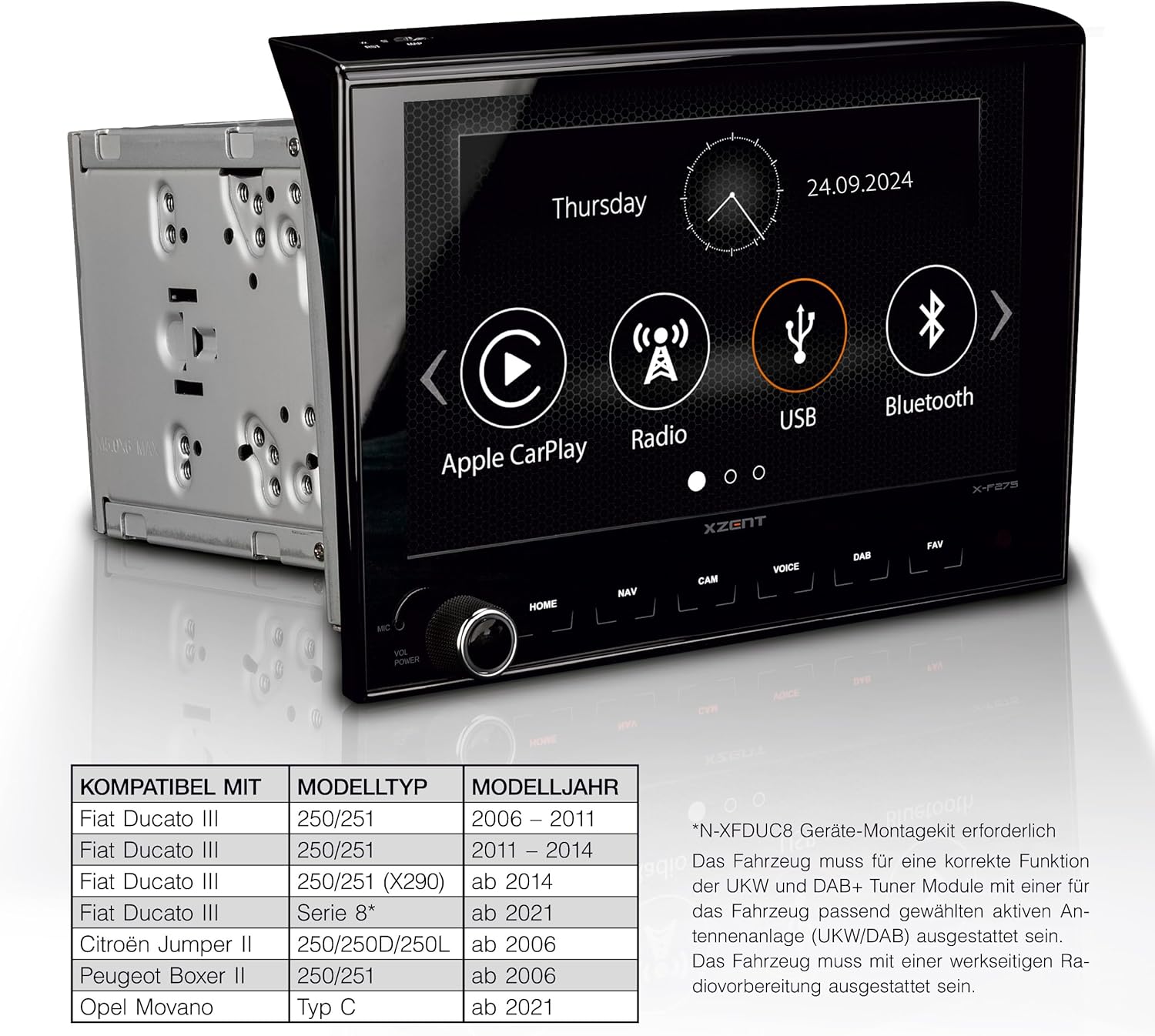
Figure 2: The X-F275 unit shown alongside a table detailing its compatibility with different Fiat Ducato, Citroen Jumper, Peugeot Boxer, Opel Movano, and Toyota Proace Max models and model years.
2. Setup and Installation
The X-F275 is designed for fixed installation in compatible vehicles. Professional installation is recommended to ensure correct wiring and optimal performance.
Included Components:
- XZENT X-F275 Infotainer Unit
- IR Remote Control
- External Bluetooth Microphone
- GPS Antenna
- Various Connection Cables and Adapters
- Extensive Mounting Material
Installation Steps (Overview):
- Preparation: Ensure the vehicle's ignition is off and the battery is disconnected.
- Mounting: Install the X-F275 unit into the vehicle's dashboard using the provided mounting material. For specific vehicle models, an optional N-XFDUC8 mounting kit may be required.
- Wiring: Connect the power cables, speaker wires, and other necessary adapters. Ensure all connections are secure and correctly matched to the vehicle's wiring harness.
- Antenna Connection: Connect the DAB+ antenna (if applicable, vehicle must be equipped with an active antenna for correct function) and the GPS antenna.
- Peripheral Connections: Connect the external Bluetooth microphone, USB devices, and any optional cameras or HDMI sources.
- Initial Power-Up: Reconnect the battery and turn on the ignition. The device should power on.
- Basic Configuration: Follow the on-screen prompts for initial setup, including language selection and time/date settings.
The X-F275 supports steering wheel control functions for vehicles from model year 2014 onwards via two pre-set setups with individual button assignments. An optional LIN-Bus interface is required for the front telephone buttons.
3. Operating Instructions
The X-F275 features a large, capacitive 8-inch (20.3 cm) real glass touchscreen for easy operation. It offers high brightness, clarity, and natural color reproduction.
3.1. DAB+ Twin Tuner and UKW RDS Radio
The device is equipped with a DAB+ dual tuner for crystal-clear digital radio reception and an FM RDS car radio for traditional analog broadcasts. You can easily switch between DAB+ and FM modes and manage your favorite stations.

Figure 3: The X-F275 display showing the DAB+ radio interface, including station name, song title, and control options.
3.2. Bluetooth System
The integrated Bluetooth system allows for hands-free calling and music streaming. Pair your smartphone to make and receive calls safely while driving, and stream audio directly to the infotainment system.

Figure 4: The X-F275 display showing the Bluetooth interface during an outgoing call, with contact details and call control options.
3.3. Apple CarPlay
Connect your iPhone via USB to enable Apple CarPlay. This feature allows you to control essential iPhone functions like phone calls, navigation, messaging, and music directly from the X-F275's display or via Siri voice commands.
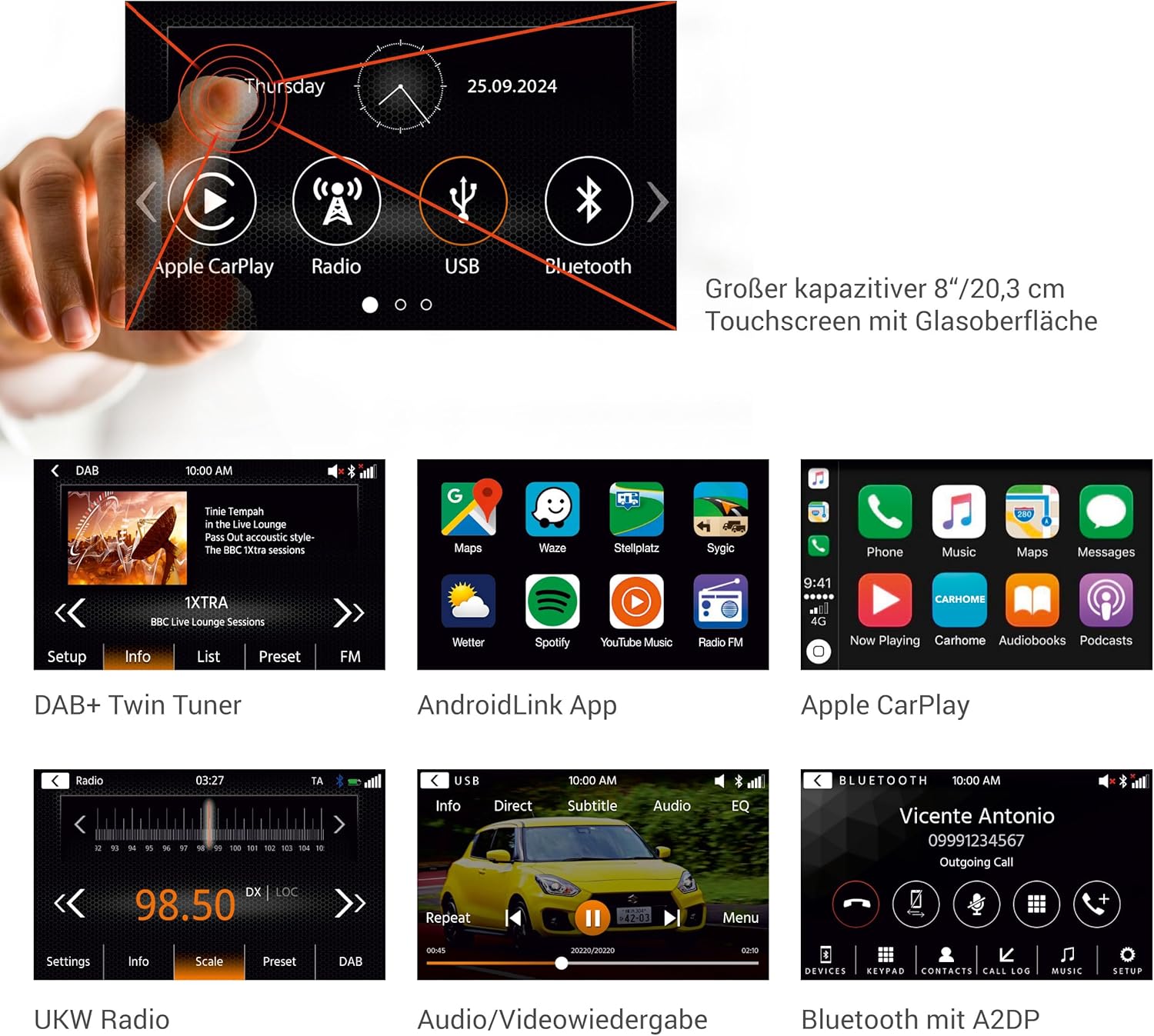
Figure 5: The X-F275 display showing the Apple CarPlay interface with icons for Phone, Music, Maps, Messages, Now Playing, Carhome, Audiobooks, and Podcasts.
3.4. AndroidLink
With the AndroidLink function, you can connect Android smartphones via USB to the X-F275 and mirror the phone's screen content onto the infotainment display. This allows you to control your apps, including navigation apps, via the touchscreen.
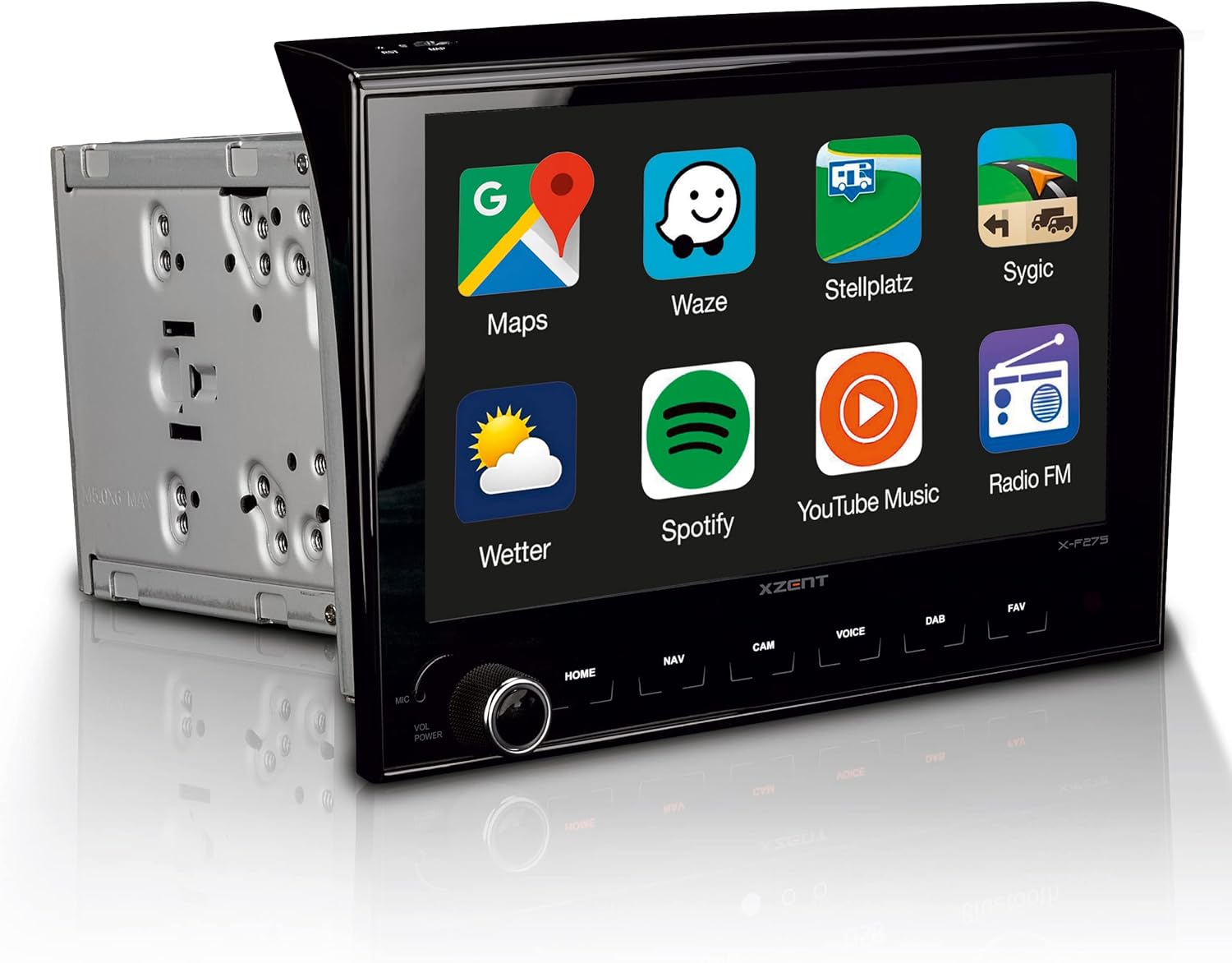
Figure 6: The X-F275 display showing the AndroidLink interface with icons for Maps, Waze, Stellplatz, Sygic, Weather, Spotify, YouTube Music, and Radio FM.
3.5. USB Audio and Video Playback
The X-F275 features two USB ports for audio and video playback. You can connect USB drives containing your media files and enjoy them on the system's display.

Figure 7: The X-F275 display showing the audio/video playback interface, with controls for repeat, skip, and a progress bar.
3.6. Navigation System (Expandable)
The X-F275 can be expanded into a fixed-installation navigation system for motorhomes with the separately available navigation packages X-MAP27MH1 (ASIN B085996VLN) or X-MAP27MH3 (ASIN B08L8VPHGZ).
These packages include maps for 47 EU countries, 6.5 million special points of interest (POIs), and a camping POI database with approximately 20,000 pitches and campsites. You can effectively plan your motorhome routes by selecting a vehicle profile and entering vehicle-specific data.

Figure 8: A high-resolution 3D map view from the optional navigation system, showing route information and points of interest.

Figure 9: Screen showing motorhome route planning options, allowing selection of vehicle profiles and specific routing preferences.
3.7. Camera Inputs
The X-F275 includes two camera inputs, allowing for connection of rear-view or other auxiliary cameras. This enhances safety and convenience during parking and maneuvering.

Figure 10: The X-F275 display showing the view from a rear-view camera, complete with parking guidelines, indicating support for two camera inputs.
4. Maintenance
To ensure the longevity and optimal performance of your XZENT X-F275 Infotainer, follow these maintenance guidelines:
- Cleaning the Screen: Use a soft, lint-free cloth to gently wipe the touchscreen. For stubborn smudges, slightly dampen the cloth with water or a screen-cleaning solution. Avoid abrasive cleaners or solvents.
- General Cleaning: Keep the unit and surrounding area free from dust and debris. Use a soft brush or compressed air to clean vents and button crevices.
- Software Updates: Periodically check the XZENT official website for available software updates. Keeping the firmware updated can improve performance, add new features, and resolve bugs.
- Avoid Extreme Temperatures: Do not expose the unit to extreme heat or cold for prolonged periods, as this can affect its electronic components.
5. Troubleshooting
This section addresses common issues you might encounter with your XZENT X-F275. If the problem persists, please contact customer support.
| Problem | Possible Cause | Solution |
|---|---|---|
| Screen is too dark or blurry (especially for rear-view camera). | Display brightness settings; faulty camera or cable connection. | Adjust display brightness in settings. Check camera connections and cable integrity. If problem persists, consult a professional. |
| Unit frequently switches from navigation to radio. | Traffic announcements (TMC) interrupting navigation. | Check navigation settings for TMC interruption preferences. Disable or adjust settings if desired. Ensure software is up to date. |
| Unit loses settings (language, country, etc.) after power cycle. | Improper power connection (e.g., constant power line not connected) or software bug. | Verify installation wiring, especially the constant power supply. Perform a software update to the latest version. |
| AndroidLink audio issues (e.g., radio not working when AndroidLink is active). | Audio channel conflict with AndroidLink. | This can be a known limitation for some Android devices or app configurations. Ensure AndroidLink and system software are updated. Try adjusting audio output settings on the Android phone. |
| Slow boot-up time. | Normal operation or background processes. | Some boot-up delay is normal for complex infotainment systems. Ensure no unnecessary apps are running in the background if applicable. Software updates might improve boot times. |
6. Specifications
Detailed technical specifications for the XZENT X-F275 Infotainer:
| Feature | Detail |
|---|---|
| Model Number | X-F275 |
| Brand | XZENT |
| Display Size | 8 inches (20.3 cm) capacitive touchscreen |
| Connectivity Technology | Bluetooth, USB |
| Controller Type | Touchscreen |
| Special Features | Touchscreen, Apple CarPlay, Bluetooth, DAB+ |
| Compatible Devices | iPhone, Smartphone (Android) |
| HDMI Ports | 1 |
| Connector Type | Bluetooth and USB |
| Audio Output Mode | Stereo |
| Surround Sound Channel Configuration | 4.0 channels |
| Video Encoding | H.264, H.265/HEVC |
| Amplifier | 4 x 40 Watts |
| Product Dimensions (Packaging) | 34 x 28.4 x 22.1 cm; 3.2 Kilograms |
7. Warranty and Support
The XZENT X-F275 Infotainer comes with a standard manufacturer's warranty. Please refer to the warranty card included in your product packaging for specific terms and conditions, including warranty period and coverage details.
For technical support, troubleshooting assistance beyond this manual, or warranty claims, please contact XZENT customer service or your authorized dealer. Keep your purchase receipt and product serial number handy when contacting support.
For the latest software updates and additional resources, please visit the official XZENT website.
Related documentsX-F275


Ask a question about this manual
Ask about setup, troubleshooting, compatibility, parts, safety, or missing instructions. Manuals+ will review the question and use this page’s manual context to help answer it.