
1. Introduction
Thank you for choosing the MageGee 60% Wired Gaming Keyboard. This ultra-compact keyboard is designed for gamers, typists, and travelers, offering a blend of performance, portability, and customizable RGB backlighting. This manual provides essential information for setting up, operating, maintaining, and troubleshooting your new keyboard.

An overview of the MageGee 60% Wired Gaming Keyboard, showcasing its compact design and vibrant RGB backlighting.
2. Package Contents
- MageGee 60% Wired Gaming Keyboard
- USB Type-C to USB-A Cable
- User Manual (this document)
3. Setup Instructions
3.1 Connecting the Keyboard
- Locate the USB Type-C port on the back or side of the keyboard.
- Connect the smaller end of the provided USB Type-C cable to the keyboard's port.
- Connect the larger USB-A end of the cable to an available USB port on your computer.
- The keyboard is plug-and-play and should be recognized automatically by your operating system.
3.2 System Compatibility
The MageGee 60% Wired Gaming Keyboard is compatible with a wide range of operating systems, including:
- Windows 10, Windows 8, Windows 7, Windows XP, Windows VISTA
- Mac OS
For use with gaming consoles such as XBOX, PlayStation, or Nintendo Switch, a compatible converter adapter is recommended (not included).

This image illustrates the core features of the keyboard, including its 61 anti-ghosting keys, detachable Type-C cable for connectivity, multiple backlight modes, compact 60% layout, ergonomic design, and durable construction.
4. Operating Instructions
4.1 Keyboard Layout and Keys
This keyboard features a 60% compact layout with 61 keys. It includes anti-ghosting technology for all 61 keys, ensuring accurate registration of multiple simultaneous key presses, which is beneficial for gaming.
4.2 Backlight Control
The keyboard features customizable RGB backlighting with multiple effects. You can adjust the backlight modes, brightness, and speed using specific key combinations.
- Changing Backlight Modes: The keyboard offers various backlight effects, including normal light, wave, horse riding, and breathing modes. Specific key combinations (often involving the 'FN' key) are used to cycle through these modes. Refer to the keycaps for symbols indicating backlight functions.
- Adjusting Brightness: There are 5 levels of brightness control. Use the designated key combinations (typically 'FN' + arrow keys or other function keys) to increase or decrease the backlight intensity.
- Adjusting Speed: The speed of dynamic backlight effects can also be adjusted across 5 levels. Use the designated key combinations (typically 'FN' + arrow keys or other function keys) to modify the effect speed.

The keyboard's customizable RGB backlighting is shown, demonstrating different lighting patterns and the ability to adjust brightness and speed to suit user preferences.
4.3 Ergonomic Design
The keyboard is designed with an ergonomic key layout that adapts to the natural movement arc of your hands. The key height is optimized to provide comfort and reduce fatigue during long periods of use.
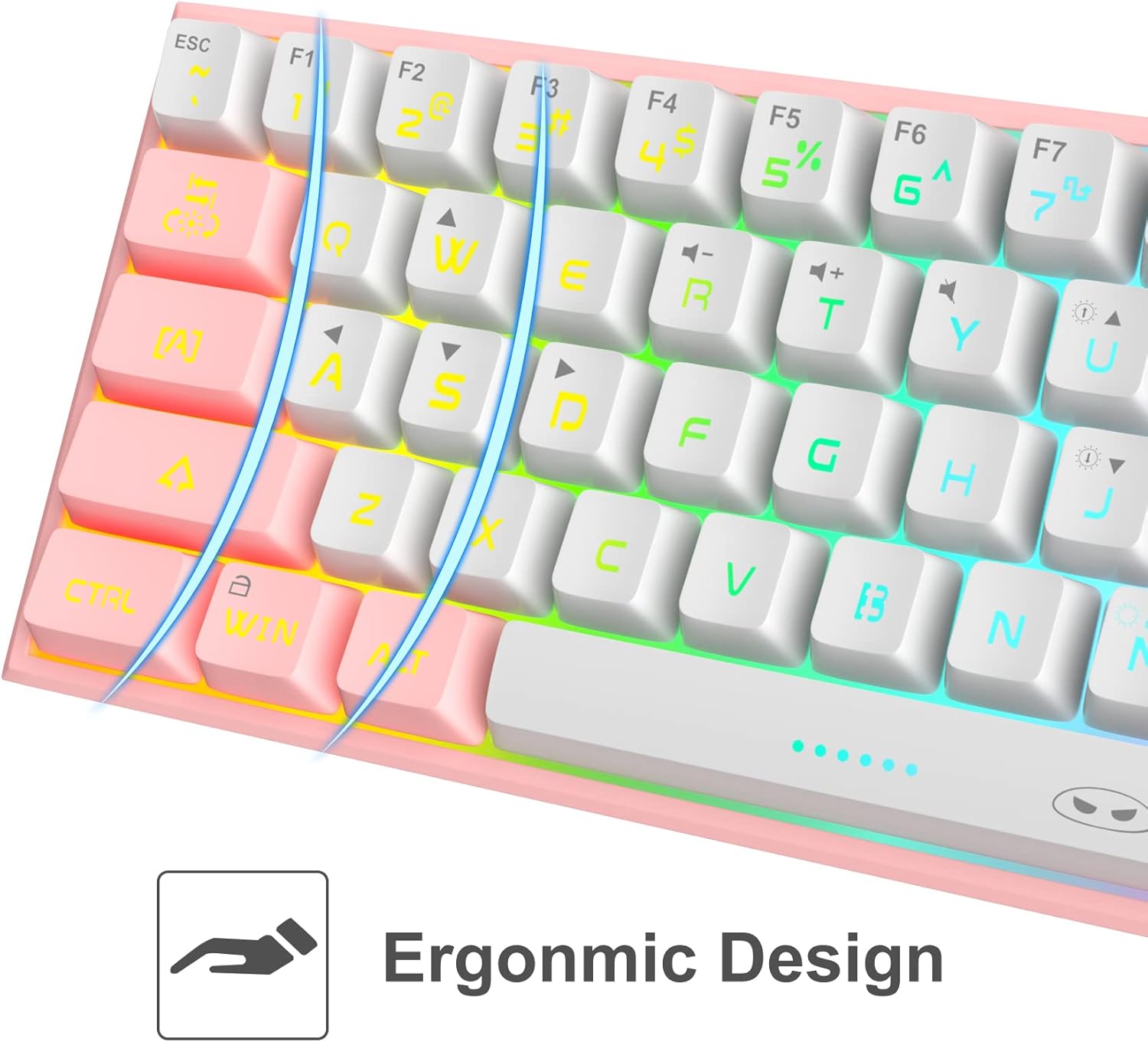
A detailed view of the keyboard's keycaps, emphasizing the ergonomic design that contributes to comfortable and reduced-fatigue use during extended periods.
5. Maintenance
To ensure the longevity and optimal performance of your MageGee keyboard, follow these maintenance guidelines:
- Cleaning: The keyboard features a waterproof design, which helps protect against accidental spills. For general cleaning, disconnect the keyboard from your computer. Use a soft, damp cloth to wipe down the keycaps and chassis. For stubborn dirt, a small amount of mild soap can be used. Ensure the keyboard is completely dry before reconnecting.
- Dust Removal: Use compressed air to remove dust and debris from between the keycaps.
- Storage: When not in use for extended periods, store the keyboard in a dry, cool place away from direct sunlight.
6. Troubleshooting
If you encounter issues with your MageGee keyboard, refer to the following common problems and solutions:
| Problem | Possible Cause | Solution |
|---|---|---|
| Keyboard not responding | Loose cable connection, incorrect USB port, driver issue. | Ensure the USB cable is securely connected to both the keyboard and the computer. Try a different USB port. Restart your computer. |
| Backlight not working | Backlight turned off, brightness set to minimum. | Use the designated key combinations to turn on the backlight or increase brightness. |
| Certain keys not registering | Debris under keycap, software conflict. | Clean the affected key area with compressed air. Test the keyboard on another computer to rule out software issues. |
| Keyboard input lag | USB port issue, system performance. | Try a different USB port. Ensure your computer meets the system requirements for your applications. |
7. Specifications
| Feature | Detail |
|---|---|
| Model | B09LV96L71 |
| Brand | MageGee |
| Connectivity Technology | Wired (USB Type-C) |
| Keyboard Layout | 60% Compact, 61 Keys |
| Backlighting | RGB Backlit (multiple modes, adjustable brightness/speed) |
| Special Features | Waterproof, Anti-ghosting (all 61 keys), Ergonomic Design |
| Product Dimensions | 12 x 5 x 2 inches |
| Item Weight | 1.05 pounds |
| Material | Acrylonitrile Butadiene Styrene (ABS) |
| Color | White Pink |
| Compatible Devices | PC, Mac, Gaming Consoles (with adapter) |
8. Warranty and Support
8.1 Warranty Information
Specific warranty details for the MageGee 60% Wired Gaming Keyboard may vary by region and retailer. Please refer to the warranty card included with your purchase or contact your point of sale for detailed information regarding warranty coverage and terms.
8.2 Customer Support
For technical assistance, troubleshooting beyond this manual, or inquiries about your product, please contact MageGee customer support through their official website or the retailer from whom you purchased the product. Have your model number (B09LV96L71) and purchase details ready when contacting support.


