Product Overview
The FULLJA 10.1-inch Smart Picture Frame Digital Calendar is designed to display your cherished photos and videos with ease and clarity. Featuring a high-resolution 1280x800 touch screen and 16GB of internal memory, it offers multiple ways to share and manage your digital memories. Its versatile design allows for both landscape and portrait display, adapting seamlessly to any space.

Figure 1: The FULLJA 10.1-inch Smart Picture Frame Digital Calendar with its companion app.
Key Features
- All-In-One Smart Family Calendar: Organizes and tracks family schedules with color-coded tasks for each member.
- Easy Wi-Fi Sharing: Effortlessly share moments using the user-friendly "VPhoto" app and email, supporting up to 30 members and multiple senders.
- Captivating Display of Memories: Features a 1280x800 pixel HD touch screen with a wide viewing angle and 16GB onboard memory, expandable via TF Cards and USB (up to 32GB).
- Sleek Design & Stylish Decor: Automatically adjusts image orientation (vertical or horizontal) and can be placed on a tabletop or mounted on the wall.
- Motion Sensor Function: Automatically turns on/off when you are within/over the induction distance, promoting energy saving.
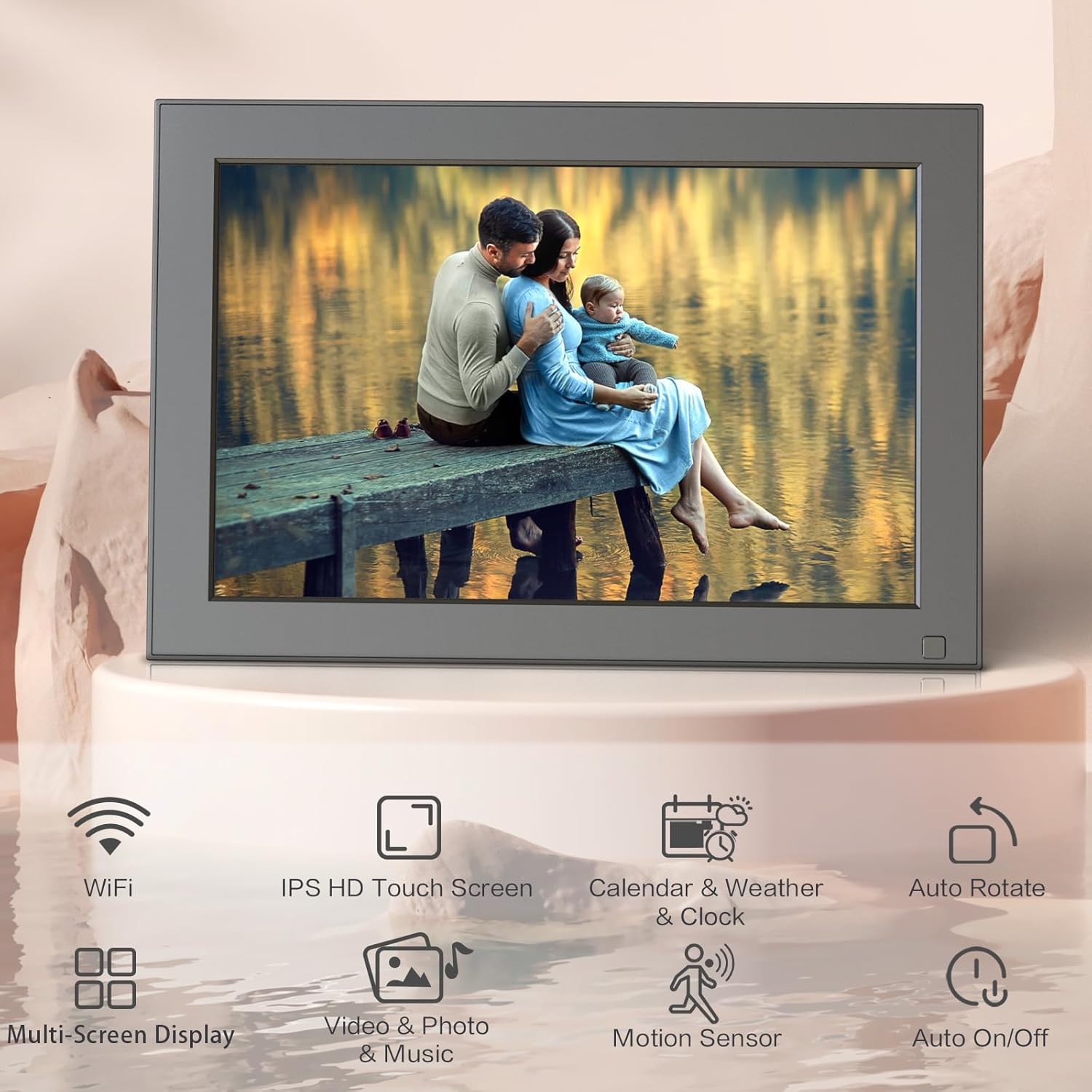
Figure 2: Visual representation of the smart picture frame's key features.
Setup Guide
1. Unboxing and Initial Power-On
- Carefully remove the smart picture frame and all accessories from its packaging. Ensure all components, including the power adapter and stand, are present.
- Attach the included stand to the back of the frame. The stand is designed to allow for both landscape and portrait orientations.
- Connect the power adapter to the frame's power port and then plug it into a standard electrical outlet. The frame should automatically power on.
2. Network Connection
- Upon first power-on, the frame will guide you through the initial setup process. Follow the on-screen prompts to select your language and time zone.
- Select your Wi-Fi network from the list of available networks and enter the password. Ensure the frame is connected to a stable Wi-Fi network for optimal performance and sharing features.
3. VPhoto App Setup
- Download the "VPhoto" app from your smartphone's app store (available on both iOS and Android).
- Open the VPhoto app and create an account or log in if you already have one.
- In the app, select the option to "Add Device" and follow the instructions to bind your smart picture frame using the unique code displayed on the frame's screen.
- Once bound, you can invite other family members or friends to share photos and videos with your frame through the app.

Figure 3: Steps for sharing content via the VPhoto App.
Operating Instructions
1. Navigating the Touch Screen
The FULLJA Smart Picture Frame features an intuitive touch screen interface. Swipe left or right to browse through photos, and tap on icons to access different functions such as settings, video playback, music, alarm, and clock.
2. Adding and Managing Photos/Videos
- Via VPhoto App/Email: Use the VPhoto app on your smartphone or send photos/videos directly to the frame's unique email address. Content will appear on the frame automatically once received.
- Via TF Card/USB: Insert a TF card (up to 32GB) or a USB drive into the designated slots on the frame. You can then import media directly to the frame's internal storage or play content directly from the external storage.

Figure 4: Uploading pictures or videos instantly via app or email.
3. Display Modes and Orientation
The frame supports both landscape and portrait orientations. Simply rotate the frame, and the display will automatically adjust. You can customize slide show intervals, transition effects, and playback order through the settings menu.

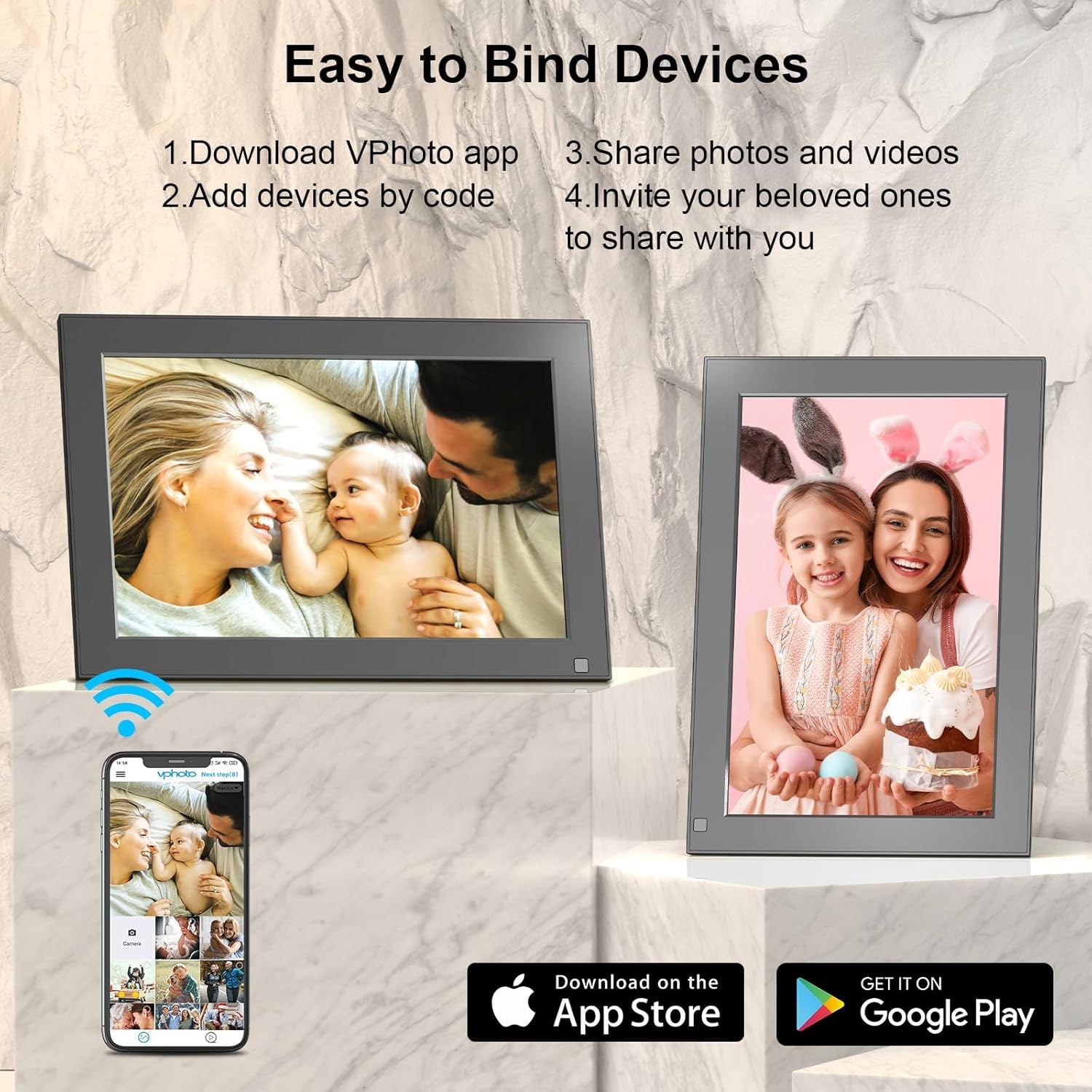
Figure 5: The frame supports both landscape and portrait display modes.
4. Motion Sensor
The built-in motion sensor automatically detects presence. When motion is detected within range, the frame will turn on. When no motion is detected for a set period, it will turn off to conserve energy. This feature can be configured in the settings.
Specifications
| Feature | Detail |
|---|---|
| Brand | FULLJA |
| Model Number | F16 |
| Screen Size | 10.1 inches |
| Resolution | 1280x800 |
| Internal Memory | 16GB |
| External Storage Support | TF Card (up to 32GB), USB |
| Connectivity | Wi-Fi |
| Dimensions | 10.2 x 6.97 x 0.63 inches |
| Item Weight | 1.3 pounds |
| Mounting Type | Tabletop / Wall Mount |

Figure 6: Storage capacity and expansion options.
Maintenance
To ensure the longevity and optimal performance of your FULLJA Smart Picture Frame, follow these maintenance guidelines:
- Cleaning: Use a soft, dry, lint-free cloth to clean the screen and frame. For stubborn smudges, slightly dampen the cloth with water. Avoid using harsh chemicals or abrasive cleaners.
- Placement: Place the frame on a stable, flat surface or mount it securely on a wall. Avoid direct sunlight, excessive heat, or high humidity, as these can damage the device.
- Software Updates: Periodically check for and install any available software updates through the frame's settings menu to ensure you have the latest features and bug fixes.
- Power Management: Unplug the frame during electrical storms or when it will be unused for extended periods.
Troubleshooting
If you encounter any issues with your FULLJA Smart Picture Frame, refer to the following common troubleshooting steps:
- Frame Not Turning On: Ensure the power adapter is securely connected to both the frame and a working electrical outlet. Try a different outlet if necessary.
- No Wi-Fi Connection: Verify your Wi-Fi password is correct. Ensure the frame is within range of your Wi-Fi router. Restart both the frame and your router.
- Photos Not Appearing: Check your VPhoto app or email to confirm content was successfully sent. Ensure the frame is connected to Wi-Fi. If using a TF card or USB, ensure it is properly inserted and the files are in a supported format.
- Screen Unresponsive: Try restarting the frame by unplugging it for a few seconds and then plugging it back in.
- Image Orientation Incorrect: The frame should auto-rotate. If it doesn't, check the settings for an orientation lock or try rotating it slowly to allow the sensor to adjust.
For more complex issues or persistent problems, please contact FULLJA customer support.
Warranty and Support
Your FULLJA 10.1-inch Smart Picture Frame Digital Calendar comes with a standard manufacturer's warranty. Please refer to the warranty card included in your product packaging for specific terms and conditions, including coverage duration and claim procedures.
For technical support, troubleshooting assistance, or warranty claims, please visit the official FULLJA website or contact their customer service department. Contact information can typically be found on the product packaging or the manufacturer's website.


