
Azumi LS5018FP
Azumi Senwa LS5018FP Smartphone User Manual
Your comprehensive guide to the Senwa LS5018FP 4G LTE Smartphone
Introduction
Thank you for choosing the Azumi Senwa LS5018FP 4G LTE Smartphone. This device is designed to provide a reliable and user-friendly mobile experience. This manual will guide you through the setup, operation, and maintenance of your new smartphone, ensuring you get the most out of its features.
The Senwa LS5018FP features a 5-inch HD display, a fingerprint sensor for enhanced security, and runs on Android 11 (Go edition). It is compatible with AT&T and T-Mobile networks, offering broad connectivity options.
Safety Information
Please read this section carefully before using your device to ensure safe and proper operation.
- Battery Safety: Use only manufacturer-approved batteries, chargers, and accessories. Do not disassemble, puncture, or short-circuit the battery. Dispose of batteries properly.
- Driving Safety: Always prioritize driving safety. Do not use your phone while driving if it distracts you. Use hands-free accessories when necessary.
- Medical Devices: Maintain a safe distance between your phone and medical devices like pacemakers to avoid interference. Consult your physician and medical device manufacturer for specific guidelines.
- Explosive Environments: Turn off your phone in areas with potentially explosive atmospheres, such as gas stations or chemical plants.
- Water Resistance: This device is not water-resistant. Avoid exposure to liquids.
- Disposal: Do not dispose of the device in household waste. Follow local regulations for electronic waste disposal.
Package Contents
Ensure all items are present in your product package:
- Azumi Senwa LS5018FP Smartphone
- Charger
- USB Cable
- 16GB SD Card (pre-installed or included separately)
- Quick Start Guide (may be in Spanish)

Image: The Azumi Senwa LS5018FP smartphone displayed on its orange retail box, showcasing the device's screen with pre-installed applications and the included accessories.
Product Overview
Familiarize yourself with the physical components of your Senwa LS5018FP smartphone.
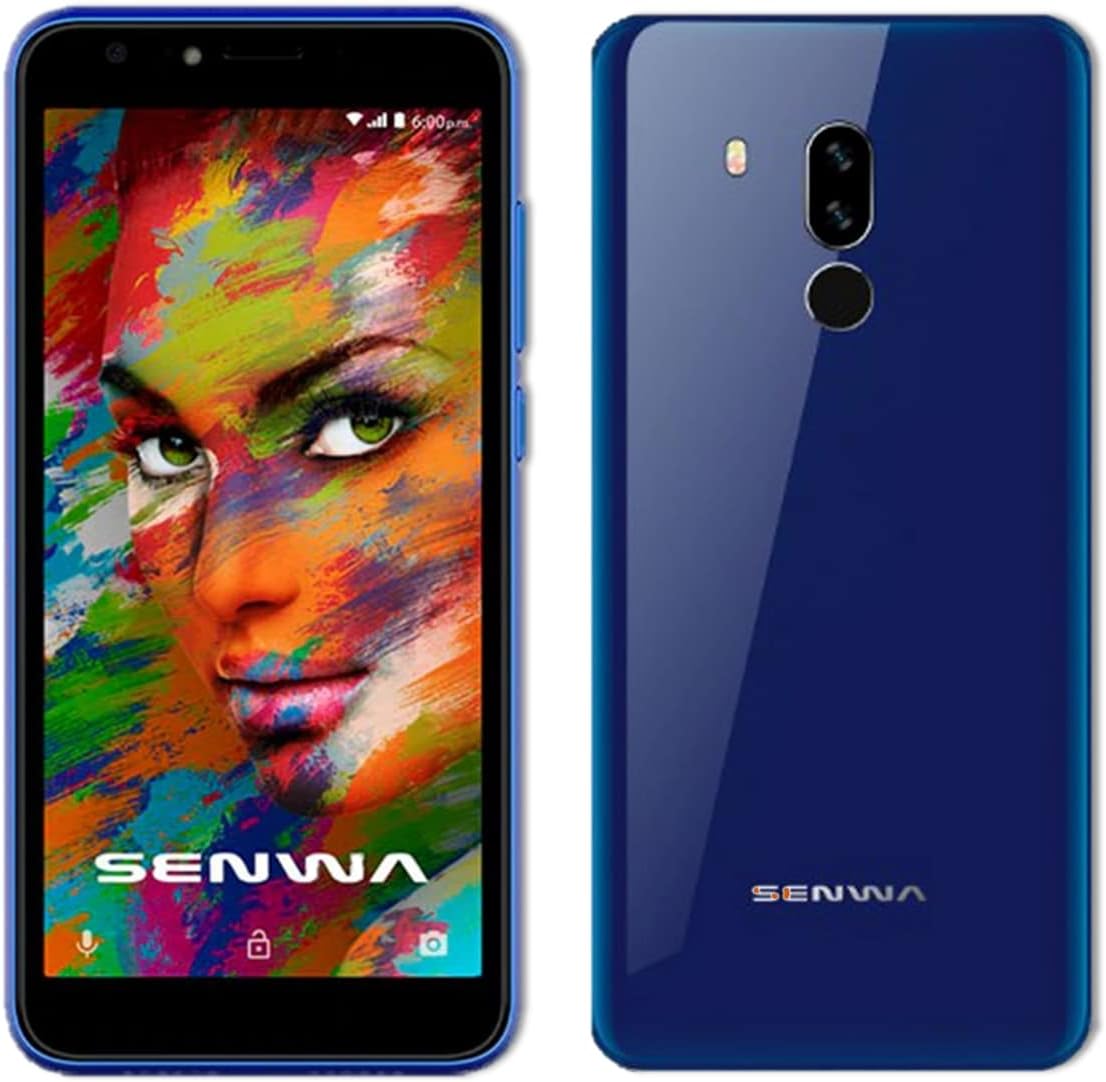
Image: Front and back views of the Azumi Senwa LS5018FP smartphone. The front shows the display, earpiece, and front camera. The back highlights the dual rear cameras, LED flash, and fingerprint sensor.
Key Components:
- Front Camera: For selfies and video calls, equipped with a flash.
- Display: 5-inch HD screen with an 18:9 aspect ratio.
- Volume Buttons: Adjust audio levels.
- Power Button: Turn the device on/off, lock/unlock screen.
- Rear Cameras: Main camera with flash for capturing photos and videos.
- Fingerprint Sensor: Located on the back for secure unlocking.
- Speaker: For audio output.
- USB Port: For charging and data transfer.
- 3.5mm Audio Jack: For headphones.
Setup
1. Inserting SIM Card and SD Card
Your phone uses a standard SIM card. An additional 16GB SD card is included for expanded storage.
- Locate the SIM/SD card tray on the side of the phone.
- Use the provided SIM ejector tool (if included) or a small paperclip to open the tray.
- Carefully place your activated SIM card into the designated slot. Ensure the gold contacts face down.
- Insert the included 16GB SD card into its slot. The phone supports up to 64GB SD cards.
- Gently push the tray back into the phone until it is flush with the side.
2. Charging the Battery
Before first use, fully charge the phone's battery.
- Connect the USB cable to the charger.
- Plug the charger into a power outlet.
- Connect the other end of the USB cable to the phone's USB port.
- The charging indicator will appear on the screen.
3. Powering On and Initial Setup
- Press and hold the Power button until the Azumi logo appears.
- Follow the on-screen prompts to complete the initial setup. This includes selecting your language, connecting to Wi-Fi, setting up your Google account, and configuring security options like the fingerprint sensor.
Operating Your Smartphone
Basic Navigation
- Touchscreen Gestures: Tap, swipe, pinch-to-zoom are standard Android gestures.
- Home Screen: Access your apps, widgets, and notifications.
- Navigation Bar: Use the Back, Home, and Recent Apps buttons at the bottom of the screen.
Calls and Messaging
- Making Calls: Open the Phone app, dial the number, and tap the call icon.
- Sending Messages: Open the Messages app, tap "Start chat," enter recipient and message.
Connectivity
- Wi-Fi: Go to Settings > Network & internet > Wi-Fi to connect to available networks.
- Bluetooth: Go to Settings > Connected devices > Bluetooth to pair with other devices.
- Mobile Data: Ensure mobile data is enabled in Settings > Network & internet > Mobile network for internet access via your carrier.
Camera Usage
The Senwa LS5018FP features both front and rear cameras, each with a flash.
- Open the Camera app.
- Tap the shutter button to take a photo.
- Tap the video icon to record a video.
- Use the flash icon to toggle the flash on/off/auto.
- Switch between front and rear cameras using the camera switch icon.
Fingerprint Security
Set up your fingerprint for quick and secure unlocking.
- Go to Settings > Security > Fingerprint.
- Follow the on-screen instructions to register your fingerprint. You will need to set up a backup screen lock method (PIN, pattern, or password) first.
- Once registered, simply place your finger on the rear fingerprint sensor to unlock your phone.
Storage Management
Your phone comes with 8GB of internal storage and an included 16GB SD card. You can expand storage up to 64GB with a compatible SD card.
- To check storage usage, go to Settings > Storage.
- Regularly clear cache and unnecessary files to free up space.
- Move photos and videos to the SD card to optimize internal storage.
Maintenance
Cleaning Your Device
- Use a soft, lint-free cloth to clean the screen and body of the phone.
- Avoid using harsh chemicals or abrasive materials.
Battery Care
- Avoid extreme temperatures, as they can affect battery life.
- Do not leave the phone charging for extended periods after it's fully charged.
- For optimal battery longevity, try to keep the charge between 20% and 80%.
Software Updates
Periodically check for software updates to ensure your phone has the latest features and security patches.
- Go to Settings > System > System update.
- Connect to Wi-Fi before downloading updates to avoid mobile data charges.
Troubleshooting
| Problem | Possible Solution |
|---|---|
| Phone does not turn on. | Ensure the battery is charged. Connect the charger and wait a few minutes before attempting to power on. |
| Cannot make or receive calls. | Check if the SIM card is properly inserted. Verify that your mobile network signal is strong. Ensure your account is active with your carrier. |
| Wi-Fi connection issues. | Restart your phone and Wi-Fi router. Forget the network in Wi-Fi settings and reconnect. |
| Apps are crashing or freezing. | Clear the app's cache (Settings > Apps & notifications > [App Name] > Storage & cache > Clear cache). Restart the phone. |
| Low storage space. | Delete unnecessary files, photos, and videos. Move media to the SD card. Uninstall unused apps. |
| Fingerprint sensor not working. | Ensure your finger and the sensor are clean and dry. Re-register your fingerprint in Settings > Security. |
Specifications
| Feature | Detail |
|---|---|
| Model Name | SENWA (LS5018FP) |
| Operating System | Android 11 (Go edition) |
| Display | 5 Inches, 1280 x 720 Resolution (HD) |
| Processor | Quad-core, 1.84 GHz CPU Speed |
| RAM | 1 GB |
| Internal Storage | 8 GB |
| Expandable Storage | Up to 64 GB via SD Card (16GB included) |
| Rear Camera | Yes, with flash |
| Front Camera | Yes, with flash |
| Battery Capacity | 2000 mAh Lithium Ion |
| Connectivity | 4G LTE, Wi-Fi, Bluetooth |
| Audio Jack | 3.5 mm |
| Special Features | Finger Print Security |
| Dimensions | 5 x 4 x 4 inches |
| Item Weight | 1 pound |
| Color | Blue |
Warranty and Support
For warranty information and technical support, please refer to the documentation provided with your purchase or contact Azumi customer service through their official website. Keep your proof of purchase for warranty claims.
Online Resources:
- For general information and support, visit the Azumi Mobile official website.
- For software updates and FAQs, check the support section of the manufacturer's website.
Related documentsLS5018FP


Ask a question about this manual
Ask about setup, troubleshooting, compatibility, parts, safety, or missing instructions. Manuals+ will review the question and use this page’s manual context to help answer it.