Product Overview
The Lenovo 540 Wireless Mouse is designed for reliable and comfortable use with your PC or laptop. Featuring a compact, ambidextrous design and 2.4 GHz USB-C wireless connectivity, it offers precise optical tracking and customizable DPI settings. This mouse is compatible with Windows and Chrome OS.
- Compact and Ambidextrous Design: Ensures comfortable use for both left and right-handed users.
- Plug & Play USB-C Connectivity: Simple setup with a 2.4 GHz USB-C nano wireless dongle.
- Adjustable DPI Settings: Switch between 800, 1600, and 2400 DPI for customized cursor sensitivity.
- Long-Lasting Battery Life: Up to 18 months of usage on a single AA battery.
- Lightweight and Durable: Weighs 55 grams with buttons rated for millions of clicks.

Figure 1: Top-down view of the Lenovo 540 Wireless Mouse.
Package Contents
Please check the package for the following items:
- Lenovo 540 Wireless Mouse
- USB-C Nano Wireless Receiver
- AA Battery
- Quick Start Guide / User Manual
Setup
1. Installing the Battery
- Gently slide the top cover of the mouse backward and lift it to reveal the battery compartment.
- Insert the provided AA battery into the compartment, ensuring the positive (+) and negative (-) terminals align correctly with the indicators.
- Replace the top cover, sliding it forward until it clicks securely into place.

Figure 2: Inserting the AA battery into the mouse.
2. Connecting the USB-C Receiver
- Locate the USB-C nano wireless receiver, typically stored inside the mouse's battery compartment or packaged separately.
- Plug the USB-C receiver into an available USB-C port on your computer or laptop.
- The mouse should automatically connect to your device. No additional drivers are usually required for Windows or Chrome OS.
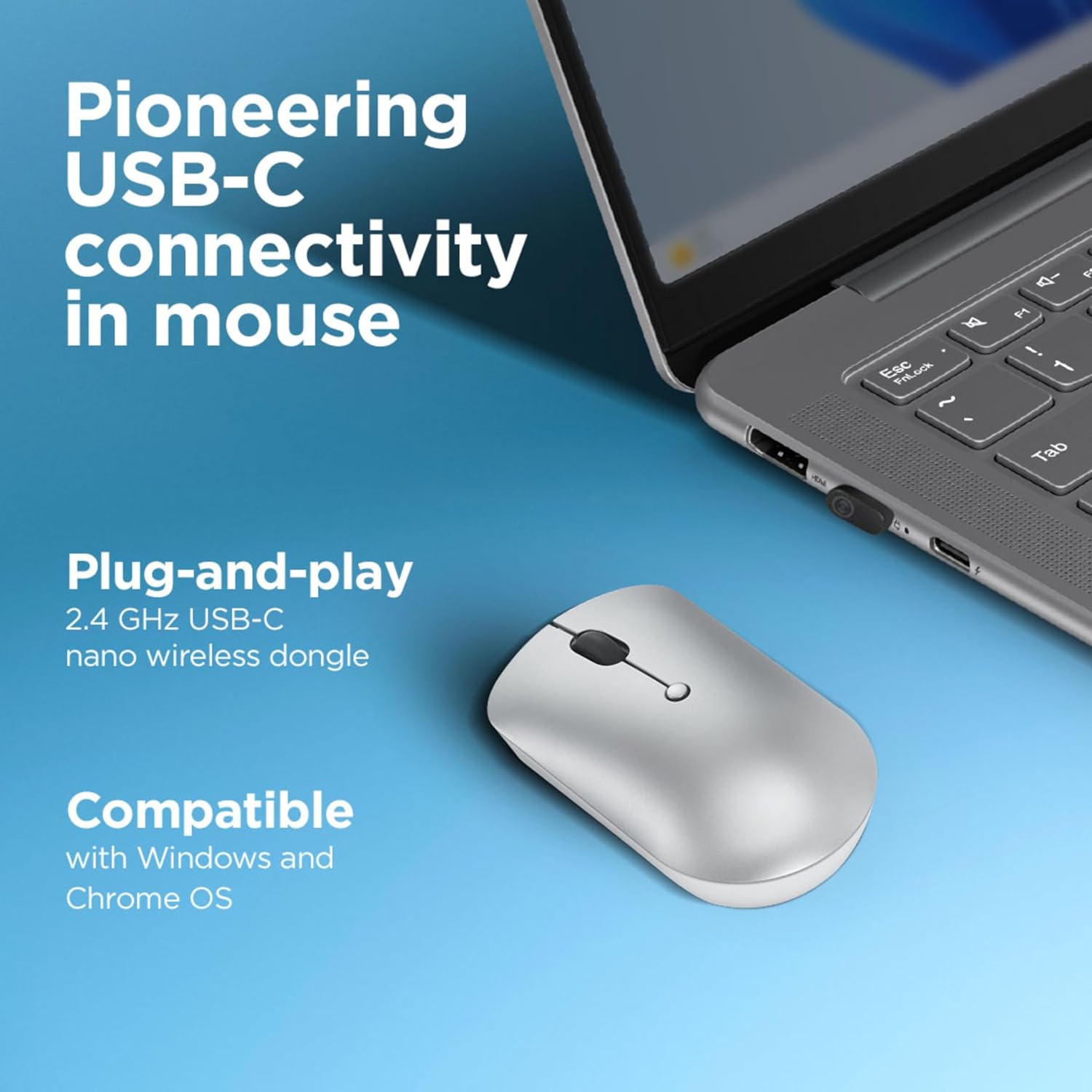
Figure 3: Connecting the USB-C receiver to a laptop.
Operating Instructions
Basic Functions
The Lenovo 540 Wireless Mouse features standard mouse controls:
- Left Button: Primary click function.
- Right Button: Secondary click function (context menu).
- Scroll Wheel: Scroll up or down, and acts as a middle click button.

Figure 4: Labeled components of the Lenovo 540 Wireless Mouse.
Adjusting DPI Sensitivity
The mouse features a DPI button located on the top surface, allowing you to adjust cursor sensitivity on the fly. Press the DPI button to cycle through the available settings:
- 800 DPI: Lower sensitivity for precise control.
- 1600 DPI: Standard sensitivity (default).
- 2400 DPI: Higher sensitivity for faster cursor movement.

Figure 5: DPI adjustment levels for the mouse.
Low Battery Indicator
A small LED indicator on the mouse will illuminate or flash to signal when the battery level is low, prompting you to replace the AA battery.
Maintenance
Cleaning the Mouse
To maintain optimal performance and hygiene, clean your mouse regularly:
- Disconnect the mouse from your computer.
- Use a soft, lint-free cloth lightly dampened with water or a mild cleaning solution.
- Wipe the surface of the mouse. Avoid getting moisture into openings.
- For the optical sensor, use a dry cotton swab to gently remove any dust or debris.
Battery Replacement
When the low battery indicator activates, replace the AA battery by following the steps outlined in the "Installing the Battery" section.
Troubleshooting
If you encounter issues with your Lenovo 540 Wireless Mouse, try the following solutions:
- Mouse not responding:
- Ensure the battery is correctly installed and not depleted. Replace if necessary.
- Verify the USB-C receiver is securely plugged into a working USB-C port on your computer.
- Try plugging the receiver into a different USB-C port.
- Restart your computer.
- Erratic cursor movement:
- Clean the optical sensor on the underside of the mouse.
- Ensure you are using the mouse on a suitable surface (non-reflective, opaque).
- Check for any interference from other wireless devices.
- Connection issues:
- Move the mouse closer to the USB-C receiver.
- Ensure there are no large metal objects between the mouse and the receiver that could block the signal.
Specifications
| Brand | Lenovo |
| Model | 540 |
| Connectivity Technology | 2.4 GHz Wireless (USB-C Receiver) |
| Movement Detection Technology | Optical |
| DPI Settings | 800, 1600, 2400 |
| Battery Type | 1 x AA Battery |
| Battery Life | Up to 18 months |
| Weight | 55 grams |
| Dimensions (Approx.) | Length: 96mm, Height: 35mm |
| Color | Cloud Grey |

Figure 6: Approximate dimensions of the Lenovo 540 Wireless Mouse.
Warranty and Support
Lenovo products are backed by a limited warranty. For detailed warranty information, please refer to the warranty card included with your product or visit the official Lenovo support website. For technical assistance, troubleshooting, or to contact customer service, please visit support.lenovo.com.


