
1. Product Overview
The Symcode W81 RFID card reader is designed for identifying animal tags and various RFID cards. It utilizes passive radio frequency technology in RFID low frequency full duplex (FDX-B) format. This reader complies with the ISO 11784/5 international standard protocol, operating at 134.2KHz, and also supports 125KHz frequencies. It can recognize EMID and FDX-B format tags, as well as 1326 family proximity cards. The W81 is a HID USB device, offering plug-and-play functionality without requiring additional drivers.
It is widely applicable in animal management, fish management, and automatic feeding equipment. The device features configurable output formats, buzzer control, and QW/AZERTY keyboard layout options.

Image: The Symcode W81 RFID Card Reader, showcasing its sleek design and the central scanning area.
2. Package Contents
- Symcode W81 RFID Card Reader Writer
- USB Communication Cable
- (Optional) Software for output format configuration (contact manufacturer for download)
3. Setup Instructions
- Connect the Device: Connect one end of the provided USB data cable to the communication port on the Symcode W81 card reader.
- Connect to Computer: Connect the other end of the USB data cable to an available USB port on your computer.
- Initialization: Upon connection, the card reader will perform a self-test and initialization, indicated by an audible beep.
- Ready State: The indicator light on the card reader will turn "blue," signifying that the device is powered on and ready to scan cards.

Image: The Symcode W81 RFID Card Reader connected to a computer via its USB cable, illustrating the simple plug-and-play setup.
4. Operating Instructions
The Symcode W81 operates as a keyboard emulation device, meaning it does not require specific drivers for basic functionality. When a compatible RFID card or tag is presented to the reader, the data will be output directly to the active cursor position on your computer, as if typed from a keyboard.
- Card Placement: Hold the RFID card or animal tag within the reading distance of the device (typically 0-150mm).
- Reading Indication: The "green" status indicator light will illuminate, and a beep will sound, confirming a successful read.
- Data Output: The card's ID number will appear in any open text field on your computer (e.g., Notepad, Word document, spreadsheet, or specific application).
- Supported Card Types: The reader supports EMID, FDX-A, FDX-B, and 1326 family proximity cards.

Image: The Symcode W81 RFID Card Reader actively scanning an animal tag, demonstrating its primary function in animal identification.
4.1. Output Format Configuration
The device offers configurable output formats, buzzer enable/disable, and QW/AZERTY keyboard layout options. To customize these settings, dedicated software is required. Please contact Symcode customer support for information on obtaining this software and detailed instructions for its use.

Image: The Symcode W81 RFID Card Reader showcasing its broad compatibility with various operating systems such as Windows, Linux, and Android.
5. Maintenance
To ensure the longevity and optimal performance of your Symcode W81 RFID Card Reader, follow these maintenance guidelines:
- Cleaning: Use a soft, dry cloth to clean the exterior of the device. Avoid using abrasive cleaners, solvents, or harsh chemicals, as these can damage the casing.
- Storage: Store the device in a cool, dry place away from direct sunlight and extreme temperatures when not in use.
- Handling: Handle the device with care. Avoid dropping it or subjecting it to strong impacts.
- Cable Care: Ensure the USB cable is not bent sharply or subjected to excessive strain, which can damage the internal wires.
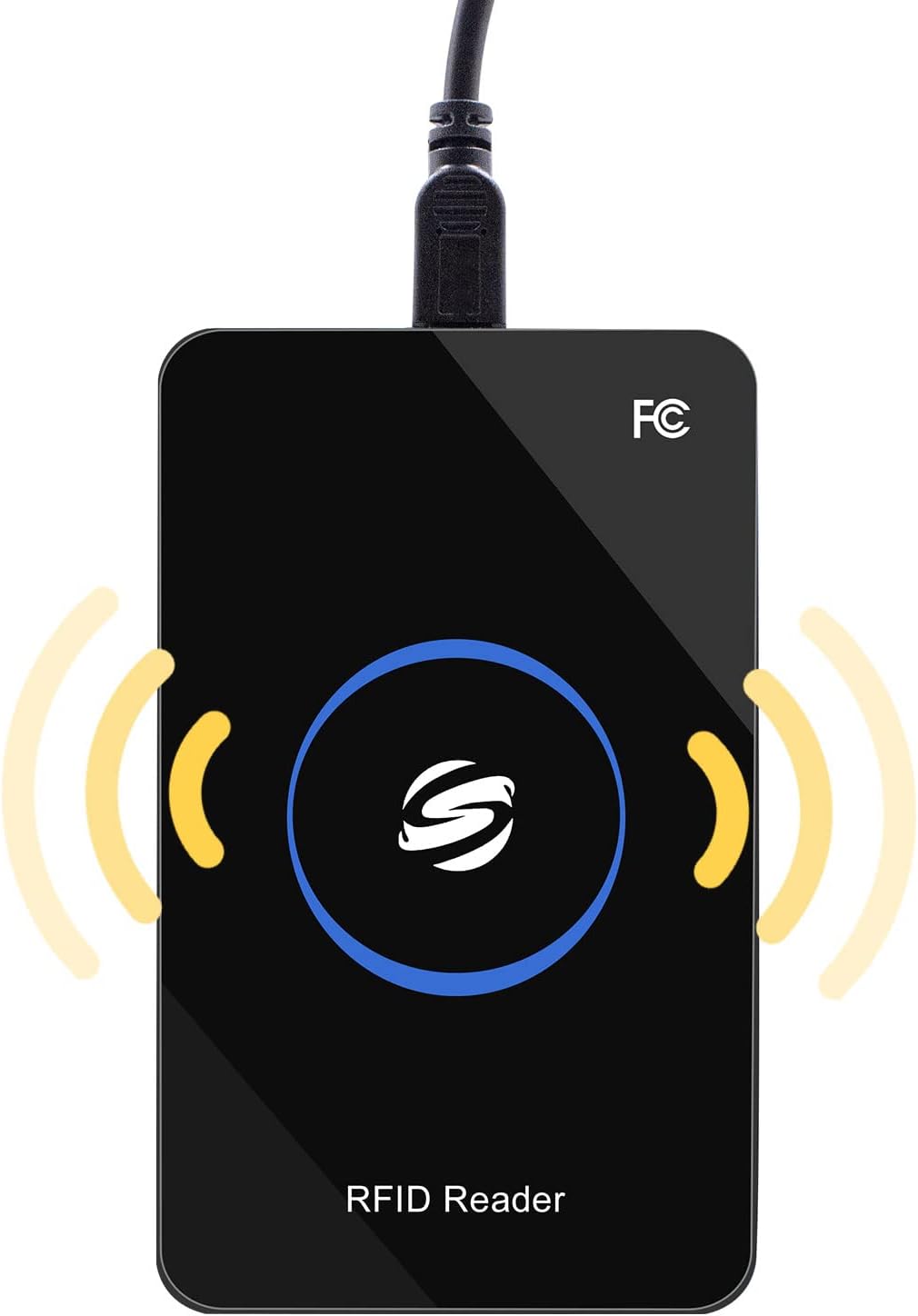
Image: A close-up view of the Symcode W81 RFID Card Reader, highlighting its premium design and robust construction.
6. Troubleshooting
| Problem | Possible Cause | Solution |
|---|---|---|
| Device not recognized / No power indicator | USB cable not properly connected or faulty USB port. | Ensure the USB cable is securely connected to both the reader and the computer. Try a different USB port or a different USB cable. |
| No data output when scanning a card | Card not compatible, card too far from reader, or no active text field. | Verify the card type is supported (EMID, FDX-A, FDX-B, 1326 family). Ensure the card is within 0-150mm reading distance. Click into a text field (e.g., Notepad) to ensure the cursor is active. |
| Incorrect data output / Keyboard layout issues | Incorrect keyboard layout setting or output format. | If you require a specific keyboard layout (e.g., AZERTY) or output format, you will need the configuration software. Contact Symcode support for assistance. |
| Buzzer not working or too loud | Buzzer disabled or settings need adjustment. | The buzzer can be controlled via the configuration software. Contact Symcode support for details on adjusting these settings. |
7. Specifications
| Feature | Detail |
|---|---|
| Working Frequency | 125KHz / 134.2KHz |
| Communication Interface | USB |
| Card Reader Type | EMID, FDX-A, FDX-B, 1326 Family Proximity Cards |
| Operating Temperature | -20℃ ~ 70℃ (-4°F ~ 158°F) |
| Operating Voltage | 5V |
| Working Current | 100mA |
| Reading Distance | 0 ~ 150mm (varies with tag type) |
| Card Reading Time | <100ms |
| Card Reading Speed | 0.2s |
| Time Between Two Reads | 0.5s |
| Dimensions | 105mm × 65mm × 15mm (4.13in × 2.56in × 0.59in) |
| Weight | Approx. 120g (4.23 oz) |
| Operating System Compatibility | Win XP, Win CE, Win 7, Win 10, Linux, Vista, Android, MacOS |
| Status Indicator | 2-color LED (Blue: Power, Green: Status) |
| Built-in Horn | Buzzer (controllable) |

Image: The Symcode W81 RFID Card Reader displaying its physical dimensions, providing a clear understanding of its size.
8. Warranty and Support
Symcode is committed to providing quality products and customer satisfaction. For specific warranty information regarding your W81 RFID Card Reader, please refer to the documentation included with your purchase or contact Symcode customer service directly.
8.1. Customer Support
If you encounter any issues, have questions about product functionality, or require the configuration software, please reach out to Symcode customer support. They can provide assistance with troubleshooting, software downloads, and custom output format requests.
For support, please visit the official Symcode website or use the contact information provided with your product. You can also refer to the Symcode Brand Store on Amazon for additional resources.