
1. Introduction and Overview
The HP t430 Thin Client is a versatile, cloud-first device designed for desktop virtualization and cloud-based applications. It offers an intuitive experience for users and simplifies maintenance for IT administrators. Its compact design and efficient processing power contribute to a modern computing experience.
Key features include:
- Optimized Performance: Experience responsive performance with the Intel Celeron N4020 processor, operating at up to 2.8 GHz.
- Flexible Operating Systems: Available with Linux-based HP ThinPro or Windows 10 IoT Enterprise for Thin Clients.
- Efficient Memory: Equipped with 4 GB DDR4 SDRAM for smooth operation.
- Integrated Graphics: Features Intel UHD Graphics 600, supporting up to 4K display resolution.
- Comprehensive Connectivity: Includes USB-C for power, audio, and data, DisplayPort, HDMI, Gigabit Ethernet, and optional Wi-Fi.
- Compact and Adaptable Design: A sleek profile with a built-in VESA mount allows for flexible placement, including mounting behind a display.

Image 1.1: Front view of the HP t430 Thin Client, showcasing its compact design and front USB port.
2. Setup Guide
This section outlines the steps to set up your HP t430 Thin Client.
2.1. Unpacking and Contents
Carefully unpack your HP t430 Thin Client and verify that all components are present:
- HP t430 Thin Client unit
- Power Adapter
- HP USB Slim Business Keyboard
- Mouse
2.2. Connecting Peripherals
- Connect Display: Use a DisplayPort or HDMI cable to connect your monitor to the corresponding port on the thin client. The device supports up to two displays simultaneously.
- Connect Keyboard and Mouse: Plug the USB keyboard and mouse into any available USB ports on the thin client.
- Connect Network: For a wired connection, connect an Ethernet cable from your network router or switch to the LAN port on the thin client. If using Wi-Fi (optional), ensure your device has the integrated Wi-Fi module.
- Connect Power: Plug the power adapter into the thin client's power input, then connect the power adapter to an electrical outlet.

Image 2.1: Rear view of the HP t430 Thin Client, illustrating the various connectivity ports including USB, DisplayPort, HDMI, and Ethernet.
2.3. Initial Power On
After connecting all peripherals and power, press the power button on the thin client. The device will boot up, and you will be presented with the operating system interface (HP ThinPro or Windows 10 IoT Enterprise).

Image 2.2: The HP t430 Thin Client positioned on a desk, connected to a monitor, keyboard, and mouse, ready for use.
3. Operating Instructions
Your HP t430 Thin Client is designed for efficient operation in virtualized and cloud environments.
3.1. Power On/Off
- To Power On: Press the power button located on the front of the device.
- To Power Off: Use the shutdown option within your operating system (HP ThinPro or Windows 10 IoT Enterprise). Avoid direct power disconnection during operation to prevent data corruption.
3.2. Operating System Navigation
Depending on your configuration, your thin client will run either HP ThinPro or Windows 10 IoT Enterprise. Familiarize yourself with the respective operating system's interface for accessing applications, settings, and network resources.
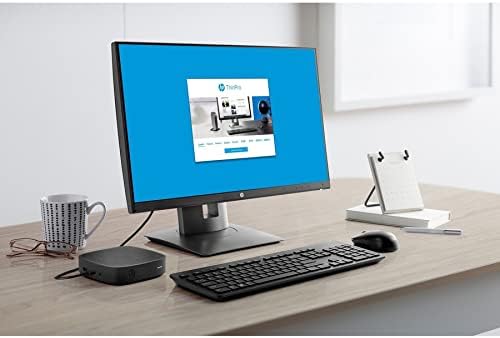
Image 3.1: A monitor connected to the HP t430 Thin Client, displaying the user interface of the HP ThinPro operating system.
3.3. Connecting to Virtual Desktops and Cloud Applications
The HP t430 Thin Client is pre-configured to connect to various virtualization platforms such as Citrix, VMware, and Microsoft RDP. Consult your IT administrator for specific connection details and credentials. Web browsers are also available for accessing cloud-based applications directly.
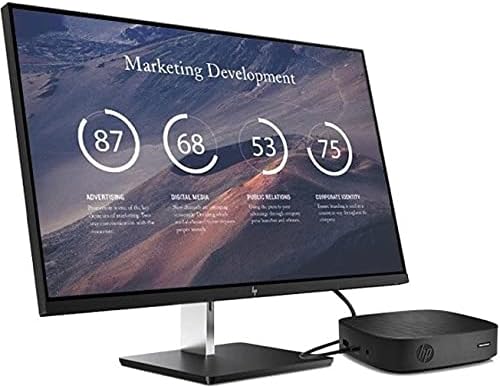
Image 3.2: The HP t430 Thin Client in a professional setting, connected to a monitor displaying a business-oriented dashboard with charts and data.
4. Maintenance
Proper maintenance ensures the longevity and optimal performance of your HP t430 Thin Client.
4.1. Cleaning
- Exterior: Use a soft, lint-free cloth lightly dampened with water or a mild, non-abrasive cleaner to wipe the exterior surfaces. Avoid harsh chemicals.
- Ports: Ensure ports are free of dust and debris. Use compressed air if necessary, holding the can upright to prevent liquid discharge.
4.2. Software Updates
Regularly apply operating system and security updates as recommended by HP or your IT department. HP manageability software can assist in deploying and managing these updates efficiently.
4.3. Environmental Considerations
Operate the thin client in a well-ventilated area, away from direct sunlight, excessive heat, and moisture. Ensure proper airflow around the device to prevent overheating.
5. Troubleshooting
This section provides solutions for common issues you might encounter.
5.1. No Power
- Verify the power adapter is securely connected to both the thin client and a working electrical outlet.
- Test the electrical outlet with another device to ensure it is functional.
- Ensure the power button on the thin client has been pressed.
5.2. No Display
- Check that the display cable (DisplayPort or HDMI) is securely connected to both the thin client and the monitor.
- Ensure the monitor is powered on and set to the correct input source.
- Try connecting the thin client to a different monitor or using a different display cable if available.
5.3. Network Connectivity Issues
- Wired Connection: Verify the Ethernet cable is properly connected to the thin client and the network router/switch. Check the network status lights on the thin client and router.
- Wi-Fi Connection: Ensure the Wi-Fi module is enabled in the operating system settings. Confirm you are connected to the correct network and have entered the password correctly.
- Restart the thin client and your network equipment (router/modem).
For persistent issues, refer to the HP support website or contact your IT administrator.
6. Specifications
Detailed technical specifications for the HP t430 Thin Client.
| Feature | Specification |
|---|---|
| Brand | HP |
| Model Name | t430 |
| Model Number | 486Z0UT#ABA |
| Operating System | HP ThinPro 64, Windows 10 IoT Enterprise for Thin Clients |
| Processor | Intel Celeron N4020 Dual-core (2 Core) |
| Processor Speed | 1.10 GHz (up to 2.8 GHz burst) |
| RAM Memory | 4 GB DDR4 SDRAM |
| Storage | 32 GB SSD |
| Graphics | Intel UHD Graphics 600 |
| Video Output | DisplayPort, HDMI, USB-C |
| Max Display Resolution | 3840 x 2160 pixels (4K) |
| Connectivity | Gigabit Ethernet, Wi-Fi (optional) |
| USB Ports | 5 Total (including USB-C) |
| Dimensions (H x W x D) | 19.6 x 8.7 x 5 inches (approximate) |
| Weight | 4.3 Pounds |
| Color | Black |
| Compliance | Energy Star, RoHS |
7. Warranty Information
The HP t430 Thin Client comes with a 3-year manufacturer's warranty. Please retain your proof of purchase for warranty claims. For detailed terms and conditions, refer to the warranty documentation included with your product or visit the official HP support website.
8. Support
For further assistance, technical support, or to download drivers and documentation, please visit the official HP support website:
You may also contact HP customer service directly through the contact information provided on their website.


